The Ripple Tool in Premiere Pro allows you to make fast and precise video edits by changing the length of a clip while automatically adjusting the surrounding clips to fill in the gap. It is one of the top tools for efficient video editing in Premiere Pro.
With the Ripple Tool, you can easily trim clips, match shots, and maintain continuity in your project. By selecting the Ripple Tool from the tools panel and dragging either end of a clip, you can quickly lengthen or shorten it, and the adjacent clips will automatically shift accordingly.
This tool is a must-have for any video editor looking to streamline their workflow and create seamless video transitions in Premiere Pro.
Understanding The Ripple Tool
What is the Ripple Tool in Premiere Pro and its importance in video editing?
The Ripple Tool in Premiere Pro is a powerful feature that allows video editors to quickly and efficiently manipulate the content of their timeline. It is an essential tool for maintaining the flow and continuity of a video project. By making precise edits to clips, the Ripple Tool ensures that changes ripple through the timeline, automatically adjusting the duration of all subsequent clips.
Exploring the functionality and features of the Ripple Tool
The Ripple Tool offers several important functionalities that simplify the video editing process. Firstly, it allows editors to easily trim and extend clips, ensuring seamless transitions between scenes. By dragging the endpoints of a clip, you can adjust its duration while keeping the rest of the timeline intact. This non-destructive editing approach provides flexibility and efficiency.
Additionally, the Ripple Tool makes it effortless to maintain the synchrony between audio and video elements. When making edits to a clip’s duration, the tool automatically modifies the audio to match the new timing. This eliminates the hassle of separate adjustments, saving valuable time during the editing process.
The Ripple Tool also proves useful when modifying the position of clips in the timeline. By dragging a clip to a new location, all subsequent clips adjust accordingly, ensuring a smooth transition without leaving any gaps or overlaps. This feature is particularly beneficial when rearranging scenes or reordering clips.
How to access the Ripple Tool in Premiere Pro
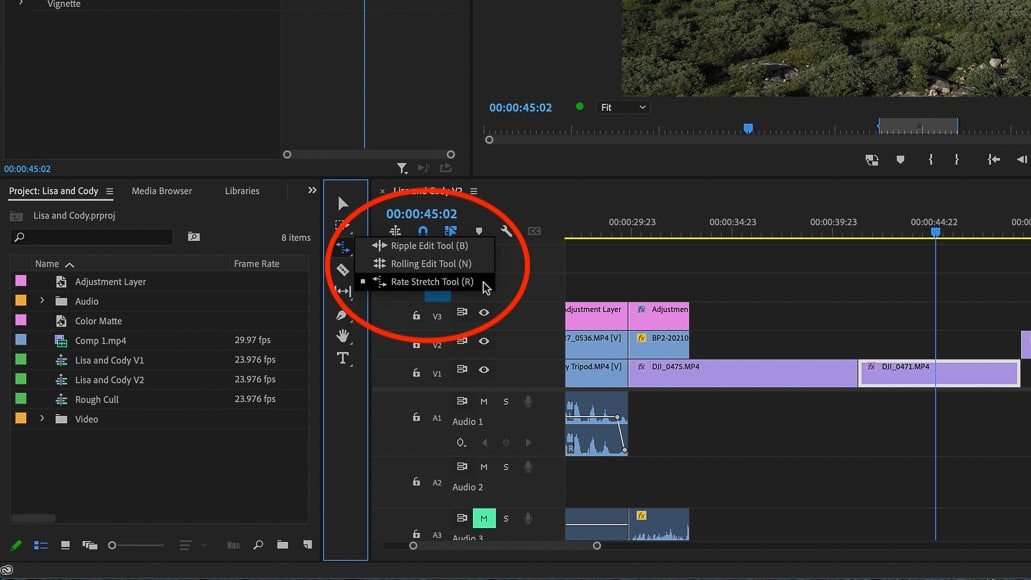
Accessing the Ripple Tool in Premiere Pro is easy and straightforward. To activate the tool, follow these steps:
- Select the Selection Tool from the Tools panel located on the left-hand side of the interface.
- Locate the Ripple Tool icon, represented by two arrows pointing in opposite directions.
- Click on the Ripple Tool icon to select it.
Once the Ripple Tool is selected, you can start using it to make precise edits to your clips, adjusting their duration, position, and maintaining overall synchronization throughout the timeline. Remember to turn off snapping if desired by going to the Edit menu and deselecting the “Snap” option.
In conclusion, the Ripple Tool is an indispensable tool in Premiere Pro that every video editor should be familiar with. Its ability to make ripple edits, adjust clip duration, maintain sync between audio and video, and rearrange scenes effortlessly makes it a powerful asset in achieving professional-quality video editing results.
Mastering The Ripple Edit Menu
The Ripple Edit menu in Adobe Premiere Pro is a powerful tool that allows you to make precise adjustments to your video clips. To make the most out of this feature, it’s essential to understand the various options available and how to navigate them effectively. In this article, we will provide a comprehensive overview of the Ripple Edit menu, delve into the different options it offers, and discuss strategies for utilizing it efficiently.
A comprehensive overview of the Ripple Edit menu in Premiere Pro
The Ripple Edit menu in Premiere Pro provides a range of essential tools that enable smooth and seamless video editing. By mastering this menu, you can enhance the overall flow and continuity of your video project. Here are some key features you’ll find in the Ripple Edit menu:
- Ripple Edit Tool: This tool allows you to adjust the duration of a clip while automatically shifting all subsequent clips to maintain overall timeline continuity.
- Trim End Point: With this option, you can trim the end point of a clip, effectively shortening its duration without affecting the succeeding clips.
- Matching Shot to Shot: Premiere Pro’s Ripple Edit menu also enables you to match the duration of two clips, making it easy to maintain visual consistency throughout your project.
- Turning off Snapping: By disabling snapping, you have the freedom to make precise adjustments to clips without aligning them to a specific grid or marker.
- Matching Continuity: This option ensures that any changes you make to a clip’s duration or placement are seamlessly integrated into the surrounding footage, maintaining the flow of your video.
Understanding the various options available in the Ripple Edit menu
Now let’s take a closer look at each of the options available in the Ripple Edit menu:
| Option | Description |
|---|---|
| Ripple Edit Tool | This tool allows you to adjust the duration of a clip, automatically shifting subsequent clips to maintain continuity. |
| Trim End Point | Trim the end point of a clip, shortening its duration without affecting succeeding clips. |
| Matching Shot to Shot | Match the duration of two clips, ensuring visual consistency throughout your project. |
| Turning off Snapping | Disable snapping to make precise adjustments without aligning clips to a specific grid. |
| Matching Continuity | Ensure changes made to a clip’s duration or placement integrate seamlessly into the surrounding footage. |
How to navigate and utilize the Ripple Edit menu effectively
Now that you have an understanding of the options available in the Ripple Edit menu, let’s explore strategies for navigating and utilizing it effectively:
- Start by selecting the Ripple Edit Tool, the primary tool for adjusting clip durations and maintaining overall timeline continuity.
- To trim the end point of a clip, use the Trim End Point option. This allows you to remove unwanted frames without affecting the following clips.
- Matching Shot to Shot is a valuable option when you want to maintain visual consistency between two clips of different durations.
- When making precise adjustments, consider turning off snapping to have complete control over the placement and duration of your clips.
- Ensure that your changes integrate seamlessly into the surrounding footage by applying Matching Continuity.
By mastering these techniques, you’ll be able to navigate and utilize the Ripple Edit menu in Adobe Premiere Pro confidently, resulting in seamless video edits.
Keyboard Shortcuts For The Ripple Tool
The Ripple Tool in Adobe Premiere Pro is a powerful editing feature that allows you to make quick and seamless changes to your video clips. To enhance your editing workflow and save time, it’s important to familiarize yourself with the essential keyboard shortcuts for the Ripple Tool. In this section, we will explore the most important shortcuts, how to customize them, and some tips and tricks for maximizing your productivity with the Ripple Tool.
Essential keyboard shortcuts for the Ripple Tool in Premiere Pro
Mastering the keyboard shortcuts for the Ripple Tool can greatly speed up your editing process. Here are some essential shortcuts to get you started:
| Shortcut | Description |
|---|---|
| B | Select the Ripple Tool |
| Shift + B | Cycle through the different Ripple Tool variations |
| A | Select the Selection Tool |
| Alt/Opt + drag | Perform a ripple trim on selected clips |
| Ctrl/Cmd + Shift + drag | Perform a ripple trimming operation, extending or shortening clips while moving other clips in the timeline |
How to customize keyboard shortcuts for efficient editing workflow
Customizing keyboard shortcuts can further enhance your efficiency and make the editing process more intuitive. Here’s how you can customize Ripple Tool shortcuts in Premiere Pro:
- Go to the Keyboard Shortcuts menu, which can be accessed by clicking on Edit > Keyboard Shortcuts or by pressing Alt/Opt + Shift + K.
- In the search bar, type “Ripple Tool” to filter the commands related to the Ripple Tool.
- Select the command you want to customize, and click on the current shortcut next to it.
- Enter your desired shortcut combination, or click on Clear to remove the shortcut.
- Repeat this process for other Ripple Tool commands you wish to customize.
- Click on OK to save your changes.
Tips and tricks for maximizing productivity with the Ripple Tool shortcuts
Here are some additional tips and tricks to help you make the most out of Ripple Tool shortcuts:
- Enable snapping: Press S to toggle snapping on and off. Snapping helps align clips precisely during ripple editing.
- Match shot to shot: Press Shift + = to automatically apply the duration of the previous/next selected clip to the currently selected clip, ensuring seamless continuity.
- Use the Ripple Edit Menu: Explore the Ripple Edit Menu by pressing Shift + R. It provides quick access to essential ripple editing commands.
- Combine with other editing tools: Experiment with combining Ripple Tool shortcuts with other editing tools like the Selection Tool (A) and the Rolling Edit Tool (N) for more advanced editing capabilities.
By mastering the keyboard shortcuts for the Ripple Tool, customizing them to suit your workflow, and utilizing these tips and tricks, you can significantly increase your editing efficiency and productivity in Adobe Premiere Pro.
Practical Application Of The Ripple Edit Tool
Practical Application of the Ripple Edit Tool
Step-by-step guide on using the Ripple Edit Tool to trim video clips
Trimming video clips in Adobe Premiere Pro can be easily accomplished using the Ripple Edit Tool. This tool allows you to remove unwanted sections from your video, ensuring that your final product is concise and visually appealing. Follow these steps to effectively trim your video clips using the Ripple Edit Tool:
- Select the Ripple Edit Tool from the toolbar on the left-hand side of the timeline.
- Click and drag the left or right edge of the clip you want to trim to adjust its duration. The clips to the right of the trimmed clip will automatically shift to fill the gap.
- Continue making adjustments to other clips in a similar manner until you have achieved the desired trim for your video.
- Preview your trimmed video clip to ensure it flows smoothly.
Utilizing the Ripple Edit Tool for precise timing adjustments and continuity
The Ripple Edit Tool in Adobe Premiere Pro is not only useful for trimming video clips but also for making precise timing adjustments. This tool allows you to maintain the continuity of your video by adjusting the duration of individual clips without affecting the overall length of your project. Follow these steps to utilize the Ripple Edit Tool for timing adjustments:
- Select the Ripple Edit Tool from the toolbar on the left-hand side of the timeline.
- Click and drag the left or right edge of the clip you want to adjust to lengthen or shorten it.
- The adjacent clips will automatically adjust their positions to maintain visual continuity.
- Continue making timing adjustments to other clips as necessary.
Matching shots seamlessly using the Ripple Tool for improved visual flow
The Ripple Edit Tool can be a valuable asset for enhancing the visual flow of your video by seamlessly matching shots. This tool allows you to make adjustments to individual clips, ensuring a smooth transition between scenes. Follow these steps to match shots using the Ripple Tool:
- Select the Ripple Edit Tool from the toolbar on the left-hand side of the timeline.
- Click and drag the left or right edge of the clip you want to adjust to align it with the previous or next shot.
- Preview the transition to make sure it flows smoothly.
- Repeat this process for other clips in your project to create a visually cohesive video.
Fine-Tuning With The Ripple Tool
Expert Techniques for Fine-Tuning Edits Using the Ripple Tool
When it comes to video editing in Adobe Premiere Pro, the Ripple Tool is an essential tool for fine-tuning your edits. With its ability to quickly adjust the timing and transitions of your clips, the Ripple Tool can take your editing skills to the next level. In this section, we will explore expert techniques for using the Ripple Tool effectively.
Tips for Advanced Ripple Edits to Refine Timing and Transitions
To refine the timing and transitions of your edits, consider these tips for advanced ripple edits using the Ripple Tool:
- Trimming the End Point: With the Ripple Tool selected, click and drag the endpoint of a clip to easily shorten or lengthen it. This adjustment will affect the following clips, automatically shifting them to fill in the gap.
- Matching Shot to Shot: By utilizing the Ripple Tool, you can seamlessly match the timing of shots. Click and drag the clips to align them precisely, ensuring a smooth transition between shots.
- Turning Off Snapping: Sometimes, you may want to make precise adjustments without the clips snapping together. To turn off snapping, simply go to the timeline and disable the snapping feature. This allows for more control and precision when using the Ripple Tool.
Using the Ripple Tool in Combination with Other Editing Tools for Enhanced Control
To further enhance your control over the editing process, consider combining the Ripple Tool with other editing tools in Adobe Premiere Pro. Here are some useful combinations to try:
- Ripple Trim with Selection Tool: Use the Ripple Trim tool in conjunction with the Selection Tool to easily trim clips and make quick adjustments to the timing.
- Ripple Edit with Rolling or “Roll” Tool: For more complex edits, combine the Ripple Edit tool with the Rolling or “Roll” Tool. This allows you to shorten one clip and lengthen another, while maintaining the overall length of the project.
By utilizing these combinations, you can take advantage of the unique features of each tool and achieve more precise and professional-looking edits in your videos.
Enhancing Efficiency With Snapping
## Understanding Snapping and Its Role in Video Editing Snapping is a powerful feature in video editing that streamlines the editing process by automatically aligning clips and elements to specific points on the timeline. It ensures precision and accuracy, making it easier to achieve smooth transitions, match action, and maintain continuity in your video. When enabled, snapping automatically locks the position of clips, markers, and keyframes to specific points, such as the start or end of a clip, the playhead, or other objects on the timeline. This feature is particularly useful when you need to align clips perfectly, trim them with precision, or perform ripple edits. ## How to Turn Off Snapping for Greater Flexibility with the Ripple Tool While snapping is a handy feature, there may be times when you want more flexibility and control over your edits. Fortunately, Premiere Pro allows you to turn off snapping easily. To turn off snapping, follow these steps: 1. Open Adobe Premiere Pro and go to the “Preferences” menu. 2. Select the “Timeline” option. 3. In the “Timeline” preferences, locate the “Snap Playhead to Clips” option. 4. Uncheck the box next to this option to disable snapping. With snapping turned off, you have the freedom to make edits without the constraints of automatic alignment. This can be particularly useful when using the Ripple Tool. ## Harnessing the Power of Snapping with the Ripple Tool for Efficient Editing The Ripple Tool is a versatile editing tool in Premiere Pro that allows you to make quick and precise edits to your video clips. When combined with snapping, the Ripple Tool becomes even more powerful, enhancing efficiency in your editing workflow. When snapping is enabled, the Ripple Tool automatically snaps clips to adjacent clips, maintaining the overall length of the timeline. This means that when you trim or move a clip using the Ripple Tool, all subsequent clips will shift accordingly, ensuring seamless continuity. By harnessing the power of snapping with the Ripple Tool, you can make edits more efficiently, saving time and effort. Whether you’re trimming clips, rearranging scenes, or fine-tuning your sequence, snapping and the Ripple Tool work hand in hand to make your editing process smoother and more precise. In conclusion, understanding snapping and its role in video editing is crucial for enhancing efficiency in Premiere Pro. While snapping can significantly streamline the editing process, you also have the flexibility to turn it off when necessary. Don’t forget to harness the power of snapping with the Ripple Tool for efficient editing, making use of this dynamic duo to achieve professional results in your video projects.
Expanding Editing Capabilities With The Rolling Edit Tool
The Rolling Edit Tool is a powerful feature in Adobe Premiere Pro that allows editors to make precise adjustments to their video timeline by changing the edit points between clips. This tool can be used in conjunction with the Ripple Tool to further enhance your editing capabilities and create complex edits with ease.
Introduction to the Rolling Edit Tool and its benefits
The Rolling Edit Tool in Premiere Pro is a highly valuable tool for any video editor looking to make seamless transitions and adjustments in their timeline. Unlike the Ripple Tool, which changes the overall length of the project, the Rolling Edit Tool retains the overall length of the project while making adjustments between adjacent clips.
By dragging the edit point between two clips with the Rolling Edit Tool, you can simultaneously shorten one clip and lengthen the other clip by the same number of frames. This ensures that the overall length of your video remains unchanged, while allowing precise control over the timing and pacing of your edits.
The benefits of using the Rolling Edit Tool include:
- Creating smooth and seamless transitions between adjacent clips
- Precisely adjusting the timing of cuts without affecting the overall length of the project
- Maintaining continuity and flow in your video edits
- Quickly and efficiently making adjustments to your timeline
Differentiating between the Ripple Tool and the Rolling Edit Tool
While the Ripple Tool and the Rolling Edit Tool may seem similar at first glance, they serve different purposes in the editing process.
The Ripple Tool is used to change the overall length of the project by moving edit points and affecting adjacent clips. It shifts clips in the timeline to accommodate the changes made, resulting in a ripple effect throughout the timeline.
On the other hand, the Rolling Edit Tool is used to adjust the timing between adjacent clips without changing the overall length of the project. It allows for precise control over the cut point by simultaneously shortening one clip and lengthening the other.
How to use the Rolling Edit Tool in conjunction with the Ripple Tool for complex edits
To create complex edits and take full advantage of the editing capabilities in Premiere Pro, you can use the Rolling Edit Tool in conjunction with the Ripple Tool.
Here’s how you can use these tools together:
- First, select the Ripple Tool from the toolbar on the left-hand side of the timeline.
- Use the Ripple Tool to make the necessary adjustments to the overall length of the project by dragging edit points and affecting adjacent clips.
- Next, switch to the Rolling Edit Tool by selecting it from the toolbar.
- Drag the edit points between adjacent clips with the Rolling Edit Tool to fine-tune the timing and pacing of your edits.
- Continue using both tools interchangeably to achieve the desired result, ensuring that each adjustment you make with the Rolling Edit Tool is complemented by the ripple effect produced by the Ripple Tool.
By using these tools together, you can expand your editing capabilities and create highly sophisticated edits that maintain precise control over the timing, pacing, and overall length of your video project.
In conclusion, the Rolling Edit Tool is a powerful feature in Premiere Pro that allows for precise adjustments between adjacent clips without affecting the overall length of the project. By using the Rolling Edit Tool in conjunction with the Ripple Tool, editors can expand their editing capabilities and create complex edits with ease. So go ahead and explore the possibilities of these tools to take your video editing skills to the next level!
Credit: shotkit.com
Frequently Asked Questions On Ripple Tool Premiere Pro
How Do I Get The Ripple Edit Tool In Premiere Pro?
To get the ripple edit tool in Premiere Pro, follow these steps: 1. Open Premiere Pro and select the timeline where you want to use the ripple edit tool. 2. On the left-hand side of the timeline, click on the ripple edit tool.
3. Click and drag either end of a clip in the timeline to lengthen or shorten it. 4. All the clips to the right will automatically shift to fill in the gap.
What Is The Ripple Tool Used For?
The ripple tool is used in Premiere Pro for fast video editing, allowing you to easily trim and adjust the length of clips.
What Is The Difference Between Ripple And Roll Edit?
The ripple edit tool changes the overall length of the project, while the roll edit tool adjusts the cut point between adjacent clips without changing the project’s length.
What Does A Ripple Edit Do?
The ripple edit tool in Premiere Pro allows you to change the length of a project while automatically adjusting the surrounding clips to fill in the gap. No need to manually shift each clip.
Conclusion
To summarize, the Ripple Tool in Premiere Pro is an essential tool for fast and efficient video editing. It allows users to easily trim and adjust clips, ensuring a seamless flow in the final output. With just a few simple clicks, you can lengthen or shorten clips, automatically shifting all subsequent clips to fill in the gaps.
This tool is particularly useful when you want to maintain the overall length of your project while making specific edits between adjacent clips. By using the Ripple Tool, you can achieve professional-looking videos with smooth transitions and continuity. Whether you’re a beginner or an experienced editor, the Ripple Tool in Premiere Pro is a must-have tool for your video editing workflow.
Save time and enhance the overall quality of your videos by mastering the Ripple Tool in Premiere Pro.