To connect 2 Bluetooth headphones to an Android device, go to the Settings menu, choose Bluetooth, and pair both headphones simultaneously. This allows you to share audio between the two headphones and control the volume individually.
By utilizing the ‘Share Audio’ feature, you can effortlessly connect two Bluetooth headphones to your Android device and enjoy your favorite music or videos simultaneously. This is an ideal solution when you want to share audio content with a friend or family member without disturbing others.
With just a few simple steps, you can easily connect two Bluetooth headphones to your Android device and enhance your audio experience.
Understanding Dual Audio On Android
Understanding Dual Audio on Android
What is Dual Audio?
Dual Audio is a feature on Android devices that allows you to send your media audio to two different Bluetooth devices simultaneously. This means you can use two pairs of headphones or share audio between two different sets of Bluetooth speakers. With Dual Audio, you can easily enjoy your music, movies, or podcasts with a friend without the hassle of sharing a single headphone jack.
How Dual Audio Works on Android
Setting up Dual Audio on your Android device is quite simple:
- Go to Settings on your Android device.
- Select the “Bluetooth” option.
- Pair both of your Bluetooth headphones with your Android device.
- Once you have connected the headphones, go to the “Share Audio” feature.
- Enable the “Share Audio” feature to allow connection with two headphones.
- Now, from the same panel, you can easily adjust the volume on each pair of headphones individually.
By following these steps, you can easily connect and use two Bluetooth headphones simultaneously on your Android device without any hassle.
If you prefer using speakers instead of headphones, Dual Audio also offers the capability to connect and share media audio between two different sets of Bluetooth speakers.
With Dual Audio, you can enhance your audio experience by enjoying your favorite content with a friend or immersing yourself in the stereo effect of multiple speakers in your home or office.
Connecting Two Bluetooth Headphones
Pairing the First Bluetooth Headphone
To connect two Bluetooth headphones to your Android device, start by pairing the first headphone. Follow these steps:
- Go to your Android device’s Settings.
- Select Bluetooth.
- Make sure Bluetooth is enabled by toggling the switch on.
- Put your first headphone in pairing mode. Refer to the headphone’s manual for instructions on how to do this.
- Once the headphone is in pairing mode, it should appear in the list of available devices on your Android device.
- Select the headphone from the list to pair it with your Android device.
- Follow any on-screen prompts that appear to complete the pairing process.
Once the first headphone is successfully paired, you can proceed to pair the second headphone.
Pairing the Second Bluetooth Headphone
To pair the second Bluetooth headphone to your Android device, follow these steps:
- Make sure the first headphone is already paired and connected to your Android device.
- Put the second headphone in pairing mode following the instructions in its manual.
- In your Android device’s Bluetooth settings, tap on the refresh or scan button to search for available devices.
- The second headphone should appear in the list of available devices.
- Select the second headphone from the list to pair it with your Android device.
- Follow any on-screen prompts to complete the pairing process.
Now that both headphones are paired with your Android device, you can enable the Dual Audio mode to use them together.
Enabling Dual Audio Mode
To enable Dual Audio mode on your Android device, follow these steps:
- Go to your Android device’s Settings.
- Select Connections.
- Tap on Bluetooth.
- Find the paired Bluetooth headphones in the list of available devices.
- Tap on the settings icon next to the headphones.
- Enable the Dual Audio or Share Audio option.
Once Dual Audio mode is enabled, you can play media on your Android device and the audio will be streamed simultaneously to both connected Bluetooth headphones. Please note that not all Android devices support Dual Audio mode, so make sure to check if your device is compatible. Now you can enjoy your favorite music, podcasts, or movies with a friend or loved one, each using their own Bluetooth headphone connected to your Android device.
Using Two Bluetooth Headphones Simultaneously
Using Two Bluetooth Headphones Simultaneously
Adjusting Volume for Each Headphone
Once you’ve connected both Bluetooth headphones to your Android device, you can easily adjust the volume for each headphone individually. Here’s how to do it:
- Go to the ‘Settings’ menu on your Android device.
- Select ‘Bluetooth’.
- You will see a list of connected Bluetooth devices. Tap on the settings icon next to each headphone.
- In the settings menu for each headphone, you will find an option to adjust the volume. Simply slide the volume bar to increase or decrease the volume for that specific headphone.
Switching Audio Between Headphones
In order to switch the audio between the two connected Bluetooth headphones, follow these steps:
- Go to the ‘Settings’ menu on your Android device.
- Select ‘Bluetooth’.
- Under the list of connected devices, you will see an option called ‘Share Audio’ (or ‘Dual Audio’ depending on your device).
- Toggle the ‘Share Audio’ switch to enable the feature.
- Now, both headphones will receive the same audio simultaneously.
Troubleshooting Common Issues
If you encounter any issues while using two Bluetooth headphones simultaneously, try the following troubleshooting steps:
- Ensure that both headphones are fully charged.
- Disconnect and reconnect the Bluetooth connection for both headphones.
- Restart your Android device.
- Check if there are any software updates available for your device and headphones, and install them if necessary.
- If the issue persists, try unpairing and pairing the headphones again.
- Make sure that both headphones are compatible with your Android device.
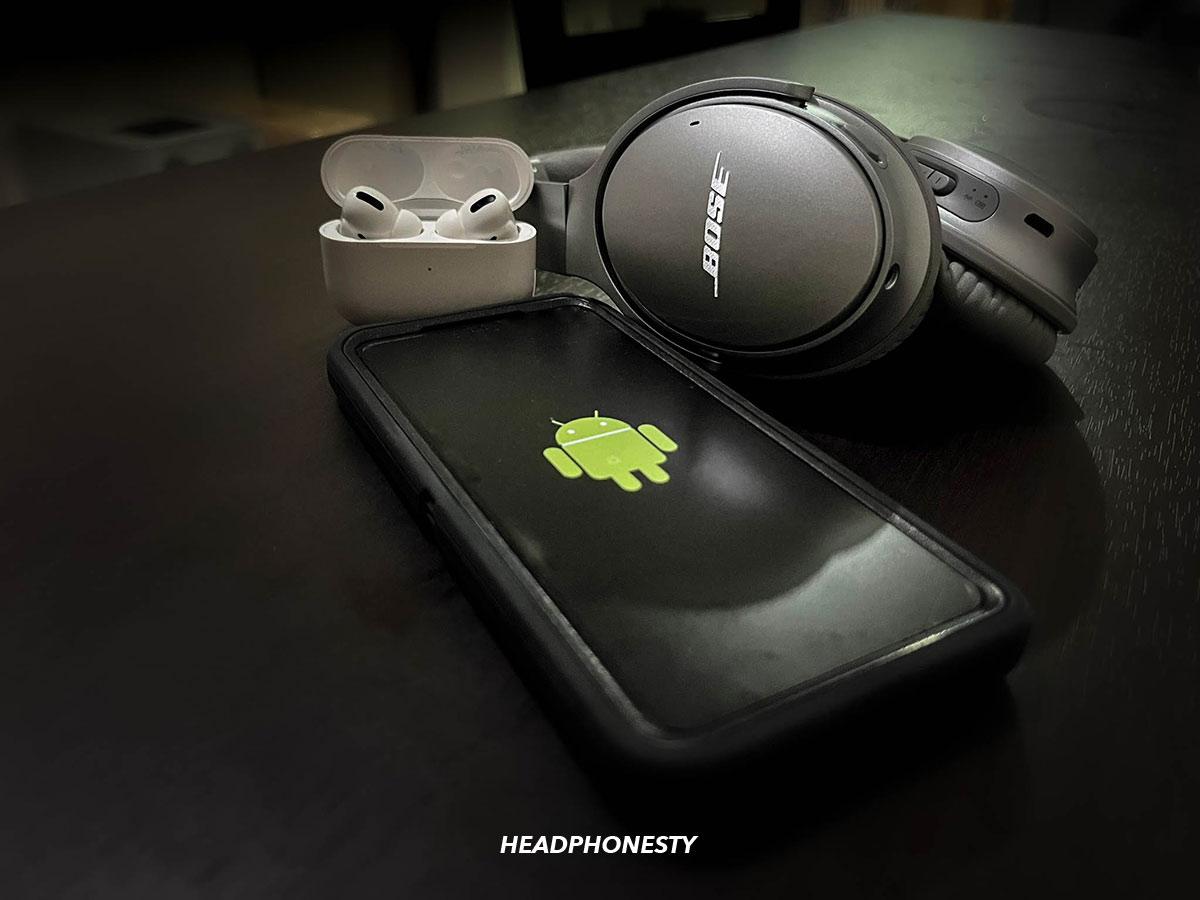
Credit: www.headphonesty.com
Frequently Asked Questions On Connect 2 Bluetooth Headphones To Android
Can You Connect 2 Bluetooth Headphones At The Same Time?
Yes, you can connect 2 Bluetooth headphones at the same time by using the ‘Share Audio’ feature.
Can I Connect Two Bluetooth Devices At Once On Android?
Yes, you can connect two Bluetooth devices at once on Android. Simply go to the settings, select Bluetooth, and connect both devices.
Can You Connect 2 Sets Of Bluetooth Headphones To Samsung?
Yes, you can connect 2 sets of Bluetooth headphones to Samsung. Simply go to the ‘Share Audio’ feature and connect both headphones.
How To Connect 2 Bluetooth Headphones To One Phone In Samsung Phone?
To connect 2 Bluetooth headphones to one Samsung phone, follow these steps: • Go to the Bluetooth settings on your phone. • Pair and connect the first headphone to your phone. • Enable the ‘Share Audio’ feature in the Bluetooth settings.
• Pair and connect the second headphone to your phone. • Both headphones should now be connected and ready to use.
Conclusion
Connecting two Bluetooth headphones to your Android device is a convenient and efficient way to share audio with someone else or enhance your own listening experience. By using the Dual Audio feature available on Samsung devices, you can easily connect two pairs of headphones and even share audio across different sets of Bluetooth speakers.
This can be done by going to the Settings menu and selecting Bluetooth. From there, you can pair the headphones and enable the Dual Audio feature. Once connected, you can adjust the volume on each pair of headphones independently for a personalized listening experience.
If your Android device doesn’t have this feature, you can consider purchasing a multi-point Bluetooth transmitter to connect two Bluetooth devices simultaneously. Whether you want to enjoy music or watch movies together, connecting two Bluetooth headphones to your Android device opens up a world of possibilities.
So go ahead and enjoy your favorite audio content with a friend or loved one!