Yes, you can connect Bluetooth headphones to the PS5. Wireless headphones can be easily paired with the PS5 console, allowing you to enjoy a hassle-free gaming experience without the constraints of wired headphones.
This convenient feature enables you to immerse yourself in the game’s audio while maintaining freedom of movement. Connecting your Bluetooth headphones to the PS5 is a straightforward process that can be done through the console’s settings menu. By following a few simple steps, you can seamlessly link your headphones to the PS5 and enjoy high-quality sound during your gaming sessions.
Whether you prefer over-ear, on-ear, or in-ear Bluetooth headphones, the PS5 provides compatibility for a variety of wireless audio devices.
Understanding Ps5 Audio Connectivity
Purchasing a PlayStation 5 (PS5) is an exciting moment for any avid gamer. With its powerful hardware and advanced features, it’s no wonder that players are eager to explore all the possibilities this next-generation console has to offer. One crucial aspect of the gaming experience is audio, as it can greatly enhance immersion and overall gameplay. Understanding PS5 audio connectivity is essential for players who want to make the most out of their gaming sessions and take advantage of the console’s audio capabilities.
PS5 Audio Connectivity Options
When it comes to connecting audio devices to the PS5, the console offers various options to cater to different user preferences. Let’s take a look at some of the most common PS5 audio connectivity options:
| Connection Method | Description |
|---|---|
| 1. HDMI/TV Audio | By connecting your PS5 to a compatible TV or AV receiver using an HDMI cable, you can enjoy immersive audio through your TV’s built-in speakers or connected sound system. |
| 2. USB Audio | PS5 supports USB headsets, allowing you to plug in your gaming headset directly into the USB ports of the console for high-quality audio and voice chat. |
| 3. 3.5mm Audio Jack | The PS5 controller features a 3.5mm audio jack, enabling you to connect wired headphones or headsets directly to the controller for a more personalized audio experience. |
Limitations of Built-in Audio Options
While the built-in audio options on the PS5 offer convenience and decent audio quality, there are some limitations to consider. For instance, relying solely on TV speakers might not provide the immersive audio experience that dedicated gaming headsets can offer. Similarly, wired headphones connected to the controller may limit your movement during gameplay. This is where Bluetooth headphone pairing comes into play, providing a wireless and versatile audio solution for PS5 players.
Introduction to Bluetooth Headphone Pairing
Pairing Bluetooth headphones with the PS5 allows you to enjoy the freedom and convenience of wireless audio. Before diving into the pairing process, it’s essential to ensure that your headphones are compatible with the PS5. Check the manufacturer’s specifications or documentation to verify Bluetooth compatibility. Once you’ve confirmed compatibility, follow these steps to pair your Bluetooth headphones with the PS5:
- Put your Bluetooth headphones into pairing mode. This process may vary depending on the headphones you have.
- On the PS5, navigate to the Settings menu and select Sound.
- Choose the Output menu and then select Bluetooth Headphones.
- From the list of available Bluetooth devices, select your headphones.
- Once the pairing is successful, you can enjoy wireless audio through your Bluetooth headphones while gaming on the PS5.
It’s important to note that some Bluetooth headphones may have limited audio functionalities when connected to the PS5. For example, certain advanced features like 3D audio and other proprietary audio technologies may not be supported through Bluetooth connections. However, even with these limitations, Bluetooth headphone pairing can still provide a convenient and enjoyable audio experience for PS5 players.
By understanding PS5 audio connectivity options and exploring Bluetooth headphone pairing, players can find the audio setup that best suits their preferences and enhances their gaming experience to new heights.
Connecting Bluetooth Headphones To Ps5
With the rise in popularity of wireless headphones, many gamers are wondering if they can connect their Bluetooth headphones to their PS5. The good news is, yes, it is possible to connect Bluetooth headphones to PS5, allowing you to enjoy an immersive gaming experience without being tethered to your console. In this guide, we will walk you through the steps of connecting your Bluetooth headphones to your PS5.
Checking Bluetooth compatibility of headphones
Before attempting to connect your Bluetooth headphones to your PS5, it’s important to ensure that your headphones are compatible. Some older Bluetooth headphones may not be compatible with the PS5, so it’s important to check the manufacturer’s specifications or user manual for compatibility information. If your headphones are listed as compatible with Bluetooth 4.0 or later, you should be able to connect them to your PS5.
Enabling Bluetooth on PS5
The next step in the process is to enable Bluetooth on your PS5. Follow these steps to enable Bluetooth:
- Start by turning on your PS5 and navigating to the main menu.
- Select the “Settings” icon from the menu.
- Scroll down and select the “Accessories” option.
- Within the “Accessories” menu, select “Bluetooth Settings”.
- Toggle the Bluetooth switch to “On”.
Putting Bluetooth headphones into pairing mode
Once Bluetooth is enabled on your PS5, the next step is to put your Bluetooth headphones into pairing mode. The exact method for entering pairing mode can vary depending on the make and model of your headphones, so refer to the manufacturer’s instructions for specific steps. In general, you can put your headphones into pairing mode by pressing and holding the power button or a specific pairing button until the LED indicator begins to flash.
Pairing Bluetooth headphones with PS5
With both Bluetooth enabled on your PS5 and your headphones in pairing mode, it’s time to pair them together. Follow these steps:
- On your PS5, under the “Bluetooth Settings” menu, select “Add a Device”.
- Your PS5 will begin searching for available Bluetooth devices. Wait for your headphones to appear in the list of available devices.
- Select your headphones from the list.
- Follow any additional on-screen prompts to complete the pairing process.
Once the pairing is successful, you should be able to hear audio through your Bluetooth headphones while gaming on your PS5. Remember to adjust the volume settings on both your headphones and the console to achieve the desired sound level.
Connecting Bluetooth headphones to your PS5 allows you to enjoy a more immersive gaming experience without the hassle of wires. With these simple steps, you can start enjoying your favorite games with the freedom and convenience of wireless audio.
Troubleshooting Bluetooth Connection Issues
When it comes to connecting Bluetooth headphones to your Ps5, you may occasionally encounter some connection issues. These issues can range from pairing failures to audio quality problems and microphone connectivity errors. In this section, we will explore common issues you may face and provide troubleshooting tips to help you resolve them.
Common issues when connecting Bluetooth headphones to Ps5
Before we delve into troubleshooting, let’s first take a look at some of the common issues you might come across when trying to connect your Bluetooth headphones to Ps5:
- Pairing failures: You may struggle to pair your Bluetooth headphones with your Ps5, resulting in failed connection attempts.
- Audio quality issues: Even after successfully connecting, you may notice poor audio quality, such as low volume, distortion, or lag.
- Microphone connectivity problems: If your Bluetooth headphones have a built-in microphone, you might encounter difficulties in getting it to work properly with your Ps5.
Resolving pairing failures
If you are experiencing difficulties in pairing your Bluetooth headphones with your Ps5, try the following troubleshooting steps:
- Make sure your Bluetooth headphones are in pairing mode. Refer to your headphone’s user manual for instructions on how to activate pairing mode.
- On your Ps5, go to the Settings menu and select “Devices” followed by “Bluetooth Accessories”.
- Click on “Add Bluetooth Device” and wait for your Ps5 to detect your headphones.
- Select your headphones from the list of available devices and follow any on-screen prompts to complete the pairing process.
Fixing audio quality issues
If you notice audio quality problems after successfully connecting your Bluetooth headphones to your Ps5, try these troubleshooting tips:
- Ensure that your Bluetooth headphones are within close proximity to your Ps5 to maintain a strong and stable connection.
- Check if there are any physical obstructions or sources of interference (such as other electronic devices) that may be affecting the signal strength.
- Verify that your headphone’s firmware is up to date. Visit the manufacturer’s website to download and install any available firmware updates.
- Adjust the audio settings on your Ps5, such as volume levels, equalizer settings, and audio output format, to enhance the audio quality.
Troubleshooting microphone connectivity
If you are facing issues with the microphone functionality of your Bluetooth headphones when connected to your Ps5, try the following troubleshooting steps:
- Ensure that your headphones have a built-in microphone and that it is enabled.
- Check if the microphone is properly positioned and not obstructed by any objects.
- Go to the Ps5 settings and navigate to the “Sound” section. Make sure the microphone input is set to the Bluetooth headphones.
- Test the microphone on another device to determine if the issue lies with the Ps5 or the headphones.
By following these troubleshooting tips, you should be able to overcome the common Bluetooth connection issues you may encounter when connecting your headphones to Ps5. Remember to refer to your headphone’s user manual for specific instructions related to your device.
Alternative Audio Connectivity Options
When it comes to connecting Bluetooth headphones to your PlayStation 5 (PS5), there are several alternative audio connectivity options available. These options allow you to enjoy wireless and wired audio, giving you the flexibility to choose the method that suits your preferences. In this article, we will explore two popular alternatives: using wireless dongles and adapters, as well as exploring wired audio options for PS5. We will also discuss the benefits and drawbacks of each audio connectivity solution, helping you make an informed decision.
Using wireless dongles and adapters for audio connectivity
If you prefer wireless audio, using a wireless dongle or adapter can be a great solution. These devices allow you to connect your Bluetooth headphones to your PS5 without any hassle. The dongles or adapters act as a bridge between your headphones and the console, providing a stable and reliable wireless connection.
Here are the steps to use a wireless dongle or adapter:
- Connect the dongle or adapter to the USB port of your PS5.
- Put your Bluetooth headphones into pairing mode.
- Pair your headphones with the dongle or adapter.
- Once paired, enjoy wireless audio on your PS5.
Some popular wireless dongles and adapters compatible with PS5 include Logitech G Pro X Wireless Lightspeed and HyperX Cloud Stinger. These devices offer excellent audio quality and seamless wireless connectivity, enhancing your gaming experience.
Exploring wired audio options for PS5
If you prefer a more traditional and reliable audio connection, exploring wired options for your PS5 is a viable choice. Wired connections ensure stable audio transmission, minimizing the risk of audio lag or interference. There are various wired audio options available for PS5, including:
- Using a 3.5mm audio cable: Connect your Bluetooth headphones to the PS5 controller using a 3.5mm audio cable. This allows you to enjoy audio directly from the console.
- Using a USB-C to 3.5mm adapter: If your Bluetooth headphones have a USB-C port, you can use a USB-C to 3.5mm adapter to connect them to the PS5 console.
Both options provide reliable audio connectivity and ensure a seamless experience while gaming.
Benefits and drawbacks of different audio connectivity solutions
Each audio connectivity solution has its own benefits and drawbacks. Let’s take a look at them:
| Wireless Dongles and Adapters | Wired Audio Options |
|---|---|
| Benefits: | Benefits: |
|
|
| Drawbacks: | Drawbacks: |
|
|
Considering these benefits and drawbacks, choose the audio connectivity solution that aligns with your preferences and gaming setup. Whether you opt for a wireless dongle or adapter or prefer the reliability of wired audio, you can enjoy immersive gaming audio on your PS5.
Enhancing The Ps5 Audio Experience
When it comes to gaming, audio plays a crucial role in immersing you into the virtual world. The Ps5 console offers a seamless audio experience, and with the ability to connect Bluetooth headphones, it takes your gaming sessions to a whole new level. In this article, we will explore various ways to enhance the Ps5 audio experience and make the most out of your gaming sessions.
Using audio codecs for improved sound quality
One of the key factors in enhancing your audio experience on the Ps5 is by using audio codecs. Audio codecs are software components that compress and decompress audio signals. By taking advantage of different audio codecs, you can significantly improve the quality of the sound coming from your Ps5. Some popular audio codecs that you can use with Bluetooth headphones on the Ps5 include SBC, AAC, and LDAC. Each codec has its advantages and disadvantages, so it’s worth experimenting with different codecs to find the one that suits your preferences.
Customizing audio settings on Ps5
The Ps5 offers a range of audio settings that allow you to customize the sound output according to your preferences. Access the audio settings menu on your Ps5 and explore options such as equalizer settings, surround sound, and dialogue enhancements. Adjusting these settings can help optimize the audio output, making your gaming experience more immersive and enjoyable. Experiment with different settings to find the perfect balance for your gaming sessions.
Optimizing microphone settings for online gaming
If you enjoy playing online multiplayer games, having clear communication with your teammates is essential. The Ps5 provides options to optimize microphone settings, ensuring you are audible to your teammates and minimizing background noise. Adjust the microphone volume, sensitivity, and noise reduction settings to achieve crystal-clear communication during your online gaming sessions. Remember to position your microphone correctly and conduct a quick audio test to ensure everything is working as intended.
Final tips and recommendations for the best audio experience with Ps5
For the best audio experience with your Ps5, consider the following tips and recommendations:
- Invest in high-quality Bluetooth headphones or earbuds that offer a rich audio experience and have low latency.
- Ensure that your Bluetooth headphones are fully charged before starting your gaming sessions to avoid any interruptions.
- Keep your Bluetooth headphones within a reasonable range from your Ps5 console to maintain a stable connection.
- Regularly check for firmware updates for your Bluetooth headphones to ensure optimal performance and compatibility with the Ps5.
By following these tips and recommendations, you can enjoy a rich and immersive audio experience with your Ps5, taking your gaming sessions to the next level.
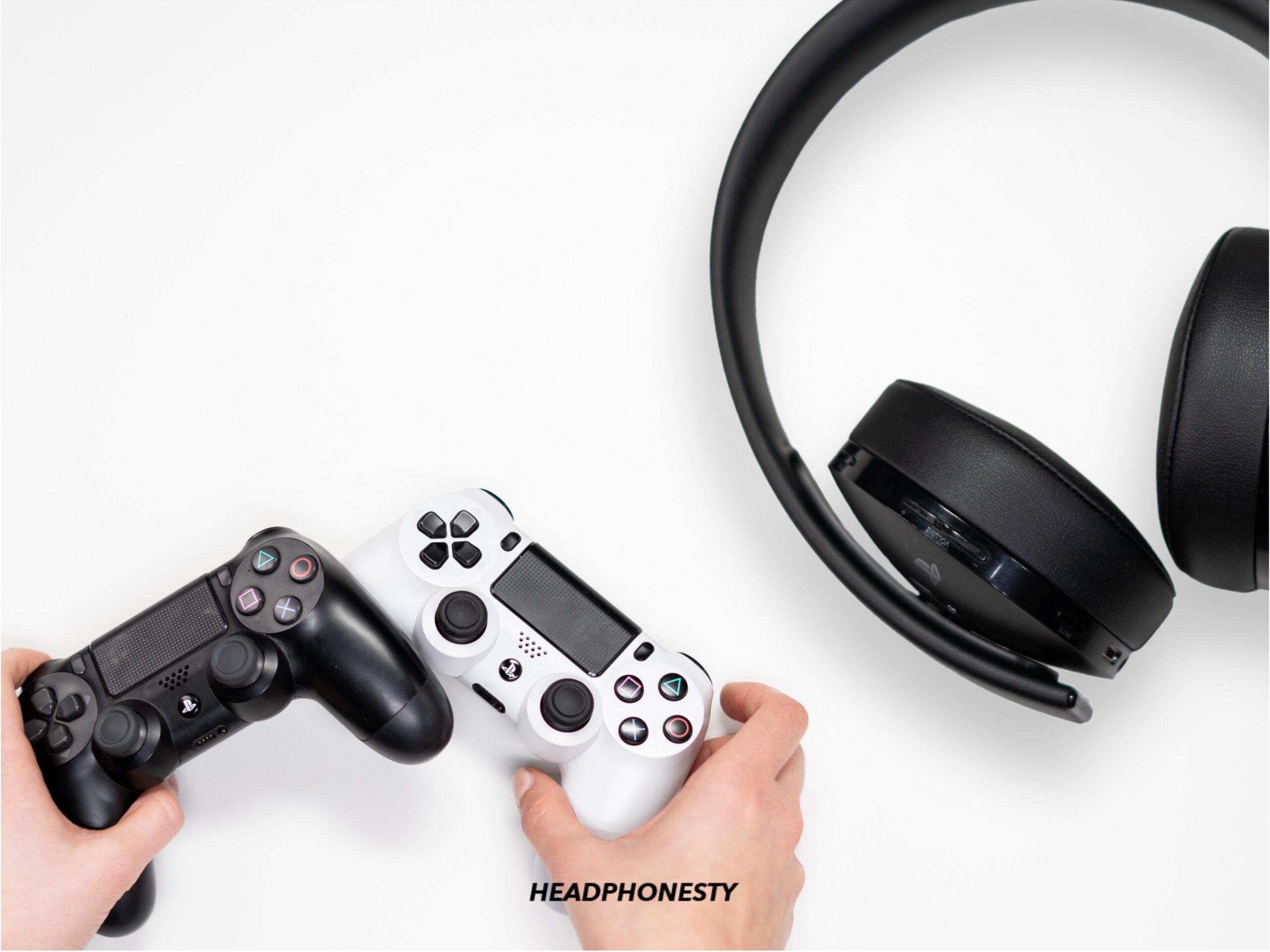
Credit: www.headphonesty.com
Frequently Asked Questions Of Can You Connect Bluetooth Headphones To Ps5
Why Can T You Use Bluetooth Headphones On Ps5?
Bluetooth headphones cannot be used on PS5 due to the console’s lack of native Bluetooth audio support.
How Do I Connect My Wireless Headset To My Ps5?
To connect your wireless headset to your PS5, follow these steps: 1. Turn on your wireless headset and put it into pairing mode. 2. On your PS5, go to the settings menu. 3. Select “Devices” and then “Bluetooth & devices. ” 4.
Choose “Bluetooth accessories” and then “Add a device. ” 5. Your PS5 will scan for available devices. Select your wireless headset from the list. 6. Follow any additional prompts or instructions to complete the pairing process. 7. Once connected, you can enjoy wireless audio on your PS5 with your headset.
How Do I Connect My Jbl Headphones To My Ps5?
To connect your JBL headphones to your PS5, follow these steps: 1. Turn on your PS5 and navigate to the settings menu. 2. Select “Sound” and then “Output Device. ” 3. Choose “Bluetooth Headphones” from the list of available options. 4.
Put your JBL headphones into pairing mode. 5. On your PS5, select the JBL headphones from the list of available devices. 6. Once connected, you can enjoy wireless audio from your JBL headphones on your PS5.
What Headphones Work With Ps5?
Some headphones that work with the PS5 include Logitech G Pro X Wireless Lightspeed, HyperX Cloud Stinger, and HyperX Cloud Alpha.
Conclusion
Connecting Bluetooth headphones to the PS5 is a seamless and convenient process. By following a few simple steps, you can enjoy wireless audio while gaming on your console. The PS5 supports a wide range of Bluetooth headphones, allowing you to choose the ones that suit your preferences and budget.
Whether you have a pair of AirPods, JBL Quantum TWS, or any other Bluetooth headphones, you can easily pair them with your PS5 and start enjoying your games with high-quality sound. Additionally, you can also use a Bluetooth headset adapter for a more efficient and stable connection.
With Bluetooth connectivity, you can immerse yourself in the gaming experience without the hassle of tangled wires. So, go ahead and enhance your gaming setup by connecting your Bluetooth headphones to the PS5.