Learn how to remove the background in Procreate by toggling off the background color layer, selecting and masking the image, and deleting the background. These steps can help you achieve a clean and professional look for your artwork.
Introduction To Background Removal In Procreate
Introduction to Background Removal in Procreate
Procreate is a powerful digital art tool that allows artists to create stunning illustrations and designs. One essential skill every digital artist should master is background removal. Whether you want to isolate a subject, create transparent elements, or change the background entirely, being able to remove backgrounds in Procreate opens up a world of creative possibilities.
Understanding the importance of background removal in digital art
Background removal plays a crucial role in digital art, enabling artists to focus on the main subject without distractions. It allows you to extract elements from an image, remove unwanted objects, or seamlessly merge different elements to create visually appealing compositions. By mastering background removal techniques in Procreate, you can enhance the overall quality of your artwork and take your creative process to the next level.
Exploring different techniques and tools in Procreate for background removal
Procreate offers a range of techniques and tools to help you remove backgrounds with precision and ease. Here are some methods you can explore:
- Magic Wand Selection: Use Procreate’s Magic Wand tool to quickly select areas based on color similarity. Adjust the settings to fine-tune your selection and remove the background effectively.
- Lasso Selection: The Lasso tool allows you to manually draw around the subject, creating a selection that follows its contours. This technique offers more control and is ideal for complex or irregular shapes.
- Masking: Masking is a non-destructive technique that allows you to hide or reveal parts of an image. By painting on a layer mask, you can selectively remove the background while preserving the original image.
With these techniques at your disposal, you can experiment and find the method that suits your artwork best. Remember to practice and refine your skills to achieve seamless and professional-looking background removal in Procreate.
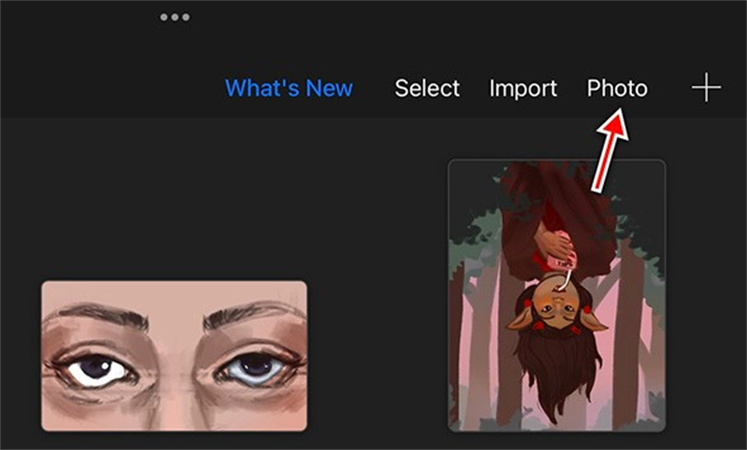
Credit: www.hitpaw.com
Removing Background With Procreate’S Selections Tool
If you’re looking to remove the background from an image in Procreate, the Selections tool is your go-to feature. With its powerful capabilities, you can easily select, fine-tune, and mask images to achieve accurate background removal.
Selecting the image with the Selections tool
To begin the background removal process, start by selecting the image you want to work on using the Selections tool in Procreate. This tool allows you to trace around the subject of your image and create a selection.
Here’s a step-by-step guide on how to select your image using the Selections tool:
- Toggle off the background color layer.
- Select the Selections tool from the toolbar.
- Trace around the subject of your image by dragging your finger or stylus.
- Finish the selection by closing the loop.
Fine-tuning the selection for accurate background removal
Once you’ve made the initial selection, it’s important to fine-tune it to ensure precise background removal. Procreate provides various adjustment options to help you achieve this.
Here are some ways to fine-tune your selection for accurate background removal:
- Adjust the threshold to refine the selection edge.
- Troubleshoot any imperfections by fixing the edges.
- Correct any selection mistakes by painting over the area.
Masking the image to remove the background
After fine-tuning the selection, it’s time to mask the image to remove the background completely. This process ensures that only the subject remains, while the background becomes transparent.
Here’s how you can mask the image to remove the background in Procreate:
- Create a new layer and place it below the original image layer.
- Deselect the original image and background layer by tapping on the square checkboxes.
- Swipe left on the checkboxes and click Clear to delete them if needed.
- Use the Selections tool to create a mask on the new layer, covering the background.
- Refine the mask edges, if necessary.
Once you’ve completed these steps, Procreate will automatically generate a new layer with your subject isolated and the background removed. You can now export your image as a PNG with a transparent background.
With Procreate’s powerful Selections tool, removing the background from your images becomes a seamless process. Follow these steps and unleash your creativity without any distractions from unwanted backgrounds.
Deleting A White Background With Procreate
When it comes to digital art creation and editing, Procreate is a powerful software that offers a wide range of features. One of the essential tasks in graphic design is removing the background from an image, and Procreate provides an efficient solution for this. In this blog post, we will explore the process of deleting a white background using Procreate, step by step. Let’s dive in!
Adjusting visibility settings to turn off the background layer
To delete the white background of an image in Procreate, it is essential to start by adjusting the visibility settings to turn off the background layer. This can be done by following these simple steps:
- Open your image in Procreate and locate the Layers icon in the top-right corner.
- Tap on the Layers icon to access the layer options.
- In the layer options, you will see a list of layers. Find the background layer and tap on the eye icon next to it to toggle off the visibility.
- By turning off the background layer visibility, the white background will disappear from your canvas, allowing you to focus on the subject of your image.
Creating a selection around the white background
Once you have turned off the background layer visibility, the next step is to create a selection around the white background. This can be done by using the selection tool in Procreate. Follow these steps:
- Select the Selections tool from the toolbar at the top of your screen.
- Using your finger or stylus, carefully draw a selection around the entire white background of your image. Make sure to include any intricate details or edges.
- Ensure that your selection encompasses the entire white background for accurate removal.
Adjusting the threshold for better selection accuracy
After creating a selection around the white background, it’s time to adjust the threshold to achieve better selection accuracy. Follow these steps:
- Tap on the Adjustments icon in the top-right corner of your screen.
- In the adjustments menu, locate the Threshold option.
- Adjust the threshold slider to refine the selection and ensure that only the white background is selected.
- Keep tweaking the threshold until you achieve the desired level of accuracy in your selection.
Fixing the edges of the selection for a cleaner result
Once the selection is accurately made, it’s important to fix the edges for a cleaner result. Follow these steps:
- Tap on the Brush tool from the toolbar.
- Choose a suitable brush size and opacity for refining the edges of your selection.
- Carefully brush along the edges of the selection, smoothening out any irregularities or rough edges.
- Take your time to achieve a clean and precise result.
Painting the new background and exporting the image as PNG
Once you have successfully removed the white background, it’s time to paint the new background and export the image in the desired format. Follow these steps:
- Select the Paintbrush tool from the toolbar.
- Choose a color for your new background and start painting on a new layer.
- Take your time to create a visually appealing background that complements your subject.
- After finishing your artwork, go to the File menu and select Export.
- Choose the PNG format for high-quality and transparent background.
- Save and export the image to your desired location.
In conclusion, Procreate provides a user-friendly and efficient workflow for removing white backgrounds from images. By adjusting visibility settings, creating accurate selections, adjusting the threshold, fixing edges, and painting a new background, you can achieve professional-looking results. With Procreate’s powerful features, your creative possibilities are endless. Start exploring and unleashing your artistic potential!
Drawing An Outline And Adding Background In Procreate
One of the key features of Procreate, the popular digital art software, is its ability to remove backgrounds and create stunning artwork. In this guide, we will explore the process of drawing an outline and adding a background in Procreate, step by step.
Creating an outline using the drawing tools in Procreate
The first step in removing the background in Procreate is to create a precise outline of the main subject using the drawing tools. Procreate provides a wide range of brushes and pens to choose from, allowing you to achieve the desired level of detail. Start by selecting the appropriate brush and carefully trace the outline of the subject. Make sure to use smooth and confident strokes for a clean outline.
Smoothing out the outlines for a cleaner look
After creating the initial outline, you may notice some rough edges or jagged lines. To achieve a cleaner look, Procreate offers a smoothing feature that allows you to refine your outlines. Simply select the smoothing tool and gently brush over the rough edges to smoothen them out. This step is crucial for creating a professional-looking artwork.
Adding a background layer to the artwork
Once you are satisfied with the outline, it’s time to add a background layer to your artwork. Procreate makes this process simple and intuitive. Start by creating a new layer below the outline layer. This will serve as your background layer. Choose a suitable color or texture for the background and fill the layer using the fill tool. You can experiment with various colors and textures to find the perfect background that complements your artwork.
Using alpha lock to add color to the outline without affecting the background
To add color to the outline without affecting the background, Procreate offers a powerful feature called alpha lock. Alpha lock allows you to lock the transparency of a layer, enabling you to color within the boundaries of the outline without bleeding into the background. To use alpha lock, simply tap on the outline layer, tap on the layer options menu, and select “Alpha Lock.” Now you can freely add color to the outline using various brushes and techniques, knowing that it won’t affect the background.
Adding a drop shadow to the background for depth and dimension
To add depth and dimension to your artwork, consider adding a drop shadow to the background. This simple technique can make your artwork pop and appear more realistic. In Procreate, you can easily add a drop shadow by creating a new layer below the background layer. Choose a suitable color for the drop shadow and use a soft brush to paint along the edges of the background. Adjust the opacity and blur settings to achieve the desired effect. Play around with different shadows and positions to create a visually stunning result.
With Procreate’s powerful tools and features, removing backgrounds and adding a background layer to your artwork has never been easier. Follow these steps and unleash your creativity to create captivating and professional-looking artwork.
Tips And Troubleshooting For Background Removal In Procreate
When it comes to creating digital artwork in Procreate, removing the background can be a crucial step. Whether you want to isolate a subject or simply create a transparent background, Procreate offers several tools and techniques to make background removal a breeze. In this section, we will explore some tips and troubleshooting methods to help you achieve accurate and seamless background removal in Procreate.
Troubleshooting common issues during the background removal process
If you encounter any issues while removing the background in Procreate, don’t worry! Here are some common problems you might face and their possible solutions:
Correcting a selection if it’s not accurate
Occasionally, your initial selection may not accurately capture the desired area or you may accidentally include unwanted parts. Thankfully, Procreate provides tools to correct and refine your selection:
- Ensure you have the desired layer selected by tapping on it in the Layers panel.
- Tap on the selection tool in the toolbar and choose the appropriate selection option (such as freehand, rectangle, or ellipse).
- Zoom in for better precision and carefully adjust your selection by dragging the handles or using the subtract or add mode. Use a combination of these modes to fine-tune your selection until it accurately encompasses the desired area.
- Once your selection is satisfactory, you can proceed with removing the background using the masking or delete options.
Using layer opacity to make the background transparent
Another method to achieve a transparent background in Procreate is by adjusting the layer opacity:
- Select the layer containing your artwork or subject.
- In the Layers panel, locate the opacity slider for the selected layer.
- Slide the opacity to the left to decrease it gradually. As you lower the opacity, the background will become more transparent, revealing the layers below.
- Continue adjusting the opacity until the background is completely transparent, or until you achieve the desired level of transparency.
By following these tips and troubleshooting methods, you can easily remove backgrounds in Procreate and create stunning digital artwork. Experiment with different techniques and explore the tools available to find the most efficient and accurate method for your specific project.
Alternative Background Removal Tools For Procreate
If you are a Procreate user and want to explore alternative background removal tools, you are in luck! There are several software and apps available that offer this feature, making your editing process much easier and more efficient. Let’s take a look at some of the top choices:
1. Fotor
Fotor is an all-in-one photo editor app that offers a range of editing features, including a background remover tool. With Fotor, you can easily remove backgrounds from your images and create stunning compositions. The app is user-friendly and suitable for both beginners and professionals alike. Give Fotor a try if you want a powerful and convenient background removal tool for Procreate.
2. Picsart
Picsart is another popular photo editing app that provides a background removal feature. This app not only allows you to remove backgrounds from your images but also offers a wide range of creative tools and effects to enhance your artwork further. With Picsart, you can unleash your creativity and produce visually captivating compositions with ease.
3. YouCam Perfect
YouCam Perfect is a versatile photo editing app that also includes a background remover tool. It offers various editing options and filters, enabling you to retouch and enhance your images effortlessly. With YouCam Perfect, you can remove backgrounds seamlessly and transform your artwork into professional-grade masterpieces.
4. Background Eraser
As the name suggests, Background Eraser is a straightforward app designed specifically for removing backgrounds. It features an intuitive interface and advanced algorithms that make background removal a breeze. Whether you want to delete a simple background or tackle more complex edits, Background Eraser is a reliable tool to consider.
5. Remove Background by Pixlr
Pixlr’s Remove Background tool is another excellent option for Procreate users. With its AI-powered technology, Pixlr can automatically detect and remove backgrounds from your images, saving you valuable time and effort. This tool is perfect for both simple and intricate edits, ensuring that your final compositions look polished and professional.
Exploring alternative background removal tools for Procreate can significantly enhance your editing capabilities. Whether you choose Fotor, Picsart, YouCam Perfect, Background Eraser, or Remove Background by Pixlr, you can’t go wrong with any of these options. Experiment with different tools and discover the one that suits your editing style and requirements the best. Happy editing!
Frequently Asked Questions Of Procreate How To Remove Background
How Do I Remove The Background Of An Image In Procreate?
To remove the background of an image in Procreate, follow these steps: 1. Turn off the background color layer. 2. Use the selection tool to select the image. 3. Finish the selection. 4. Mask the image. This will allow you to delete the background and keep the main subject of the image.
How Do I Make A Background Layer Transparent In Procreate?
To make a background layer transparent in Procreate, follow these steps: 1. Toggle off the background color layer. 2. Select the selections tool. 3. Select the image. 4. Finish the selection. 5. Mask the image. This will remove the background and make it transparent.
How To Remove Background From An Image?
To remove the background from an image using Procreate, follow these steps: 1. Toggle off the background color layer. 2. Select the selections tool. 3. Select the image and finish the selection. 4. Mask the image. 5. Delete the white background.
6. Adjust the threshold if needed. 7. Fix any edges. 8. Export the image as a PNG. Note: There are various video tutorials available on YouTube for more detailed instructions.
Can You Change The Background On Procreate?
Yes, you can change the background on Procreate by selecting the image and using the masking tool.
Conclusion
To remove backgrounds in Procreate, you have learned various techniques and tips throughout this blog post. By using the selection tool and masking features, you can easily delete a white background and make it transparent. Adjusting the threshold and fixing edges can help you achieve better results.
Additionally, you have discovered how to add backgrounds and drop shadows to your images. Procreate offers a range of editing features that allow you to create professional-looking designs on your iPad. Remember to tap on the Layers icon to manage and deselect your original image and background layers.
With these skills, you can now confidently remove backgrounds and create stunning visuals using Procreate. Say goodbye to unwanted backgrounds and unleash your creativity with this powerful digital art tool.