To edit out background noise, apply high-pass and low-pass filters to audio tracks to reduce ambient sounds. High-pass filters allow high frequencies to pass through while filtering out frequencies below a set threshold.
There are also online tools available, like Descript and VEED, that can remove background noise from audio and video files. Additionally, software programs such as Audacity, GarageBand, and Adobe Audition offer noise reduction effects and settings to clean up audio.
By utilizing these techniques and tools, you can effectively remove unwanted background noise and improve the overall quality of your audio or video content.
Understanding The Importance Of Removing Background Noise
The Impact of Background Noise on Audio Quality
When it comes to creating high-quality audio recordings, background noise can be a major hindrance. Background noise refers to any unwanted sounds that are present in your audio recordings, such as humming, buzzing, or ambient noise. These noises can significantly degrade the overall audio quality and make it difficult for your listeners to focus on the main content.
Why It’s Essential to Remove Background Noise in Audio Recordings
Removing background noise from audio recordings is an essential step in ensuring optimal audio quality. Here’s why it’s important:
- Enhances Clarity: Background noise can make it challenging for listeners to understand and follow the audio content. By removing the unwanted noise, you can enhance the clarity of the audio and improve the overall listening experience.
- Increases Professionalism: Background noise can give the impression of unprofessionalism and lack of attention to detail. By eliminating these distractions, you can present a more polished and professional audio recording.
- Keeps the Focus on the Content: Background noise can divert the attention of listeners and take away from the main content. By removing these distractions, you can ensure that your audience remains fully engaged and focused on the information you are presenting.
- Improves Accessibility: Background noise can pose a challenge for individuals with hearing impairments. By eliminating these extraneous sounds, you can make your audio recordings more accessible and inclusive for a wider audience.
In conclusion, understanding the importance of removing background noise is crucial for anyone involved in audio production. By eliminating unwanted noises, you can significantly enhance the audio quality, improve listener experience, and maintain a professional and polished image. So, take the time to edit out background noise from your audio recordings and enjoy the benefits of clean and crisp sound.
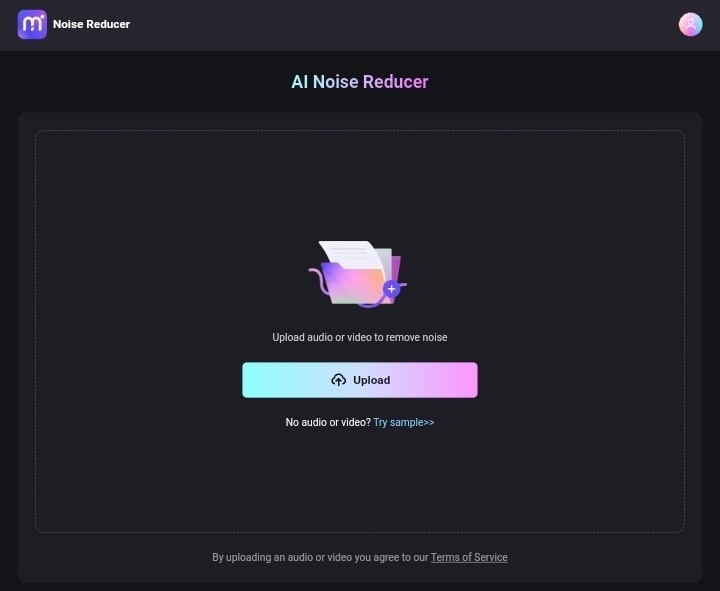
Credit: www.media.io
Identifying The Different Types Of Background Noise
Common types of background noise in audio recordings
When it comes to editing out background noise from audio recordings, it is crucial to first identify the different types of background noise you may encounter. Understanding the common types of background noise will help you recognize and distinguish them during the editing process.
Here are some of the most common types of background noise in audio recordings:
- Ambient noise: This refers to the general sound present in a recording, such as the hum of air conditioning, traffic noise, or the buzz of fluorescent lights.
- Electrical noise: Often caused by faulty cables or connections, electrical noise manifests as a buzzing or crackling sound in the background.
- Room tone: This is the natural sound of a room or environment in which the recording takes place. It can include echoes, reverberations, and other acoustic characteristics.
- Microphone noise: Sometimes, the microphone itself can introduce noise into the recording. Common microphone noise includes hissing, popping, or static sounds.
- Interference: Interference noise is typically caused by external sources like cell phones, radios, or other electronic devices. It can result in intermittent or continuous unwanted sounds.
How to recognize and distinguish different types of background noise
Recognizing and distinguishing different types of background noise is essential when editing audio recordings. It allows you to apply appropriate editing techniques and filters to minimize or eliminate these unwanted sounds.
Here are some tips to help you recognize and distinguish different types of background noise:
- Listen carefully: Put on a good pair of headphones and listen closely to the recording. Pay attention to any recurring patterns or consistent sounds that stand out from the main audio.
- Use visual waveforms: Visual waveforms in your audio editing software can help you identify background noise visually. Look for spikes or irregularities in the waveform that indicate the presence of unwanted noise.
- Compare with clean reference: If possible, have a clean reference recording of the same audio without background noise. Compare the two recordings side-by-side to identify any noticeable differences.
- Experiment with filters: Apply different filters, such as high-pass filters or noise reduction effects, to isolate and manipulate specific frequencies. This can help you pinpoint and remove specific types of background noise.
- Consult with experts: If you’re unsure about the type of background noise or how to effectively remove it, seek advice from audio editing professionals or join online communities dedicated to audio editing for further guidance.
By understanding the common types of background noise and employing effective techniques to recognize and distinguish them, you’ll be well-equipped to edit out background noise from your audio recordings with precision and finesse.
Preparing Your Audio Recording For Background Noise Editing
Setting up your workspace and tools
Before you begin editing out background noise from your audio recording, it’s important to set up your workspace and gather the necessary tools. Here are a few steps to get you started:
- Find a quiet location: Choose a room or area where you can minimize external noises that may interfere with your editing process.
- Use headphones: Investing in a good pair of headphones will allow you to hear even the slightest background noises that need to be removed.
- Ensure proper lighting: A well-lit workspace will make it easier to navigate and edit your audio files.
Importing your audio file into the editing software
Once you have set up your workspace, it’s time to import your audio file into the editing software of your choice. Here’s how you can do it:
- Open your editing software: Launch your preferred editing software. There are several options available, such as Audacity, Adobe Audition, or Descript.
- Click on the “Import” option: Look for the “Import” or “Open” option in the software’s toolbar or menu. Click on it to browse and select the audio file you wish to edit.
- Choose the file format: Once you have selected the audio file, ensure that the software recognizes the file format and is ready to process it.
By following these steps, you will be well-prepared to edit out background noise from your audio recording. Remember to take your time and be thorough in order to achieve the best results. Now that your audio file is imported, you can move on to the next steps of isolating background noise and applying the necessary noise reduction effects.
Step 1: Isolating The Background Noise
When it comes to editing out background noise from your audio recordings, the first step is to isolate the background noise. This allows you to identify the areas that need to be removed or reduced. In this step, we will examine the waveform and identify the sections with background noise.
Examining the waveform and identifying the areas with background noise
Before you start removing background noise, it’s important to examine the waveform of your audio file. The waveform is a visual representation of the audio, showing the peaks and valleys.
To examine the waveform, you can use audio editing software like Audacity or Adobe Audition. Simply import your audio file into the software and zoom in on the waveform for a closer look.
As you examine the waveform, keep an eye out for sections with higher amplitudes or irregular patterns. These sections often indicate the presence of background noise.
Techniques for selecting the background noise for removal
Once you have identified the areas with background noise, the next step is to select these sections for removal. Here are some techniques you can use:
- Manually select the sections: In your audio editing software, you can manually select the sections with background noise using the selection tool. This allows you to have better control over the areas you want to remove.
- Automated noise reduction: Some audio editing software have automated noise reduction tools that can help you select the background noise. These tools analyze the audio and identify the areas with unwanted noise, making the selection process faster and easier.
Regardless of the technique you choose, make sure to select the background noise accurately. Being meticulous in this step ensures that you are only removing the unwanted noise without affecting the quality of your audio.
By following these techniques, you can effectively isolate the background noise from your audio recordings. In the next step, we will learn how to remove or reduce the background noise using different editing techniques.
Step 2: Creating A Noise Profile
Once you have identified the background noise in your audio recording, the next step is to create a noise profile. A noise profile is a reference that will be used to effectively reduce or eliminate the unwanted background noise throughout the rest of your audio. By using this method, you can ensure that your final audio output is clear, professional, and free from any distracting noise.
Generating a Noise Profile as a Reference for the Noise Reduction Process
To generate a noise profile, you need to have a section of your audio where only the background noise is present. This can be a silent section or a specific portion that contains the background noise you want to remove. Follow these steps to generate a noise profile:
- Select a section of your audio that only contains the background noise you want to remove.
- In your audio editing software, highlight the selected section and extract it as a separate audio file.
- Import this extracted audio file into your audio editor.
- Ensure that the extracted audio file contains only the background noise and does not include any other elements, such as voices or music.
- Save the extracted audio file as your noise profile, using a recognizable name.
Best Practices for Obtaining an Accurate Noise Profile
To obtain an accurate noise profile, it is important to follow these best practices:
- Select a section of your audio that represents the typical background noise throughout the recording. Avoid selecting sections with sudden spikes or transient sounds that are not representative of the overall background noise.
- Ensure that the selected section is long enough to capture a sufficient amount of the background noise. A longer section will provide a more accurate representation of the noise profile.
- Avoid selecting sections that include other sounds, such as voices, music, or specific effects. The noise profile should only capture the background noise that you want to remove.
- Save the noise profile with a recognizable name and in a format that is compatible with your audio editing software.
By following these steps and adhering to best practices, you can create an accurate noise profile that will serve as a reference for the noise reduction process. This will help you effectively remove or reduce background noise from your audio recording, resulting in a clean and professional final product.
Step 3: Applying The Noise Reduction Effect
Once you have identified and isolated the background noise in your audio, it’s time to apply the noise reduction effect. This step is crucial in minimizing or eliminating the unwanted noise and ensuring a clean and crisp audio.
Configuring the noise reduction settings for optimal results
To achieve the best results, it’s important to configure the noise reduction settings according to the specific requirements of your audio. Here’s how you can do it: 1. Open your chosen audio editing software, such as Audacity or Adobe Audition. 2. Locate the “Noise Reduction” effect in the software’s menu or toolbar. 3. Select the portion of your audio where the background noise is most prominent. This will serve as your “Noise Profile.” 4. Go to the “Noise Reduction” settings and adjust the parameters to suit your needs. These settings may include options like “Sensitivity,” “Frequency Smoothing,” and “Residue Preview.” 5. Experiment with different settings to find the optimal configuration. It’s recommended to start with conservative settings and gradually increase the effect for better control over the noise reduction process.
Adjusting the intensity of the noise reduction effect
After configuring the initial noise reduction settings, you may need to fine-tune the intensity of the effect to strike the perfect balance between removing background noise and preserving the clarity of your audio. Here’s how you can do it: 1. Playback the audio to assess the impact of the noise reduction effect. 2. If the background noise is still audible, increase the intensity of the effect by adjusting the relevant settings. 3. If the audio starts to sound unnatural or distorted, reduce the intensity of the effect until you achieve a more balanced result. 4. Continuously listen to the audio and make adjustments as needed until you’re satisfied with the overall quality. Remember, the goal is to reduce background noise without sacrificing the quality and originality of your audio. Find the right balance by carefully adjusting the settings to enhance your audio and deliver an optimal listening experience. By following these steps and properly configuring the noise reduction settings, you can successfully edit out background noise from your audio recordings. Next, we’ll explore the final step, which involves exporting your edited audio to ensure it’s ready to be shared or used in your desired projects.
Step 4: Fine-Tuning The Noise Reduction Settings
Once you have applied the initial noise reduction effect to your audio, it’s time to fine-tune the noise reduction settings. This step is crucial to ensure that the background noise is effectively removed while maintaining the audio quality. In this section, we will explore two important aspects of fine-tuning the noise reduction settings: setting sensitivity levels and utilizing frequency smoothing.
Setting Sensitivity Levels to Maintain Audio Quality While Reducing Noise
When it comes to reducing background noise, it’s essential to find the right balance between noise reduction and audio quality. Sensitivity levels play a crucial role in achieving this balance. By adjusting the sensitivity levels, you can control the threshold at which the noise reduction effect is applied. Here’s how you can set the sensitivity levels:
- Start by identifying a section in your audio where there is no desired audio, only background noise.
- Select this section and listen to it carefully to determine the overall loudness of the background noise.
- Based on the loudness, adjust the sensitivity levels to a point where the background noise is significantly reduced but without affecting the desired audio.
- Take into consideration any quieter parts in your audio where you want to avoid the noise reduction effect being applied too aggressively.
By finding the right sensitivity level, you can effectively reduce background noise without compromising the quality and clarity of your audio.
Utilizing Frequency Smoothing to Further Enhance the Audio
Frequency smoothing is another useful tool to enhance the audio quality after applying noise reduction. It helps to minimize any artifacts or unnatural changes that may occur due to the noise reduction effect. Frequency smoothing works by blending the different frequency ranges together to create a smoother and more balanced sound. Here’s how you can utilize frequency smoothing:
- Identify the frequency range that contains the background noise that you want to reduce.
- Apply the noise reduction effect to this frequency range.
- Gradually increase the frequency smoothing level until you achieve a balance between reducing the background noise and maintaining a natural sound.
Frequency smoothing can help to ensure that the audio sounds seamless and natural, even after the noise reduction process. In conclusion, fine-tuning the noise reduction settings is a critical step in the editing process to remove background noise. By setting the sensitivity levels appropriately and utilizing frequency smoothing, you can achieve a more polished and professional sound without compromising the quality of your audio.
Step 5: Exporting The Edited Audio
Selecting the desired audio file format and quality
When it comes to exporting the edited audio, selecting the desired audio file format and quality is an important step in ensuring that your final audio file meets your requirements. Different file formats offer varying levels of compression and compatibility, so it’s crucial to choose the format that best suits your needs. To select the desired audio file format, follow these steps:
- First, determine the purpose of your edited audio file. If you plan to use it for professional purposes or high-quality distribution, consider using a lossless format such as WAV or FLAC. These formats preserve the original audio quality and are often preferred in audio production.
- If you’re editing audio for web or online platforms, you may opt for more common file formats such as MP3 or AAC. These formats offer smaller file sizes and are widely supported across different devices and platforms.
- To choose the desired file format, refer to your audio editing software’s export options. Most software provides a drop-down menu or options panel where you can select the format from a list of available options.
Saving the edited audio file to a designated location
Once you have selected the desired audio file format and quality, it’s time to save the edited audio file to a designated location on your computer. Saving the file properly is crucial to ensure easy access and organization of your edited audio files. To save the edited audio file to a designated location, follow these steps:
- Click on the “File” or “Export” option in your audio editing software’s menu. This will open a dialog box where you can specify the location to save the file.
- Browse to the desired folder or directory where you want to save the file. You can choose an existing folder or create a new one specifically for your edited audio files.
- Once you have selected the designated location, give your edited audio file a descriptive and recognizable name. This will help you quickly identify and locate the file in the future.
- Finally, click on the “Save” or “Export” button to save the edited audio file to the designated location.
By following these simple steps, you can easily export the edited audio in the desired file format and save it to a designated location, ensuring easy access and organization of your audio files. Now, you’re ready to use your edited audio in various applications such as podcasts, videos, or music production.
Tips And Techniques For Effective Background Noise Editing
When it comes to creating high-quality audio content, background noise can be a major distraction. Whether you’re editing a podcast, video, or interview, it’s important to have clear and crisp audio. Luckily, there are several tips and techniques you can use to effectively edit out background noise and enhance the overall audio quality.
Additional Methods for Minimizing Background Noise
While applying high-pass filters and low-pass filters can help reduce background noise, there are additional methods you can utilize to further enhance the audio. These techniques include:
- Utilizing Noise Reduction Effects: Many audio editing software, such as Audacity or Adobe Audition, offer noise reduction effects that can significantly minimize background noise. These effects work by analyzing the audio and identifying the frequencies associated with the noise, allowing you to reduce their prominence.
- Adjusting Sensitivity and Frequency Smoothing: When using noise reduction effects, it’s important to adjust the sensitivity and frequency smoothing settings. This allows you to fine-tune the level of noise reduction applied, ensuring that you remove background noise without compromising the clarity of the audio.
- Applying Noise Gates: Noise gates are another useful tool for reducing background noise. They work by setting a threshold below which the audio is muted, effectively eliminating any unwanted noise during silent parts.
- Using AI-Powered Tools: There are several AI-powered tools available that can automatically remove background noise from your audio. These tools use advanced algorithms to analyze and isolate the noise, allowing you to achieve clean and professional-sounding audio with minimal effort.
Avoiding Potential Pitfalls and Challenges During the Editing Process
While editing out background noise can significantly improve audio quality, there are potential pitfalls and challenges that you should be aware of. To ensure a smooth editing process, consider the following:
- Avoid Overprocessing: It’s important to strike a balance when applying noise reduction effects to avoid overprocessing the audio. Excessive noise reduction can lead to a loss of detail and a unnatural-sounding result.
- Keep Original Audio as Reference: Before applying any editing techniques, make sure to keep a copy of the original audio as a reference. This allows you to compare the edited version with the original and make adjustments if necessary.
- Regularly Review the Edited Audio: Throughout the editing process, it’s crucial to periodically review the edited audio to ensure that the background noise has been effectively removed and that the clarity and overall quality have been maintained.
- Experiment and Fine-Tune Settings: Every audio recording is unique, so it’s important to experiment with different settings and techniques to find the optimal balance for your specific audio. Fine-tuning settings such as sensitivity, threshold, and frequency smoothing can make a significant difference in the final result.
By following these tips and techniques, you can effectively edit out background noise and transform your audio into a professional and immersive listening experience.
Frequently Asked Questions Of How To Edit Out Background Noise
Is There A Way To Edit Out Background Noise?
Yes, there are ways to edit out background noise. Applying high-pass and low-pass filters to certain audio tracks can reduce ambient sounds and improve the overall audio quality. Additionally, there are online tools and video editing software available that can help remove unwanted background noise from audio and video files.
How Do I Remove Unwanted Background Noise From Audio?
To remove unwanted background noise from audio, you can use high-pass filters and low-pass filters in your DAW software. These filters allow certain frequencies to pass through while filtering out others, reducing ambient sounds that contribute to background noise. Alternatively, you can use editing tools like Descript or VEED to remove background noise from your audio or video files.
How Do I Remove Background Noise From A Video?
To remove background noise from a video, follow these steps: 1. Upload, record, or start with a template on VEED. 2. Clean your audio by clicking on your video and selecting Clean Audio. 3. Edit your video or audio as needed.
4. Share your edited video.
How Do I Remove Background Noise From Iphone Video?
To remove background noise from iPhone videos, follow these steps: 1. Import your video to a video editing software or online editor. 2. Find the audio track in the timeline and select it. 3. Look for an option to clean or enhance audio.
4. Apply the noise reduction or background noise removal effect. 5. Adjust the settings for sensitivity and frequency smoothing if needed. 6. Preview the results and make any necessary adjustments. 7. Export or save the video with the background noise removed.
Conclusion
Edit out background noise can greatly improve the quality of your audio or video content. By applying techniques such as noise reduction effect, adjusting sensitivity and frequency smoothing, and using high-pass and low-pass filters, you can effectively eliminate unwanted ambient sounds.
Tools like Descript, VEED, and Kapwing offer user-friendly solutions for removing background noise from your files. These platforms allow you to import your audio or video, apply AI-powered algorithms to clean up the sound, and produce high-quality content. Whether you are a content creator, a podcaster, or a videographer, ensuring clear and crisp audio is essential for engaging your audience.
By following the steps outlined in this blog post, you can easily edit out background noise and create professional-quality content that leaves a lasting impression.