
To connect a wireless mouse to a laptop, first open the battery container and install the batteries. Then, turn on the mouse and make sure it is in pairing mode.
Finally, go to the Bluetooth settings on your laptop and search for available devices. Select the wireless mouse from the list and click “Pair” to connect.
Connecting A Wireless Mouse Without A Receiver
Connecting a Wireless Mouse without a Receiver How to connect a Bluetooth-enabled wireless mouse to a laptop If you have a wireless mouse that is Bluetooth-enabled, you can easily connect it to your laptop without the need for a receiver. Bluetooth technology allows for a seamless and hassle-free connection between your devices. Here is a step-by-step guide on how to connect a Bluetooth-enabled wireless mouse to your laptop.
Step-by-step instructions for connecting a wireless mouse via Bluetooth
1. Begin by turning on your laptop’s Bluetooth. This can usually be done by navigating to the “Settings” or “Control Panel” section of your laptop’s operating system.
2. Once your laptop’s Bluetooth is enabled, turn on your wireless mouse by pressing the power button located on the bottom or side of the mouse.
3. On your laptop, click on the Bluetooth icon in the system tray or open the Bluetooth settings.
4. Locate the option to add a new device or pair a device and click on it.
5. A list of available devices will appear. Look for the name or model number of your wireless mouse and click on it to select.
6. Follow any additional on-screen prompts or instructions to complete the pairing process.
7. Once the pairing process is complete, your wireless mouse should be connected to your laptop via Bluetooth. Explanation of the advantages of using Bluetooth for connection Using Bluetooth to connect your wireless mouse to your laptop offers several advantages. Firstly, it eliminates the need for a separate receiver, making the setup process quick and convenient.
Additionally, Bluetooth technology allows for a stable and reliable connection between your devices, ensuring smooth and uninterrupted mouse control. Furthermore, Bluetooth connectivity provides greater flexibility as it allows you to connect multiple devices to your laptop without the need for additional ports or cables. Troubleshooting tips for Bluetooth connectivity issues While Bluetooth connectivity is generally reliable, you may encounter some issues during the pairing process or while using your wireless mouse.
Here are a few troubleshooting tips to help you resolve any Bluetooth connectivity issues:
1. Ensure that your laptop’s Bluetooth is enabled and functioning properly.
2. Make sure your wireless mouse has sufficient battery power.
3. Place your wireless mouse in close proximity to your laptop during the pairing process to ensure a strong Bluetooth signal.
4. Restart your laptop and try the pairing process again.
5. Update your laptop’s Bluetooth drivers to the latest version.
6. Check if there are any conflicting devices or signals nearby that may interfere with the Bluetooth connection.
7. If all else fails, consult the user manual or contact the manufacturer’s customer support for further assistance. By following these steps and troubleshooting tips, you will be able to connect your wireless mouse to your laptop without a receiver, enjoy the benefits of Bluetooth connectivity, and navigate your laptop with ease and convenience.
Connecting A Wireless Mouse To Different Laptop Brands

Connecting a Wireless Mouse to Different Laptop Brands
To connect a wireless mouse to an Apple laptop, follow these steps:
- Open the Bluetooth settings on your Apple laptop.
- Put your wireless mouse in pairing mode.
- Select the wireless mouse from the list of available devices on your laptop.
- Follow any additional prompts to complete the pairing process.
Instructions for connecting a wireless mouse to MacBook
If you own a MacBook, the process of connecting a wireless mouse is slightly different. Here’s what you need to do:
- Go to the Apple menu and select “System Preferences”.
- Click on “Bluetooth” and ensure that it is turned on.
- Put your wireless mouse in pairing mode.
- When your mouse appears in the list of available devices, click on it to connect.
Tips for troubleshooting common issues specific to Apple laptops
If you’re experiencing issues connecting a wireless mouse to your Apple laptop, try these troubleshooting tips:
- Make sure your laptop’s Bluetooth is turned on.
- Restart your laptop and try again.
- Update your laptop’s operating system.
- Reset the Bluetooth module on your laptop.
To connect a wireless mouse to a Dell laptop, follow these steps:
- Insert the USB receiver into an available USB port on your Dell laptop.
- Turn on your wireless mouse by sliding the power switch to the “On” position.
- Wait for your laptop to detect the mouse and install any necessary drivers.
Step-by-step guide for connecting a wireless mouse to a Dell laptop
If you’re unsure of the specific steps, here’s a detailed guide:
- Locate an available USB port on your Dell laptop.
- Insert the USB receiver into the USB port.
- Turn on your wireless mouse by sliding the power switch to the “On” position.
- Wait for your laptop to recognize and install the necessary drivers for the mouse.
- Your wireless mouse should now be connected and ready to use.
Troubleshooting tips for Dell laptop compatibility issues
If you’re having trouble connecting a wireless mouse to your Dell laptop, try these troubleshooting tips:
- Verify that the USB port is functioning properly.
- Restart your laptop and try again.
- Update your laptop’s drivers and BIOS.
To connect a wireless mouse to an Acer laptop, follow these steps:
- Insert the USB receiver into an available USB port on your Acer laptop.
- Turn on your wireless mouse by sliding the power switch to the “On” position.
- Your laptop should automatically detect and install the necessary drivers.
Instructions for connecting a wireless mouse to an Acer laptop model
Here are the specific instructions for connecting a wireless mouse to an Acer laptop model:
| Acer Laptop Model | Connection Process |
|---|---|
| Acer Aspire | Refer to the user manual for specific instructions. |
| Acer Swift | Go to the settings menu and select “Devices”. Click on “Bluetooth & other devices” and follow the prompts to connect your wireless mouse. |
| Acer Predator | Insert the USB receiver into an available USB port. Turn on your wireless mouse and wait for your laptop to recognize it. |
Common issues and solutions related to Acer laptops
If you’re encountering issues connecting a wireless mouse to your Acer laptop, here are some common problems and their solutions:
- Make sure your laptop’s Bluetooth is turned on.
- Check if your wireless mouse is compatible with your Acer laptop.
- Try restarting your laptop and the mouse.
To connect a wireless mouse to a Lenovo laptop, follow these steps:
- Insert the USB receiver into an available USB port on your Lenovo laptop.
- Turn on your wireless mouse by sliding the power switch to the “On” position.
- Your laptop should automatically detect and install the necessary drivers.
Step-by-step guide for connecting a wireless mouse to a Lenovo laptop
Follow these steps for a detailed guide on connecting a wireless mouse to a Lenovo laptop:
- Locate an available USB port on your Lenovo laptop.
- Insert the USB receiver into the USB port.
- Turn on your wireless mouse by sliding the power switch to the “On” position.
- Wait for your laptop to recognize and install the necessary drivers for the mouse.
- Your wireless mouse should now be connected and ready to use.
Troubleshooting tips for Lenovo laptop compatibility issues
If you’re experiencing compatibility issues with your Lenovo laptop and wireless mouse, try these troubleshooting tips:
- Make sure the USB port is working properly.
- Restart your laptop and try again.
- Update your laptop’s BIOS and drivers.
Popular Wireless Mouse Brands And Compatibility
When it comes to selecting a wireless mouse for your laptop, you have a wide range of options available from popular brands such as Logitech, HP, and Dell. Each brand offers different models with various features and compatibility options. In this section, we will provide an overview of these popular wireless mouse brands, conduct a comparative analysis of different models, and highlight important compatibility considerations to keep in mind.
Overview of popular wireless mouse brands
Logitech, HP, and Dell are well-known brands in the market for wireless mice. Let’s take a closer look at each one:
Logitech
Logitech is a renowned brand known for its high-quality computer peripherals. Their wireless mouse models offer excellent performance, ergonomic designs, and advanced features such as customizable buttons and long battery life. Logitech mice are compatible with both Windows and macOS laptops, making them a versatile choice for users of different operating systems.
HP
HP, a well-established name in the world of technology, also offers a wide range of wireless mice. HP wireless mice are known for their sleek designs, precision tracking, and reliable connectivity. These mice are designed to be compatible with HP laptops and other devices, ensuring optimal performance and seamless integration.
Dell
Dell is another reputable brand that offers reliable wireless mouse options. Dell wireless mice are known for their durability, comfortable grip, and smooth cursor control. These mice are designed to work seamlessly with Dell laptops and other computers, providing a hassle-free experience for users.
Comparative analysis of different wireless mouse models
Before making a purchase decision, it’s essential to compare different wireless mouse models from these brands. Here’s a table outlining the key features and specifications of selected popular models:
| Brand | Model | Key Features |
|---|---|---|
| Logitech | MX Master 3 | Customizable buttons, high-precision tracking, long battery life |
| HP | Z3700 | Sleek design, wireless connectivity, reliable performance |
| Dell | WM126 | Durable construction, comfortable grip, smooth cursor control |
Compatibility considerations when choosing a wireless mouse for a laptop
When selecting a wireless mouse for your laptop, it’s crucial to consider compatibility factors to ensure seamless integration and optimal performance. Here are a few things to keep in mind:
- Operating System Compatibility: Check if the wireless mouse is compatible with your laptop’s operating system, whether it’s Windows, macOS, or Linux.
- Connection Type: Determine the connection type supported by your laptop (Bluetooth or USB receiver) and ensure that the wireless mouse is compatible with it.
- Driver Installation: Verify if any specific drivers need to be installed for the wireless mouse to function correctly with your laptop.
- Additional Features: Consider any additional features you may require, such as programmable buttons or adjustable DPI settings, and ensure that the wireless mouse you choose offers those features.
By carefully considering these compatibility factors, you can select a wireless mouse that perfectly suits your laptop and enhances your user experience.
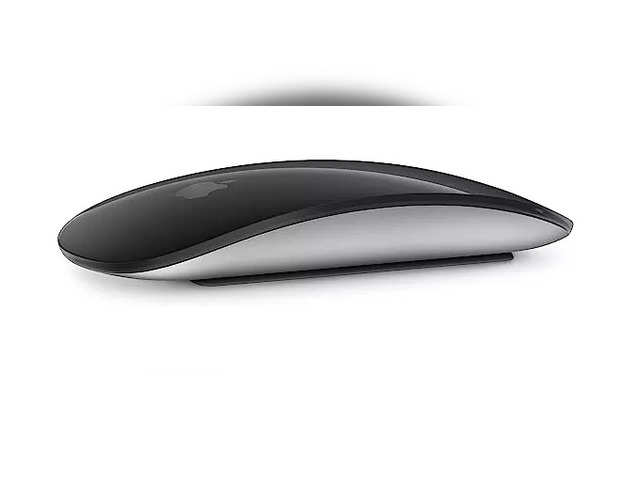
Credit: m.economictimes.com
Frequently Asked Questions On Connect Wireless Mouse To Laptop
How Do I Get My Laptop To Recognize My Wireless Mouse?
To get your laptop to recognize your wireless mouse, follow these steps: 1. Open the battery container on the mouse. 2. Turn on the mouse. 3. Install the required drivers. 4. Ensure you’re not using the mouse on a highly reflective surface.
Why Is My Wireless Mouse Not Connecting To My Computer?
There can be various reasons why your wireless mouse is not connecting to your computer. It could be due to a hardware issue with the mouse or its receiver, outdated drivers, or using the mouse on a reflective surface.
How Do I Connect My Wireless Mouse To My Hp Laptop?
To connect a wireless mouse to your HP laptop, follow these steps: 1. Open the battery container of the mouse. 2. Turn on the mouse. 3. Install any required drivers.
Can We Connect Wireless Mouse With Laptop Bluetooth?
Yes, you can connect a wireless mouse to your laptop via Bluetooth.
Conclusion
To connect a wireless mouse to your laptop, follow these simple steps. First, open the battery container of the mouse and insert the batteries. Then, turn on the mouse using the designated button or switch. Next, install the required drivers for the mouse if necessary.
This can usually be done by inserting the driver CD that came with the mouse or by downloading the drivers from the manufacturer’s website. Once the drivers are installed, your laptop should recognize the wireless mouse and you can start using it.
Remember to keep your mouse and laptop in close proximity for a strong and uninterrupted wireless connection. Enjoy the convenience and freedom of using a wireless mouse with your laptop.