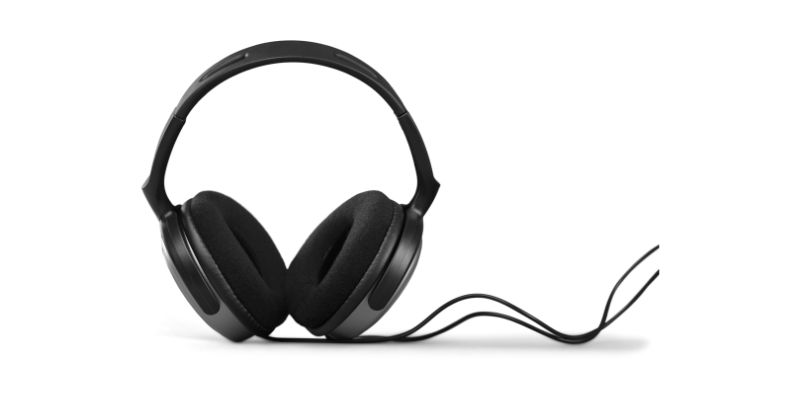
To listen to TV on Bluetooth headphones, go to the settings menu on your TV, search for the accessories menu, and connect your headphones to the device. Ensure that your headphones are visible and ready to connect, then select them from the Bluetooth results on your TV.
By following these steps, you can easily enjoy TV audio through your Bluetooth headphones. In today’s digital age, entertainment has become more personalized and immersive. Whether you want to watch a late-night movie without disturbing others or simply prefer a more immersive audio experience, using Bluetooth headphones to listen to TV can be a game-changer.
However, the process of connecting Bluetooth headphones to your TV may not always be straightforward. We will explore the steps to connect Bluetooth headphones to your TV, allowing you to enjoy your favorite shows and movies with enhanced audio quality and convenience. So, let’s dive in and discover how you can seamlessly listen to TV on your Bluetooth headphones.
Why Choose Bluetooth Headphones For Tv?
Superior audio quality and immersive experience
When it comes to watching TV, audio quality is just as important as the visual experience. Bluetooth headphones for TV offer superior audio quality, allowing you to fully immerse yourself in the content you are watching. With enhanced bass response, crisp treble, and clear dialogue, these headphones ensure that every sound detail is heard with precision.
By using Bluetooth technology, these headphones provide a seamless and lag-free audio experience. You won’t have to worry about mismatched audio and video, as the wireless connection guarantees synchronization between the audio and visuals. Whether you’re watching an action-packed movie or a gripping TV series, Bluetooth headphones enhance the overall audio experience, making it more enjoyable and engaging.
Freedom to move around without wires
Gone are the days when you had to sit close to the TV or stay connected to it with wired headphones. Bluetooth headphones for TV give you the freedom to move around and enjoy your favorite shows and movies from anywhere in the room. With a wireless connection range of up to 30 feet or more, you can comfortably sit on the couch, walk around the house, or even grab a snack from the kitchen without missing a single moment of the action.
These headphones are designed to provide convenience and flexibility, allowing you to find the perfect viewing position without worrying about tangled wires. Say goodbye to restrictions and hello to unrestricted movement and comfort while enjoying your TV time.
Easy connectivity and convenience
Setting up Bluetooth headphones for TV is incredibly easy. With simple pairing procedures, you can quickly connect your headphones to your TV and start enjoying your favorite content. Most modern TVs come with built-in Bluetooth functionality or have Bluetooth adapters available for connection.
Once connected, you don’t have to worry about any complicated settings or configurations. The headphones automatically connect to your TV whenever they are in range, allowing for a seamless and hassle-free experience. Additionally, Bluetooth headphones often offer convenient control buttons directly on the ear cups, giving you quick access to volume control, play/pause, and even voice commands.
How To Connect Bluetooth Headphones To Your Tv
Listening to your favorite TV shows and movies with Bluetooth headphones can truly elevate your entertainment experience. Whether you want to enjoy late-night binge-watching without disturbing others or enhance the audio quality for a more immersive experience, connecting your Bluetooth headphones to your TV is a straightforward process. In this guide, we’ll walk you through the necessary steps to connect your Bluetooth headphones to your TV.
Ensure your TV has Bluetooth capabilities
Before you start the connection process, it’s essential to ensure that your TV is equipped with Bluetooth capabilities. Refer to your TV’s user manual or check the specifications online to determine if it supports Bluetooth connectivity. If your TV doesn’t have built-in Bluetooth, don’t worry! You can still connect Bluetooth headphones using an external Bluetooth transmitter.
Activate Bluetooth mode on your headphones
To begin the pairing process, you need to activate Bluetooth mode on your headphones. The method may vary depending on the headphone model, but typically, you can long-press the power button or a dedicated Bluetooth button to enable Bluetooth mode. Ensure your headphones are in pairing mode and ready to connect to a new device.
Pair your headphones with the TV
Now that Bluetooth mode is activated on your headphones, it’s time to pair them with your TV. Here’s a step-by-step process:
- On your TV, navigate to the settings menu. Look for an “accessories” or “Bluetooth” section.
- Select the option to connect to Bluetooth devices.
- Ensure your headphones are within range and in pairing mode.
- On your TV, initiate a search for available Bluetooth devices.
- Select your headphones from the list of detected devices.
- Follow any on-screen prompts to complete the pairing process.
Adjust audio settings for optimal performance
After pairing your Bluetooth headphones with your TV, it’s crucial to adjust the audio settings for optimal performance. Here are some steps you can take:
- Access the audio settings menu on your TV.
- Choose the option to output audio to Bluetooth headphones.
- Adjust the volume level to a comfortable listening level.
- Experiment with different audio presets or modes to find the one that suits your preferences.
With your Bluetooth headphones successfully connected to your TV and the audio settings customized, you’re now ready to enjoy an immersive and personalized audio experience while watching your favorite content.
Choosing The Right Bluetooth Headphones For Tv
When it comes to enjoying your favorite TV shows and movies without disturbing others, Bluetooth headphones are a game-changer. With the freedom to move around while watching, you can truly immerse yourself in the viewing experience. However, with so many options available on the market, it can be overwhelming to choose the right Bluetooth headphones for your TV. In this guide, we’ll explore a few essential factors to consider before making your purchase.
Consider the headphones’ comfort and fit
Comfort is key when it comes to choosing Bluetooth headphones for TV. You’ll likely be wearing them for extended periods, so finding a pair with a comfortable fit is essential. Look for headphones that have adjustable headbands and cushioned ear cups to provide a snug fit without causing discomfort. Additionally, consider the weight of the headphones, as lighter options are generally more comfortable for extended use.
Look for long battery life for extended use
Long battery life is crucial for uninterrupted binge-watching sessions. Make sure to check the battery life of the Bluetooth headphones you’re considering. Look for options with at least 8-10 hours of battery life, as this will allow you to enjoy multiple episodes or even whole movies without worrying about recharging. Additionally, consider headphones that offer a quick charging feature so you can get back to watching in no time.
Check for compatibility with your TV model
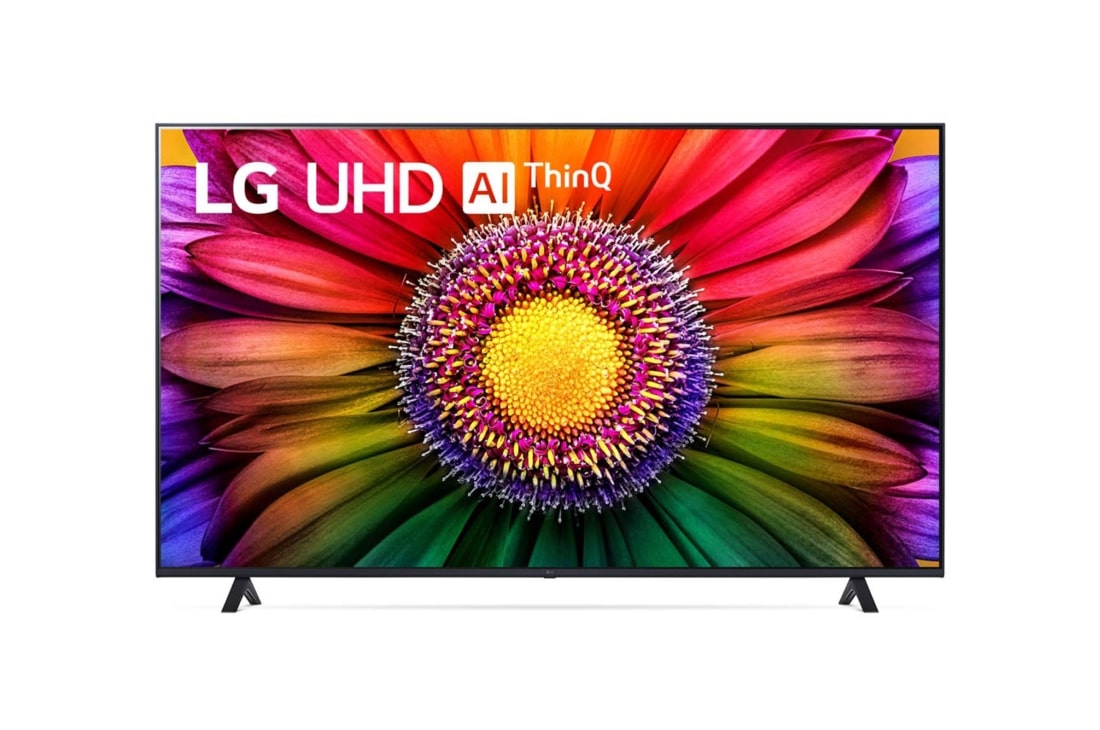
Before making a purchase, it’s crucial to ensure that the Bluetooth headphones you choose are compatible with your TV model. Look for headphones that support the Bluetooth version used by your TV. Some newer models support Bluetooth 5.0, while older models may only support earlier versions. Additionally, check if your TV has a built-in Bluetooth transmitter or if you’ll need to purchase an external Bluetooth transmitter separately.
Compare sound quality and additional features
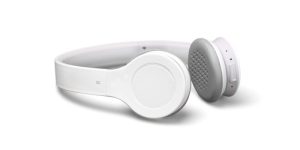
Sound quality plays a significant role in enhancing your TV viewing experience. Look for Bluetooth headphones that offer high-definition audio with rich bass and clear vocals. Noise cancellation or noise isolation features can also be beneficial, as they help block out background noises and immerse you in the content. Additionally, consider any additional features that may enhance convenience, such as built-in microphone for hands-free calls or touch controls for easy playback control.
By considering factors such as comfort, battery life, compatibility, and sound quality, you can choose the perfect Bluetooth headphones for your TV. Whether you’re enjoying a movie night at home or catching up on your favorite TV series, these headphones will provide a seamless and immersive audio experience.
Credit: www.lg.com
Top Bluetooth Headphones For Tv
Samsung TV: Experience wireless audio bliss
If you own a Samsung TV and crave the ultimate audio experience, it’s time to free yourself from the constraints of traditional wired headphones. With Bluetooth technology, you can now connect your Samsung TV to a wide range of wireless headphones, giving you the freedom to move around without compromising on sound quality. Whether you’re watching your favorite movies, enjoying a thrilling gaming session, or simply tuning in to your favorite TV shows, these top Bluetooth headphones for Samsung TV will enhance your entertainment experience like never before.
Vizio TV: Immerse yourself in cinematic sound
Don’t let tangled wires and limited mobility hinder your Vizio TV viewing experience. With Bluetooth headphones, you can immerse yourself in the cinematic sound of your Vizio TV without any limitations. These top Bluetooth headphones for Vizio TV offer superior audio quality, allowing you to hear every dialogue and sound effect with remarkable clarity. Whether you’re watching a thrilling action-packed movie or indulging in a binge-watching session of your favorite TV series, these headphones will transport you into the world of immersive entertainment.
Roku: Enjoy seamless integration and crystal-clear audio
With Roku, you can enjoy seamless integration and crystal-clear audio by pairing your TV with Bluetooth headphones. Whether you’re using a Roku TV or streaming device, these top Bluetooth headphones for Roku offer a hassle-free setup process and deliver exceptional sound quality. Say goodbye to tangled wires and hello to the freedom of wireless audio. Whether you’re streaming your favorite shows or privately enjoying late-night movies, these headphones will provide you with an enhanced audio experience, ensuring you catch every detail and immerse yourself in crisp, clear sound.
Troubleshooting Common Bluetooth Connection Issues
When it comes to listening to TV on Bluetooth headphones, there may be some common connection issues that you encounter. Troubleshooting these problems is essential to ensure a seamless and uninterrupted audio experience. In this section, we will discuss three common Bluetooth connection issues and offer troubleshooting solutions for each. Let’s delve into the details below:
Pairing or Connection Failures
If you are experiencing difficulties in pairing your Bluetooth headphones with your TV, don’t fret. Here are some possible solutions:
- Ensure that your Bluetooth headphones are in pairing mode. Refer to the headphone’s manual or check their manufacturer’s website for specific instructions.
- Make sure that your TV’s Bluetooth functionality is enabled. Navigate to the TV’s settings menu, locate the accessories menu, and activate the Bluetooth feature.
- Check if your Bluetooth headphones are compatible with your TV. Some older TV models may have limitations when it comes to Bluetooth device compatibility.
- If the pairing fails initially, try turning off both the TV and the headphones, and then attempt the pairing process again.
Audio Lag or Synchronization Issues
Experiencing audio lag or synchronization problems can be frustrating. To address these issues, follow these troubleshooting steps:
- Ensure that your Bluetooth headphones are fully charged. Low battery levels can sometimes cause audio delays.
- Move closer to your TV to improve the Bluetooth connection and minimize audio lag.
- Check if there are any software updates available for your Bluetooth headphones. Updating the firmware can often resolve audio synchronization problems.
- Try adjusting the audio delay settings on your TV. Refer to the TV’s manual for instructions on how to access and modify these settings.
Limited Range or Interference Problems
If you are experiencing limited range or interference issues with your Bluetooth headphones, consider the following troubleshooting tips:
- Ensure that there are no physical obstructions between your Bluetooth headphones and your TV. Objects like walls or furniture can weaken the Bluetooth signal.
- Keep electronic devices that may cause interference, such as routers or cordless phones, away from your Bluetooth headphones and TV.
- Try repositioning the Bluetooth transmitter closer to your TV. A closer proximity may improve the signal strength and range.
- If you are using multiple Bluetooth devices in close proximity, they might interfere with each other. Disconnect or turn off other Bluetooth devices to alleviate the interference.
By following these troubleshooting tips, you can address common Bluetooth connection issues and enjoy a seamless listening experience with your TV and Bluetooth headphones.
Alternative Solutions For Tv Audio
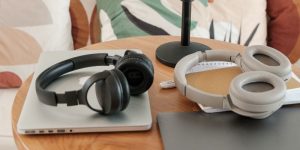
Alternative Solutions for TV Audio
In today’s digital world, there are multiple alternative solutions available for enhancing your TV audio experience. Whether you want to enjoy a late-night movie without disturbing anyone or simply prefer a personalized audio experience, there are options for everyone. Here are three alternatives that can transform your TV audio:
Wireless TV listening speakers
Wireless TV listening speakers provide a convenient way to enjoy TV audio without the need for headphones. These speakers connect wirelessly to your TV and deliver high-quality sound directly to your ears. With adjustable volume controls and clear sound reproduction, wireless TV listening speakers are an excellent choice for those who prefer a speaker-based solution. You can place the speakers anywhere in your room and experience immersive audio without the hassle of wires.
TV headphones with dedicated TV audio technology
TV headphones with dedicated TV audio technology ensure optimal sound quality and synchronization with your TV. These headphones are designed specifically for TV use and offer features such as voice clarifying technology, enhanced bass, and adjustable audio settings. With these headphones, you can enjoy crystal-clear audio and immerse yourself in your favorite TV shows or movies. Simply connect the headphones to your TV via Bluetooth, and experience an enhanced audio experience that matches your preferences.
Bluetooth headphones with TV audio compatibility
If you already have Bluetooth headphones, you can easily connect them to your TV for a personalized audio experience. Most modern TVs come with Bluetooth connectivity options, allowing you to pair your headphones with the TV directly. Simply access the settings menu on your TV, search for the accessories menu, and connect your Bluetooth headphones. Once connected, you can enjoy your favorite shows and movies with the freedom and convenience of wireless headphones.
Overall, these alternative solutions for TV audio provide flexibility and convenience to enhance your entertainment experience. Whether you prefer wireless TV listening speakers, TV headphones with dedicated audio technology, or Bluetooth headphones with TV audio compatibility, there is a solution to suit your needs. Choose the option that aligns with your preferences and enjoy an immersive and personalized TV audio experience.
Frequently Asked Questions For Listen To Tv On Bluetooth Headphones
Can I Listen To Tv Through Bluetooth Headphones?
Yes, you can listen to TV through Bluetooth headphones. Simply go to your TV’s settings menu, find the accessories menu, and connect to Bluetooth. Make sure your headphones are ready to connect and visible. Search for your headphones on the Bluetooth menu and connect to them.
Can I Listen To My Samsung Tv With Bluetooth Headphones?
Yes, you can listen to your Samsung TV with Bluetooth headphones. Go to the TV settings, find the accessories menu, and connect your headphones.
How Do I Connect My Bluetooth To My Tv?
To connect your Bluetooth to your TV, go to the settings menu, find the accessories section, and select the Bluetooth option. Ensure that your headphones are ready to connect, search for the device on your TV, and connect to them.
How Can I Listen To Tv And Headphones At The Same Time?
To listen to TV and headphones at the same time, go to your TV’s settings menu, look for the accessories or Bluetooth menu, and connect your headphones. Make sure your headphones are visible and ready to connect. Once you see them on the TV’s Bluetooth results, simply connect to them.
Conclusion
Listening to TV on Bluetooth headphones offers a whole new level of convenience and freedom. No longer will you have to worry about disturbing others with the volume or struggling to hear dialogue in a noisy environment. Bluetooth headphones provide a seamless connection to your TV, allowing you to enjoy your favorite shows and movies with crystal clear audio.
Not only do Bluetooth headphones enhance your viewing experience, but they also offer versatility. You can connect your headphones to any Bluetooth-enabled device, giving you the flexibility to use them for listening to music, podcasts, and even phone calls. With the ability to connect multiple headphones to a single TV, you can easily share the experience with friends and family.
Investing in Bluetooth headphones for your TV is a game-changer. Experience the freedom, convenience, and enhanced audio quality they offer. Whether you’re watching an intense action movie or a quiet drama, Bluetooth headphones will immerse you in the sound and enhance your overall enjoyment.
Say goodbye to tangled cords and hello to a whole new level of entertainment. Upgrade your TV experience today with Bluetooth headphones.