0x00000016: What It Means and How to Fix the Stop Code
0x00000016 is a rare Windows stop code that usually points to a driver, firmware, or hardware fault, so the fastest first move is to photograph the screen and save any minidump before changing drivers.
This guide is part of our Windows BSOD stop codes: full list and fixes series.
If the machine still starts, collect the crash evidence first. If it loops or only fails under load, try Safe Mode or the recovery environment before guessing at fixes.
What does stop code 0x00000016 mean in Windows?
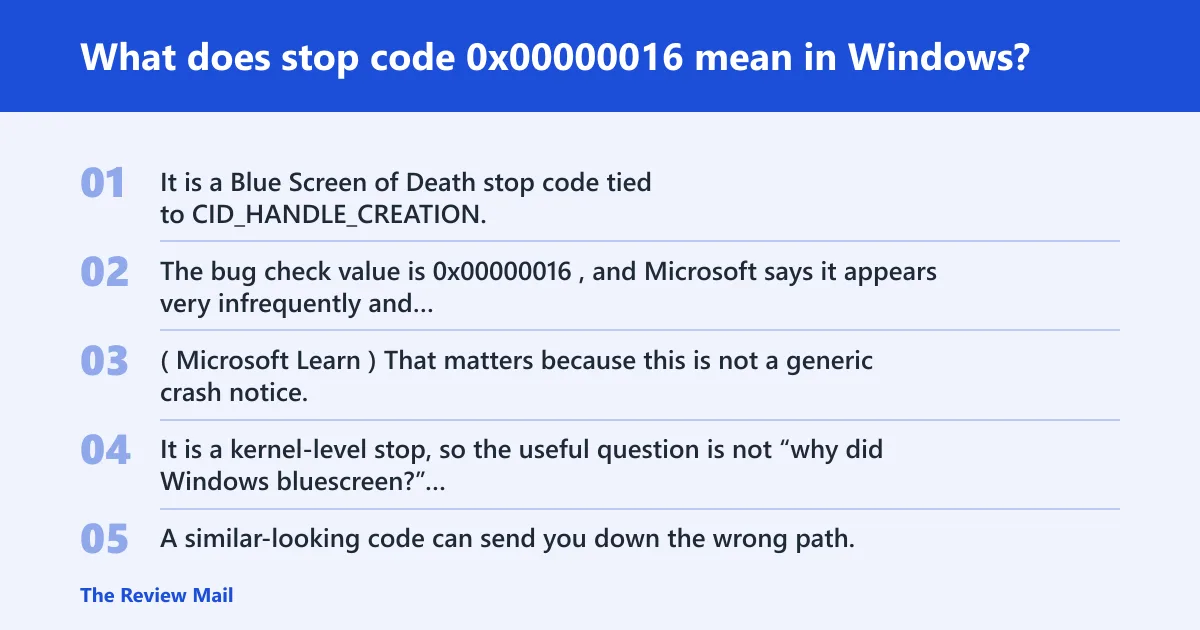
It is a Blue Screen of Death stop code tied to CID_HANDLE_CREATION, and Microsoft classifies it as a bug check for driver-debugging work. The bug check value is 0x00000016, and Microsoft says it appears very infrequently and points customers to blue screen troubleshooting help. (Microsoft Learn)
That matters because this is not a generic crash notice. It is a kernel-level stop, so the useful question is not “why did Windows bluescreen?” but “what changed around the crash, and what module appears in the dump?”
How it differs from nearby 0x0000001x stop codes
Do not lump it in with the rest of the 0x0000001x family. A similar-looking code can send you down the wrong path, especially if you search by the first digit alone. Confirm the exact text on the blue screen, then match that text to the dump.
📊 The bug check value is 0x00000016. Source: Bug Check 0x16 CID_Handle_Creation.
What to collect before you change anything
Collect the exact stop text, crash time, recent driver or software changes, minidumps, and Event Viewer entries before you roll back drivers or reset Windows. That gives you a clean before-and-after record, and it keeps you from overwriting the one clue that matters.
Save the screenshot, then check Event Viewer > Windows Logs > System for entries at the same time. If the PC still boots, copy the newest files from C:\Windows\Minidump. If there is a full dump, check C:\Windows\MEMORY.DMP.
- Photograph the blue screen and note the exact code.
- Write down any recent driver install, BIOS change, Windows Update, or security app change.
- Open Event Viewer and save the System log around the crash time.
- Copy minidumps from
C:\Windows\Minidumpbefore repairs overwrite them. - If Windows still starts, create a restore point or back up key files before rollback.
Likely causes ranked by how often they show up
The most common path is a recent driver change or a bad interaction between drivers. Next come pending Windows updates or damaged system files. Less commonly, the crash shows up only under load because memory or storage is unstable. The least common bucket is a kernel or debugger-path problem that needs dump analysis.
| Symptom pattern | Most likely cause | First action | Evidence to capture first |
|---|---|---|---|
| Crash started after a driver install | Driver conflict or bad driver package | Roll back or uninstall the newest driver | Driver name, install date, minidump |
| Crashes after updates but boots normally | Pending Windows Update or file corruption | Install updates, then run SFC and DISM | Update history, Event Viewer, dump file |
| Only fails during gaming, compile, or heavy copy jobs | Memory or storage fault under load | Run memory and disk checks | Workload timing, CHKDSK result, memory test result |
| Same dump repeats after software fixes | Persistent kernel or hardware issue | Open the dump in WinDbg | Blamed module, bug check parameters, dump hash |
Can faulty drivers trigger stop code 0x00000016?
Yes. A bad or conflicting driver is one of the first things to check, especially if the crash began after a new install, update, or device change. Chipset, storage, GPU, and security software drivers are the first places to look because they sit close to the kernel path.
- Open Device Manager.
- Find the most recent driver change under the device class that changed first.
- Right-click the device and choose Properties > Driver > Roll Back Driver, or select Uninstall device if rollback is unavailable.
- Restart and retest.
- If the issue remains, reinstall the vendor driver package, then test again.
If the PC still boots, keep the rollback order tight. Start with chipset, then storage, then GPU. Security tools come next if they were updated right before the crash.
Should you update Windows first?
Yes, if Windows still boots. Pending cumulative updates can repair system files and kernel components, and Windows Update also delivers driver fixes. That is a sound first pass when the machine is stable enough to work in normal mode.
- Open Settings > Windows Update.
- Select Check for updates.
- Install cumulative updates and any driver updates offered there.
- Restart the PC.
- Run the same workload again and watch for a repeat crash.
If updates fail to install, run the Windows Update Troubleshooter from Settings > System > Troubleshoot > Other troubleshooters on Windows 11, or Settings > Update & Security > Troubleshoot on Windows 10. Then retry the update.
How do I fix a BSOD with code 0x00000016?
The cleanest fix path depends on whether the system boots. If it boots, start with updates and driver rollback. If it does not, use Safe Mode or WinRE, remove the last bad driver or update, then move to file and disk checks.
- If Windows boots, install pending updates, then run
sfc /scannowfrom an elevated Command Prompt. - Follow with
DISM /Online /Cleanup-Image /RestoreHealth. - If the crash began after a driver change, use Device Manager rollback or uninstall.
- If Windows will not boot normally, enter Safe Mode or Windows Recovery Environment.
- In WinRE, use Startup Repair or System Restore, or uninstall the last quality update.
If the machine still crashes after those steps, move to dump analysis. That is the point where guessing gets expensive.
How to find the crash driver for bug check 0x00000016
Use the minidump to see which module the kernel blamed. That is the fastest way to separate a true driver issue from a hardware problem that only looks like one. WinDbg is the standard tool here, and a similar debugger can open the same dump files.
Look in C:\Windows\Minidump first. Open the newest file in WinDbg, then inspect the bug check text, stack, and blamed module. If the same driver appears across multiple dumps, that is the first rollback target. If the blamed module changes every time, look harder at memory, storage, or firmware.
What to read in WinDbg
- The bug check name and value.
- The “probably caused by” or blamed module line.
- The stack around the crash.
- Whether the same component repeats in each dump.
How do I find the crash driver for bug check 0x00000016?
Open the newest minidump in WinDbg, then compare the blamed module against the driver changes you recorded earlier. If the blamed module matches a recent install, roll that driver back first. If it points to storage, chipset, or GPU code, focus there before any reinstall of Windows.
- Copy the newest file from
C:\Windows\Minidump. - Open it in WinDbg and note the blamed module name.
- Check Device Manager for the matching device.
- Roll back, disable, or uninstall that driver.
- Restart and see whether the same dump returns.
Does 0x00000016 point to hardware or software issues?
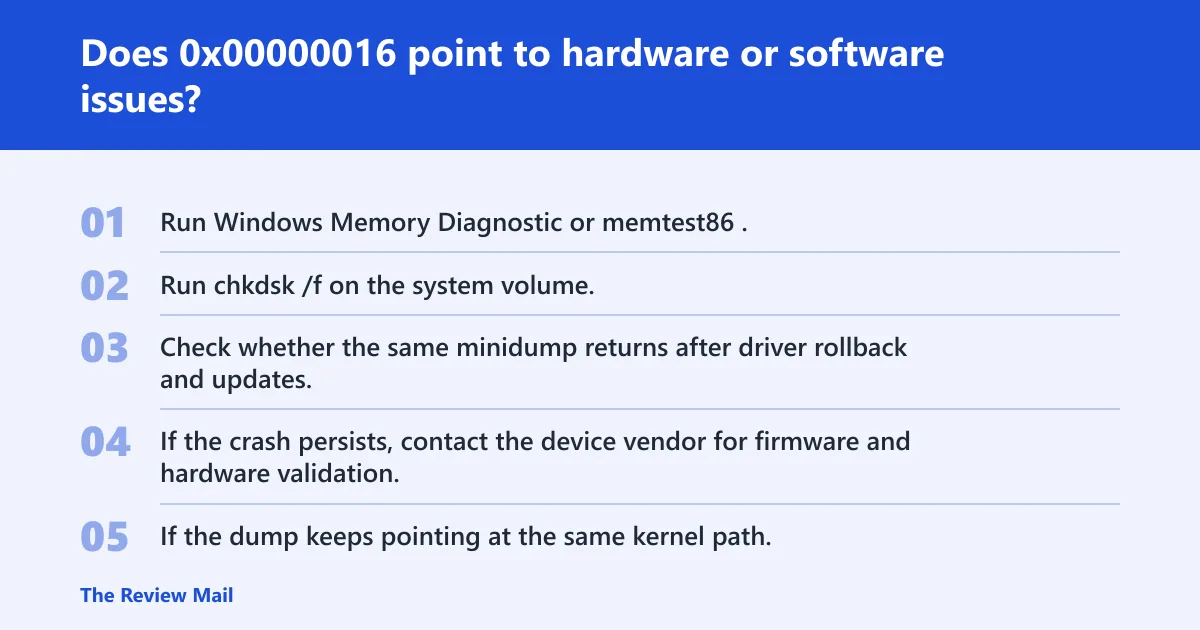
It can point to either, but software is the better first bet when the crash follows a driver, update, or app change. Hardware becomes more likely when the same dump repeats after driver fixes, when the machine fails only under load, or when memory and disk checks report errors.
Use that split to avoid reimaging too early. A repeated blamed module suggests software. A stable blamed module with clean driver history pushes you toward memory, storage, or firmware validation.
When to move to hardware checks or support
- Run Windows Memory Diagnostic or memtest86.
- Run
chkdsk /fon the system volume. - Check whether the same minidump returns after driver rollback and updates.
- If the crash persists, contact the device vendor for firmware and hardware validation.
- If the dump keeps pointing at the same kernel path, ask Microsoft support for debugger-guided review.
Prevention: After the machine is stable, keep a short change log for driver installs, BIOS updates, and Windows Update installs. That makes the next crash faster to isolate.
Still not fixed? When to escalate
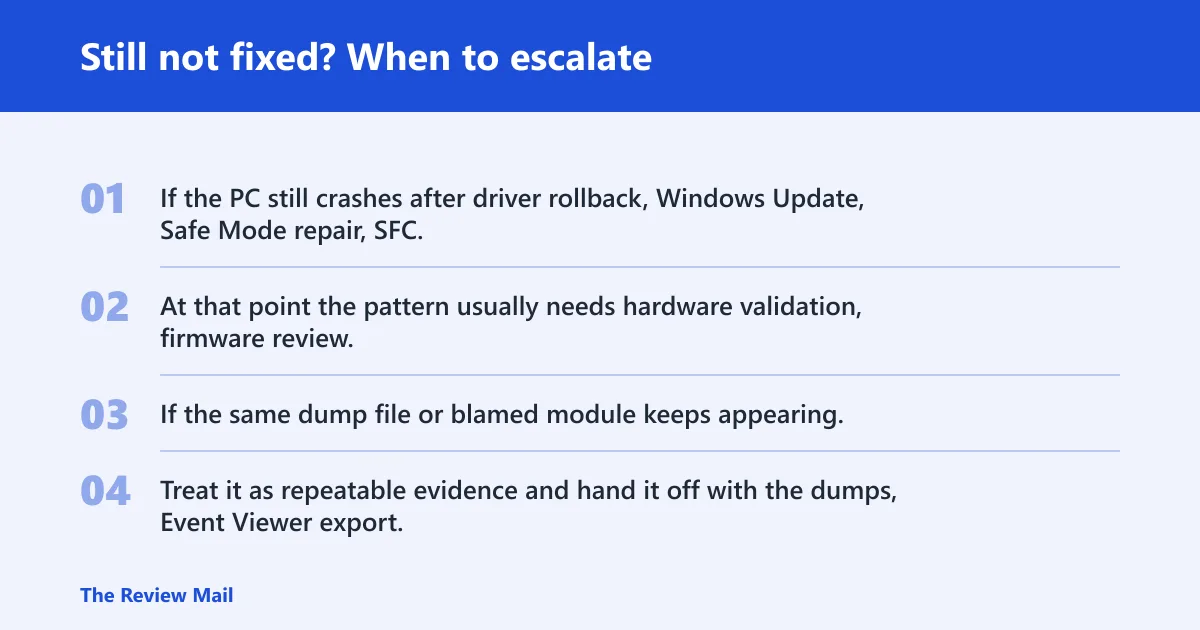
If the PC still crashes after driver rollback, Windows Update, Safe Mode repair, SFC, DISM, and memory or disk checks, stop cycling through the same fixes. At that point the pattern usually needs hardware validation, firmware review, or vendor support for the exact device family.
If the same dump file or blamed module keeps appearing, the problem may be less likely to be random. Treat it as repeatable evidence and hand it off with the dumps, Event Viewer export, and change log.
0x00000016 triage matrix
Use this before any rollback, reinstall, or reset. It tells you which evidence matters and which fix path is worth the time.
| Symptom pattern | Most likely cause | First action | Evidence to capture before any rollback or reinstall |
|---|---|---|---|
| PC boots normally and crashes after a recent driver change | Driver conflict | Rollback or uninstall the newest driver | Driver name, version, install date, minidump |
| PC boots normally, no driver change, updates pending | Windows file or kernel issue | Install Windows Update, then run SFC and DISM | Update history, Event Viewer, dump timestamp |
| PC loops or will not reach desktop | Bad driver or update blocking startup | Safe Mode, then WinRE rollback or System Restore | Last successful boot time, last change made, recovery options tried |
| PC only crashes under load | Memory or storage instability | Run memory and disk checks | Workload that triggers it, temperature or timing if available, test results |
| Same dump repeats after software fixes | Hardware or firmware issue | Escalate to vendor support | WinDbg output, repeated module name, all prior repair steps |
Frequently asked questions
What does stop code 0x00000016 mean in Windows?
It is a Blue Screen stop tied to the CID_HANDLE_CREATION bug check. If Windows shows this code, save the minidump from C:\Windows\Minidump, check recent driver or Windows Update changes, and open the dump in WinDbg before trying a reinstall.
Is 0x00000016 the same as CID_HANDLE_CREATION?
Yes. The bug check value is 0x00000016, and Microsoft names it CID_HANDLE_CREATION. If a tool or dump viewer shows the name instead of the number, treat them as the same stop code and follow the same dump-first triage path.
What causes a 0x00000016 blue screen?
The most likely causes are driver conflicts, pending Windows updates, corrupted system files, and memory or storage instability under load. Start with the newest driver or update, then use sfc /scannow, DISM /Online /Cleanup-Image /RestoreHealth, and disk or memory tests if the crash repeats.
How do I fix a BSOD with code 0x00000016?
If Windows boots, install updates, then roll back the newest driver in Device Manager. If it does not boot, use Safe Mode or Windows Recovery Environment, then try System Restore or uninstall the last update. Keep the minidump for WinDbg analysis.
Can faulty drivers trigger stop code 0x00000016?
Yes. A recent chipset, storage, GPU, or security driver change is one of the first things to check. Roll back the newest device driver in Device Manager, restart, and see whether the crash stops. If it returns, open the newest minidump in WinDbg.
Should I update Windows if I get 0x00000016?
Yes, if the PC still starts. Open Settings > Windows Update, install pending cumulative updates and any offered driver updates, then restart. If the machine still crashes, keep the dump file and compare the timing against the update history before changing anything else.