0x00000133 Fixes for Windows BSOD Crash Loop on 10 and 11
0x00000133 is the DPC_WATCHDOG_VIOLATION bug check, with a value of 0x00000133. If it starts after a driver, SSD, BIOS, or hardware change, roll back that change first before replacing parts or making broader updates.
What does 0x00000133 mean in Windows?
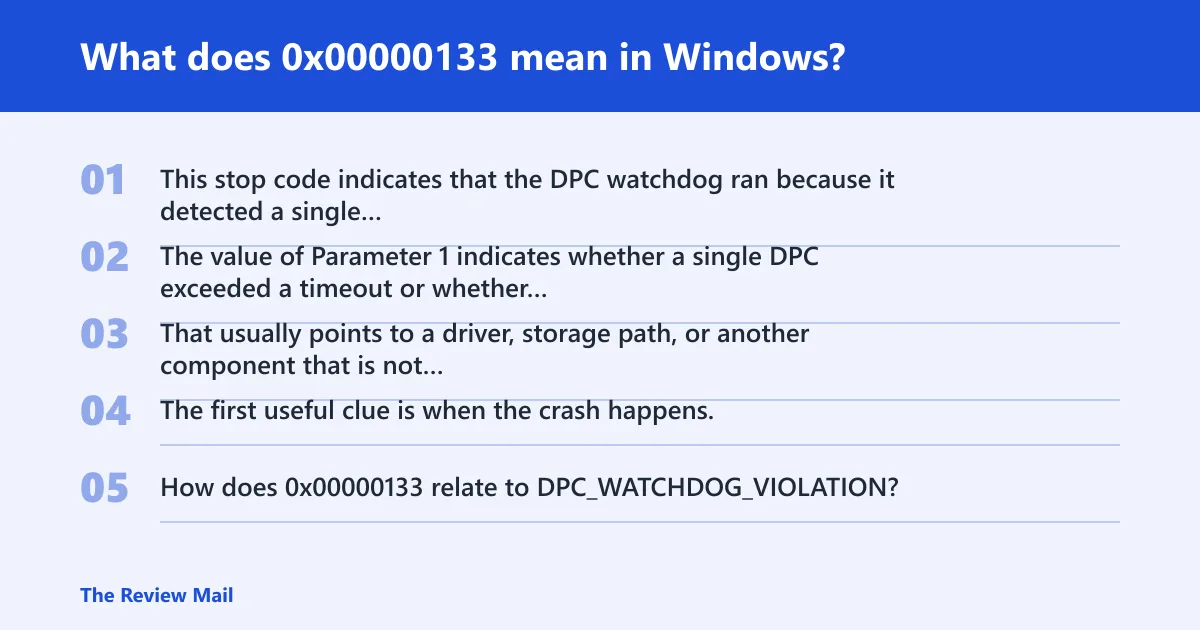
This stop code indicates that the DPC watchdog ran because it detected a single long-running deferred procedure call (DPC), or because the system spent a prolonged time at an interrupt request level (IRQL) of DISPATCH_LEVEL or above. The value of Parameter 1 indicates whether a single DPC exceeded a timeout or whether the system cumulatively spent an extended period of time at IRQL DISPATCH_LEVEL or above.
That usually points to a driver, storage path, or another component that is not completing work quickly enough. The first useful clue is when the crash happens.
How does 0x00000133 relate to DPC_WATCHDOG_VIOLATION?
They are two names for the same stop code. Microsoft’s debugger documentation lists DPC_WATCHDOG_VIOLATION as 0x00000133, so either label refers to the same watchdog failure.
What does the freeze, hang, or restart pattern tell you?
If the machine freezes at boot, the storage path is a reasonable place to start. If it crashes during gaming or heavy load, a graphics driver or another busy device driver may be involved. If it happens while idle, sleeping, or waking, a device driver or power-state transition may be involved. If it appears during file copies, the storage path should be checked first.
Which causes are most likely?
Start with the crash pattern and any recent changes. A storage controller issue, SSD firmware problem, corrupted Windows files, chipset driver problem, or a recently added device can all contribute. If the issue began after a recent update or hardware change, that is the best place to focus first.
Common checks include the storage driver, SSD firmware, chipset package from the device maker, and Windows file repair. If the issue began right after a driver, firmware, or hardware change, that change is the most likely starting point.
Rank the common causes by crash pattern
- Boot-time crash: storage controller or SSD path.
- Gaming or load crash: graphics or another busy device driver.
- Idle, sleep, or wake crash: a device driver tied to power-state changes.
- Copying large files: SSD or storage controller path.
- Started after new hardware: the new part, its driver, or firmware.
How do I map the crash pattern to the likely subsystem?
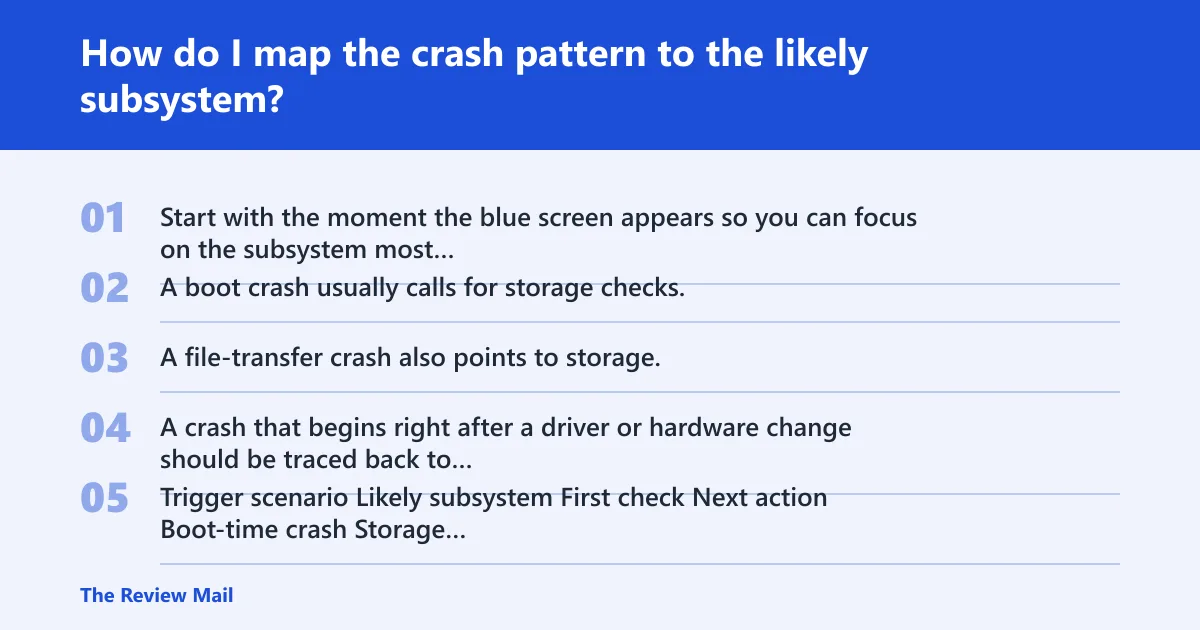
Start with the moment the blue screen appears so you can focus on the subsystem most likely involved. A boot crash usually calls for storage checks. A file-transfer crash also points to storage. A crash that begins right after a driver or hardware change should be traced back to that specific change.
| Trigger scenario | Likely subsystem | First check | Next action |
|---|---|---|---|
| Boot-time crash | Storage controller / SSD | Device Manager > IDE ATA/ATAPI or Storage controllers | Update or roll back the storage driver; check SSD firmware |
| Gaming or load crash | Graphics or another device driver | Device Manager > Display adapters | Update the graphics driver from the system or device maker |
| Idle, sleep, or wake crash | Driver or power-state transition | Device Manager > Network adapters or other recently changed devices | Update or roll back the related driver |
| Large file copy or disk activity | Storage latency | SSD firmware and storage driver | Test after updating or rolling back the storage-related driver |
How do I fix storage controller and SSD-related 0x00000133?
Start here if the crash appears at boot, during installs, or while copying files. A storage driver or SSD firmware issue is a practical first check when the crash lines up with disk activity.
- Open Device Manager and expand IDE ATA/ATAPI controllers and Storage controllers.
- Right-click the controller in use and choose Update driver. If the problem began after a recent driver change, choose Properties > Driver > Roll Back Driver.
- Check the SSD maker’s firmware tool, or the system vendor’s support page, for a firmware update.
- Restart, then copy a large file between internal folders and watch for freezes.
If the blue screen started right after a storage driver update, roll that driver back before testing anything else.
How do I check chipset, graphics, and Wi-Fi drivers?
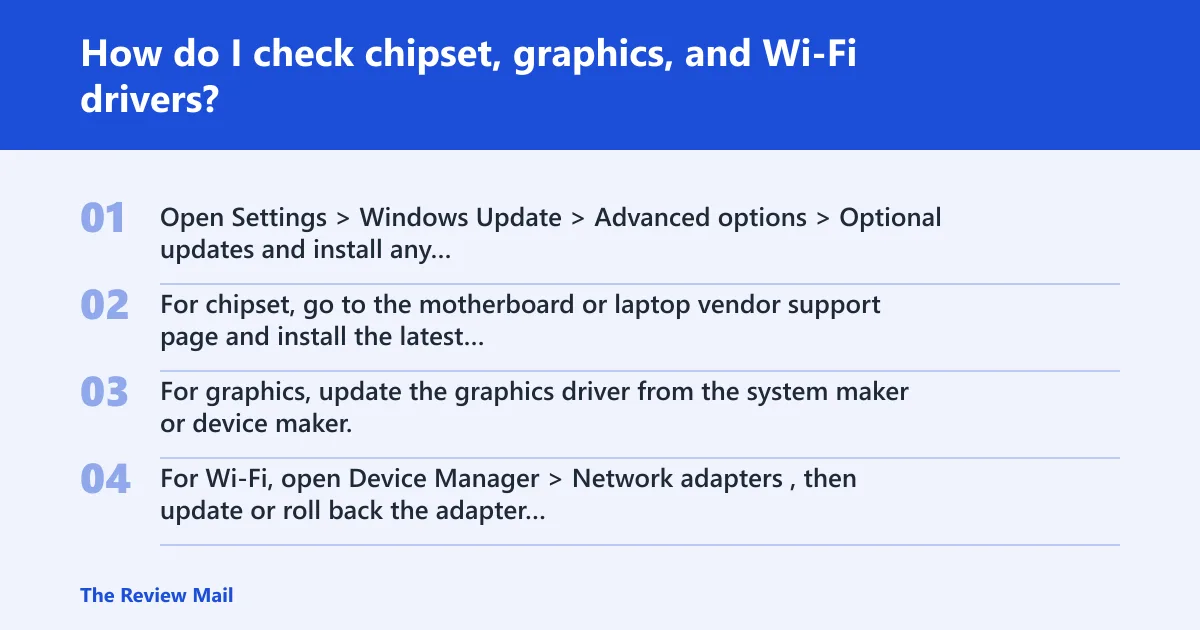
If storage checks do not fit the crash pattern, move to the driver that changed most recently. For chipset, go to the motherboard or laptop vendor support page and install the latest chipset package for your exact model. For graphics or Wi-Fi, use the device maker’s driver package or Device Manager to update or roll back the related adapter.
- Open Settings > Windows Update > Advanced options > Optional updates and install any offered driver updates.
- For chipset, go to the motherboard or laptop vendor support page and install the latest chipset package for your exact model.
- For graphics, update the graphics driver from the system maker or device maker.
- For Wi-Fi, open Device Manager > Network adapters, then update or roll back the adapter if the crash began after that change.
If a driver update makes the BSOD worse, go back to Device Manager and use Roll Back Driver or Uninstall device, then reboot.
Can corrupted system files or Windows updates trigger this?
Yes. Corrupted Windows system files can contribute to the crash, especially if the issue started after a failed update, a power loss, or repeated forced restarts. Repairing system files is a standard first step when the crash pattern does not point clearly to one driver.
- Open Command Prompt as administrator.
- Run
SFC /SCANNOW. - Run
DISM /Online /Cleanup-Image /RestoreHealth. - Go to Settings > Windows Update and install pending patches, then reboot.
If the issue began after Patch Tuesday, install the latest cumulative update first, then retry the file repair commands.
What should I check if 0x00000133 started after new hardware?
New hardware changes the suspect list fast. If the crash began after a new SSD, add-in card, dock, Wi-Fi adapter, or memory kit, test with the new part removed or disabled before touching unrelated drivers.
- Shut down and disconnect the new external device, or remove the recently installed internal part if that is practical.
- Boot once in Safe Mode to see whether the crash still appears.
- Open Device Manager and verify the new device’s driver version, then roll it back if the timing lines up.
- Check the motherboard or laptop vendor site for BIOS and firmware notes tied to that model.
If a new SSD is involved, retest with the old drive if possible.
Still not working?
If driver rollback, file repair, and firmware checks do not change the crash pattern, collect evidence before changing more parts. Minidumps, Event Viewer entries, and exact driver names can show whether the fault repeats in the same place.
How do I tell whether the issue is software or hardware?
Open Event Viewer > Windows Logs > System and look for the crash time, then review C:\Windows\Minidump in a debugger or support tool. Repeated driver names usually point to software. Repeated disk errors or a storage device that fails under copy load point to hardware.
What if 0x00000133 keeps coming back after driver updates?
Stop stacking updates and test the hardware path. Run Windows Memory Diagnostic or memtest86, check SSD health, and if the storage path remains unstable, replace the SSD or cable before chasing more drivers. If the system still crashes with clean drivers and healthy storage, a repair shop or vendor support should inspect the board, RAM, or controller.
Prevention: after a fix, keep a note of the driver version and firmware level that stopped the crash. That makes rollback much faster if the problem returns after a later update.
Frequently asked questions
Is 0x00000133 the same as DPC_WATCHDOG_VIOLATION?
Yes. 0x00000133 is the code tied to DPC_WATCHDOG_VIOLATION. If you see either label in a dump, Event Viewer, or a bluescreen tool, treat them as the same watchdog failure and start with the subsystem that changed most recently.
What drivers most often cause 0x00000133 BSODs?
Storage controller drivers, SSD-related drivers, chipset drivers, graphics drivers, and some Wi-Fi drivers can be involved. Start with the driver family that matches the crash pattern.
Can overheating cause a 0x00000133 stop error?
It can contribute, but I would not assume that first. Check temperatures if the crash happens under load, then verify fans, dust, and cooling. If the timing matches boot, file copies, or sleep/wake instead, storage or driver latency is the better first suspect.
How do I fix 0x00000133 on Windows 11?
On Windows 11, start with Settings > Windows Update, then Device Manager for storage and chipset drivers, and then run SFC /SCANNOW followed by DISM /Online /Cleanup-Image /RestoreHealth. If the crash began after a new SSD or BIOS update, roll that back before trying more changes.
Should I update SSD, chipset, or graphics drivers first?
Update the one that matches the crash pattern first. Boot or file-transfer failures point to SSD and storage controller drivers. Gaming failures point to graphics, and sleep or wake failures point to chipset or Wi-Fi. That order cuts out a lot of wasted troubleshooting.