0x0000005c: Meaning, Causes, Fixes, and What to Try
0x0000005c on Windows 11 is a boot-stage fault that can show up as a blue screen, an instant reboot, or a failure loop before sign-in. The HAL_INITIALIZATION_FAILED bug check has a value of 0x0000005C, and it indicates that the HAL initialization failed. If it appears before the Windows logo, start by checking firmware, storage, or RAM; if it appears after loading begins, look next at drivers or the OS. Ignoring the order burns time and can turn a simple bad BIOS setting into repeated failed boots or data loss. I use this split first, because it points the fix at the layer that actually failed.
What does stop code 0x0000005c mean in Windows?
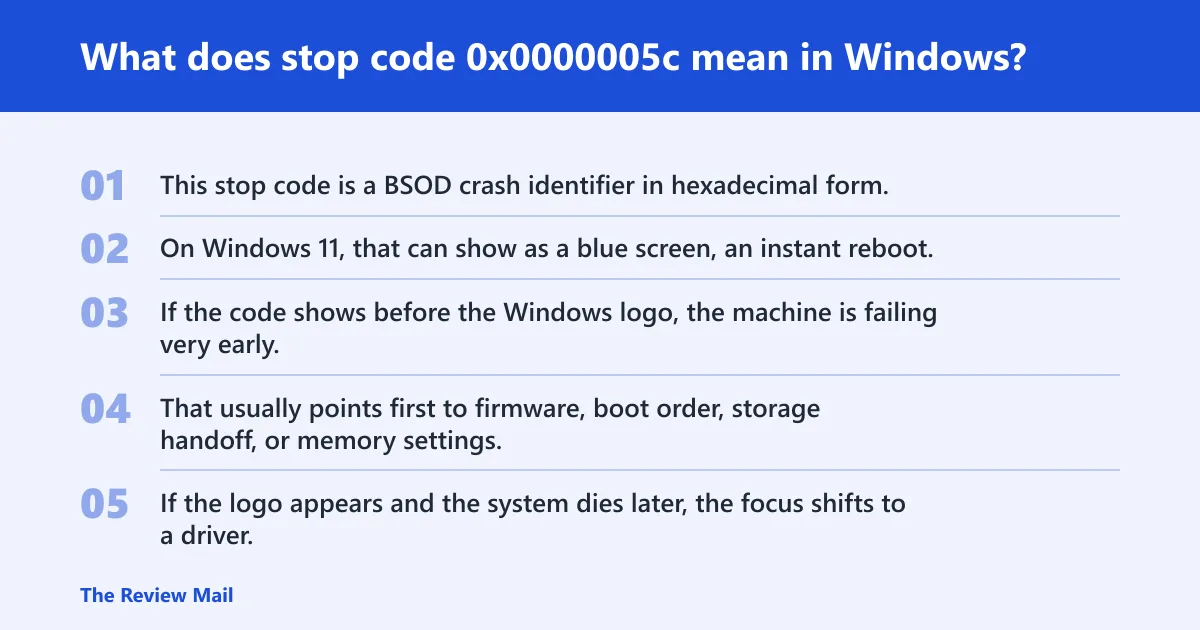
This stop code is a BSOD crash identifier in hexadecimal form. On Windows 11, that can show as a blue screen, an instant reboot, or a failure loop before sign-in.
How it appears during boot
If the code shows before the Windows logo, the machine is failing very early. That usually points first to firmware, boot order, storage handoff, or memory settings. If the logo appears and the system dies later, the focus shifts to a driver, a damaged boot file, or a Windows component.
How bug check codes fit the bigger picture
Bug check codes are the numbered labels Windows uses when a crash stops the kernel. 0x0000005c sits in the same family as other blue-screen codes, so the number matters. It tells you where to start, not just that the PC crashed.
Use this triage table first
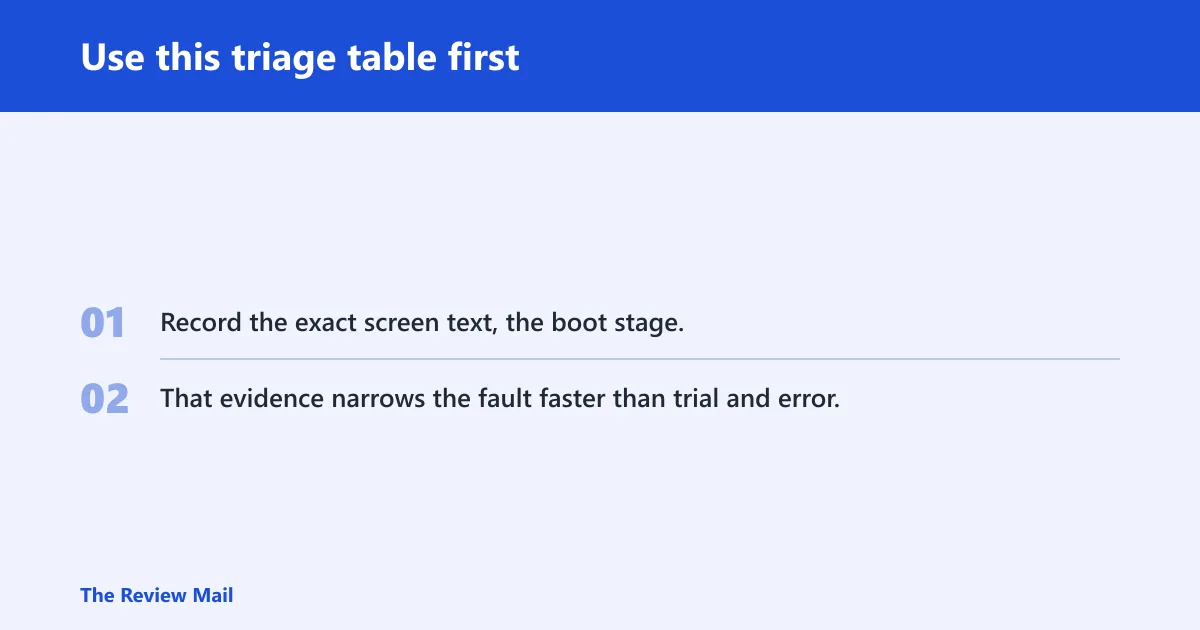
Record the exact screen text, the boot stage, and the last hardware or software change before touching settings. That evidence narrows the fault faster than trial and error. A phone photo of the screen is often enough.
| Symptom pattern | Most likely layer | First test to run | Evidence to record |
|---|---|---|---|
| Fails before the Windows logo, or loops back to firmware | Firmware | Enter BIOS/UEFI, load setup defaults, save, then confirm boot order and Secure Boot state | BIOS version, recent firmware change, any Secure Boot toggle |
| Fails after a memory profile change or new DIMM install | RAM | Turn off XMP/EXPO and boot at stock memory speed | RAM model, DIMM slots used, profile setting |
| Fails after a drive move, clone, or cable swap | Storage | Check cable seating, SATA port, or NVMe slot, then run chkdsk | Drive model, slot or port, any recent move or clone |
| Starts after a chipset, storage, or GPU driver update | Driver | Boot Safe Mode and roll back or remove the last driver change | Driver version, install date, device name |
| Fails only when Windows starts, not in firmware menus | Windows | Run Startup Repair, then offline file repair from recovery | Minidump path, Event Viewer entries, Reliability History |
What usually causes 0x0000005c?
Most often, the fault starts with firmware or memory settings, then storage handoff, then a driver or Windows change. A BIOS update, a swapped board, a new CPU, or XMP/EXPO instability can be trigger points. Less commonly, a bad driver package or corrupted boot files are the first break.
Rank the causes by the boot stage
Before Windows loads, suspect BIOS/UEFI settings, Secure Boot changes, boot order, or unstable memory tuning. After Windows begins loading, shift attention to storage drivers, GPU drivers, or a recent OS update. That split keeps the fix path short.
What usually changes first
If the crash began right after a BIOS flash or hardware swap, treat that as the lead clue. If it began after a driver update, start with rollback. If it appeared after adding RAM or turning on a memory profile, treat memory stability as the first test.
Is 0x0000005c a firmware or boot problem?
It can be either, but a failure before the Windows logo makes firmware or boot handoff more likely. If the machine cannot clear POST, or it loops immediately after a firmware change, check BIOS/UEFI version, boot order, and Secure Boot first.
- Enter BIOS/UEFI and note the version shown on the main page.
- Choose the option to load setup defaults, then save and exit.
- Confirm the system drive is first in boot order.
- Check Secure Boot state, and return it to the prior known-good setting.
- If the crash began after a firmware flash, flash back only if the vendor documents that path.
Reset unstable firmware settings and retest
Undo CPU, memory, and storage tweaks one by one. Keep defaults long enough to see whether the machine reaches the login screen. If it does, the firmware change was the trigger, not Windows itself.
Could bad RAM or memory settings trigger it?
Yes. A bad DIMM, a loose stick, or an aggressive XMP/EXPO profile can break early startup before Windows reaches the desktop. Memory faults often show up after a new build, after a BIOS update, or after a profile change.
- Go into BIOS/UEFI and turn off XMP or EXPO.
- Boot once at stock memory settings.
- If the fault continues, power off and reseat each DIMM.
- Test one stick at a time in the recommended slot.
- Run Windows Memory Diagnostic from the recovery environment, or boot memtest86 from external media.
Turn off XMP/EXPO and test at stock speed
That one change often separates a true hardware fault from an unstable profile. If the system boots at JEDEC speed but fails with XMP/EXPO enabled, the memory kit or controller settings need adjustment, not a reinstall.
How do drivers and storage issues fit in?
If the logo appears and the crash follows soon after, recent chipset, storage, or GPU driver changes move to the top of the list. A damaged system drive, bad cable, or flaky NVMe contact can also block the boot path before Windows finishes loading.
- Boot Safe Mode from Windows Recovery Environment: Troubleshoot > Advanced options > Startup Settings > Restart.
- Open Device Manager and roll back or uninstall the last chipset, storage, or GPU driver update.
- Reboot normally and check whether the stop code returns.
- Open an elevated Command Prompt and run
chkdsk /fon the Windows volume. - If the drive is removable or cabling is used, reseat it and retest.
Use Safe Mode or recovery to remove the last change
Safe Mode loads fewer drivers, so it is the cleanest place to remove a bad one. If the system only crashes in normal boot, that is a strong sign the failure is software related. If it crashes in Safe Mode too, hardware rises on the list.
How do I tell whether 0x0000005c is software or hardware related?
The boot stage is the best clue. A failure before Windows loads points more toward firmware, memory, or storage. A failure after login points more toward drivers or Windows files. Logs, dump files, and the exact moment of failure separate the two cleanly.
What logs or dump files help diagnose it?
Check Event Viewer for Kernel-Power and bug check entries, then open Reliability History for the crash timeline. Minidump files under C:\Windows\Minidump may help show the failing module. Save the exact stop code, the last successful boot time, and any recent hardware or driver change before asking for help.
What to save before more changes
- A photo of the blue screen or boot failure message.
- BIOS version and current boot order.
- Recent driver updates, especially chipset, storage, and GPU.
- Memory profile state, such as XMP or EXPO on or off.
- Event Viewer and Reliability History entries from the failure time.
How do I fix 0x0000005c on Windows 11?
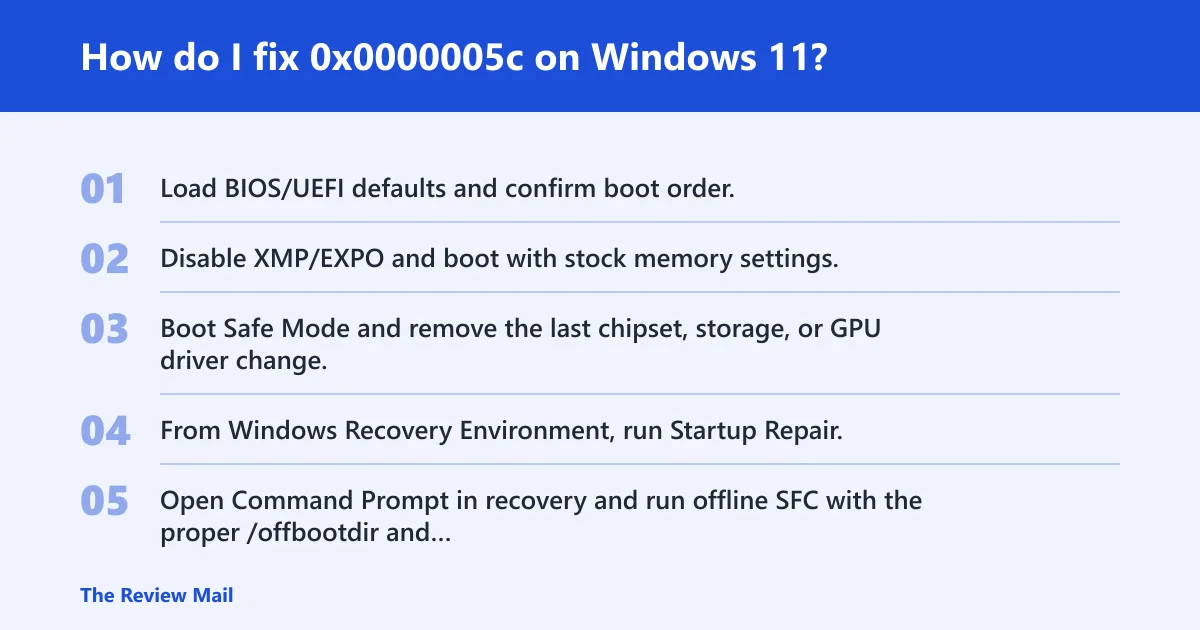
Start with the least destructive checks: firmware defaults, boot order, memory profile reset, and driver rollback. If those do not clear the crash, move to Startup Repair, offline file repair, and only then to a reset or repair install. That order keeps the chance of data loss lower. (Microsoft Support)
- Load BIOS/UEFI defaults and confirm boot order.
- Disable XMP/EXPO and boot with stock memory settings.
- Boot Safe Mode and remove the last chipset, storage, or GPU driver change.
- From Windows Recovery Environment, run Startup Repair.
- Open Command Prompt in recovery and run offline SFC with the proper /offbootdir and /offwindir paths, then use DISM against the offline Windows image if file repair is needed.
- If the crash continues, use Reset This PC only after backups are in place.
If that didn’t work, try this next
If firmware, memory, and drivers are clean, the next step is a controlled repair of Windows files. After that, use an in-place repair or Reset This PC. Save data first. If the crash started after a hardware swap, vendor support for the board, drive, or memory kit may be the faster route.
What usually causes 0x0000005c after a BIOS or hardware change?
A BIOS flash can reset boot order, Secure Boot, memory training, and storage behavior. A hardware swap can expose a weak DIMM, a poor drive connection, or an incompatible setting. When the stop code starts right after that kind of change, treat the change itself as the prime suspect.
- Enter BIOS/UEFI and load optimized defaults.
- Verify the boot drive is first and the correct mode is selected.
- Disable memory overclocking profiles.
- Remove any new add-in card or external boot device.
- Retest before changing Windows files.
Prevention
After recovery, save a known-good BIOS profile if the board allows it. That gives you a clean fallback after the next firmware update or hardware change.
Frequently asked questions
What does stop code 0x0000005c mean in Windows?
It is a Windows bug check that points to failed HAL startup. The most useful clue is timing: before the logo points to firmware, memory, or storage; after loading begins points more toward drivers or Windows files.
Is 0x0000005c a BSOD, boot error, or firmware error?
It can show up as all three, depending on when the failure hits. A blue screen is the visible crash, but the root cause may sit in firmware, storage, memory, or the operating system. Boot stage decides the next test.
Can bad RAM or an overclock trigger 0x0000005c?
Yes. Turn off XMP or EXPO first, then test each DIMM at stock speed. If the machine boots with one stick but not another, the bad module or slot is the likely target. Windows Memory Diagnostic or memtest86 can confirm the instability.
Should I update BIOS, chipset drivers, or Windows first for 0x0000005c?
Do not update first. Check the last change first, then reset unstable BIOS settings, then test memory, then roll back a recent driver. If nothing obvious changed, update chipset drivers before Windows updates when the failure happens after Windows starts loading.
How do I tell whether 0x0000005c is software or hardware related?
Use the boot stage and repeatability. A failure before the Windows logo points more toward firmware, memory, or storage hardware. A failure after login points more toward drivers or Windows. Event Viewer, Reliability History, and minidumps usually tell the rest of the story.
What logs or dump files help diagnose 0x0000005c?
Event Viewer, Reliability History, and minidumps under C:\Windows\Minidump are the main ones. Keep the exact stop code, the time of the crash, and the last firmware, memory, driver, or storage change. That record is often enough for a repair shop to narrow the fault quickly.
What if 0x0000005c is not working after I change settings?
If the PC is still not working after a BIOS or memory change, return the last setting to its prior known-good value and retest. If it still will not boot, move to the next layer only after you have a clear before-and-after comparison.
What if 0x0000005c keeps happening during gaming?
If it keeps happening during gaming, check for a recent GPU driver change, unstable memory overclocking, or power/thermal issues. Test at stock memory settings first, then remove the most recent graphics driver change if the problem began after an update.
What if 0x0000005c keeps happening after every reboot?
If it keeps happening after every reboot, the issue is likely in firmware, boot settings, storage, or a damaged Windows file. Use the boot stage to decide whether to work in BIOS/UEFI first or in Windows Recovery Environment first.