USB Device Not Recognized Windows 10 Fix: Fast Triage Guide
Start with a three-part check for a usb device not recognized windows 10 fix: use a second port, a different USB device, and a different cable. If only one device fails everywhere, the device is likely bad. If failures stay in one port, the port or hub is the problem. Skipping that split wastes time, risks data on drives, and can send you chasing the wrong driver.
What the Windows 10 USB error means
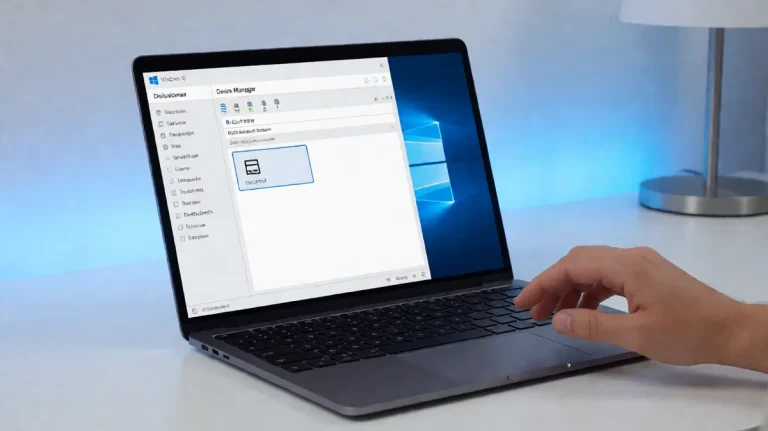
The message usually appears as USB Device Not Recognized or the last USB device you connected to this computer malfunctioned and Windows does not recognize it. In Device Manager, the same fault may show a yellow exclamation mark, an unknown USB entry, or Code 43. Those signs point to the layer that failed, not just the cable.
USB was introduced in 1996 and is an open standard. USB-IF describes USB as connecting more than computers and peripherals. Connector type matters, too: USB-A is still widely used on computers and peripherals, USB-B is mostly used on large devices like scanners or printers, and USB-C is reversible and replaces older connector types. USB-C can deliver up to 100 watts, transfer 40 gigabits per second, and carry 5K video to external monitors. (usb.org)
Likely causes, ranked
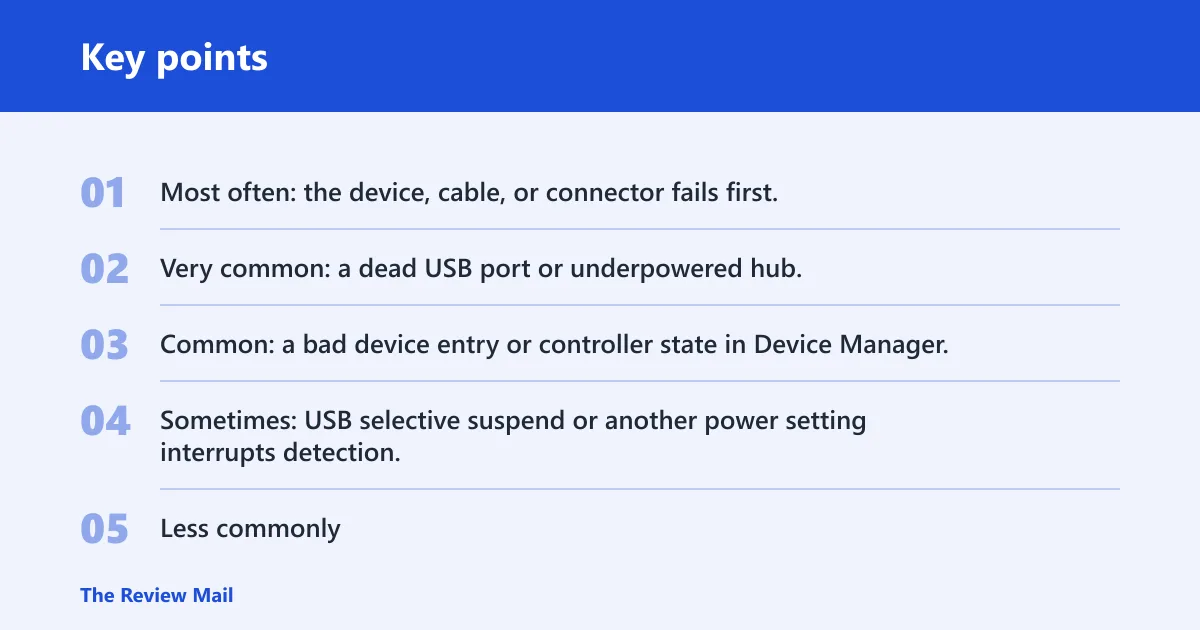
- Most often: the device, cable, or connector fails first.
- Very common: a dead USB port or underpowered hub.
- Common: a bad device entry or controller state in Device Manager.
- Sometimes: USB selective suspend or another power setting interrupts detection.
- Less commonly: chipset driver problems or Windows file corruption.
📊 USB was introduced in 1996 and is an open standard. Source: USB.
Which fix should you try first?
Match the first test to the symptom, not the guess. Flash drives, mice, keyboards, hubs, and external drives fail in different ways, so a quick triage saves time and narrows the layer at fault before you open Device Manager or change power settings.
| Symptom | Likely layer at fault | Exact next test to run first |
|---|---|---|
| Flash drive shows the USB error on one PC | Drive, port, or hub; sometimes file system mismatch | Plug it into a different USB port, then into another PC; check Disk Management if Windows still misses it (reported by howtogeek.com). |
| Mouse or keyboard stops working after reconnect | Port power, controller state, or device failure | Move it to a rear motherboard port, then test a second mouse or keyboard in the same port. |
| USB hub is not seen or devices behind it drop out | Hub power or hub controller | Bypass the hub and plug the device directly into the PC; then test the hub on another computer (reported by howtogeek.com). |
| External drive spins up, then vanishes | Cable, power, or port | Use another cable and another USB port first; if the drive is on a hub, move it to the PC directly (reported by howtogeek.com). |
Flash drives: fastest check path
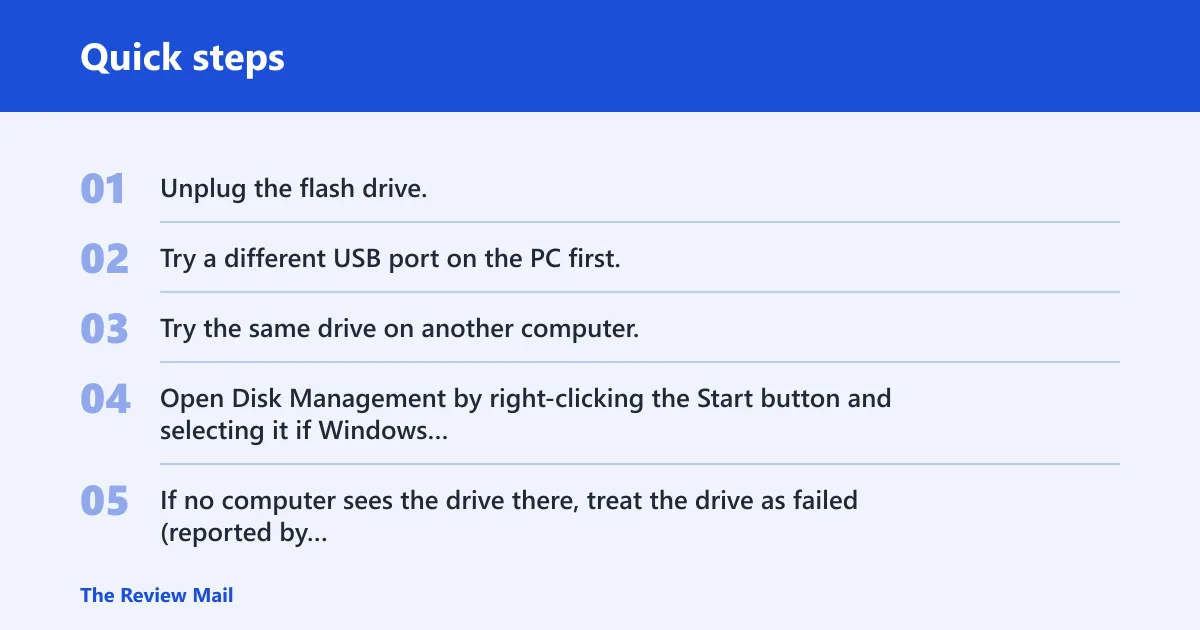
- Unplug the flash drive.
- Try a different USB port on the PC first.
- Try the same drive on another computer.
- Open Disk Management by right-clicking the Start button and selecting it if Windows still does not mount the drive (reported by howtogeek.com).
- If no computer sees the drive there, treat the drive as failed (reported by howtogeek.com).
Suppose a flash drive works in one laptop but fails in a desktop front-panel port. That points to the port path, not the drive. If Windows asks to format the drive before use, stop and check the data first; a foreign file system can trigger that prompt (reported by howtogeek.com).
Mice and keyboards: fastest check path
- Move the device to a rear USB port, not a front-panel header.
- Test a second mouse or keyboard in the same port.
- Unplug all extra USB devices and retest the one that failed.
- If the device works on one PC but not another, check Device Manager for warning icons on the bad PC.
A common first-timer mistake is replacing a keyboard after a single front-port failure. A cheap port extender or loose case header can cause the same error on multiple low-power devices.
Could the cable, port, or connector be the problem?
Yes. A dead port, poor cable, or mismatched connector is one of the fastest explanations to rule out before you touch drivers. If the same device fails in every port, suspect the device. If every device fails in one port, suspect the port or hub.
- Try another USB port first. On desktops, use a rear motherboard port before a front-panel port.
- Match the connector type: USB-A for many PCs and peripherals, USB-B for printers or scanners, and USB-C for newer devices and cables.
- If the device uses a cable, swap the cable with a known-good one of the same type.
- Test the device on another PC, or test a known-good device on the same port.
If the device is attached through a hub, remove the hub from the path. A hub may not supply enough power, and a direct connection removes that variable at once (reported by howtogeek.com).
How do you fix USB Device Not Recognized in Device Manager?
Device Manager is the right place when Windows sees the port but flags the device, shows Code 43, or leaves a yellow warning icon. Uninstall the affected entry to let Windows rebuild the device record, and uninstalling the Universal Serial Bus controllers forces the controller stack to reinstall after reboot.
- Right-click Start and open Device Manager.
- Expand Universal Serial Bus controllers.
- Right-click the problem device or Unknown USB Device and choose Uninstall device.
- If the same fault remains, uninstall each item under Universal Serial Bus controllers.
- Restart the PC so Windows can reinstall the controllers.
- Open Device Manager again and check whether the warning icon or Code 43 returns.
GeeksforGeeks recommends reinstalling USB controllers as one fix, and that matches this recovery path. Use it after the quick physical checks, not before them.
Why USB selective suspend can break detection
USB selective suspend can power down an idle port or device, which helps battery life but can trigger intermittent detection failures. If a device appears only after repeated reconnects, or drops out after sleep, this power setting belongs near the top of the list.
- Open Control Panel > Power Options.
- Next to the active plan, select Change plan settings.
- Choose Change advanced power settings.
- Expand USB settings and then USB selective suspend setting.
- Set it to Disabled.
- Restart the PC and retest the device.
GeeksforGeeks includes disabling USB selective suspend settings, and that step is most useful when the fault comes and goes instead of failing every time.
Update chipset drivers and Windows
Chipset drivers sit below the USB controller layer and can affect stability even when Device Manager looks normal. Update them from the PC maker or motherboard support page, then run Windows Update and reboot. Do not swap this order with the physical checks, because driver changes will not fix a broken cable or dead port.
- Go to the support page for the PC or motherboard model.
- Download the latest chipset drivers for Windows 10.
- Install them and restart when prompted.
- Open Settings > Update & Security > Windows Update.
- Select Check for updates and install everything available.
- Reboot again, because driver and cumulative updates often need it.
Windows Update can deliver fixes and drivers, but it is usually a later step after local troubleshooting. If the error returns right after updates, the fault is probably not just an outdated package.
What if Windows files are involved?
If the USB stack still fails after ports, cables, controllers, power settings, and chipset drivers check out, system file corruption becomes a better suspect. In that case, CMD with SFC is a repair step for Windows itself, not a direct fix for a bad hub or worn connector.
- Open Start, type cmd, then choose Run as administrator.
- Run
sfc /scannow. - Wait for the scan to finish and follow any repair message.
- Restart the PC and retest the USB device.
- If SFC reports corruption it could not fix, run
DISM /Online /Cleanup-Image /RestoreHealth, then runsfc /scannowagain.
GeeksforGeeks includes running a Windows repair command from CMD, and the right framing is narrow: use it when Windows files may be part of the fault, not as the first answer to every USB problem.
Still not working?
If the same device fails on multiple PCs, replace the cable or the device. If every device fails in one port, stop treating it as a software issue and suspect a damaged port or internal hub connection. That is the point where further driver changes are likely to waste time.
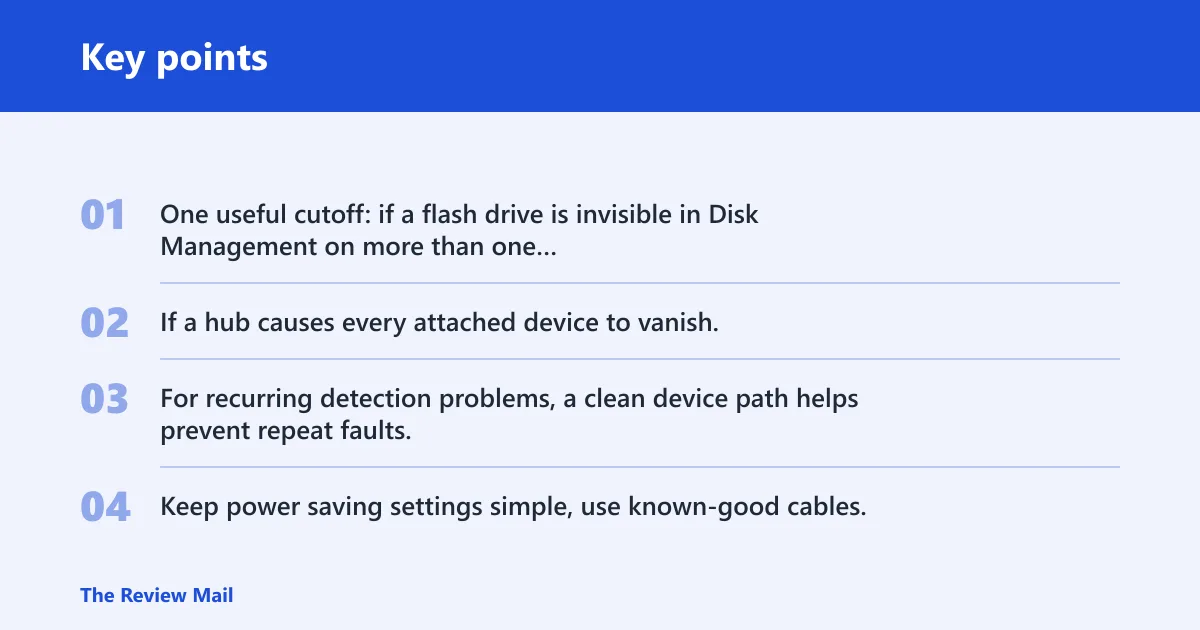
One useful cutoff: if a flash drive is invisible in Disk Management on more than one computer, treat it as failed hardware rather than a Windows problem (reported by howtogeek.com). If a hub causes every attached device to vanish, remove the hub from service and test direct connections only.
For recurring detection problems, a clean device path helps prevent repeat faults. Keep power saving settings simple, use known-good cables, and avoid front-panel ports that feel loose or only work when bent.
Frequently asked questions
how to fix usb device not recognized in windows 10 using cmd
Use CMD only after physical checks and Device Manager steps. Open Command Prompt as administrator, run sfc /scannow, then restart and retest. If SFC reports unrepaired corruption, run DISM /Online /Cleanup-Image /RestoreHealth and repeat SFC before blaming the USB device again.
how to fix usb device malfunctioned and not recognized in windows 10
Start with a different port, cable, and device, then open Device Manager and uninstall the affected USB entry. If the warning returns, uninstall Universal Serial Bus controllers, reboot, and check for Code 43 or a yellow warning icon after Windows reloads the controller stack.
how to fix usb not recognized windows 10
Work from the outside in: test another port, then another cable, then another PC. If the device still fails, use Device Manager to remove the broken USB entry and reboot. After that, update chipset drivers from the PC maker’s support page and install pending Windows Updates.
how to fix usb not recognized
Use a symptom-based path. Flash drives need a Disk Management check if Windows cannot mount them, while mice and keyboards need a port swap and a second device test. External drives should be checked with a different cable and a direct motherboard port before any driver changes.
how to fix usb port not working windows 10
Test whether the port is truly dead by plugging in a known-good USB device. If nothing works in that port but the same device works elsewhere, open Device Manager and inspect the controller group. A dead port or loose front-panel connector is more likely than a Windows setting.
why usb device not recognized in windows 10
Most often, the problem is a bad device, cable, hub, or port; less often, it is a controller, power setting, or corrupted Windows file. Device Manager warnings, Code 43, and repeated failures across different PCs help separate hardware trouble from software trouble quickly.