Windows 11 ACPI Driver Fix: BIOS First, Then Chipset
A Windows 11 ACPI driver problem usually points to firmware or chipset trouble, not a general driver reinstall. If Device Manager shows an ACPI error, it may be worth updating BIOS/UEFI first; if it shows a missing ACPI device, try the OEM chipset package. Skip that split, and USB-C, sleep, wake, power-button, and unknown-device errors can stick around. This guide gives a firmware-versus-driver decision tree for the right fix first.
What the Windows 11 ACPI driver actually is
ACPI means Advanced Configuration and Power Interface. In Windows 11, the core piece is Acpi.sys, an inbox component of Windows that supports power management and Plug and Play device enumeration. On ACPI BIOS systems, the HAL loads Acpi.sys during startup, and it acts as the interface between Windows and the ACPI BIOS. (Microsoft Learn)
Why Windows depends on it
ACPI is not a single download you install for every PC. It is the firmware contract that lets Windows discover devices, manage sleep states, and coordinate power buttons, battery behavior, and wake events. Microsoft’s documentation also notes that ACPI namespaces describe the platform’s hardware topology, so the firmware defines what Windows sees.
How the inbox stack fits in
Because Acpi.sys is inbox, Windows already includes it. That matters. Reinstalling a random “ACPI driver” package usually does nothing if the real problem is an OEM device driver or a bad firmware table. For each device in the ACPI namespace, Acpi.sys creates a filter DO or PDO, but not all motherboard devices have an ACPI bus filter.
📊 The ACPI specification is cited as ACPI 6.4 in Microsoft Learn. Source: Microsoft.
Why an ACPI error is often a firmware problem, not a missing driver

ACPI issues often come from the firmware layer, not from a missing Windows file. The ACPI BIOS defines the ACPI namespace hierarchy and the hardware topology, then Windows builds device objects from that description. If that table is wrong, incomplete, or outdated, a driver reinstall may leave the error unchanged.
What the ACPI BIOS does
The ACPI BIOS is the firmware interface between hardware and Windows. It defines the ACPI namespace hierarchy, describes platform hardware topology, and stores ACPI control methods in firmware encoded in AML. Microsoft Learn’s ACPI driver documentation is the authoritative place to check how Acpi.sys behaves and how ACPI debugging works.
When a generic reinstall will not help
Suppose a laptop shows an unknown ACPI device after a sleep failure. Reinstalling the inbox Microsoft ACPI component will not replace a faulty firmware table, and it will not fix a missing OEM hotkey, USB-C controller, or chipset device. In those cases, the fix belongs in Windows Update, the OEM support package, or a BIOS update.
How do you tell which ACPI problem you have?
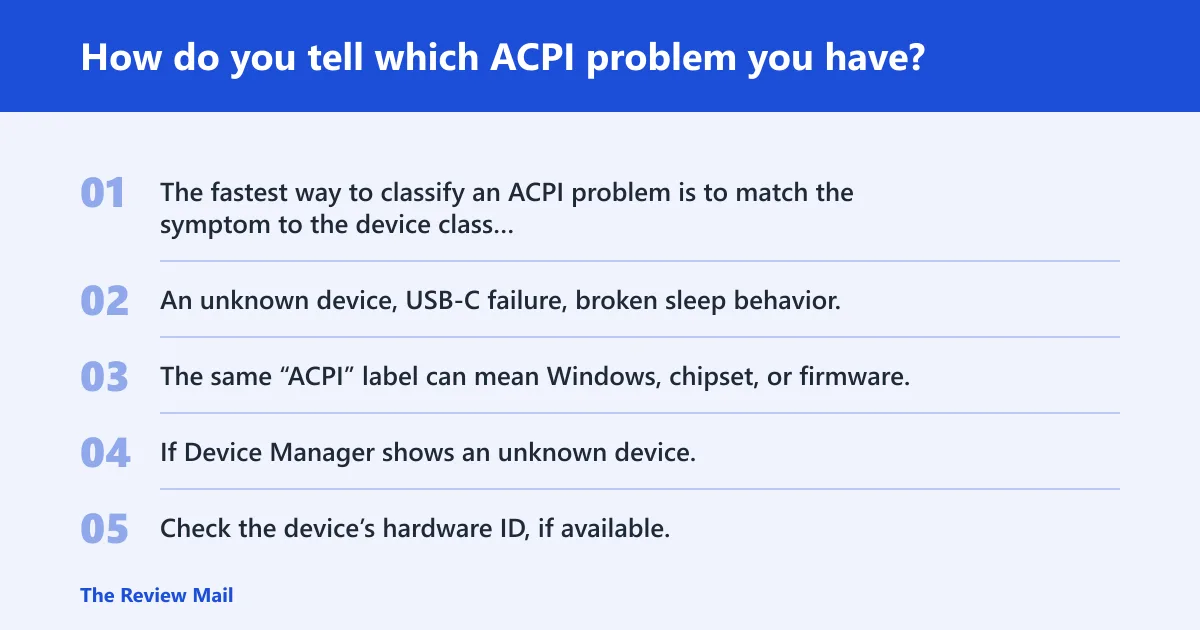
The fastest way to classify an ACPI problem is to match the symptom to the device class in Device Manager. An unknown device, USB-C failure, broken sleep behavior, or a power-button issue points to different causes. The same “ACPI” label can mean Windows, chipset, or firmware, and the fix changes with the source.
Unknown device in Device Manager
If Device Manager shows an unknown device, the most likely cause is a missing OEM chipset, hotkey, or platform driver rather than Acpi.sys itself. Check the device’s hardware ID, if available, and look for a matching package on the OEM support page. Generic Windows reinstall steps usually miss this class of failure.
USB-C or Type-C problems and UCM UCSI ACPI device
The search term UCM UCSI ACPI device driver usually points to USB-C or Type-C control on a laptop. UCM UCSI is commonly tied to USB-C role, power, or alt-mode functions. If USB-C charging, external display output, or docking stops working, the likely fix is the OEM USB-C, chipset, or firmware package, not Acpi.sys.
Sleep, wake, and power-button failures
Sleep and wake problems often trace back to ACPI firmware tables, power management settings, or a vendor-specific power driver. A power button that fails to wake the system, or a laptop that resumes to a black screen, is a strong sign to check BIOS/UEFI first, then the OEM power and chipset package.
Signs that a BIOS or firmware update is the real fix
If multiple ACPI-related devices misbehave at once, especially after a BIOS change, a dock swap, or a Windows feature update, firmware is suspect. If Device Manager shows a code tied to an ACPI device and the same issue appears after a clean driver reinstall, the ACPI table or BIOS version is the better place to look.
Use this ACPI troubleshooting decision table
This table sorts the common Windows 11 ACPI driver scenarios by symptom, most likely cause, fix, and verification step. It is meant to stop the usual mistake: reinstalling the wrong package before checking whether the failure belongs to Windows Update, an OEM device driver, or firmware.
| Scenario | Most likely cause | Most likely fix | Verification step |
|---|---|---|---|
| Unknown device in Device Manager | Missing OEM chipset, hotkey, or platform driver | Install the OEM support package for the exact model | The device disappears or gains a proper name in Device Manager |
| USB-C / Type-C dock, charging, or display failure | UCM UCSI ACPI device or related OEM USB-C controller issue | Install OEM USB-C, chipset, and dock-related drivers; then check firmware | USB-C power, data, or external display works again |
| Sleep, wake, or resume failure | ACPI firmware table or power-management driver issue | Update BIOS/UEFI, then install OEM power and chipset package | Sleep and wake cycle cleanly without a black screen or reset |
| Power button does nothing or wakes unreliably | Firmware-defined power event handling problem | Check BIOS settings, then apply OEM firmware and platform updates | Power button resumes or powers on the system as expected |
| Multiple ACPI errors after a recent update | Outdated firmware, not the inbox ACPI stack | Use Windows Update first, then the OEM support package, then BIOS/UEFI if needed | Device Manager no longer shows ACPI warnings or unknown devices |
| BIOS version is older and symptoms affect power or USB-C | Known firmware gap in ACPI tables or control methods | Apply the OEM BIOS/UEFI update for that model | Firmware version changes and the ACPI symptom clears |
What should you try first in Windows 11?

A practical order is to try Windows Update first, then Device Manager, then the OEM support package. That sequence covers inbox fixes first, then device-specific drivers, then firmware. BIOS or UEFI updates belong later, when the symptom points to ACPI tables, power behavior, or USB-C control rather than to a missing device driver.
Check Windows Update for inbox fixes and firmware
Windows Update is the first-line source for inbox driver updates and some firmware packages. If the problem is generic, such as a broad power-management glitch after a fresh install, Windows Update may resolve it without manual downloads. Reboot after updates, then check the failing ACPI device in Device Manager again.
Open Device Manager and inspect the failing device
Device Manager is where you check driver and device status. Look for unknown devices, warning icons, or entries tied to ACPI, USB-C, or power management. If the failing item is clearly vendor-specific, such as a hotkey or UCM UCSI entry, you need the OEM package for that machine.
Install the OEM support package for your laptop or desktop
The OEM support package is the preferred source for laptop ACPI and chipset updates. It usually includes platform drivers, hotkey components, USB-C support, and firmware-adjacent packages for that exact model. This is the right next step when Windows Update does not clear the warning and the device is not an inbox Windows component.
Use BIOS or UEFI updates only when the symptom points there
BIOS or UEFI updates belong in the ACPI decision tree when sleep, wake, power-button behavior, or a repeated ACPI warning points to firmware. Do not use BIOS updates as a blanket first step. Use them when Device Manager, USB-C behavior, or power-state failures suggest the firmware tables are the source.
Do you need an OEM ACPI driver for Lenovo, Dell, HP, or ASUS?
Yes, often you need an OEM package, but not for Acpi.sys itself. Lenovo, Dell, HP, and ASUS frequently ship chipset, hotkey, USB-C, and power-management drivers that work with their own ACPI tables. Brand matters because those packages match the laptop model, the firmware, and the platform devices Windows exposes.
How to choose the right support page
Use the exact model number, not just the brand name. Support pages often separate chipset, firmware, Thunderbolt or USB-C, hotkey, and power-management packages. If the symptom involves a missing device, dock, sleep, or wake issue, the model-specific support page is usually better than a general driver search.
When Windows Update is enough and when it is not
Windows Update can be enough for generic inbox issues, especially after a clean install or feature update. It is not enough when the failure is tied to a specific OEM device class, such as UCM UCSI, a hotkey controller, or a vendor power driver. Those cases call for the OEM support package.
How do you verify the fix worked?
Verification should be specific. Check Device Manager first, then test the feature that failed, then confirm the device stays stable after a reboot. If the symptom was sleep, wake, power, or USB-C, the fix only counts when that exact behavior returns and the warning icon is gone.
Device Manager status checks
Open Device Manager and confirm the unknown device is gone or renamed, and that no ACPI-related entry shows a warning icon. If the earlier problem involved a USB-C controller or UCM UCSI device, the entry should load normally and stop reporting an error after reboot.
Power and sleep behavior checks
Put the system to sleep, wake it, and test the power button if that was part of the failure. The best sign of success is repeatable behavior across several cycles, not a one-time boot. If the problem returns after a cold boot or dock reconnect, firmware or the OEM package may still be wrong.
USB-C or Type-C function checks
For USB-C problems, test charging, data, and external display output separately if the hardware supports them. A dock that powers the laptop but does not carry display signal points to a driver or firmware mismatch around UCM UCSI or the dock stack. Recheck the model-specific package if only one function works.
When to stop and escalate to OEM support
If the same ACPI warning remains after Windows Update, the OEM support package, and a model-specific BIOS update, stop reinstalling the same files. At that point the issue may need vendor escalation, because the failure can sit in platform firmware, a known model defect, or a package that must match the exact hardware revision.
Frequently asked questions
What is the ACPI driver in Windows 11?
In Windows 11, the ACPI driver is Acpi.sys, the inbox Windows component that handles ACPI-based power management and Plug and Play enumeration. It loads during startup on ACPI BIOS systems and acts as the interface between Windows and the ACPI BIOS. It is not a separate driver download for every PC.
Do I need to download an ACPI driver for Windows 11?
Usually no. Windows already includes Acpi.sys, so there is no universal ACPI download for every system. If Device Manager shows an ACPI-related error, the better next step is Windows Update, then the OEM support package, and only then a BIOS or UEFI update if the symptom points to firmware.
Why is my Windows 11 ACPI driver missing or not working?
The problem is often not the inbox ACPI stack itself. A missing or broken ACPI-related entry usually means the OEM chipset, hotkey, USB-C, or power-management driver is absent, or the BIOS tables are outdated. Device Manager can help identify which device class is actually failing.
How do I fix ACPI driver problems on Windows 11 laptops?
Start with Windows Update, then inspect Device Manager for the failing device, then install the OEM support package for the exact model. If the issue seems to involve sleep, wake, power-button, or USB-C behavior, a BIOS or UEFI update may help. That order avoids reinstalling the wrong package first.
Is the Microsoft ACPI driver different from an OEM ACPI driver?
Yes. Microsoft’s ACPI support is the inbox Acpi.sys component. OEM ACPI-related drivers are separate model-specific packages for chipset, hotkeys, USB-C, and power management. The Microsoft component is generic; the OEM package matches the machine’s firmware and platform devices.
What is the UCM UCSI ACPI device driver in Windows 11?
It is a common Windows 11 ACPI-related search term tied to USB-C or Type-C control. When it fails, the symptoms often involve docking, charging, or display output. The likely fix is the OEM USB-C, chipset, or firmware package, not a reinstall of Acpi.sys.