Why Hotspot Not Working in Windows 11: Fixes That Match the Symptom
Match the failure mode first: if the Mobile hotspot switch is greyed out, fix the adapter or driver; if it turns on but no device connects, reset sharing; if devices connect but get no data, repair the upstream link. Wrong fixes waste time and often leave the hotspot stuck off, visible but unusable, or connected with no internet.
Likely causes
Windows 11 hotspot failures usually come from one of three layers: the Wi-Fi adapter, the hotspot services, or Internet Connection Sharing. The fastest fix depends on which symptom you see first, because a greyed toggle, a failed start, and a dead connection point to different breaks in the chain.
Hotspot problems also show up on the client side. A laptop may keep joining another saved network, or a phone may have hotspot disabled, airplane mode on, a blocked device list, an expired data package, or a daily data threshold that cuts off internet traffic. Those checks matter when Windows looks fine but the connection still fails. (reported by howtogeek.com)
What the symptom usually means
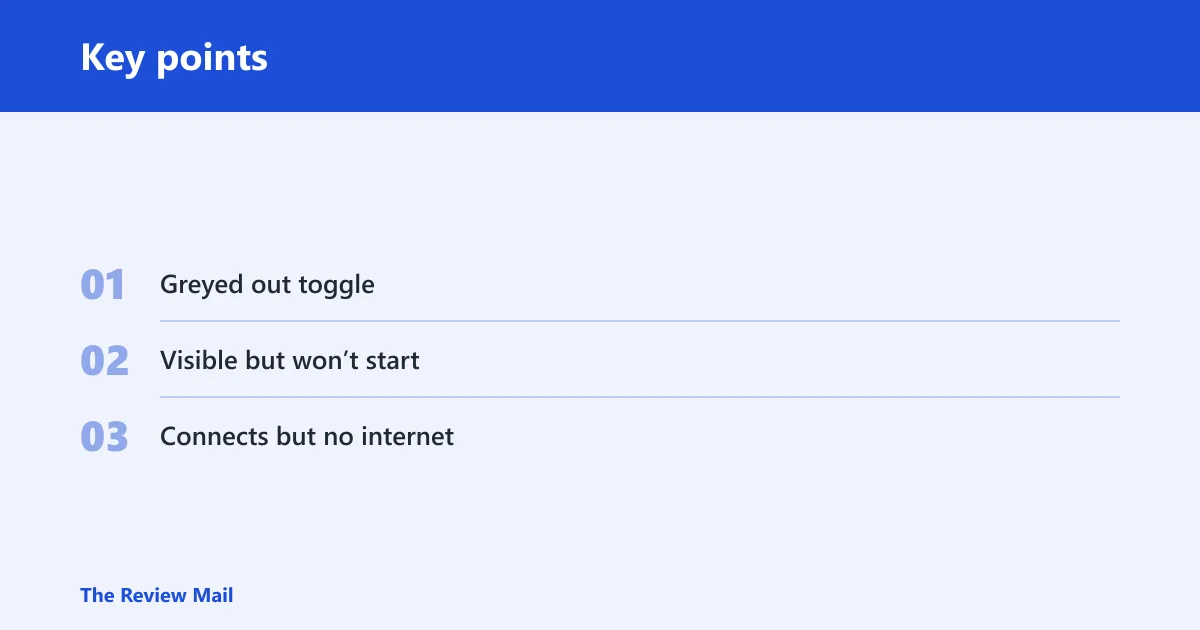
- Greyed out toggle: Windows is not exposing Mobile Hotspot controls cleanly, or the adapter stack is not ready.
- Visible but won’t start: the service, driver, or adapter binding is failing.
- Connects but no internet: ICS, the upstream connection, DNS, or client-side interference is the likely problem.
Say your laptop sees the hotspot name, but it keeps jumping back to a home network saved weeks ago. That is not a Windows service problem first; it is a client selection problem, and the fix is to stop the competing network from auto-connecting before you retry the hotspot.
Why is the mobile hotspot greyed out in Windows 11?
Start with the services Windows uses to expose hotspot controls. For hotspot controls to appear, Windows Mobile Hotspot Service should be running and set to Automatic, and WLAN AutoConfig is often also set to Automatic. If either one is stopped or set manually, the toggle can stay greyed out.
- Open Services with
services.msc. - Find Windows Mobile Hotspot Service, open Properties, set Startup type to Automatic, then select Start if it is stopped.
- Find WLAN AutoConfig, set Startup type to Automatic, then start it if needed.
- Open Device Manager, expand Network adapters, and scan for hardware changes if the adapter looks stuck.
- If the toggle is still greyed out, run
netsh wlan show driversand check whether the adapter reports Hosted network supported: Yes.
That driver check is a compatibility screen, not the final answer. Windows 11 Mobile Hotspot can still fail even when hosted network support looks fine, so use it as one branch in the diagnosis rather than the whole answer. The adapter may still need a driver refresh from Device Manager or the vendor site. (reported by howtogeek.com)
Why is hotspot visible but won’t start?
If the hotspot appears but will not turn on cleanly, focus on the Wi-Fi adapter driver and the adapter binding. Device Manager is the right place to update or uninstall the Wi-Fi adapter, and a recent Windows update can trigger a regression that Windows Update does not fix by itself.
- Open Device Manager and expand Network adapters.
- Right-click the Wi-Fi adapter and choose Update driver.
- If that fails, choose Uninstall device, then restart the PC so Windows can reinstall it.
- If the laptop maker or adapter vendor offers a newer driver, install that version instead of relying only on Windows Update.
- If the issue began right after patching, open Settings > Windows Update > Update history > Uninstall updates, then remove the most recent update and test again.
Suppose a notebook starts refusing hotspot after a feature update, but wired Ethernet still works. That points away from the internet source and toward the wireless stack itself. In that case, a vendor driver is often the faster fix than another restart.
Why does my Windows 11 hotspot connect but no internet?
This is usually an Internet Connection Sharing problem. ICS shares the internet-facing adapter to the hotspot adapter, and you enable it from the adapter Sharing tab. The checkbox you want is Allow other network users to connect through this computer’s Internet connection. (reported by howtogeek.com)
- Open Control Panel > Network and Internet > Network Connections.
- Right-click the adapter that actually has internet access and open Properties.
- Select the Sharing tab.
- Check Allow other network users to connect through this computer’s Internet connection.
- Confirm the correct hotspot adapter is selected, usually shown as Local Area Connection* X or Microsoft Wi‑Fi Direct Virtual Adapter.
- Test the PC’s own internet connection first, then reconnect the client device.
Client-side interference can still block a good share. Go to Settings > Network and Internet > Wi-Fi > Show Available Networks, expand competing networks, open the ⓘ panel, and clear Connect Automatically When in Range. If needed, go to Settings > Network and Internet > Wi-Fi > Manage Known Networks and remove the other saved networks, leaving only the hotspot you intend to use. (reported by howtogeek.com)
Hotspot decision matrix
Use this table to match the symptom to the shortest fix. It separates the three common failure modes and adds the adapter-support check so you do not chase sharing settings when the adapter cannot host the connection cleanly.
| symptom | likely cause | command or setting to check | expected result | next action |
|---|---|---|---|---|
| Hotspot toggle greyed out | Windows Mobile Hotspot Service or WLAN AutoConfig is stopped or not set to Automatic | services.msc | Both services show Running and Automatic | Restart the service, then check Device Manager |
| Hotspot visible but won’t start | Wi-Fi adapter driver regression or adapter binding problem | Device Manager > Network adapters | The adapter updates or reinstalls cleanly | Install a vendor driver, then retest |
| Hotspot connects but devices have no internet | Internet Connection Sharing is not enabled on the correct upstream adapter | Adapter Properties > Sharing tab | Allow other network users to connect through this computer’s Internet connection is checked | Select the correct internet-facing adapter and retest |
| Adapter support check | Hosted network support may be missing on the wireless adapter | netsh wlan show drivers | Hosted network supported: Yes | If the result is No, use a different adapter or update the driver |
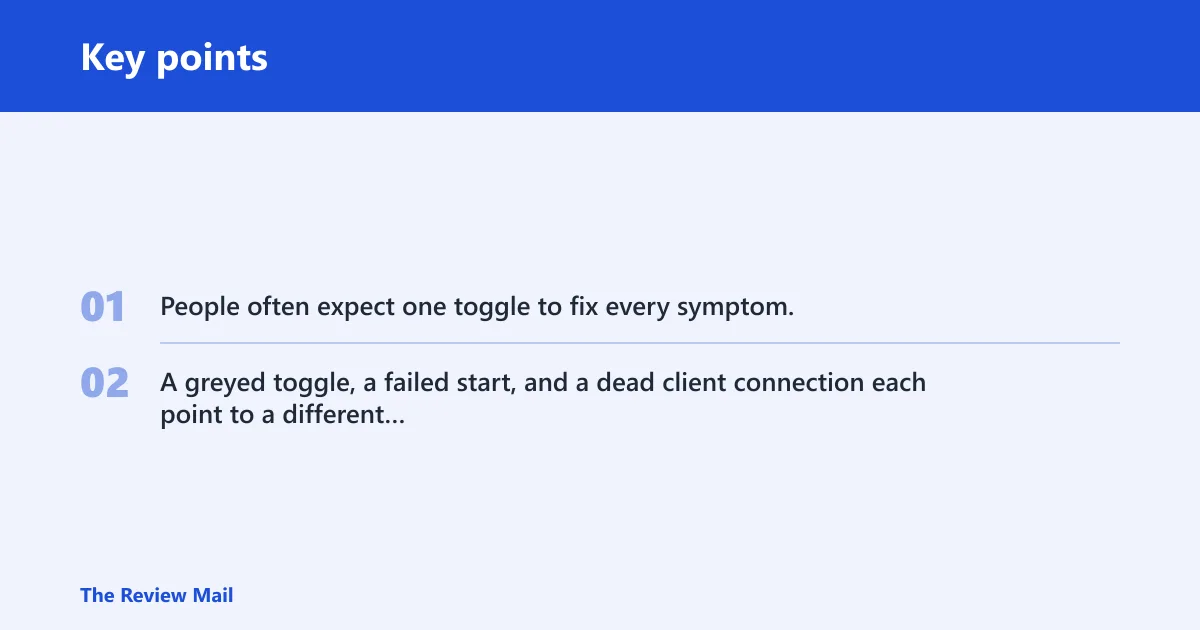
People often expect one toggle to fix every symptom. It does not. A greyed toggle, a failed start, and a dead client connection each point to a different layer, so the matrix saves time by sending you straight to the right check.
Why is hotspot not showing in Windows 11?
If the hotspot is missing from the available networks list, check the phone side before you keep repairing Windows. The hotspot may simply not be enabled on the phone, the Windows device may be blocked on the phone, airplane mode may be on, or the phone may have hit a device limit or data threshold. (reported by howtogeek.com)
- On the phone, confirm the hotspot is enabled.
- On Android, check whether a daily data consumption threshold has been reached and shut off internet usage.
- Verify that the phone’s internet package has not expired.
- If the maximum number of hotspot devices is reached, disconnect some of the other devices.
- On Windows, open Settings > Network and Internet > Wi-Fi > Show Available Networks and look again.
- If the network appears but will not join, make sure the Windows device is not blocked on the phone. (reported by howtogeek.com)
Another common mistake is leaving airplane mode on while enabling the hotspot on the phone. That can make the hotspot appear broken when the real problem is simply that the phone stopped sharing data. (reported by howtogeek.com)
Still not working?
If the service checks, driver checks, and sharing checks all fail, use a network reset as the next escalation. It typically resets TCP/IP stacks, DNS settings, and adapter bindings, and the PC restarts afterward. It also removes saved Wi-Fi passwords and VPN configurations, so treat it as a final step before vendor support. (reported by howtogeek.com)
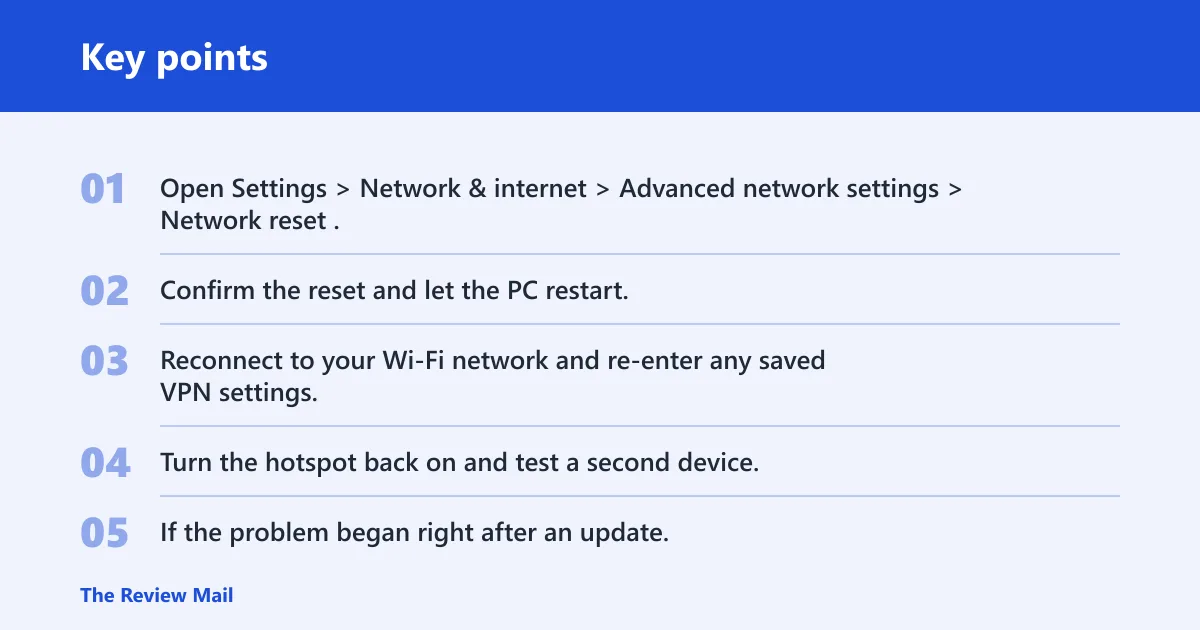
- Open Settings > Network & internet > Advanced network settings > Network reset.
- Confirm the reset and let the PC restart.
- Reconnect to your Wi-Fi network and re-enter any saved VPN settings.
- Turn the hotspot back on and test a second device.
- If the problem began right after an update, return to Settings > Windows Update > Update history > Uninstall updates and roll back the most recent patch before deeper repair work.
If you are dealing with USB tethering instead of Wi-Fi hotspot, check the phone’s USB tethering setting, the cable, and the USB mode on both devices. Different path, same rule: confirm the source connection first, then the Windows sharing layer.
Frequently asked questions
Why mobile hotspot is not working in windows 11
Check the symptom branch first: greyed out means the service or adapter stack is not ready, visible but dead means the driver or binding is failing, and connected-with-no-internet means ICS needs repair. The quickest starting point is services.msc for Windows Mobile Hotspot Service and WLAN AutoConfig.
Why does my Windows 11 hotspot connect but no internet: open the internet-facing adapter’s Properties?
Open the internet-facing adapter’s Properties, then the Sharing tab, and enable Allow other network users to connect through this computer’s Internet connection. If the hotspot still has no data, confirm the PC itself can reach the internet first, then clear competing saved Wi-Fi networks on the client device.
How do I reset the Windows Mobile Hotspot service?
Open services.msc, find Windows Mobile Hotspot Service, right-click it, and choose Restart. If it is stopped, set Startup type to Automatic and start it manually. Then check WLAN AutoConfig the same way, because both services need to be running. (Microsoft Learn)
What driver do I need for Windows 11 hotspot to work?
You need a working Wi-Fi adapter driver, and Windows Update is not always the newest source. Open Device Manager, update the adapter there first, then check the laptop or adapter vendor site for a newer package. If the hotspot still fails, uninstall the adapter and let Windows reinstall it.
How do I know if my Wi-Fi adapter supports hosted network mode?
Run netsh wlan show drivers in Command Prompt or Windows Terminal. Look for Hosted network supported: Yes. If it says No, the adapter may not support that mode well enough for the hotspot setup, so trying a different adapter or driver is a practical next test.
How do I fix USB tethering not working in Windows 11?
On the phone, turn on USB tethering and confirm the cable is data-capable, not charge-only. On Windows, check Device Manager for the USB network adapter, then reconnect the cable and scan for hardware changes. If the phone blocks tethering, that setting must be cleared on the phone first.