Wi‑Fi Connected but No Internet Access Windows 11
If Windows 11 says Wi‑Fi connected but internet access is missing, check another device first, then Windows network settings, then DNS, then security software. Fix the layer that fails. Chasing the wrong one wastes time and leaves the PC offline for downloads, sign-ins, updates, and cloud sync. This guide shows how to tell whether Windows, the router, DNS, or a security tool is at fault, then apply the matching fix.
Wifi doesn t have table
Use this table first. It maps the symptom you see to the most likely cause, the fastest way to confirm it, and the safest next fix. That keeps you from repeating generic steps when the real fault is on the PC, the router, or a security layer.
| Symptom | Most likely cause | Fastest verification step | Safest next fix |
|---|---|---|---|
| No Internet icon | PC cannot reach the gateway, DNS, or internet path | Open a second device on the same Wi‑Fi and try one site | Check Windows Wi‑Fi settings, then run the Network troubleshooter |
| Wi‑Fi connected, but only one site fails | DNS, proxy, or site-level blocking | Open two or three other sites, or try the same site on mobile data | Flush the likely app or browser issue; check proxy and DNS settings |
| Works on phone but not PC | Windows setting, adapter issue, stale saved profile, or security software | Compare the SSID and test a different browser or app on the PC | Forget the network, then reconnect with the password, then run the Windows 11 troubleshooter |
| VPN active | VPN tunnel, DNS override, or policy routing | Disconnect the VPN and retry a normal website | Adjust the VPN, or leave it off for local browsing |
| Airplane mode on | Wireless radios are disabled | Open Settings > Network & Internet > Airplane mode | Turn Airplane mode off |
| Saved network will not reconnect | Stale profile or bad saved credentials | Open Manage known networks and inspect the saved entry | Forget the network, then reconnect with the password |
| Router reboot did nothing | PC-side issue, DNS, or policy block | Check whether other devices on the same router can browse | Shift to Windows settings, DNS, or security checks |
| Router and modem power cycle restores browsing | Router, modem, or ISP path was stuck | Wait and retest after both devices fully boot | Keep the fix and monitor; repeat only if the issue returns |
| Network not visible until refresh | Scan list is stale, weak signal, or band mismatch | Use the Refresh network list button | Reconnect to the correct band or move closer to the access point |
📊 The Microsoft guide applies to both Windows 10 and Windows 11. Source: Microsoft.
What the Windows 11 Wi‑Fi icon means
The icon matters because it tells you where to look first. A Wi‑Fi Connected icon means the device is connected to Wi‑Fi and the Internet. A No Internet icon means the device does not have an internet connection. A VPN Connected status can mean the Wi‑Fi link is fine while the VPN changes how traffic exits the PC. (Microsoft Support)
Wi‑Fi Connected versus No Internet
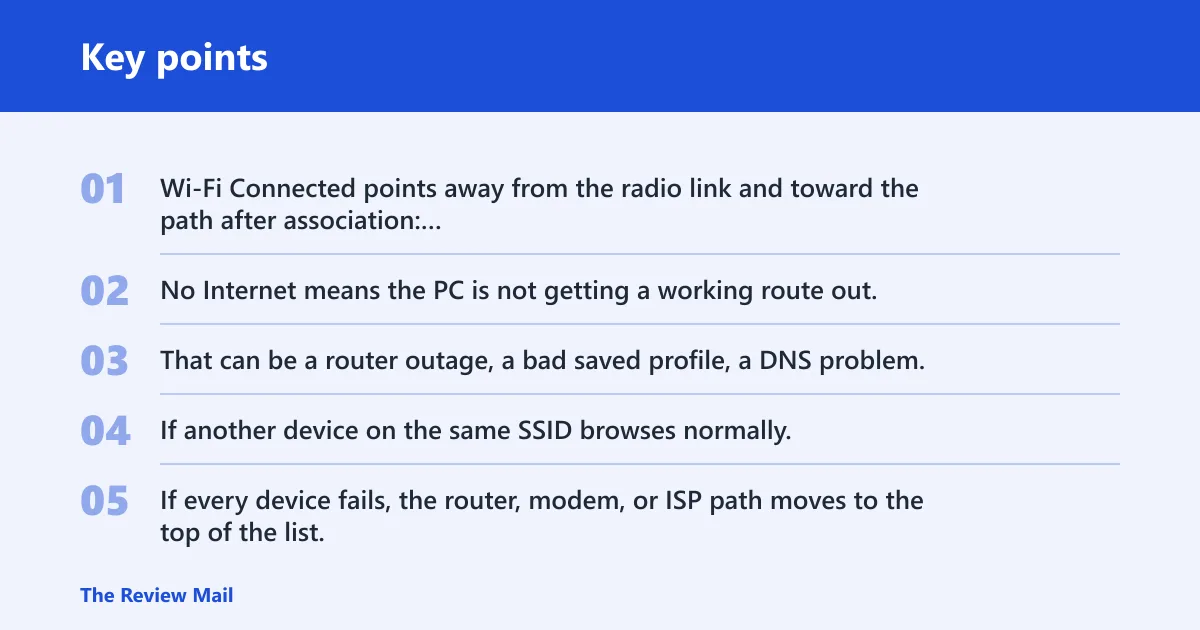
Wi‑Fi Connected points away from the radio link and toward the path after association: gateway, DNS, proxy, or internet service. No Internet means the PC is not getting a working route out. That can be a router outage, a bad saved profile, a DNS problem, or a policy block on the PC.
When the icon points to a router, DNS, or gateway issue
If another device on the same SSID browses normally, the router and internet feed are less likely to be the problem. If every device fails, the router, modem, or ISP path moves to the top of the list. If only one site fails, it is often more likely to be a DNS issue, proxy issue, or site-specific blocking than a full outage.
Why does Windows 11 say no internet access?
Windows 11 usually shows no internet access when the PC can join Wi‑Fi but cannot complete the next step: lease an address, reach the gateway, resolve names, or pass traffic through a security layer. That means the fault may be on the PC, the router, or a filtering rule, not just the wireless signal.
PC-side causes
A stale Wi‑Fi profile, a broken adapter state, Airplane mode, or a driver or settings issue can stop internet access while the Wi‑Fi icon still looks connected. If the same network works on another device, the PC deserves the next check. That is also where the Windows 11 Network troubleshooter fits.
Router or modem causes
If every device on the network loses browsing, the router or modem is the better suspect. Consumer routers often support multiple bands, so a 2.4 GHz band can still be flaky while 5 GHz works, or the reverse. A different Wi‑Fi frequency band may help when the signal path or interference differs.
Say your laptop on the 2.4 GHz SSID keeps showing no internet, but a tablet on the 5 GHz SSID loads pages. That pattern points away from Windows and toward the band, the router, or the local RF environment.
DNS, proxy, and security filtering
DNS problems often appear as one site failing while others work. Proxy rules and security filters can produce the same result. A firewall may block the internet connection even when Wi‑Fi is connected, and the block may affect only one app or one website instead of the whole PC.
Captive portal or policy blocks
Campus, hotel, and enterprise Wi‑Fi can require a captive portal, a proxy setting, or a security policy before internet access works. On managed networks, a Wi‑Fi connection may be valid while browsing is blocked until sign-in or policy approval completes. If the same SSID works elsewhere but not on a managed PC, check admin rules before changing hardware.
How do I fix Wi‑Fi connected but no internet on Windows 11?
Start with the shortest checks that separate a PC fault from a network fault: open Wi‑Fi from the taskbar, confirm the correct SSID, turn off Airplane mode, run the built-in troubleshooter, and then forget and rejoin the network if the saved profile looks stale. That sequence avoids random repetition.
Open Wi‑Fi from the taskbar network icon
Use the Network, Sound, or Battery icons on the taskbar to open Wi‑Fi connections. Confirm that Windows is joined to the correct SSID, not a guest network, extender, or similar name. If the wrong network is selected, the internet problem may be a simple connection mix-up.
Turn off Airplane mode
Check Settings > Network & Internet > Airplane mode and make sure it is turned off. Airplane mode can leave you connected to Wi‑Fi by name in some edge cases, yet still prevent working internet access because the wireless radios or related network features are disabled.
Run the Windows 11 Network troubleshooter
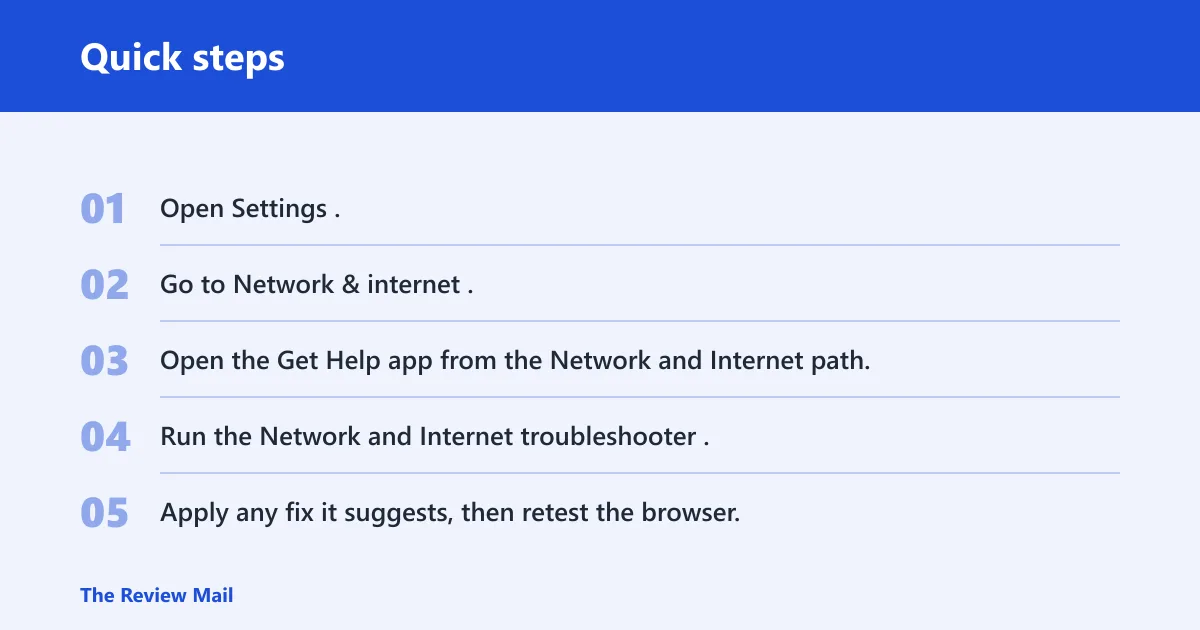
Windows 11 users are directed to the Get Help app for the automated Network and Internet troubleshooter. The Microsoft guide applies to both Windows 10 and Windows 11, but the Windows 11 path uses Get Help. This is the built-in automated diagnostics route inside the Settings / Network and Internet workflow.
- Open Settings.
- Go to Network & internet.
- Open the Get Help app from the Network and Internet path.
- Run the Network and Internet troubleshooter.
- Apply any fix it suggests, then retest the browser.
Forget the network and reconnect
Use Manage known networks when the saved profile may be stale. Microsoft recommends forgetting the network and reconnecting from Manage known networks. That forces Windows to build a fresh profile and ask for the password again. It often helps when the SSID is known but the old credentials or settings are no longer valid.
You can also inspect saved Wi‑Fi details from Network & internet > Properties, which helps when you need to confirm the active profile before removing it. If the network still fails after a rejoin, the problem is more likely upstream than in the saved record.
Should I forget the Wi‑Fi network and reconnect on Windows 11?
Yes, when the connection looks stuck on one saved profile, because a stale profile can keep the wrong password, old security data, or an old network state. It is a safe next step after Airplane mode and before deeper resets. If the same SSID works on other devices, forgetting and reconnecting is especially worth trying.
When the saved profile is probably stale
Look for repeated connection failures right after Windows says it is connected, or for a network that used to work and now fails only on this PC. A common first-timer mistake is to keep retrying the same profile for ten minutes while the rest of the network is fine. That usually wastes time.
When to stop and move
If forgetting the network does not help and other devices also fail, the router or modem deserves attention next. If only one site or app fails after a fresh reconnect, move toward DNS, proxy, or app-specific blocking instead of repeating the Wi‑Fi step.
How do I manually rescan for Wi‑Fi networks in Windows 11?
Use the Refresh network list button when a network is missing from the list or the scan seems stale. Windows lets you rescan for networks with a Refresh network list button. This is the fastest check when the SSID should be nearby but does not appear right away.
When to use the refresh scan
Use it after a move, a band change, or a brief router restart when the expected SSID is absent. A hidden or slow-to-appear network is not the same problem as connected-but-no-internet, so do not treat it like a routing fault. First make sure the SSID is visible again.
When should you restart the router and modem?
Restart the router and modem when multiple devices on the same network fail, or when Wi‑Fi reconnects but the internet path still looks broken on every device. Microsoft recommends restarting modem and router, and it can take a few minutes to fully power on. The useful version is a real power cycle, not a quick tap.
Use the 30-second power cycle
Unplug the power cables from both devices. Wait at least about 30 seconds. Then plug them back in and allow both devices to fully power on before testing again. That clears a stuck state more reliably than a brief restart.
Check whether other devices can browse
If a phone, tablet, or another PC can browse while this Windows 11 PC cannot, the router is less likely to be the only issue. If everything fails, the modem, router, or ISP path moves to the front. That quick split matters more than trying every step on one device.
Try a different Wi‑Fi band
If the router offers more than one band, try the other one. Consumer routers often support multiple bands, and one band can be crowded, weak, or misbehaving while the other works normally. This is a good test when the network exists and connects, but browsing remains unstable.
Why do some apps still fail after Wi‑Fi connects?
When Wi‑Fi connects but only certain apps or sites fail, the issue is usually not the radio link. It is more often a firewall rule, VPN policy, proxy setting, DNS problem, or site-specific block. Treat it as a partial path failure, not a full Wi‑Fi outage.
Firewall or app-specific blocking
A firewall can block the internet connection even when Wi‑Fi is connected. It may block one browser, one updater, or one website while leaving the rest of the PC online. If only a single app fails, test the same destination in another browser or turn off the app-level filter long enough to confirm the cause.
VPN or proxy interference
If a VPN is active, disconnect it and test again. VPN Connected status can be correct while the tunnel still prevents normal browsing through a bad route or policy. Proxy settings can produce the same pattern, especially on work or school devices.
Suppose a work laptop opens email but cannot load any public sites until the VPN disconnects. That does not mean Wi‑Fi is broken. It means the security layer or routing rule is taking over the traffic path.
Only one website fails
When only one website fails, the fastest test is to open several other sites and then try the problem site on another network. If the problem site fails everywhere, the site or DNS path may be at fault. If only this PC fails, check proxy settings, browser security extensions, and DNS.
When to check DNS settings
Check DNS after the router check and the Windows checks if the symptom is selective browsing failure. DNS errors often show up as a site name that will not resolve while the IP path still works. That is why one site can fail while the rest of the internet looks normal.
What if the network is visible only after a refresh?
If the SSID does not appear until you rescan, the problem is usually scan timing, signal strength, band selection, or a temporary router hiccup. Use the Refresh network list button first. If the network still appears and disappears, check the band, the router, and whether the PC is too far from the access point.
Random hardware addresses
Random hardware addresses can be turned on for all Wi‑Fi networks, and they can also be enabled for a specific network. That privacy-related scanning behavior can affect how a network sees the device over time. If a network behaves oddly after the setting changes, review the per-network privacy option before changing anything else.
Enterprise and campus escalation path
On managed networks, stop after the basic checks if a captive portal, proxy rule, or security policy is still blocking access. The right next step is often to sign in to the portal, confirm the device is permitted, or contact the campus or IT administrator. Resetting Windows network settings on a managed device can hide the real policy issue.
Frequently asked questions
Why does Windows 11 say Wi‑Fi connected but no internet access?
It usually means the PC joined the access point but cannot complete the next step to reach the internet. The fault may be the gateway, DNS, a stale saved profile, a VPN, or a security rule. If another device on the same network works, focus on the PC first.
How do I check whether Airplane mode is causing the problem?
Open Settings > Network & Internet > Airplane mode and confirm it is off. If it is on, turn it off and retest Wi‑Fi from the taskbar network icon. Airplane mode can interfere with normal connectivity even when the device still looks partly connected.
Can a firewall block internet even when Wi‑Fi is connected?
Yes. A firewall or security tool can block the internet connection while Wi‑Fi stays connected, and the failure may affect only one app or one website. If other devices browse normally, disable the relevant security rule briefly or test without the filter to confirm the cause.
How do I run the Network troubleshooter in Windows 11?
Open the Get Help app from Settings > Network & internet and run the automated Network and Internet troubleshooter. Microsoft directs Windows 11 users to that path. It is worth trying before deeper resets, especially when the PC is the only device with the problem.
Do I need to restart my modem and router to fix Windows 11 internet problems?
Not always. Restart the modem and router when several devices fail or when the router looks stuck, and use the full power cycle: unplug the power cables, wait at least 30 seconds, then let both devices fully boot. If only one PC fails, check Windows, DNS, or security software first.