Windows 11 Mobile Hotspot Won T Turn on
Windows 11 mobile hotspot will not turn on when a required service, adapter, or sharing setting is blocked. Airplane mode and the hotspot service are the first checks. Guessing at resets can break other network settings and waste time. Match each failure mode to the right fix, from service checks to driver and sharing settings.
Hotspot failure modes
The problem is easier to fix when you separate startup failures from sharing failures. A toggle that is gray, an error that says setup failed, a hotspot that appears but vanishes, and a hotspot that connects without internet each point to a different layer.
The host PC’s own internet source also matters. Windows can share Wi‑Fi, Ethernet, or cellular data over Wi‑Fi or Bluetooth, and the source choice in Mobile hotspot settings must match the connection that is actually working. (Microsoft Support)
Hotspot decision table
| Exact Windows message or behavior | Most likely cause | First fix to try | Validation step |
|---|---|---|---|
| Mobile hotspot toggle is grayed out | Service or driver problem; sometimes Airplane mode is still active | Turn Airplane mode fully off, then restart Windows Mobile Hotspot Service and Internet Connection Sharing | The toggle becomes clickable and stays on for more than a few seconds |
| “We can’t set up mobile hotspot” | Bad source adapter, band mismatch, or hotspot service state problem | Check Share my internet connection from and switch the band in Mobile hotspot properties | The hotspot name appears in Settings and nearby devices can find it |
| Hotspot turns on, but other devices cannot see it | Microsoft Wi‑Fi Direct Virtual Adapter is disabled or hidden adapter state is broken | Show hidden devices in Device Manager and enable the Microsoft Wi‑Fi Direct Virtual Adapter | A phone or laptop can list the hotspot SSID within range |
| Devices connect, but show no internet | Wrong source connection, VPN, firewall, or ICS path problem | Confirm the host PC has internet, then temporarily disable VPN or firewall | The connected device loads a website or reaches a basic connectivity check |
Likely causes
Rank the causes by what breaks first. The service and sharing stack is most common. Driver issues and hidden adapter problems follow. Band choice, Airplane mode, VPN, and firewall conflicts usually show up after the hotspot starts but behaves badly.
Suppose the hotspot button turns blue and then drops back off after five seconds. That points more to the service, adapter, or sharing path than to the password. A common mistake is assuming the mobile hotspot failed to start because of the password, when the real issue may be that Windows 11 is set to share a disconnected Ethernet adapter.
Why is the hotspot toggle greyed out?
A gray toggle usually means Windows is not ready to start the sharing path, often because the hotspot service, ICS, or the Wi‑Fi stack is not running correctly. CloudHouse notes that a gray hotspot toggle can indicate a service or driver issue, so start there before touching resets.
- Open Settings > Network & internet > Airplane mode and make sure Airplane mode is off.
- Press Win + R, type
services.msc, and open Windows Mobile Hotspot Service. - Set Startup type to Automatic if it is not already set that way, then select Start or Restart.
- Find Internet Connection Sharing (ICS) in Services, set it to Automatic, and make sure it is not Stopped or Disabled.
- Open Device Manager, expand Network adapters, and update the Wi‑Fi adapter driver from the manufacturer source if Windows shows a warning symbol.
- Reopen Settings > Network & internet > Mobile hotspot and check whether the toggle is now usable.
Windows also lets you turn Mobile hotspot on from Quick Settings, and Microsoft says the quick action may be on the second page. If the toggle stays gray there too, the problem is lower in the stack, not just the Settings app.
What does “We can’t set up mobile hotspot” mean?
This message usually means Windows cannot build the sharing path from the selected source connection to the hotspot adapter. The source may be wrong, the service may have failed to start, or the chosen band may not fit the device you want to connect.
- Open Settings > Network & internet > Mobile hotspot.
- Check Share my internet connection from and choose the active source: Wi‑Fi, Ethernet, or cellular if present.
- Open Edit under Mobile hotspot properties and change the band. Microsoft lets you customize the hotspot network name, password, and band; try the alternate band if setup fails.
- If the source is Wi‑Fi, confirm the PC is already online through that Wi‑Fi network before turning hotspot on.
- Restart Windows Mobile Hotspot Service and Internet Connection Sharing (ICS) in
services.msc. - If the issue started after a patch, open Settings > Windows Update > Update history > Uninstall updates and remove the most recent update.
Microsoft says Windows can share Wi‑Fi, Ethernet, or cellular data over Wi‑Fi or Bluetooth, and CloudHouse notes that sharing over Wi‑Fi is usually faster and the default. Techdows also says hotspot can share a working Wi‑Fi, Ethernet, or cellular connection.
Why do devices connect but have no internet?
That may mean the hotspot radio is working, but the Internet Connection Sharing path is not passing traffic from the host PC to the client. The failure is often in the source selection, VPN or firewall filtering, or the host PC losing its own internet link after hotspot starts.
- On the host PC, open a website or run any built-in connectivity check to confirm the PC itself still has internet.
- Go to Settings > Network & internet > Mobile hotspot and verify Share my internet connection from still points to the live source adapter.
- Temporarily turn off any VPN client, then test the hotspot again.
- Temporarily disable third-party firewall or security suite filtering, then reconnect one client device.
- Run Settings > System > Troubleshoot > Other troubleshooters > Network Adapter.
- If the client still has no internet, restart Internet Connection Sharing (ICS) in
services.msc.
If the host PC is on Wi‑Fi, the shared path can fail when the source drops during sleep or after a sign-out. If that happens, reconnect the PC to the source network first, then turn hotspot back on.
How do you fix the driver and adapter layer?
This is the right section when the hotspot starts, disappears, or never appears even though the service is running. A Wi‑Fi adapter driver problem or a disabled Microsoft Wi‑Fi Direct Virtual Adapter is a common reason the broadcast layer fails.
- Open Device Manager and expand Network adapters.
- Right-click the Wi‑Fi adapter and choose Update driver.
- If updating does not help, visit the manufacturer’s driver source and install the current Wi‑Fi adapter driver from there.
- In Device Manager, select View > Show hidden devices.
- Expand Network adapters, locate Microsoft Wi‑Fi Direct Virtual Adapter, and make sure it is enabled.
- If it is misbehaving, disable it, then enable it again. If that fails, uninstall the Wi‑Fi adapter driver, reboot, and let Windows reinstall it.
- After sleep or a dock change, check whether power-saving settings disabled the adapter in Device Manager.
Techdows notes that a disabled Wi‑Fi adapter is a common reason for the “Turn on Wi‑Fi” error. That same dead adapter state can also block hotspot broadcast, especially after a driver update or a resume from sleep.
Should I use 2.4 GHz or 5 GHz for Windows hotspot?
Use the band that matches the client device. Microsoft says you can customize the band, and Techdows notes that switching to 2.4 GHz can help older devices connect. If speed matters and the client supports it, 5 GHz is usually the better default choice.
- Open Settings > Network & internet > Mobile hotspot.
- Select Edit under the hotspot details.
- Change Band to 2.4 GHz if older devices cannot see the hotspot or fail to connect.
- Keep 5 GHz if the client supports it and the connection is stable.
- Save the change, then turn the hotspot off and back on.
- Test with one known device before changing other settings.
Say your laptop hotspot appears on a phone but not on an older tablet from the same room. Switching the band to 2.4 GHz is the cleaner test than changing the password, because the discovery problem is often the band choice, not authentication.
Still not working?
If the hotspot still fails after service, adapter, band, VPN, and firewall checks, use a network reset last. Open Settings > Network & internet > Advanced network settings > Network reset. That removes adapters and network configuration, and it also clears saved Wi‑Fi passwords and VPN configs.
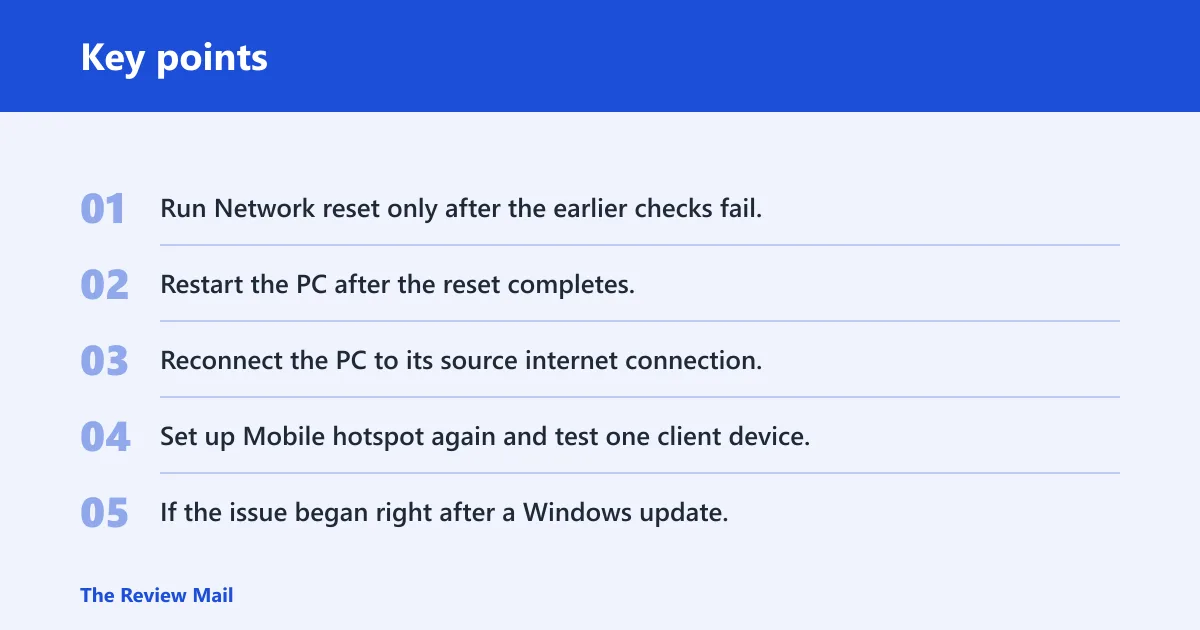
- Run Network reset only after the earlier checks fail.
- Restart the PC after the reset completes.
- Reconnect the PC to its source internet connection.
- Set up Mobile hotspot again and test one client device.
- If the issue began right after a Windows update, uninstall that update through Windows Update > Update history > Uninstall updates before resetting again.
- If it still fails after rollback and reset, check vendor support or an administrator policy that may block hotspot sharing.
After a successful fix, note which source connection, band, and VPN state worked so you can return to that setup after sleep or an update.
Frequently asked questions
Why is my pc mobile hotspot not working?
Start with the host PC’s own internet, then check Settings > Network & internet > Mobile hotspot and services.msc. The quickest useful checks are Windows Mobile Hotspot Service, Internet Connection Sharing (ICS), and the Wi‑Fi adapter driver. If the PC cannot stay online, clients will not get a usable hotspot.
Why won’t my Windows 11 mobile hotspot turn
Look for Airplane mode, a stopped hotspot service, or a broken adapter stack. Open services.msc, set Windows Mobile Hotspot Service and ICS to Automatic, then start both. If the toggle is still blocked, check the Wi‑Fi driver in Device Manager and reboot after any driver removal.
Why is the hotspot toggle greyed out in Windows 11?
A gray toggle usually points to a service or driver fault, or Airplane mode still being active. Turn Airplane mode off in Quick Settings or Settings > Network & internet > Airplane mode. Then restart Windows Mobile Hotspot Service and ICS, and confirm the hidden Wi‑Fi Direct adapter is enabled.
How do I fix mobile hotspot when Wi‑Fi is on but hotspot won’t start?
Check the source choice first. In Settings > Network & internet > Mobile hotspot, set Share my internet connection from to the active adapter, usually Wi‑Fi or Ethernet. Then restart the hotspot service, test 2.4 GHz if clients are older, and temporarily disable VPN or firewall if the hotspot still will not start.
Will network reset fix Windows 11 hotspot problems?
It can, but only as a last step. Open Settings > Network & internet > Advanced network settings > Network reset. That resets adapters and configuration, and it removes saved Wi‑Fi passwords and VPN configs. Use it after service, driver, source, and band checks fail.