0x0000003D fixes: find the cause and stop crashes fast
What does 0x0000003D mean in Windows?
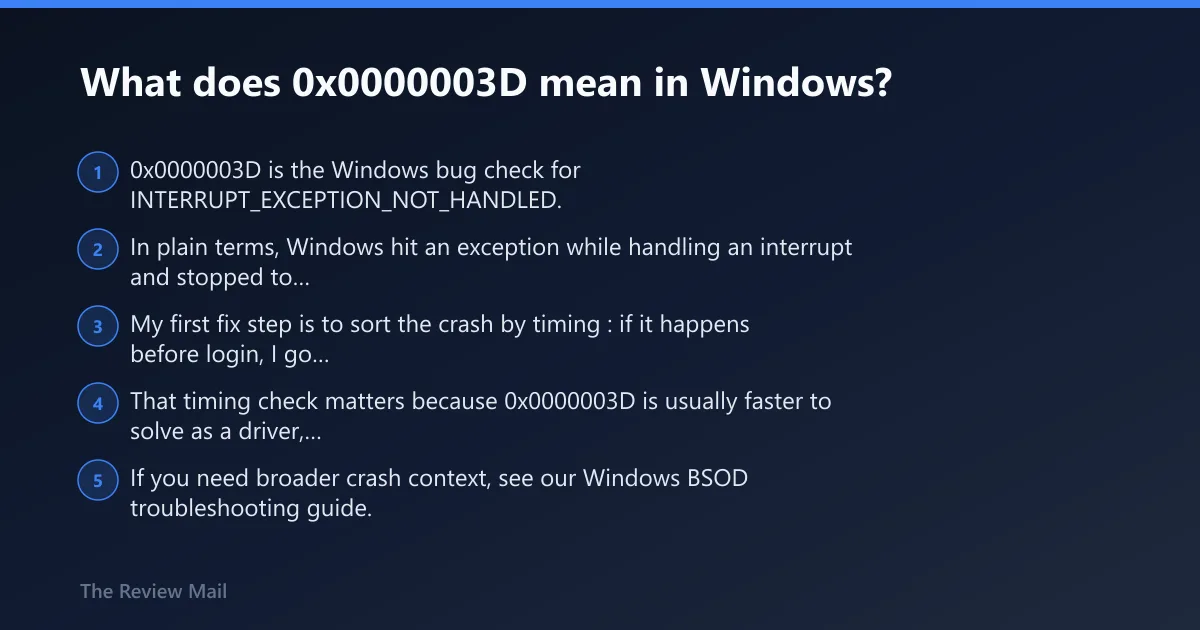
0x0000003D is the Windows bug check for INTERRUPT_EXCEPTION_NOT_HANDLED. In plain terms, Windows hit an exception while handling an interrupt and stopped to prevent further damage. My first fix step is to sort the crash by timing: if it happens before login, I go straight to WinRE and Safe Mode in Windows; if it started after a driver or update change, I reverse that change first.
That timing check matters because 0x0000003D is usually faster to solve as a driver, update, startup, or corruption problem than as a generic “BSOD.” This guide decodes the stop code, shows what the parameters can and cannot tell you, and maps the shortest safe repair path for Windows 10 and 11. If you need broader crash context, see our Windows BSOD troubleshooting guide.
Bug Check 0x3D in plain English
Bug Check 0x3D has the value 0x0000003D, and Microsoft names it INTERRUPT_EXCEPTION_NOT_HANDLED in its debugger reference. (Microsoft Learn)
For a Windows user, the practical reading is simpler: something running close to the kernel hit an exception during interrupt handling, and Windows stopped because it could not recover safely. In my repair work, that usually sends the first check toward a recent driver change, an update that changed startup behavior, or corruption that appears during boot activity.
What the four bug check parameters can tell you
The four parameters are clues, not a full diagnosis. Without a dump file, they narrow the path. With a minidump and WinDbg !analyze, they can point to the driver or module worth testing next, and Microsoft documents !analyze as the debugger extension used to display bug check information and help determine root cause. If you have dumps ready, our WinDbg crash dump guide pairs well with this stop code workflow. (Microsoft Learn)
| Parameter | Practical meaning | What it can tell you without a dump | What it cannot tell you alone |
|---|---|---|---|
| Parameter 1 | Usually the exception record pointer | Confirms the crash stored exception details | The exact bad driver name |
| Parameter 2 | Context record when available | Shows there may be CPU state to inspect later in WinDbg | Whether the fault came from storage, graphics, or networking by itself |
| Parameter 3 | Implementation-specific data | May help compare repeated crashes for pattern matching | A safe fix choice on its own |
| Parameter 4 | Implementation-specific data | Can help confirm the crash is repeating in the same path | A final diagnosis without the dump, timing, and recent-change history |
Microsoft’s debugger reference says the parameters may include an exception record and a context record, with parameter 2 used for the context record when available. For non-programmers, that means the blue screen parameters become useful when you pair them with crash timing, minidumps, and recent system changes. (Microsoft Learn)
According to Bug Check 0x3D – Windows Drivers — The stop code value is 0x0000003D. (source)
What causes stop code 0x0000003D?
The first cases I chase are driver faults and startup-change failures, especially when the blue screen began right after a driver install, device swap, BIOS-adjacent utility install, or Windows Update. If the timing does not line up with a recent change, I move next to system-file or file-system repair, then to dump analysis and deeper recovery.
Ranked causes to test first
- Driver faults after recent installs, updates, or device changes. Focus on storage, chipset, display, network, printer, and security-related drivers. Check Device Manager for yellow exclamation marks and recent hardware.
- Windows Update or startup-change failures. If crashes begin during update install, after a cumulative update, or right after login, treat rollback and recovery as the shortest path.
- System file or file-system damage.
SFC /scannowandCHKDSKbelong here, not as the first move for every case. MiniTool includes both SFC andCHKDSKamong its fixes, with the examplechkdskc: /f /r /x. (minitool.com) (minitool.com) - Lower-frequency kernel-path trouble. When the same stop code returns after rollback, Safe Mode testing, clean boot, SFC, and
CHKDSK, use minidumps and WinDbg before making bigger changes.
0x0000003D triage map
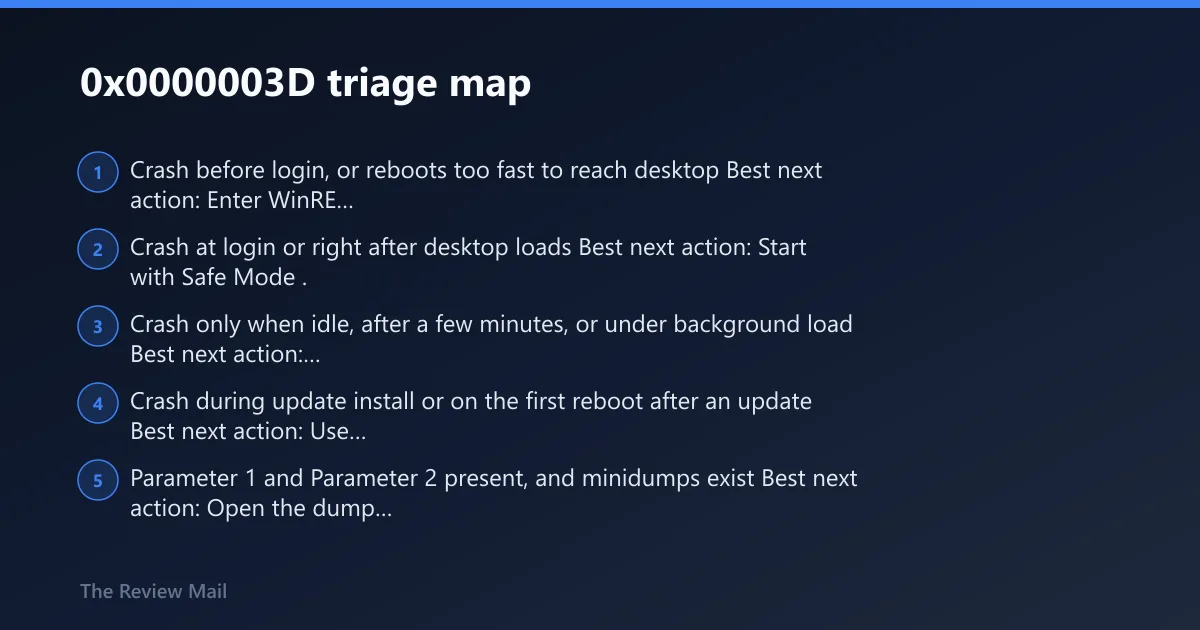
Use crash timing to choose the first repair step. Before login, go to WinRE and boot into Safe Mode. Right after a driver or update change, reverse that change first. If there is no clear trigger, check system files, the file system, and minidumps instead of bouncing between random fixes.
The fastest safe fix depends more on when the crash happens than on the stop code name itself. A boot crash, a login crash, an idle crash, and an update-install crash each need a different first move. I treat this as a routing problem, then test one branch at a time.
0x0000003D triage map
| Crash timing | Likely cause | Next action |
|---|---|---|
| Before login or during a reboot loop | Boot-start driver, update rollback failure, startup corruption | Open WinRE, start Safe Mode, then remove the last driver or update change |
| At login or right after the desktop appears | Recent driver update, vendor utility, startup service | Use Safe Mode, Device Manager rollback, or System Restore |
| Only when idle or under background load | Third-party service, security suite, RGB or motherboard utility | Run a Clean Boot and re-enable services in batches |
| During Windows Update or first reboot after update | Broken quality update, changed driver package, failed servicing state | Uninstall the latest update from WinRE or Settings, then retry Windows Update |
| Random repeats with minidumps available | Specific driver or kernel module | Open the newest dump in WinDbg and run !analyze |
| No recent changes, plus disk or NTFS errors in logs | System file or file-system corruption | Run SFC first, then CHKDSK in Windows |
- Crash before login, or reboots too fast to reach desktop
Best next action: Enter WinRE first. From the sign-in screen, hold Shift and select Power > Restart, or interrupt boot until recovery opens. Then go to Troubleshoot > Advanced options > Startup Settings > Restart > Safe Mode. - Crash at login or right after desktop loads
Best next action: Start with Safe Mode. If Safe Mode holds, use Device Manager, System Restore, or update rollback before trying normal boot again. - Crash only when idle, after a few minutes, or under background load
Best next action: Use a Clean Boot. Run msconfig > Services tab > check Hide all Microsoft services > Disable all. Then disable startup apps in Task Manager > Startup apps. - Crash during update install or on the first reboot after an update
Best next action: Use WinRE or Settings to uninstall the latest update, or use System Restore if a restore point exists. - Parameter 1 and Parameter 2 present, and minidumps exist
Best next action: Open the dump in WinDbg and run !analyze. That is the shortest path to the likely module name. (Microsoft Learn) - No recent changes, but Event Viewer shows disk or NTFS errors near the crash
Best next action: Runsfc /scannowfirst, thenchkdskc: /f /r /x from an elevated Command Prompt. Expect a reboot prompt for the disk check.
Did a driver or device change trigger 0x0000003D?
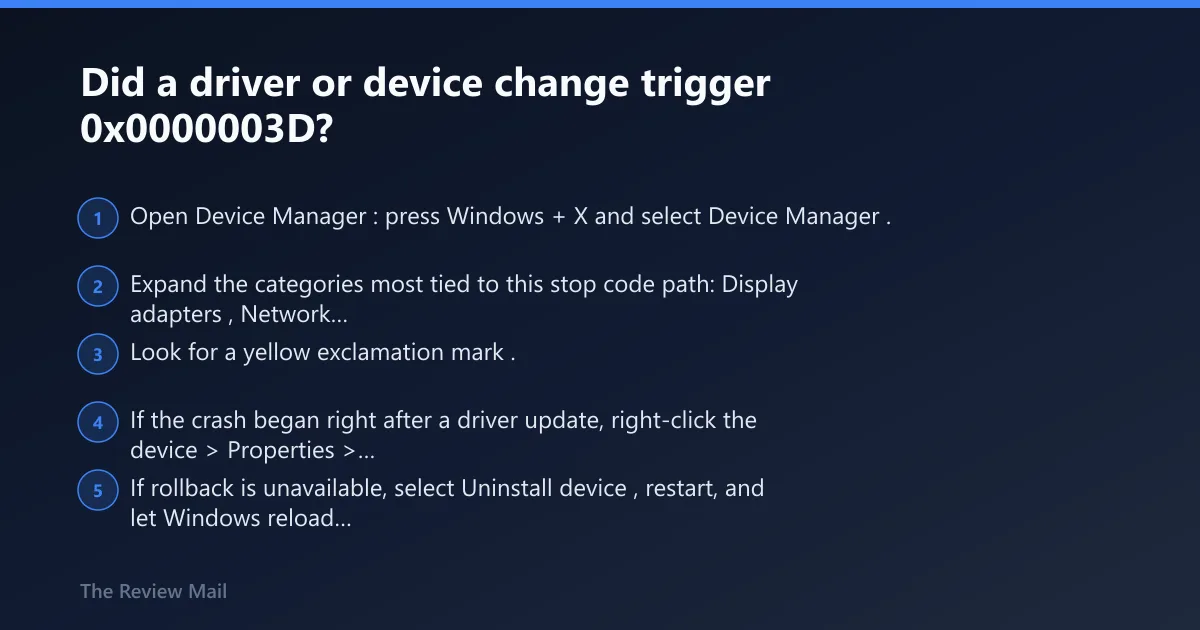
If the blue screen started after new hardware, a driver update, or a vendor utility install, test that recent change first. In practice, I look for the last thing added or updated, then check Device Manager for the matching device class, warning icons, rollback options, and timestamps before I touch unrelated drivers.
Check Device Manager and reverse the recent change
- Open Device Manager: press Windows + X and select Device Manager.
- Expand the categories most tied to this stop code path: Display adapters, Network adapters, Storage controllers, System devices, and any recently added printer or USB device.
- Look for a yellow exclamation mark. If present, right-click the device and select Properties to review status.
- If the crash began right after a driver update, right-click the device > Properties > Driver > Roll Back Driver.
- If rollback is unavailable, select Uninstall device, restart, and let Windows reload the prior driver path. MiniTool also suggests updating outdated drivers and using Safe Mode where needed.
- If the suspect is a printer path and the machine shows a print-queue problem instead of a blue screen, stopping the Print Spooler, clearing Windows\System32\spool\Printers, restarting the service, and reinstalling the printer driver are reported by bleepingcomputer.com.
Use WinDbg when the bad module is not obvious
- Open File Explorer and check
C:\Windows\Minidumpfor recent dump files. - Open the dump in WinDbg.
- Run !analyze. Microsoft says this debug extension displays bug check information and helps determine the root cause. For a step-by-step walkthrough, use our WinDbg guide for BSOD dump analysis. (Microsoft Learn)
- Compare the module named in the analysis with the device category changed most recently.
Is 0x0000003D happening during boot, login, or right after Windows Update?
If 0x0000003D hits before login, go to WinRE first. If it starts right after a cumulative update or on the first reboot after patching, uninstall the latest update before you spend time on deeper repairs. Crash timing is one of the fastest ways I cut down the search list.
Use WinRE before Safe Mode when desktop access is unstable
- From the sign-in screen, select Power, hold Shift, then click Restart.
- Go to Troubleshoot > Advanced options > Startup Settings > Restart.
- Select Safe Mode.
- If the issue began after an update, use Troubleshoot > Advanced options > Uninstall Updates and remove the latest quality update first.
Roll back update-related changes
- On Windows 11, open Settings > Windows Update > Update history > Uninstall updates. (Microsoft Support)
- On Windows 10, open Settings > Update & Security > Windows Update > View update history > Uninstall updates.
- If the problem began after an app, driver, registry, or update change, open Control Panel > Recovery > Open System Restore and choose a restore point from before the first crash. MiniTool includes System Restore as a fix path.
- After recovery, run Windows Update again to pick up any corrected packages. MiniTool recommends checking for Windows updates. If you want a fuller rollback path, see our Windows Update troubleshooting guide.
Could corrupted system files or disk errors be causing 0x0000003D?
Yes, but I test this branch after timing and recent-change checks. If the crash has no clear trigger, or Event Viewer shows disk, NTFS, or boot errors near the same time, run SFC first and then CHKDSK. That order repairs Windows files before you schedule a disk scan.
Run SFC and CHKDSK in the right order
- Open an elevated Command Prompt: press Windows, type cmd, right-click Command Prompt, and select Run as administrator.
- Run
sfc /scannow. MiniTool lists SFC scanning as a fix. - If SFC reports repairs or the crash still returns, run
chkdskc: /f /r /x. MiniTool includes that example syntax. - If Windows says the volume is in use, type Y to schedule the check, then restart.
- Open Event Viewer: press Windows + X > Event Viewer > Windows Logs > System. Look for entries around the crash time that mention disk, NTFS, or failed startup components.
If you need command details or log locations, our CHKDSK guide and SFC and DISM repair guide cover the repair sequence in more detail.
What if Safe Mode works but normal boot still crashes?
If Safe Mode is stable but normal startup is not, use a Clean Boot next. Safe Mode strips Windows down for diagnosis. Clean Boot keeps normal mode but removes third-party services and startup apps, which makes it better for isolating VPN tools, security suites, RGB software, storage helpers, and vendor utilities.
Use Clean Boot to isolate third-party triggers
- Press Windows + R, type msconfig, and press Enter.
- Open the Services tab, check Hide all Microsoft services, then click Disable all.
- Open Task Manager > Startup apps and disable nonessential startup items.
- Restart and test.
- If the crash stops, re-enable services and startup items in small batches until the trigger returns.
What should I do if 0x0000003D keeps coming back after reboot?
If 0x0000003D keeps returning, stop changing multiple things at once. Collect the minidumps, note whether the crash hits during boot, login, idle, or update install, and then work the next fix from that evidence. Repeated 0x0000003D crashes usually point to a persistent driver path, servicing problem, or corruption issue that becomes obvious once you line up dumps, update history, and Device Manager status.
If that did not work, use this escalation ladder
- Collect
C:\Windows\Minidumpfiles and note the exact crash timing: boot, login, idle, or update install. - Review Device Manager again for warning-marked devices and reverse any recent driver change first.
- Run
DISM /Online /Cleanup-Image /RestoreHealth, then runsfc /scannowagain. - If the system became unstable only recently, run System Restore from Control Panel > Recovery > Open System Restore.
- If instability still returns and dumps do not point to one driver, run Windows Memory Diagnostic from the Start menu. (ninjaone.com)
- If Windows will not hold stable long enough for repairs, use Reset this PC from Settings > System > Recovery on Windows 11, or Settings > Update & Security > Recovery on Windows 10.
Prevention
Avoid stacking changes. Install one driver, firmware, or device-management utility at a time, restart, and confirm stability before the next change. That makes the next 0x0000003D much easier to trace.
Frequently asked questions
Is 0x0000003D the same as INTERRUPT_EXCEPTION_NOT_HANDLED?
Yes. 0x0000003D and INTERRUPT_EXCEPTION_NOT_HANDLED are the same Windows bug check. One is the hex stop code and the other is Microsoft’s name for it. (Microsoft Learn)
How do I fix 0x0000003D on Windows 11 or Windows 10?
Start with the first branch that matches when the crash happens. Before login, use WinRE > Startup Settings > Safe Mode. After a recent driver or device change, roll that change back. With no clear trigger, run sfc /scannow and then chkdsk c: /f /r /x. You can also follow our Safe Mode guide and CHKDSK repair guide.
How do I find the driver or module causing 0x0000003D?
Check the newest file in C:\Windows\Minidump, open it in WinDbg, and run !analyze. Then compare the reported module with the device or driver you changed most recently in Device Manager. Microsoft documents !analyze as the command used to show bug check details and help determine root cause. (Microsoft Learn)
Can Safe Mode or Clean Boot help with 0x0000003D?
Yes. Use Safe Mode when Windows crashes too early for normal desktop troubleshooting. Use Clean Boot when Safe Mode is stable and you want to isolate a third-party service or startup app. If you need the exact boot path, see our Safe Mode instructions for Windows.
Should I use SFC, CHKDSK, or System Restore for 0x0000003D?
Use System Restore first when the blue screen began after a driver, app, update, or registry change. Use sfc /scannow when no single change stands out. Use chkdsk c: /f /r /x when Event Viewer suggests file-system or disk trouble, or when SFC alone does not hold. For the file-system branch, our CHKDSK walkthrough covers the reboot scan process.
Does this process also apply on HP systems?
Yes. The same triage path applies on HP laptops and desktops because the stop code is a Windows kernel crash, not an HP-only error. Use WinRE for pre-login loops, check Device Manager for recent driver changes, review Windows Update timing, and inspect minidumps with WinDbg !analyze. Vendor utilities are often worth disabling in a Clean Boot test.