0x0000003B fixes for a SYSTEM_SERVICE_EXCEPTION BSOD
0x0000003B is the SYSTEM_SERVICE_EXCEPTION bug check value. Officially, it indicates that an exception happened while executing a routine that transitions from non-privileged code to privileged code, and the executing code had an exception while the thread below it was a system thread. (Microsoft Learn)
The fastest first move is to pull the latest dump from C:\Windows\Minidump or C:\Windows\MEMORY.DMP before changing drivers, BIOS settings, or hardware.
What does bugcheck parameter 1 mean for 0x0000003b?
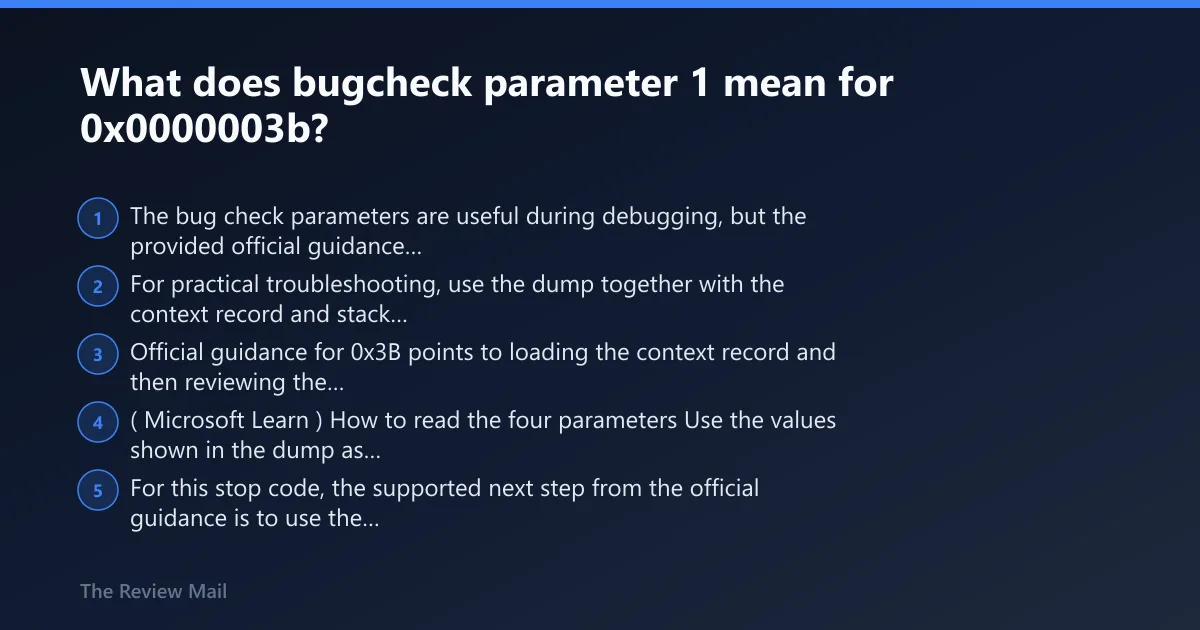
The bug check parameters are useful during debugging, but the provided official guidance for 0x3B does not map each parameter in the way some summaries do. For practical troubleshooting, use the dump together with the context record and stack backtrace rather than relying on an unsupported parameter-by-parameter shortcut. Official guidance for 0x3B points to loading the context record and then reviewing the stack. (Microsoft Learn)
How to read the four parameters
Use the values shown in the dump as inputs for debugging, but avoid assuming a fixed meaning here unless your debugger output or symbol information confirms it. For this stop code, the supported next step from the official guidance is to use the saved context record and stack backtrace to see what code path was active at the time of the crash.
If you are doing deeper kernel debugging, official guidance also notes that determining the specific cause and creating a code fix requires programming experience and access to the source code of the faulting module. In many home and office cases, that means the realistic goal is identifying whether the pattern points to a driver, memory settings, or a broader system problem rather than writing a true code fix.
Why Arg1 matters more than generic advice
The parameter values matter only when they help a repeatable pattern emerge across dumps. One crash can suggest a direction, but several crashes are often needed before the next fix step is clear.
According to Bug Check 0x3B SYSTEM_SERVICE_EXCEPTION — The bug check value for SYSTEM_SERVICE_EXCEPTION is 0x0000003B. (source)
Why does SYSTEM_SERVICE_EXCEPTION keep happening randomly?
Repeated 0x0000003b crashes commonly involve third-party drivers, memory instability, BIOS memory settings, or system-file and storage damage. The safest way to narrow it down is to compare several fresh dumps and then check whether the same driver path or the same general failure pattern repeats.
Likely causes, ranked
- Third-party driver faults or driver interactions. If the same non-Microsoft component appears consistently around the crash path, start with that device or software.
- Memory instability or bad RAM. This is more likely when the system is using XMP or other overclocked memory settings, or when memory testing reports errors.
- Corrupted system files or storage-backed damage. This becomes more relevant when file repair tools find problems or when the system also shows disk-related instability.
Why mixed BSOD codes matter
If 0x3B appears together with unrelated stop codes, check the broader system state instead of chasing only one named file. At that point, it is reasonable to review recent BIOS changes, return memory to stock settings, and run standard Windows repair checks.
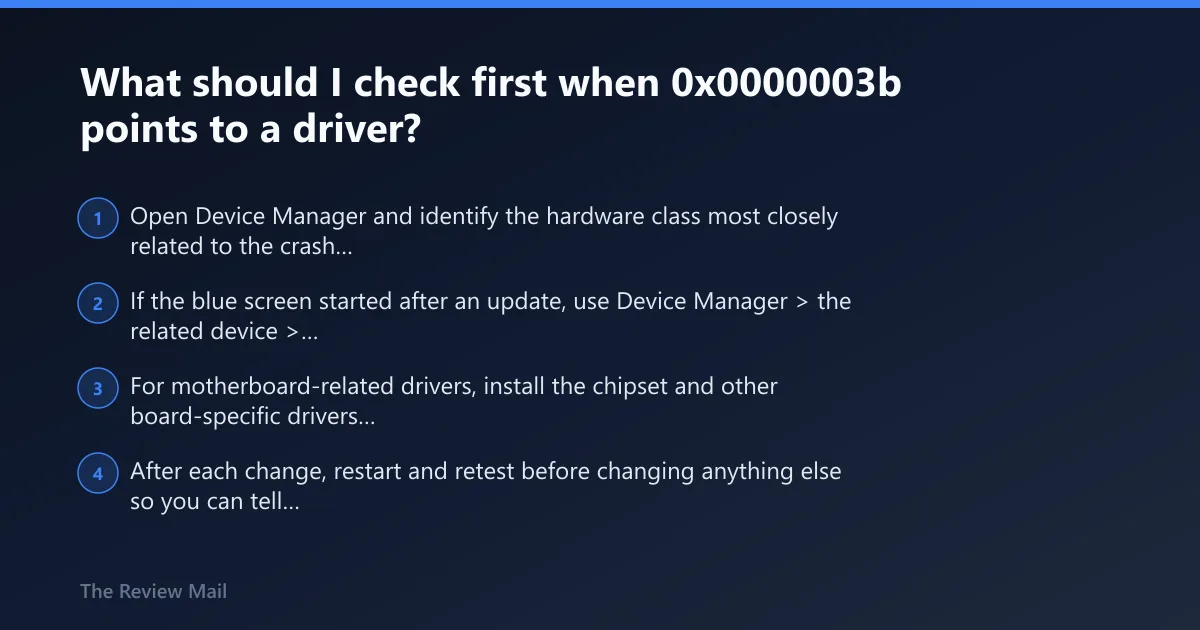
What should I check first when 0x0000003b points to a driver?
Start with the smallest recent change. If the crashes began after a device driver update, roll back that driver in Device Manager. If they began after installing device software, uninstall that package and retest. If the issue appears tied to motherboard-related devices, install the relevant drivers from the motherboard support page; reported by bleepingcomputer.com, installing the needed drivers from the motherboard support page helped in similar 0x3B cases.
If that didn’t work, try this next: third-party driver path
- Open Device Manager and identify the hardware class most closely related to the crash timing, such as display, network, storage, or chipset devices.
- If the blue screen started after an update, use Device Manager > the related device > Properties > Driver > Roll Back Driver if available. If rollback is unavailable, use Uninstall Device and then reinstall the vendor package.
- For motherboard-related drivers, install the chipset and other board-specific drivers from the motherboard support page. Reported by bleepingcomputer.com, installing the needed motherboard support drivers was a useful next step in similar 0x3B troubleshooting.
- After each change, restart and retest before changing anything else so you can tell which action actually affected the crashes.
What KiBugCheckDriver adds
If your dump analysis names a driver, treat it as a lead to verify with the rest of the crash evidence rather than as proof by itself. The practical next step is still the same: reverse the most relevant recent driver change, then retest and compare new dumps.
Can bad RAM cause 0x0000003B and other BSODs too?
Yes. Memory instability can trigger 0x0000003b and other blue screens, especially when RAM is not running at stable settings.
If that didn’t work, try this next: memory and BIOS path
- Check whether recent BIOS, RAM, or overclock changes line up with the first crash.
- Enter BIOS and disable XMP while testing. Reported by bleepingcomputer.com, XMP is a form of overclocking and can cause issues or mask what is going on.
- In BIOS, verify that the RAM is running at the expected non-overclocked speed. Reported by bleepingcomputer.com, checking that RAM was running at 2132Mhz was suggested in a similar case.
- Turn off BIOS options that speed up boot time while testing. Reported by bleepingcomputer.com, disabling fast-boot-style options was also suggested in similar troubleshooting.
- Run Windows Memory Diagnostic by pressing Win + R, typing mdsched.exe, and choosing Restart now and check for problems.
- Retest at stock settings with XMP disabled and the board’s default memory behavior restored. If the system becomes stable only at stock settings, leave memory overclocking off until the root cause is clear.
Memory corruption is not always bad RAM
A faulty driver can also corrupt memory, so a RAM check and a driver check often need to be done together. If memory testing fails or stock settings still produce crashes, move hardware higher on the suspect list.
How do I use a minidump to find the faulting module for 0x0000003b?
Use the debugger steps that are specifically documented for this stop code. Official guidance says to use .cxr with Parameter 3 and then use kb to display the stack backtrace. It also notes that you can set a breakpoint in the code that precedes this stop code and attempt to single-step forward into the faulting code, and use the u, ub, and uu unassemble commands. (Microsoft Learn)
Exact WinDbg flow
- Open
C:\Windows\Minidump\*.dmporC:\Windows\MEMORY.DMPin WinDbg. - Take the third bug check parameter shown for the crash and run .cxr <Parameter 3 value>.
- Run kb to display the stack backtrace. This is the debugger sequence the official 0x3B guidance specifically calls for.
- If you are doing deeper debugging, you can set a breakpoint in the code that precedes the stop and attempt to single-step into the faulting code.
- Use u, ub, or uu if you need to unassemble the nearby instructions.
Why explorer.exe may appear in 0x0000003b crashes
The active process at the time of the crash is not always the root cause. Use the context record and stack backtrace to decide whether the real problem points to a driver path, memory instability, or something else in kernel mode.
What should the crash triage table tell you next?
The table below is a practical decision page for 0x3B. Use it to choose the next safe troubleshooting branch after you compare the crash timing, recent changes, and any repeated evidence from dumps.
One-page crash triage table
| What you see | Likely meaning | Next action |
|---|---|---|
| Crashes started after a device driver update | Recent driver change is a leading suspect | Roll back or uninstall that driver in Device Manager, then retest |
| Crashes started after BIOS, RAM, or XMP changes | Memory settings may be unstable | Disable XMP, return BIOS memory settings to stock, and retest |
| Windows Memory Diagnostic reports errors | RAM or memory stability problem is likely | Keep stock settings, test hardware further, and consider hardware replacement testing |
| SFC or DISM finds corruption | System files may be damaged | Finish the repair sequence, restart, and check whether crashes continue |
| Problem remains unclear after basic driver and memory checks | More complete debugging is needed | Use MEMORY.DMP and, if needed, escalate to the device or system vendor |
Sample interpretation for 0xC0000005
If your debugger output includes an access-violation-style exception and the crash began after a specific driver change, start by reversing that driver change. If the system instead became unstable after enabling XMP or changing RAM settings, return memory to stock and test there first.
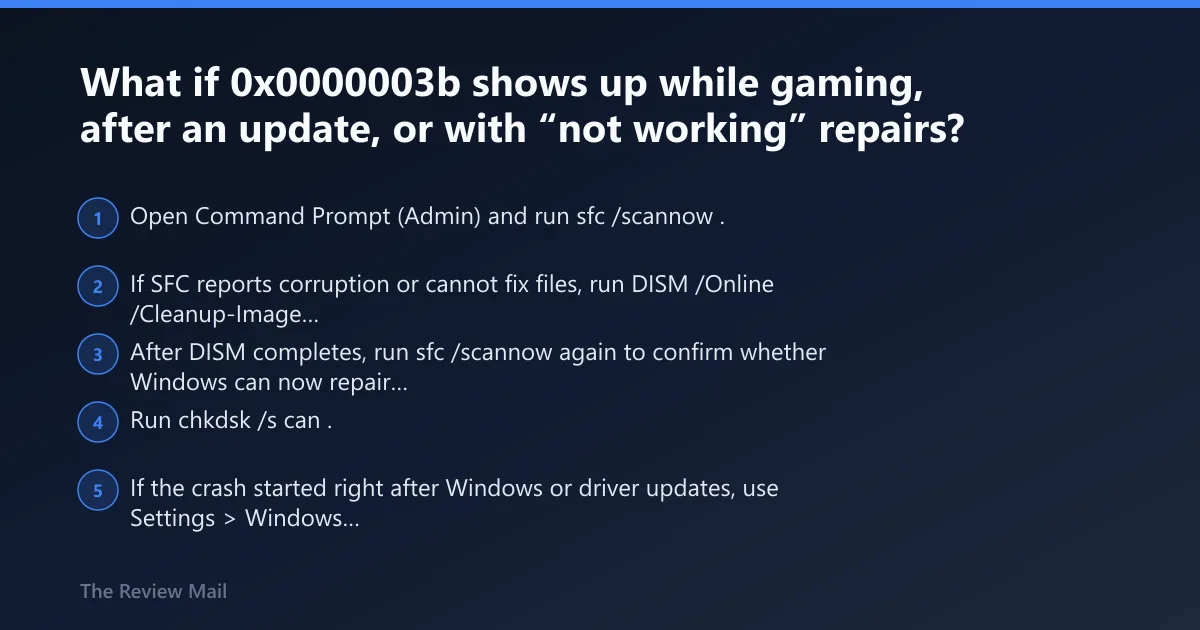
What if 0x0000003b shows up while gaming, after an update, or with “not working” repairs?
Those patterns help order the checks. Gaming-related crashes push graphics, audio, and anti-cheat-related software higher on the list. After-update crashes make rollback the first test. If earlier repair attempts did not help, stop stacking more changes and retest from the most recent confirmed-good state.
If that didn’t work, try this next: system-file and storage path
- Open Command Prompt (Admin) and run
sfc /scannow. - If SFC reports corruption or cannot fix files, run
DISM /Online /Cleanup-Image /RestoreHealth. - After DISM completes, run
sfc /scannowagain to confirm whether Windows can now repair the remaining files. - Run
chkdsk /scan. If Windows reports file-system problems that require offline repair, runchkdsk /fand allow it to schedule a boot-time check if requested. - If the crash started right after Windows or driver updates, use Settings > Windows Update > Update history to remove the recent update, or use Device Manager to roll back the updated device driver.
Paged pool and system-thread clues
Those details can help during deeper debugging, but they do not replace the basic repair order: undo recent driver changes, return memory to stock settings, and run the standard Windows file and disk checks.
Still not working?
If 0x0000003b remains unresolved after targeted driver changes, stock-memory testing, and Windows repair checks, gather better evidence and move to vendor-level support or hardware testing. Official guidance notes that determining the specific cause and creating a true code fix requires programming experience and access to the source code of the faulting module. (Microsoft Learn)
If that didn’t work: escalation ladder
- Collect multiple fresh dumps before making more changes. Compare them for repeated patterns after each single change, not after several changes at once.
- Use msconfig for a clean boot and retest. If crashes stop, re-enable startup items and services in small groups.
- Switch from minidumps to a full MEMORY.DMP so more crash data is available for deeper review.
- If crashes disappear after a reinstall or driver update, keep watching under the same workload before assuming the issue is fully resolved.
- Escalate to vendor support or hardware swap testing when memory tests fail, when the system is only stable at stock settings, or when standard Windows and driver repair steps do not isolate the cause.
Prevention
Keep BIOS and driver changes small and reversible. Change one thing at a time, especially with GPU drivers, chipset drivers, BIOS settings, and memory profiles.
Frequently asked questions
What does stop code 0x0000003b mean in Windows?
It is the SYSTEM_SERVICE_EXCEPTION bug check value. For troubleshooting, start by checking recent driver or BIOS changes and saving the dump before you make more changes.
Should I use Driver Verifier for intermittent 0x0000003b BSODs?
Start with rollback, reinstall, BIOS stock settings, memory testing, and Windows repair commands first. If those do not isolate the cause, deeper debugging or vendor support is usually the safer next step.