How to Connect Windows to Proxy
Windows can use three proxy layers: the user proxy for browser traffic, WinHTTP for services and update-aware apps, or app-level SOCKS5 settings for supported clients. Pick the wrong layer and you get mixed results. Browsers may work while Windows Update, scripts, or background services fail. This guide shows where each setting lives in Windows 10 and 11, how to enter the proxy details, and how to keep system traffic working.
What you’ll need
- Proxy address and port
- Username and password if the provider requires auth
- PAC script URL or manual server details
- Admin access if you need WinHTTP changes
- A browser for verification
- A command prompt or PowerShell window for WinHTTP checks
Proxy layers decision table
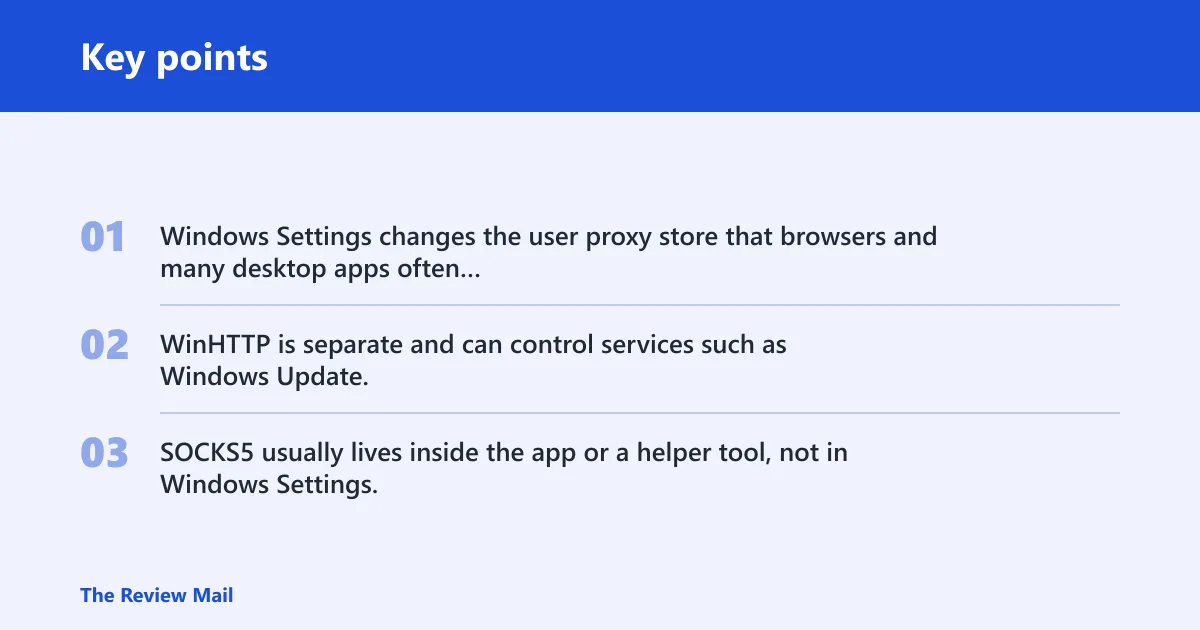
Start with the right layer. Windows Settings changes the user proxy store that browsers and many desktop apps often read. WinHTTP is separate and can control services such as Windows Update. SOCKS5 usually lives inside the app or a helper tool, not in Windows Settings.
| Use case | Proxy layer | Exact path or command | What it affects | Quick check |
|---|---|---|---|---|
| Browser browsing | WinINet user proxy store | Settings > Network & Internet > Proxy | Chrome, Edge, and other user-level apps that read HKCU Internet Settings | Open a browser and confirm the public IP changes |
| Windows Update and services | WinHTTP system proxy store | Admin Command Prompt: netsh winhttp show advproxy | Windows Update and system services | Check the reported WinHTTP proxy state before running update |
| PowerShell or scripts | Often WinHTTP, sometimes app settings | netsh winhttp import proxy source=ie | Scripted tools and services that do not read the user proxy store | Run the script and confirm outbound requests stop failing |
| SOCKS5 | App-level or third-party tool | App proxy settings or a helper tool using port 1080 | Only the app that supports SOCKS5 | Verify inside the app, not in Windows Settings |
| Per-app routing | App-level proxy manager | Proxy tool profile or app network settings | Only selected apps or processes | Launch the app and confirm traffic leaves through the chosen proxy |
How do you set a proxy in Windows?
For browser traffic, open Settings > Network & Internet > Proxy and switch on Use a proxy server. That updates the WinINet user store used by browsers like Chrome and Edge, but it does not set WinHTTP for Windows Update or services. Save the settings, then check the browser’s visible IP.
- Open Settings > Network & Internet > Proxy.
- Turn on Use a proxy server.
- Enter the proxy address and port; 8080 is a common HTTP example.
- Add bypass entries for internal destinations in the semicolon-separated exception field, such as localhost and 127.0.0.1.
- Save the change, then open Edge or Chrome and check that the site sees the proxy IP.
If a browser reaches public sites through the proxy but a local admin portal on localhost stops loading, add localhost;127.0.0.1 to the bypass list and try again. That keeps local traffic off the proxy while the browser still routes everything else through it.
What is the difference between automatic and manual proxy setup?
Automatic setup fits networks that publish proxy rules, while manual setup fits a fixed server and port. Use automatic detect settings for WPAD environments, or use a PAC file when routing must change by site, domain, or path. Manual proxy setup in Windows 10 and 11 is still the standard path for a fixed HTTP or HTTPS proxy.
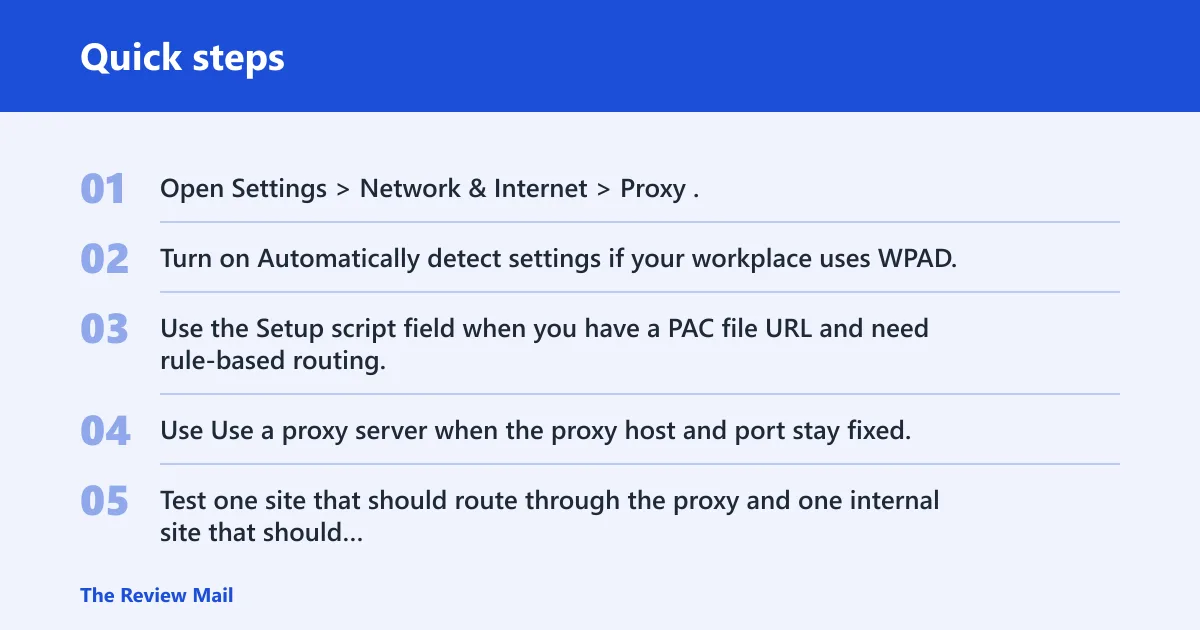
- Open Settings > Network & Internet > Proxy.
- Turn on Automatically detect settings if your workplace uses WPAD.
- Use the Setup script field when you have a PAC file URL and need rule-based routing.
- Use Use a proxy server when the proxy host and port stay fixed.
- Test one site that should route through the proxy and one internal site that should bypass it.
A PAC file matters when one domain should go direct and another should use the proxy. A fixed manual server cannot make that choice on its own. If the script address is wrong or the file does not load, the browser may fall back to direct access or fail to route as expected.
How do you use SOCKS5 on Windows?
Windows Settings does not natively support SOCKS5. Use a browser that supports SOCKS5 directly, or use a third-party tool or command-line client that can bind to a SOCKS5 proxy. In examples, SOCKS5 commonly uses port 1080, but the provider’s port should always win over any example value.
- Check whether the app has a SOCKS5 proxy setting.
- Enter the proxy host and port in the app; 1080 is a common example port.
- Provide credentials if the provider requires username and password.
- Run the app’s own connection test or visit a site inside that app.
- Confirm the app is routing through SOCKS5 rather than Windows Settings.
If your browser supports SOCKS5 but Windows Settings does not, set the browser’s proxy field to the SOCKS5 host and port, then verify the browser’s IP. Do not expect the change to control Windows Update or other desktop apps.
Why does a proxy work in the browser but not Windows Update?
That usually means the browser is reading the WinINet user proxy store, while Windows Update is reading WinHTTP. Those are separate stores. Windows Settings configures WinINet only, so browser traffic can succeed even when system services still have no proxy.
- Open an elevated Command Prompt.
- Run
netsh winhttp show advproxyto check the current WinHTTP state. - If needed, copy the user proxy into WinHTTP with
netsh winhttp import proxy source=ie. - Retry Windows Update.
- If policy controls the device, confirm the proxy is allowed for system services.
For system-wide services, the WinHTTP store must be set separately. That is why a browser can load sites while update checks still fail. If the WinHTTP output is empty or wrong, the fix is in the system proxy layer, not the browser layer.
What goes wrong most often?
The most common failures are a mistyped host, a wrong port, missing credentials, or a bypass list that excludes the site you meant to proxy. Another common issue is choosing the Windows Settings proxy and assuming it controls services, scripts, and updates. It does not.
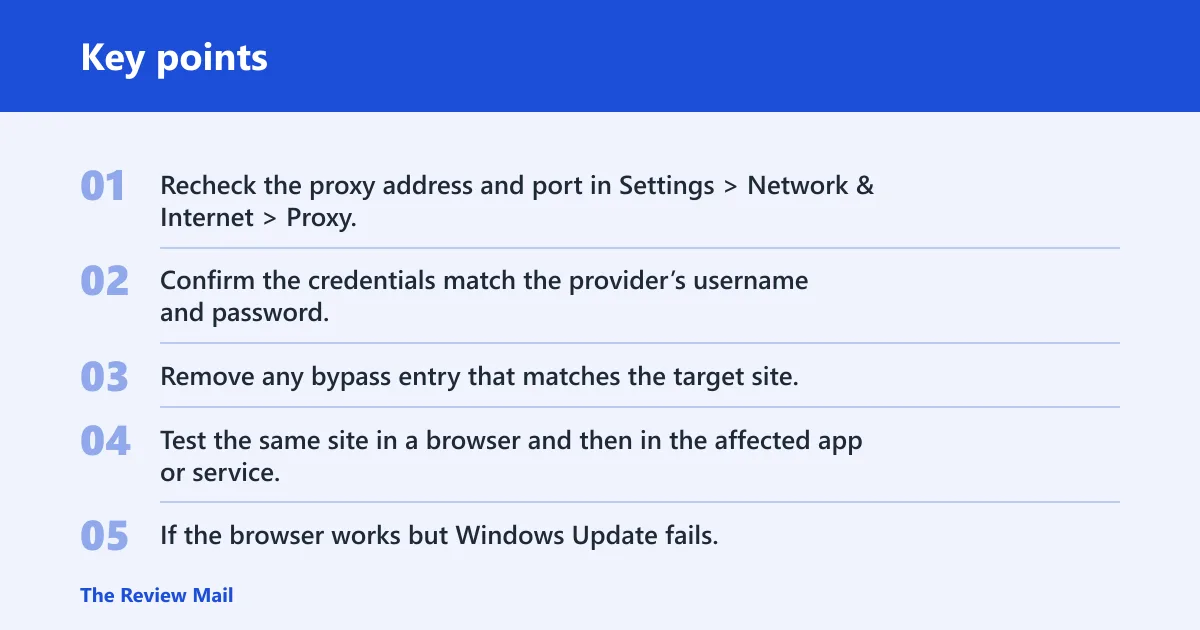
- Recheck the proxy address and port in Settings > Network & Internet > Proxy.
- Confirm the credentials match the provider’s username and password.
- Remove any bypass entry that matches the target site.
- Test the same site in a browser and then in the affected app or service.
- If the browser works but Windows Update fails, inspect WinHTTP with
netsh winhttp show advproxy.
If that does not work, switch from manual settings to the provider’s PAC script, or reset the proxy fields and enter them again. A bad script URL, a stale PAC file, or a proxy timeout can look like a general internet failure when the real problem is one layer below the browser.
How do you turn off proxy in Windows if it breaks internet access?
Turn off the proxy in Settings > Network & Internet > Proxy, then clear any system-level WinHTTP proxy if services still fail. That restores direct access for the user store and stops a broken proxy from blocking normal browsing or updates.
- Open Settings > Network & Internet > Proxy.
- Turn off Use a proxy server.
- Turn off Automatically detect settings if it is sending traffic to the wrong place.
- Remove the PAC script address if one is set.
- In an elevated Command Prompt, review WinHTTP with
netsh winhttp show advproxyand clear or replace it if needed.
Keep the provider’s host, port, and credentials in one note before changing anything. That makes rollback fast if the proxy blocks DNS, times out, or rejects authentication.
Frequently asked questions
How to connect pc to proxy
Open Settings > Network & Internet > Proxy, turn on Use a proxy server, then enter the host and port. That changes the user proxy store for browser traffic. If you also need Windows Update or services, configure WinHTTP separately with netsh winhttp import proxy source=ie.
How do I use SOCKS5 proxy on Windows?
Use an app that supports SOCKS5 directly, because Windows Settings does not provide native SOCKS5 support. Enter the SOCKS5 host and port in that app, often 1080 in examples, then authenticate if required. Confirm the app’s traffic changes; do not expect system-wide routing from Windows Settings.