This Device Cannot Start Windows 10 Fix
Code 10 (“Device Cannot Start”) is a generic status flag in Device Manager indicating that Windows attempted to start a device but the process failed. According to official Microsoft documentation, for EHCI USB Controller devices, this issue specifically occurs because a time-out happens during EHCI hardware initialization. For other devices, causes vary widely, including driver incompatibility, hardware faults, or configuration errors. This article addresses common troubleshooting steps for resolving Code 10 errors.
What Code 10 actually means
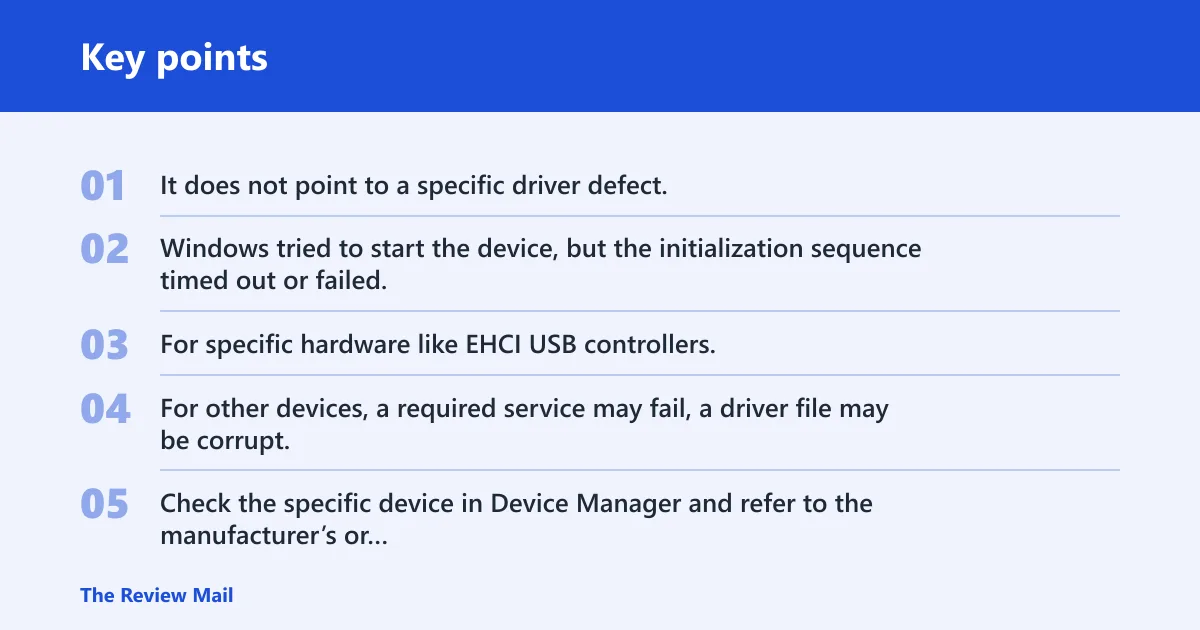
Code 10 is a generic status flag. It does not point to a specific driver defect. Windows tried to start the device, but the initialization sequence timed out or failed. For specific hardware like EHCI USB controllers, Microsoft has identified a time-out during hardware initialization as the cause. For other devices, a required service may fail, a driver file may be corrupt, or the hardware itself may be faulty. Check the specific device in Device Manager and refer to the manufacturer’s or Microsoft’s specific guidance for that hardware.
Likely causes, ranked by frequency
The most common causes of Code 10 errors include driver issues, service failures, and hardware faults. While the specific EHCI USB Controller issue is tied to a known timeout, other scenarios involve different root causes.
- Driver Incompatibility or Corruption The installed driver package may be corrupt, outdated, or incompatible with the current OS architecture.
- Service Failures Specific services required for the device (such as USB services for USB controllers) may be stopped or misconfigured.
- Hardware Signal Loss Physical faults in the PCIe slot, USB controller, or cabling can break the basic electrical connection.
- Corrupt System Files Damaged system files can prevent the OS from validating or loading drivers correctly.
Verify service status
If a specific device relies on a Windows service (such as USB controllers relying on USB Host Controller services), ensure the relevant services are running. For general driver updates, the Windows Update and related services must be functional.
Check Windows Update and Cryptographic services
- Press Win + R, type
services.msc, and press Enter. - Locate Windows Update (wuauserv) and Cryptographic Services (cryptsvc).
- If either service is not set to Automatic or is not Running, right-click the service and select Properties. Set the Startup type to Automatic and click OK.
- If the service status is Stopped, right-click it and select Start.
Clear the Windows Update cache
If driver updates are stuck, clearing the Windows Update cache may help. Stop the Windows Update service and rename the SoftwareDistribution and CatRoot2 folders. Then restart the service. This forces Windows to rebuild its update database. Execute these steps in an elevated Command Prompt.
- Open Command Prompt as administrator.
- Run:
net stop wuauserv - Run:
net stop bits - Run:
ren C:\Windows\SoftwareDistribution SoftwareDistribution.old - Run:
ren C:\Windows\System32\catroot2 catroot2.old - Run:
net start wuauserv - Run:
net start bits
After this, run the Windows Update troubleshooter. Microsoft advises backing up personal files before attempting system repairs or updates.
Distinguish hardware failure from configuration errors
Test in Safe Mode
Safe Mode loads a minimal driver set, isolating third-party services. If the device works in Safe Mode but not in Normal Mode, the cause is likely a conflicting third-party driver or service.
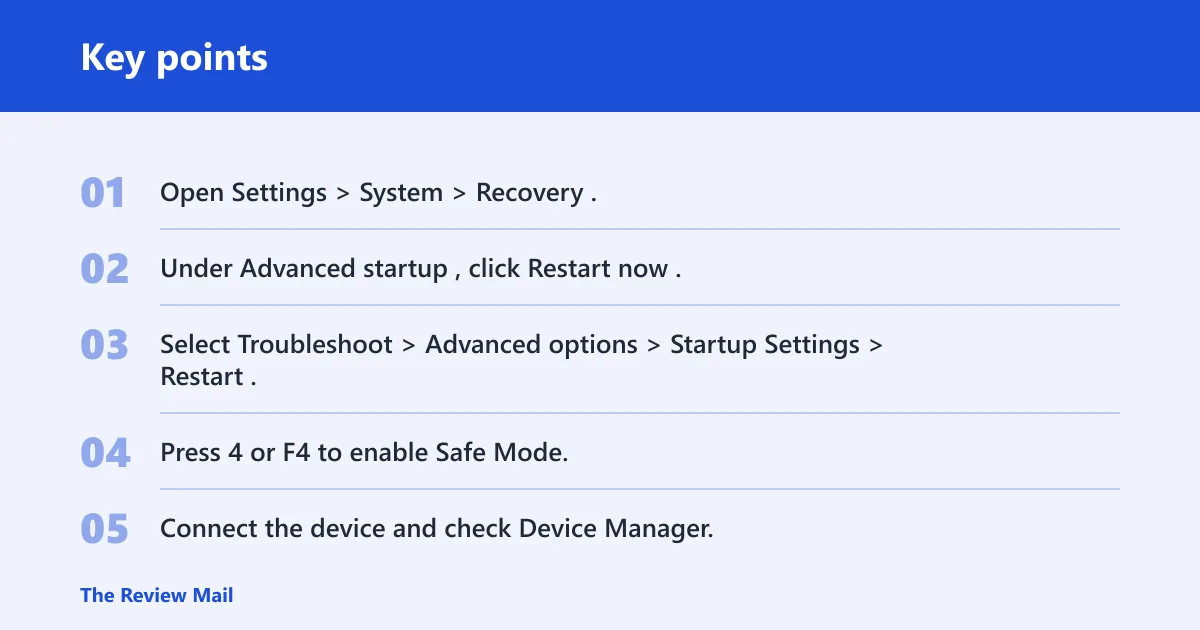
- Open Settings > System > Recovery.
- Under Advanced startup, click Restart now.
- Select Troubleshoot > Advanced options > Startup Settings > Restart.
- Press 4 or F4 to enable Safe Mode.
- Connect the device and check Device Manager.
Check event logs for IO errors
- Press Win + X and select Event Viewer.
- Navigate to Windows Logs > System.
- Look for source usbccgp or PCI with Error severity.
- Check for “IO error” or “device removed” messages indicating physical signal loss.
Does SFC /scannow fix Code 10?
Run SFC as an administrator to repair the Component Store. The command scans protected system files and replaces corrupted copies with clean copies from the Windows component store. If system files are damaged, this repair allows drivers to load. If SFC reports it found corrupt files but could not fix them, follow up with DISM. A “pending repair” state can block SFC from completing, requiring specific recovery steps.
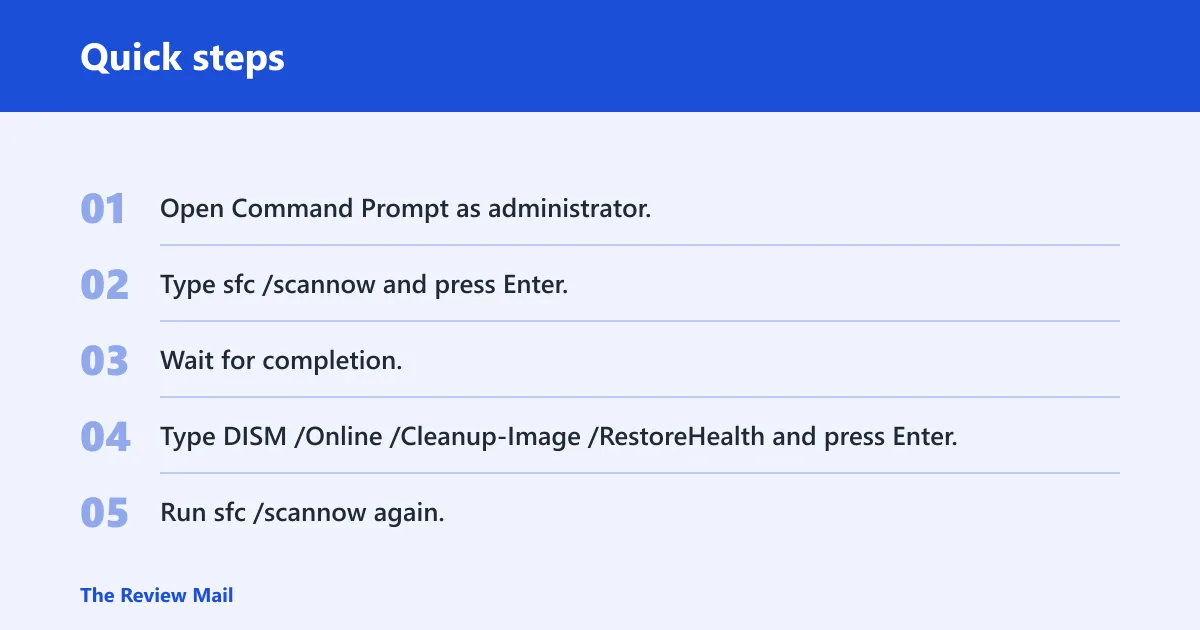
- Open Command Prompt as administrator.
- Type
sfc /scannowand press Enter. - Wait for completion. If it reports “Windows Resource Protection found corrupt files and was unable to fix some of them,” proceed to step 4.
- Type
DISM /Online /Cleanup-Image /RestoreHealthand press Enter. - Run
sfc /scannowagain.
Still not working? Escalation paths
Manual INF file inspection
Some Code 10 errors are Driver stack errors. They require specific INF edits, not just a generic reinstall. Inspect the INF file associated with the failing device in the device driver folder or the OEM driver folder. Verify that the HardwareID matches your specific device model. A mismatch between the INF and the hardware prevents the handshake.
Group Policy audit for enterprises
In enterprise environments, Group Policy may block automatic driver updates. If Code 10 appears after an OS upgrade, check gpedit.msc. Navigate to Computer Configuration > Administrative Templates > Windows Components > Windows Update. Ensure “Select how individual update downloads is delivered” is set to Not Configured or Automatically download updates.
When to suspect physical hardware damage
If the device fails in Safe Mode, shows IO errors in the Event Log, and does not appear in Device Manager at all, the fault is physical. Swap the device into a known working slot or try a different port. If the error persists across multiple slots and ports, the hardware is likely damaged.
Frequently asked questions
Why is Device Manager showing Code 10 for my network adapter?
Network adapters may show Code 10 if the driver is incompatible, corrupted, or if a required service is stopped. Verify that the network adapter driver is up to date and that no security software is blocking driver installation. If the adapter still fails, try uninstalling the driver via Device Manager and allowing Windows to reinstall it, or install the latest driver from the manufacturer’s website.
Can I fix Code 10 without reinstalling Windows?
Yes. In most cases, the fix involves restarting specific Windows services, clearing the update cache, repairing system files using SFC and DISM, or reinstalling the driver. A full OS reinstall is a last resort. It is reserved for cases where the Component Store is severely corrupted and cannot be repaired via command-line tools.
Does disconnecting external hardware fix this device cannot start error?
Disconnecting external USB devices isolates basic functionality issues during updates. If the internal device still shows Code 10 with all external hardware unplugged, the problem is internal. If the error disappears when external devices are disconnected, a resource conflict or power delivery issue with a USB bus is likely the cause.
What does ‘this device cannot start’ mean for a USB device?
For USB devices, this message indicates a time-out during hardware initialization. For specific EHCI USB Controller devices, Microsoft notes that this issue occurs because a time-out happens during EHCI hardware initialization. Other causes include a faulty cable, a drained battery, or a USB controller driver failure. Check the USB controller in Device Manager first. A fault there often causes Code 10 on all connected USB peripherals.
Does Safe Mode help fix this device cannot start code 10?
Safe Mode helps diagnose the root cause by loading a minimal driver set. It does not directly “fix” the error. It confirms whether third-party drivers are causing the conflict. If the device works in Safe Mode, uninstall recently installed third-party drivers or software in Normal Mode to resolve the issue.
How to clear the Windows Update cache if driver updates are stuck
Stop the Windows Update and BITS services via Command Prompt. Rename the SoftwareDistribution folder to SoftwareDistribution.old and the catroot2 folder to catroot2.old. Restart the services. This forces Windows to recreate fresh folders. It clears any corrupted update packages that were blocking driver installation.