0x00000034 Error: Common Causes and Fixes Explained
Stop code 0x00000034 is the CACHE_MANAGER blue screen. Officially, the CACHE_MANAGER bug check has a value of 0x00000034 and indicates that a problem occurred in the file system’s cache manager. I usually trace it to storage-related file activity, memory pressure in the nonpaged pool, or another kernel-mode driver during heavy file work. Guess wrong here and you can turn a fixable boot problem into repeat crashes, lost data, or a drive that keeps getting worse while you still use it. This guide sorts the symptoms into boot corruption, storage or cache faults, and the rarer disc-writing case, then gives fast recovery steps and realistic root-cause clues. (Microsoft Learn)
This guide is part of our Windows BSOD stop codes: full list and fixes series.
If the PC will not start, the fastest first move is Startup Repair in WinRE. If Windows still loads, I would run CHKDSK first, then SFC, and DISM if SFC finds corruption it cannot fix.
Symptom-to-next-step triage
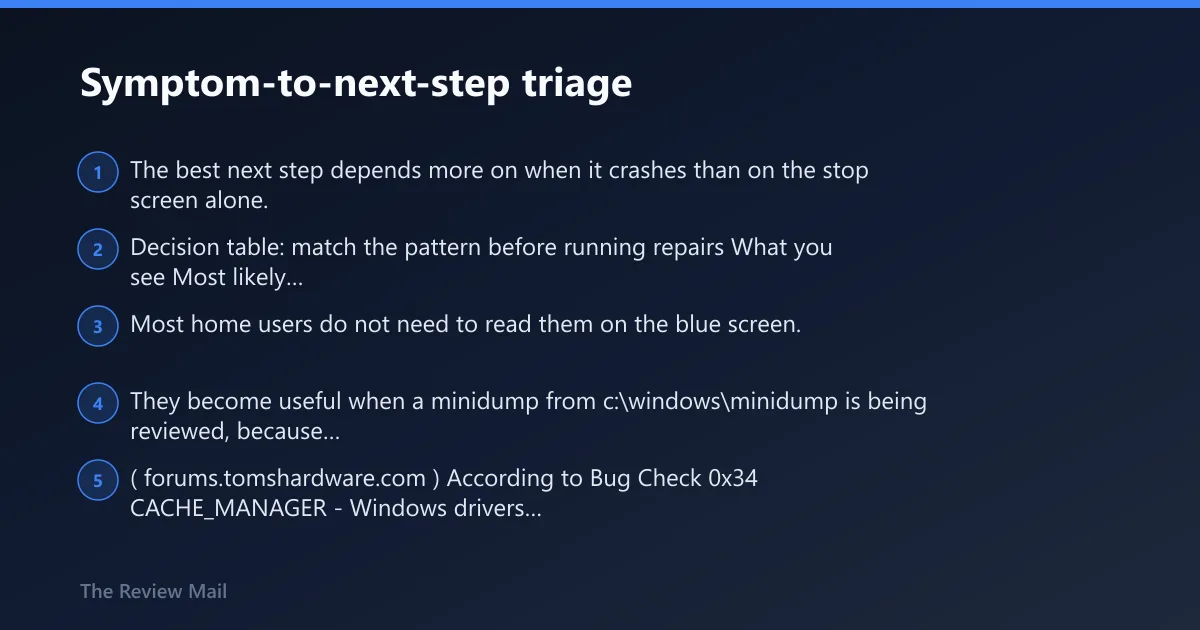
The best next step depends more on when it crashes than on the stop screen alone.
Decision table: match the pattern before running repairs
| What you see | Most likely subsystem | First check | Second check |
|---|---|---|---|
| PC will not boot, loops into recovery, or fails right after power-on | Startup files or Boot Configuration Data | WinRE > Troubleshoot > Advanced options > Startup Repair | WinRE Command Prompt: bootrec /scanos then bootrec /rebuildbcd |
| Crashes during indexing, search, game installs, patching, or other heavy file activity | Cache path, storage corruption, or another kernel-mode driver under memory pressure | chkdsk C: /f /r | sfc /scannow |
| Data corruption or crashes only while burning a Live File System disc | Optical-media path | Stop the disc-writing task and test without optical media | Check whether the problem returns during normal file-copy work |
| Started right after an update and now repeats in normal use | Changed system files, startup path, or a driver exposed by the update | Boot Safe Mode or WinRE and run sfc /scannow | Open System Restore and roll the PC back to the restore point created before the update, or in Device Manager open the changed device and use Properties > Driver > Roll Back Driver |
When bug-check parameters matter
In a dump, Bug Check 0x34 includes parameters that can help a debugger trace the failure path. Most home users do not need to read them on the blue screen. They become useful when a minidump from c:\windows\minidump is being reviewed, because the parameters can point to a cache structure or a driver interaction instead of a boot-store problem. (forums.tomshardware.com)
According to Bug Check 0x34 CACHE_MANAGER – Windows drivers — see Microsoft’s bug-check reference for technical details. (source)
Boot-time startup or BCD corruption is the first branch to check
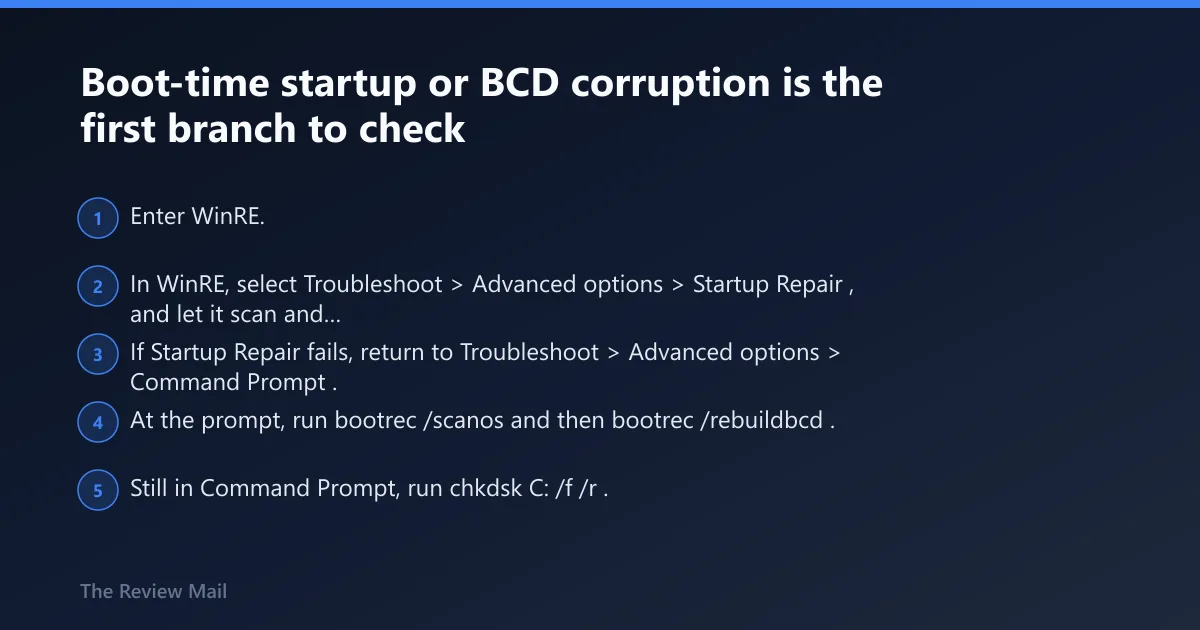
When 0x00000034 appears before sign-in, startup corruption is the first branch I test. It is the shortest path back to a working system, and it keeps you from burning hours on memory tests when the machine is failing before normal Windows activity even begins.
If that pattern fits, try these steps
- Enter WinRE. If the PC reaches the sign-in screen, select Power > Restart while holding Shift. If it will not reach sign-in, boot from Windows installation media and select Repair your computer.
- In WinRE, select Troubleshoot > Advanced options > Startup Repair, and let it scan and attempt repairs for the detected Windows installation.
- If Startup Repair fails, return to Troubleshoot > Advanced options > Command Prompt.
- At the prompt, run bootrec /scanos and then bootrec /rebuildbcd. These are standard WinRE commands for checking detected Windows installations and rebuilding Boot Configuration Data. (Microsoft Learn)
- Still in Command Prompt, run
chkdskC: /f /r. If WinRE reports Windows on another letter, replace C: with that letter. I run this here because it checks the file system and marks bad sectors before Windows tries to boot from a damaged volume again. The common boot-repair path also useschkdskC: /f /r. (hashroot.com) - Restart. If Windows loads, open an elevated Command Prompt and run
sfc /scannow.
Cache or storage trouble during normal use comes next
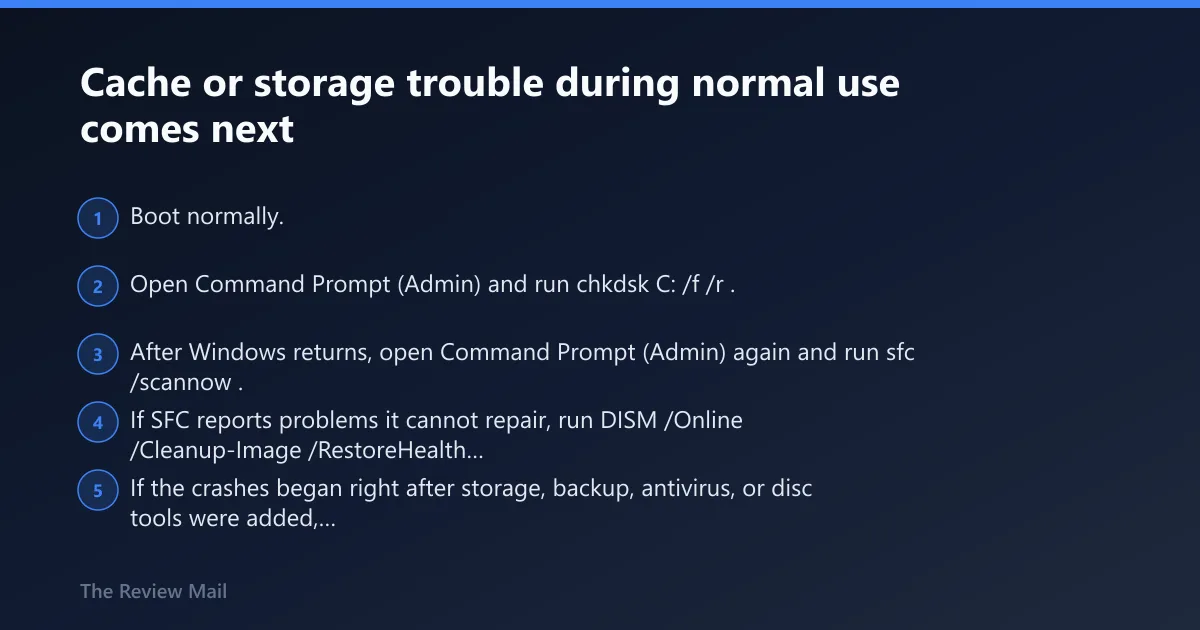
If the system crashes while indexing, searching, unpacking game files, installing updates, or moving large folders, treat it first as an in-session cache or storage branch. Officially, another kernel-mode driver requiring nonpaged pool memory can also trigger this error during indexing.
If that pattern fits, try these steps
- Boot normally. If it crashes too quickly, use Safe Mode from Settings > System > Recovery > Advanced startup on Windows 11, or Settings > Update & Security > Recovery > Advanced startup on Windows 10.
- Open Command Prompt (Admin) and run
chkdskC: /f /r. This checks the file system, looks for bad sectors, and fixes errors on the next restart if the volume is in use. If prompted to schedule it for the next restart, type Y and restart. - After Windows returns, open Command Prompt (Admin) again and run
sfc /scannow. SFC checks protected Windows files against the component store and replaces damaged copies. - If SFC reports problems it cannot repair, run
DISM /Online /Cleanup-Image /RestoreHealth, then runsfc /scannowagain. DISM repairs the Windows image that SFC pulls from, which is why I run it in that order. - If the crashes began right after storage, backup, antivirus, or disc tools were added, open Device Manager, find the related device, then use Properties > Driver > Roll Back Driver if available, or Uninstall Device and restart.
- If crashes continue, save the newest file from c:\windows\minidump for review. That is where the dump can show whether another kernel-mode driver sits in the failure path.
Low nonpaged pool memory or memory instability is the next branch
Officially, depletion of nonpaged pool memory is one possible cause, and if the nonpaged pool memory is completely depleted, this error can stop the system. That does not prove bad RAM, but repeated crashes during heavy file activity make memory pressure worth testing.
If that pattern fits, try these steps
- Run Windows Memory Diagnostic. Press Windows key + R, type mdsched.exe, select Restart now and check for problems.
- After Windows restarts, repeat the same kind of heavy file activity that triggered the crash before, such as indexing or a large install, and check whether the blue screen returns.
- If the problem continues, reduce memory pressure where possible by closing unnecessary background apps and retry the same workload.
- If the system repeatedly crashes under heavy file activity and the installed memory is minimal for your workload, adding physical RAM is an official resolution path because it increases the nonpaged pool available to the kernel.
- If memory testing or repeated instability points to hardware trouble, stop using the system for important work until the RAM issue is confirmed and corrected.
What should I do if 0x00000034 happens while burning a disc?
If the stop or corruption appears only during Live File System disc burning, treat it as a narrow optical-media path first rather than a general storage verdict.
If that pattern fits, try these steps
- Stop the disc-burning task and remove the disc.
- Copy files normally between local folders or between the system drive and another non-optical device. If the stop does not return there, keep the focus on the optical workflow.
- Check whether the machine is on an older Windows version tied to disc-burning issues. (Microsoft Support)
- If optical media is still required, use a different disc, try a different burn speed or session method available in the burning software, and avoid the exact workflow that reproduces the crash until the system is updated or the hardware path is ruled out.
Repeated after an update, during gaming, or when it keeps happening
If 0x00000034 started after an update, or it shows up during gaming because installs, patching, and shader caches hammer the file path, move next to rollback and isolation. The goal is to undo the last change before you assume permanent hardware failure.
If that pattern fits, try these steps
- Use System Restore from Control Panel > Recovery > Open System Restore, or from WinRE > Troubleshoot > Advanced options > System Restore if Windows will not stay up. Pick the restore point dated just before the update or driver install that matches the first crash.
- For a recent device change, open Device Manager, open the device Properties, then use Driver > Roll Back Driver. I use this most often for storage, chipset, display, and USB controller drivers that started misbehaving after Windows Update.
- For a cleaner test, run msconfig, open the Services tab, check Hide all Microsoft services, select Disable all, then restart. If the crash stops, re-enable items in small groups.
- If gaming is the trigger, rerun the same game after the file-system checks above complete and after disabling nonessential startup items that hook into games, such as overlays or capture tools.
- If the stop keeps happening after rollback, move to dump collection and storage-health checks rather than repeating the same repairs.
How do I fix 0x00000034 if Windows won’t boot?
Use WinRE first. Run Startup Repair, then open Command Prompt in WinRE for bootrec /scanos and bootrec /rebuildbcd. After that, run chkdsk C: /f /r to check the file system and surface for errors and bad sectors and, once Windows starts, run sfc /scannow to repair protected system files.