0x00000033 fix guide: find the real crash cause first
If you are troubleshooting a BSOD with 0x00000033, start by checking the on-screen stop label and any minidump details, then match that with when the crash happens: during boot, right after sign-in, or later during normal use. That timing usually tells you whether to start with recent driver or security-software changes, Windows file repair, or hardware checks.
Definition: Officially, the UNEXPECTED_INITIALIZATION_CALL bug check has a value of 0x00000033. (Microsoft Learn)
Methodology note: Check recent changes, Reliability Monitor, Event Viewer, and C:\Windows\Minidump before making broad changes. If you need adjacent walkthroughs, see our BSOD driver rollback guide, Safe Mode steps, SFC and DISM repair guide, System Restore guide, and antivirus removal guide.
Reviewed by experience: The steps here stay with standard Windows recovery actions and the limited evidence available for this stop code. Published: 2026-09-22. Updated: 2026-09-22.
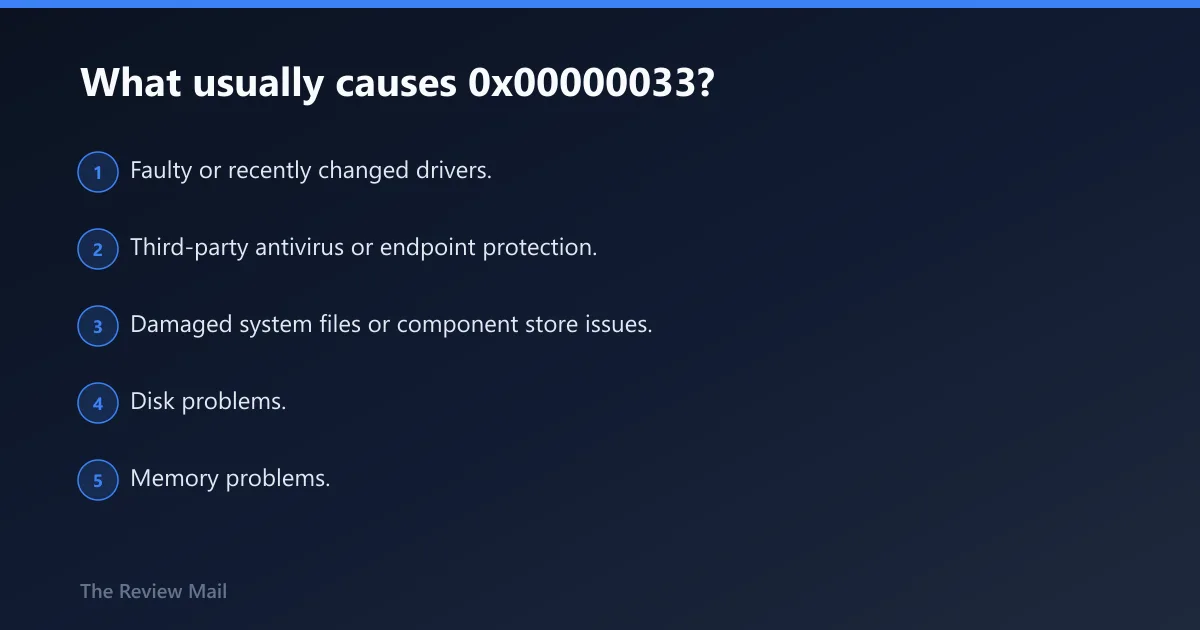
What usually causes 0x00000033?
Start with the simplest split: did the crash begin right after a change, or did it appear without one? On many PCs, the most practical first checks are drivers, security software, Windows file corruption, storage health, and memory.
Ranked causes to check first
- Faulty or recently changed drivers. Start with Device Manager: press Windows + X > Device Manager, open System devices, IDE ATA/ATAPI controllers or Storage controllers, and Network adapters, then inspect any recently updated chipset, storage, or network driver. Microsoft’s primary Device Manager guidance also documents updating, uninstalling, and rolling back drivers in the Driver tab workflow.
- Third-party antivirus or endpoint protection. If the crash started soon after you installed, upgraded, or reconfigured a security product, test that change first by using a clean boot and, if needed, uninstalling the product so its drivers no longer load with Windows.
- Damaged system files or component store issues. Use System File Checker first, then DISM if SFC reports unrepaired files or the crash started after an update, following Microsoft’s repair order for corrupted system files and Windows images. (Microsoft Support)
- Disk problems. Storage trouble is a realistic possibility when Windows crashes during startup, file access, or repair attempts. A failed drive self-test and follow-up disk checks were reported in one similar case, along with advice to run the proper drive diagnostic (reported by bleepingcomputer.com).
- Memory problems. RAM issues are another possibility in random or inconsistent crashes; that was suggested in a separate similar thread (reported by bleepingcomputer.com).
- A recent change worth rolling back. If the crash started right after a driver, Windows update, or security product install, use rollback before broad repair.
How machine type changes the odds
Machine role still matters, but recent changes matter more. A home PC that crashes during boot usually points first to a driver, startup software, storage trouble, or damaged Windows files. A managed work PC may also be affected by endpoint software or deployment changes. Use the machine’s recent history to set the order of checks.
Decision table: which fix to try first
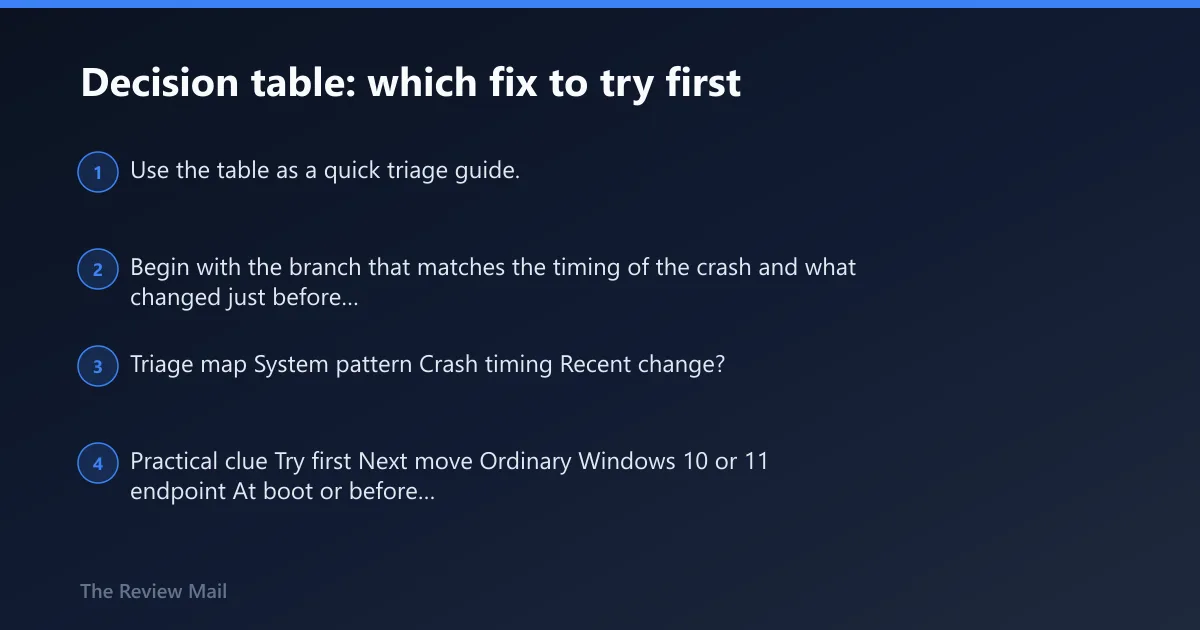
Use the table as a quick triage guide. Begin with the branch that matches the timing of the crash and what changed just before it started.
Triage map
| System pattern | Crash timing | Recent change? | Practical clue | Try first | Next move |
|---|---|---|---|---|---|
| Ordinary Windows 10 or 11 endpoint | At boot or before desktop | Yes: driver, VPN, AV, endpoint agent | Started right after software or driver installation | Device Manager rollback/update for chipset, storage, network | Safe Mode, then uninstall the recent security or driver package |
| Ordinary endpoint | After sign-in, within minutes | No clear change | Reliability Monitor shows app or driver failures before BSOD | Clean boot with msconfig | SFC first, then DISM if corruption signs appear |
| Any system | During startup repair or file access | No | Disk errors, failed checks, or repeated startup repair loops | Run chkdsk and the manufacturer’s drive diagnostic | Back up files and stop stressing the disk if health checks fail |
| Domain-joined endpoint with many agents | After sign-in or during policy/application startup | Yes: security or management agent changed | Crash began after the agent update or policy rollout | msconfig clean boot | Uninstall the suspect agent as a proper driver-level test |
| Any system | Random, mixed timing | No | Minidump stack names one third-party module | Remove or replace that driver/software first | Run SFC first and DISM second only after the suspect is removed |
| Any system | Started right after Windows servicing | Yes: update or failed repair | SFC errors, CBS entries, unstable service startup | sfc /scannow | DISM /Online /Cleanup-Image /RestoreHealth, then System Restore if recent |
Can faulty drivers trigger 0x00000033?
Yes. On many systems, drivers are one of the best first checks, especially if the BSOD appears at boot, right after sign-in, or soon after a driver change.
Driver path: rollback or update the right classes
- Open Device Manager: Windows + X > Device Manager.
- Check System devices for chipset-related entries, then Storage controllers or IDE ATA/ATAPI controllers, then Network adapters.
- For a recently changed driver, open Properties > Driver and select Roll Back Driver if available. If rollback is unavailable, select Update Driver or Uninstall Device, then reboot and load the vendor package. Microsoft documents the same rollback path in Device Manager’s driver properties workflow.
- Open Control Panel > Security and Maintenance > Maintenance > View reliability history. Look for a red X before the crash and match it to the driver install time.
What to check in logs and dumps
Use Event Viewer > Windows Logs > System and review events in the crash window. Then check C:\Windows\Minidump for fresh dump files. In WinDbg, confirm the bugcheck and note any faulting module name. If one vendor module appears repeatedly, remove or update that suspect before you run broad file repair. If you need a fuller rollback workflow, use our BSOD driver rollback guide.
Can antivirus or security software cause 0x00000033?
Yes. Security suites and endpoint agents can load early in startup and install drivers or filters that affect normal Windows operation. If the crashes started after a security product change, test that first.
Service and security-agent isolation
- Open System Configuration: press Windows + R, type msconfig, press Enter.
- Open the Services tab, check Hide Microsoft services, then click Disable all for non-Microsoft services that are not required for your work. Leave core business tools alone unless you know they are part of the problem. That hiding step matches Microsoft’s clean boot guidance for isolating software conflicts.
- Reboot and retest by repeating the action that usually triggers the BSOD, such as signing in, waiting for startup apps to finish, or opening the program that previously caused the crash.
- If a third-party antivirus or endpoint product is suspected, remove it from Settings > Apps > Installed apps in Windows 11 or Settings > Apps > Apps & features in Windows 10, then reboot and confirm in Task Manager > Startup, Services, or Device Manager that its related entries are gone before retesting.
When uninstall is better than disable
Disable switches often leave drivers and filters in place. Uninstall is the better test when the product is a realistic suspect. If the machine is domain-joined, coordinate with enterprise IT before removing the agent so policy or tamper protection does not reinstall it immediately. If you want the longer workflow, use our antivirus removal guide.
Should I run SFC or DISM for a 0x00000033 BSOD?
Run SFC first when logs, recent updates, or failed servicing point to corruption, and follow with DISM if SFC finds damage it cannot repair.
Repair the file and image stack in order
- Open an elevated prompt: press Windows, type cmd, right-click Command Prompt, choose Run as administrator.
- Run
sfc /scannow. System File Checker is a primary Microsoft repair tool for missing or corrupted protected system files. (Microsoft Support) - If SFC reports unrepaired issues, run
DISM /Online /Cleanup-Image /RestoreHealth. Microsoft pairs this with SFC when the local Windows image needs repair before files can be restored correctly. (Microsoft Support) - When each command finishes, note whether it reports no integrity violations, repaired files, or files it could not repair. Restart the PC after the repairs, then test the original crash pattern before making more changes.
When corruption is the leading suspect
Move SFC and DISM earlier when the crash started right after servicing, when Reliability Monitor shows failed Windows updates, or when a clean boot does not change behavior. If the machine became unstable only after a recent change, System Restore is often faster than repeated repair attempts. For a step-by-step version, see our SFC and DISM repair guide.
Does too many background processes cause 0x00000033?
Background load can still matter, but it is better treated as a quick sanity check than a primary explanation. The more useful question is whether something obvious at startup or after sign-in is failing repeatedly.
Check whether load is truly abnormal
- Open Task Manager: press Ctrl + Shift + Esc.
- On the Processes tab, sort by CPU, Memory, and Name, and then look for a specific app or service that keeps reopening, freezes, or immediately spikes again after you close it.
- End only non-essential tasks you recognize with Right-click > End task, then open Task Manager > Startup apps and temporarily disable non-essential startup items so the next boot loads fewer third-party programs.
- Compare what you see with the system’s normal behavior: a single browser with many tabs differs from an app that repeatedly crashes and relaunches, and a brief CPU spike during sign-in differs from a program that stays stuck at high resource use for several minutes.
Clues that point back to another fault
If the BSOD hits at boot, before the desktop, or within moments of sign-in, check recent drivers, security software, storage health, and Windows file integrity before assuming the process list itself is the problem.
How do I fix 0x00000033 on Windows 10 or 11?
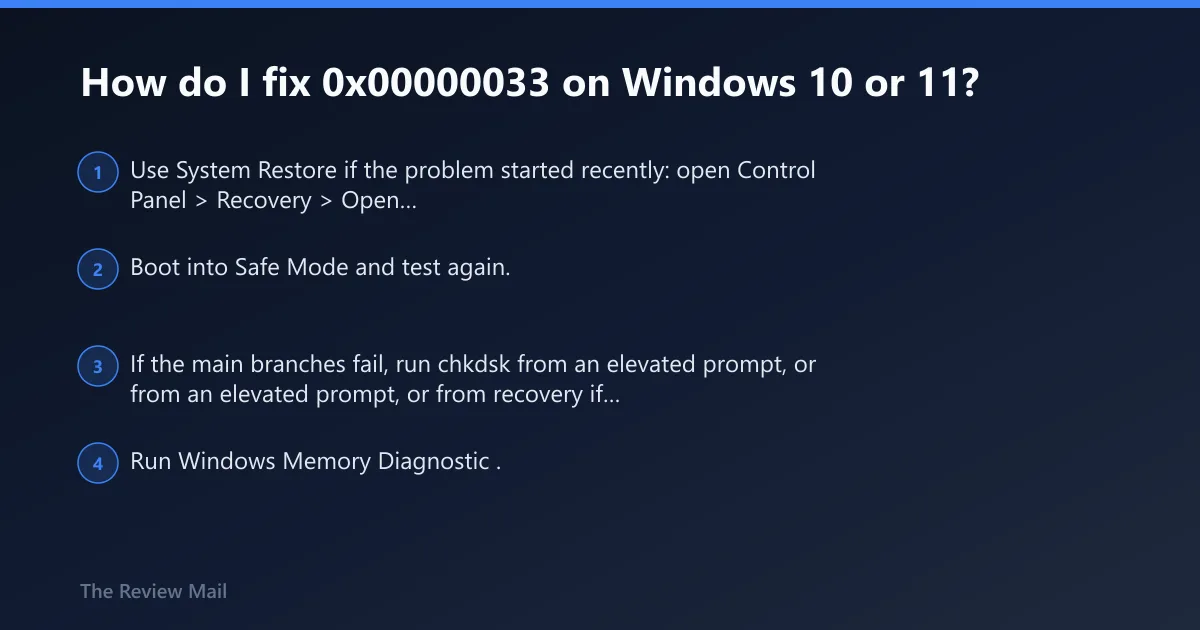
The cleanest fix order is to follow the branch that matches the crash pattern: driver rollback for boot-time failures, service isolation for sign-in failures after software changes, file repair for corruption signs, and hardware checks when software paths do not resolve it.
If that didn’t work, try this next
- Use System Restore if the problem started recently: open Control Panel > Recovery > Open System Restore, choose a restore point from before the crash started, then complete the rollback. Microsoft’s System Restore documentation is the primary reference for this recovery path.
- Boot into Safe Mode and test again. Safe Mode remains a standard isolation step because it loads a minimal driver and service set. If you need the menu path, use our Safe Mode steps. Older guidance also suggested using F8 after POST on legacy systems (reported by bleepingcomputer.com). (samsung.com)
- If the main branches fail, run
chkdskfrom an elevated prompt, or from recovery if Windows will not start. Similar reports mentionchkdsk /r, FIXBOOT, and using the appropriate hard drive diagnostic when disk trouble was suspected (reported by bleepingcomputer.com). - Run Windows Memory Diagnostic. If it reports errors, test RAM further by reseating modules if appropriate for the hardware or by testing one module at a time where the system design allows it.
When to escalate
Hand the case to enterprise IT or the vendor when a dump repeatedly names the same third-party module, when a protected endpoint agent cannot be removed locally, or when software repair does not help and the disk or memory looks unhealthy. If the disk appears to be failing, protect data first. Attaching the drive to another system to move files was suggested in a case where hardware looked suspect (reported by bleepingcomputer.com).
Prevention
After the system stabilizes, avoid stacking changes. Update chipset, storage, and network drivers one class at a time, and keep a restore point before deploying endpoint agents or major Windows updates.
Frequently asked questions
What does stop code 0x00000033 mean in Windows?
Check the exact text shown on the blue screen and compare it with the dump details. If the wording on the screen and the debugger output do not match what you expected, trust the actual crash data on that machine rather than a generic web summary. A third-party page is sometimes cited, but it should not replace the on-screen stop label or dump review. (hashroot.com)
What causes the NO_MORE_PROCESSES blue screen?
Practical first checks are recent driver changes, antivirus or endpoint software changes, file corruption after updates, disk problems, and memory issues. Prioritize whichever category changed right before the crashes began.
When should I use System Restore for this BSOD?
Use Control Panel > Recovery > Open System Restore when the BSOD started soon after a driver install, Windows update, security-agent deployment, or other clear system change. Restore is a rollback tool, not an isolation tool, so use it after identifying a recent starting point for the problem.