
0x0000003f: What It Means and How to Fix This BSOD
0x0000003F (NO_MORE_SYSTEM_PTES) is a Windows bug check with value 0x0000003F. Officially, it results from a system that has performed too many I/O actions; in almost all cases, the system is not actually out of PTEs. Microsoft also notes that a driver may request a large block of memory when no contiguous block of sufficient size exists, and that video drivers and some backup programs commonly fit this pattern. If you guess, you can swap one BSOD for another and lose the dump evidence that helps identify the trigger. This guide from hashroot.com shows how to preserve the crash evidence, narrow the workload that causes it, and try the fixes Microsoft documents for this stop code.
This guide is part of our Windows BSOD stop codes: full list and fixes series.
What does stop code 0x0000003f mean in Windows?
Page Table Entries, or PTEs, are records Windows uses to track memory mappings. You can run short on available system PTE space while normal RAM still looks fine in Task Manager. That is why adding RAM or closing apps may not help if the real issue is heavy I/O activity or a driver asking for a large contiguous kernel-memory block.
What to note before changing anything
Microsoft says that in almost all cases the system is not truly out of PTEs. Instead, the problem is often that a driver requests a large block of memory when no contiguous block big enough exists. Microsoft specifically calls out video drivers, and also says some backup programs can do the same.
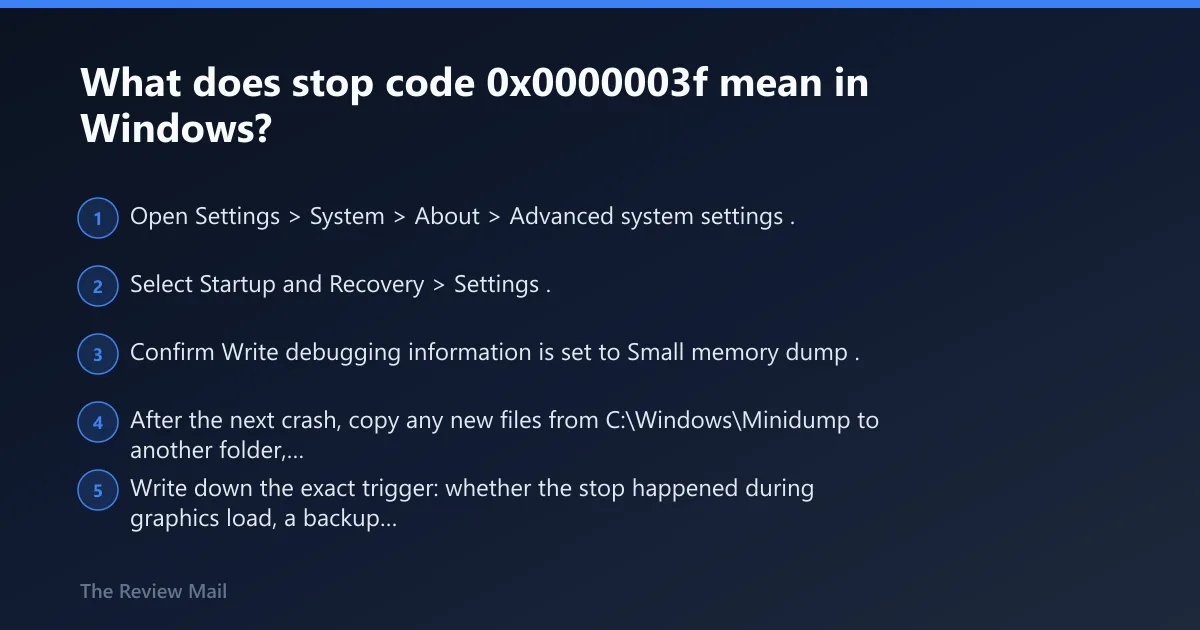
- Open Settings > System > About > Advanced system settings.
- Select Startup and Recovery > Settings.
- Confirm Write debugging information is set to Small memory dump.
- After the next crash, copy any new files from
C:\Windows\Minidumpto another folder, such as Documents\BSOD-Backups, before you run Disk Cleanup, Storage Sense, or any cleanup tool that may delete them. - Write down the exact trigger: whether the stop happened during graphics load, a backup job, a large file copy, or another heavy I/O task.
What causes NO_MORE_SYSTEM_PTES on a PC?
Based on Microsoft’s documentation, the main causes to check are heavy I/O activity, a driver requesting a large contiguous block of memory that is not available, video drivers, and some backup programs. Recent backup utilities or other disk-intensive applications are also important to review because Microsoft specifically recommends removing them if the initial fixes do not help.
Likely causes, ranked from most to least common
- Heavy I/O activity: Microsoft says this bug check is the result of a system that has performed too many I/O actions.
- Driver allocation failure: a driver may request a large block of memory, but no contiguous block of sufficient size is available.
- Video drivers: Microsoft says video drivers often allocate large amounts of kernel memory that must succeed.
- Backup software: Microsoft says some backup programs can produce the same kind of pressure.
Troubleshooting decision table
| Symptom pattern | Likely subsystem | Safest first action | When to avoid the SystemPages change |
|---|---|---|---|
| Crashes during gaming, video playback, external monitor use, or right after a display driver change | GPU / display driver | Use Device Manager > Display adapters to roll back or reinstall the display driver, then rerun the same graphics task that caused the stop | Avoid it if the crash started right after a display driver change or only appears under graphics load |
| Crashes during large file copies, imaging, backup jobs, or other heavy disk I/O | Storage or backup software path | Remove any recently installed backup utility or disk-intensive application first, then test again | Avoid it if a backup utility or disk-intensive app was recently installed |
| One repeatable stop tied to a single workload, with no other recent system changes | Workload-specific driver path | Preserve the minidump, note the exact trigger, and repeat only that same workload to confirm the pattern | Avoid it until the pattern is confirmed |
| Mixed symptoms across several tasks after new third-party software was added | Third-party service or application | Use a clean boot to disable non-Microsoft services and startup items, then test again | Avoid it because the software trigger is still unproven |
How to use the table
If the crash happened once after a rare stress event, start with the matching first action and watch it. If it repeats on the same workload, treat that as a clue. If more than one row fits, start with the most recent real change on the machine.
How do I fix 0x0000003f in Windows 10 or 11?
Start with the highest-yield path: check recent driver changes in Device Manager, then isolate third-party services with a clean boot. Because Microsoft ties this stop code to heavy I/O and certain drivers or applications, the fastest useful first move is to focus on display drivers, backup software, and other recently added disk-intensive applications before touching the registry.
Cause 1: driver leak or bad driver allocation
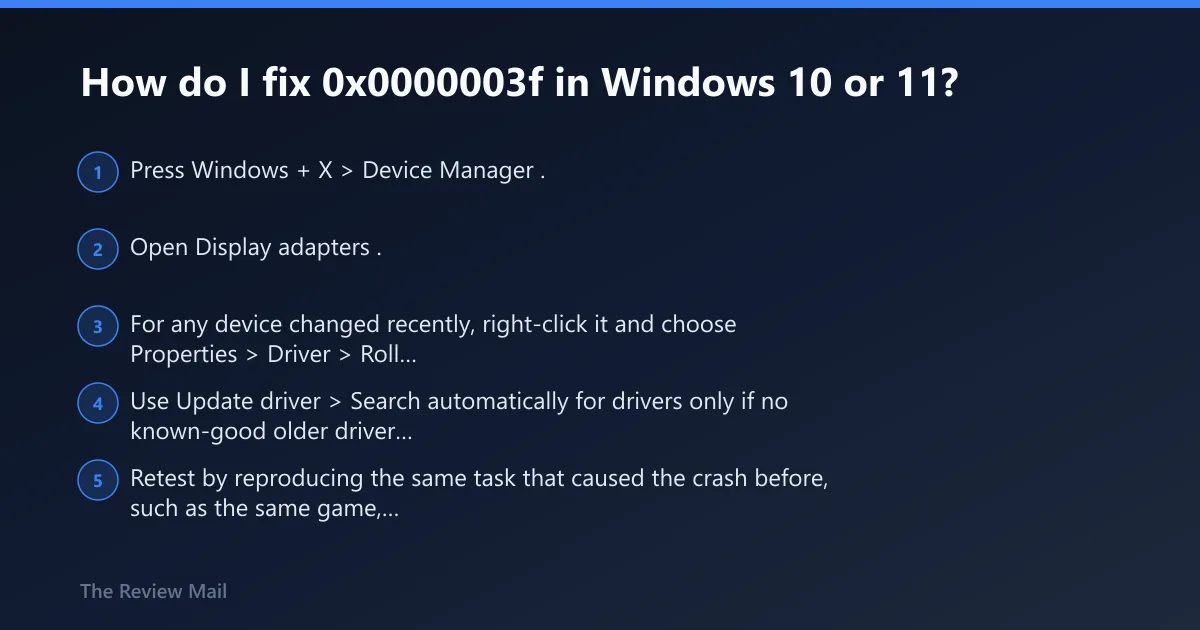
- Press Windows + X > Device Manager.
- Open Display adapters. If the crash pattern points to heavy disk activity, also review storage-related devices that changed recently.
- For any device changed recently, right-click it and choose Properties > Driver > Roll Back Driver. If rollback is unavailable, choose Uninstall Device, restart, and install the vendor driver again.
- Use Update driver > Search automatically for drivers only if no known-good older driver exists.
- Retest by reproducing the same task that caused the crash before, such as the same game, the same backup job, or the same large file copy. Do not switch to a different stress test, because you want to confirm whether the original trigger is still causing the stop.
Driver clues by subsystem
- GPU: crashes during games, video rendering, browser hardware acceleration, docking, or monitor hot-plug events.
- Storage or backup path: crashes during disk imaging, large copies, backups, or other heavy disk I/O.
If that did not work, isolate third-party services
- Press Windows + R, type msconfig, and press Enter.
- Open the Services tab, check Hide all Microsoft services, then select Disable all.
- On Windows 11, open Task Manager > Startup apps and disable non-Microsoft startup items. On Windows 10, use Task Manager > Startup.
- Restart and retest.
- If the system stays stable, turn disabled items back on a few at a time, restart after each small group, and rerun the same trigger workload after each restart until the stop code comes back. The last group you re-enabled contains the next items to check more closely.
This clean boot method, with Microsoft services hidden first, is a standard isolation step. In practice, it helps separate Windows from third-party software so you can see whether a recently installed backup or disk-intensive application is involved.
Can outdated drivers cause 0x0000003f BSOD?
A recent driver change can matter here, especially if the stop began after that change or appears during one repeatable workload. The most direct official fit is a driver that requests a large contiguous block of memory that Windows cannot satisfy, with video drivers specifically called out by Microsoft.
What to do in Device Manager
- Open Device Manager.
- Check Display adapters first, and review any other devices tied to the workload that triggers the stop.
- Choose Properties > Driver and compare the driver date with the date the crashes started.
- If the timing matches, use Roll Back Driver. If not, try Uninstall Device and reinstall the vendor package after restart.
- Apply Settings > Windows Update and install critical and cumulative updates.
What if the system is a Lenovo or other OEM build?
The same path applies on a Lenovo system or any other OEM machine. After testing rollback in Device Manager, prefer the OEM display or storage package if the BSOD began after a generic driver update.
What hardware triggers page table entry shortages?
Microsoft specifically calls out video drivers. If the crash follows a graphics-heavy task or a recent display-driver change, that is a strong place to start. External devices and add-in cards can also help you isolate whether one device path is involved, even when the hardware itself is not physically failing.
Cause 2: device-induced mapping pressure
This does not automatically mean the hardware is bad. It means the workload passing through that device path may be where the kernel-memory demand is concentrated.