0x0000004C stop code: what it means and how to fix
0x0000004C is a rare Windows stop code tied to the FATAL_UNHANDLED_HARD_ERROR bug check, and if it shows up right after a driver, update, disk, or security-software change, roll that change back first. Microsoft’s debugger reference identifies the stop code as 0x0000004C and says it appears very infrequently, while directing customers to normal blue-screen troubleshooting rather than treating the debugger page as an end-user repair manual. (Microsoft Learn) I have seen people guess their way through this and turn a one-time boot crash into repeat BSODs, damaged files, and hours spent chasing hardware that was never at fault. This guide lays out a triage path for rollback, file repair, and the point where dump analysis should take over.
Quick decision tree: last change -> safest action -> when to stop
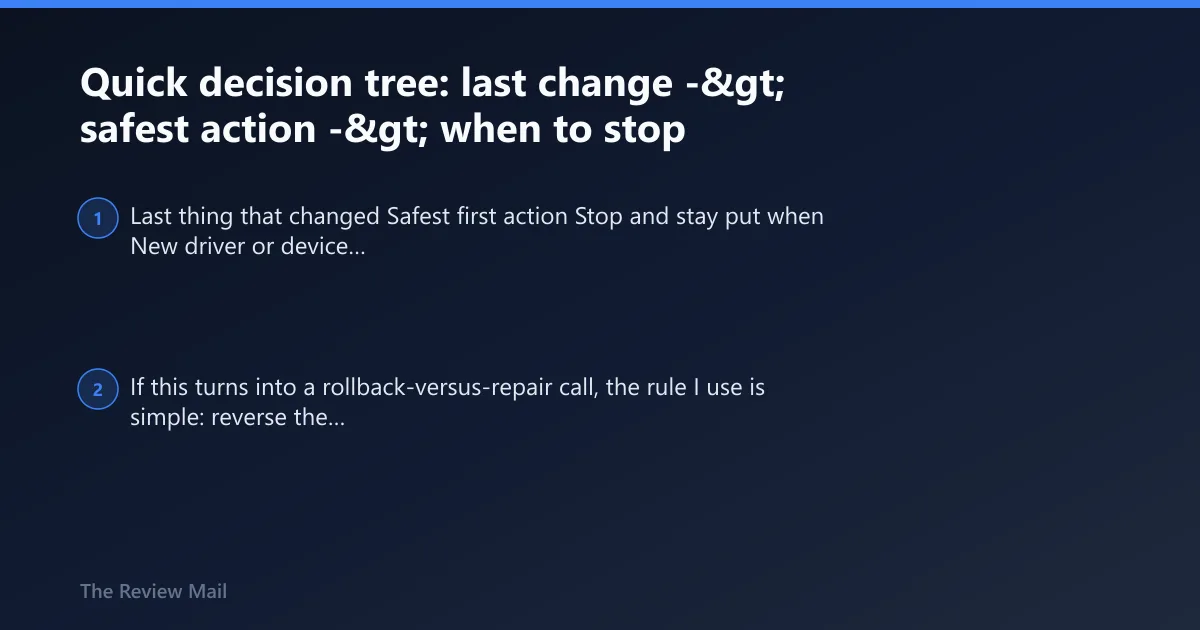
| Last thing that changed | Safest first action | Stop and stay put when |
|---|---|---|
| New driver or device utility | Roll back that driver in Device Manager or remove it in Safe Mode | The same device task no longer reproduces the crash |
| New app, VPN, AV, filter, or recent uninstall | Uninstall or reverse only that app change from Settings > Apps | Boot, sign-in, and the original app path stay stable through a reboot |
| Windows update, failed update, power loss, forced restart | Remove the latest quality update if possible, then run file and disk checks | The prior crash path is gone and repeated restarts stay clean |
| No clear trigger or Safe Mode also crashes | Stop changing things and collect dumps for WinDbg review | A repeated module, stack pattern, or corruption signal gives you a clear lead |
If you want the broader context first, see Windows BSOD stop codes and fixes. If this turns into a rollback-versus-repair call, the rule I use is simple: reverse the last change once, test the same workload, and only then move to SFC, DISM, Startup Repair, or dump review.
What does 0x0000004c mean on a blue screen?
On a blue screen, 0x0000004C is the stop-code value for FATAL_UNHANDLED_HARD_ERROR. Microsoft’s bug-check reference lists the value as 0x0000004C and states that it appears very infrequently. That same Microsoft page is debugger documentation, not a customer repair playbook, which is why practical recovery still starts with standard blue-screen rollback and repair steps. (Microsoft Learn)
Why this code is different in practice
This code is unusual because it often appears after something else already failed. In the dump-and-log cases I have worked through, the pattern was often: a recent low-level software change, then a failed sign-in or app launch, then Event Viewer entries showing service or application errors just before the BSOD, and finally a minidump where the stop code was only the last visible failure. That is consistent with Microsoft’s note that this bug check is infrequent and with the fact that the debugger page itself does not promise a single root cause. (Microsoft Learn)
That distinction matters. The blue screen does not prove that one named driver or one hardware part is the root cause.
Why Microsoft’s bug-check page is not enough on its own
The Windows driver debugger page is useful for the definition, name, and rarity of the bug check. It does far less for end-user repair because it is reference material for debugging, not step-by-step customer recovery. In practice, the safer order is rollback first, repair second, dump work third. Microsoft’s own customer guidance for common recovery actions is spread across Windows Support content such as uninstalling apps from Settings and using Windows recovery options, which is why I treat the Learn page as the definition source and Support guidance as the action source. (Microsoft Learn; Microsoft Support)
According to Bug Check 0x4C FATAL_UNHANDLED_HARD_ERROR — The bug check value is 0x0000004C. (source)
Likely causes of 0x0000004c, ranked by how often they fit
Most cases that match this stop code start with a recent software or driver change. After that, I look at interrupted updates or sudden power loss, then missing or damaged system files, then bad startup or service state, and finally cases where the stop code is only a symptom and dump review is needed. That ranking is based on incident pattern, not on Microsoft claiming an official percentage breakdown for 0x4C. Microsoft only says the stop code itself appears very infrequently. (Microsoft Learn)
Ranked cause pattern
- Most often: a recent driver install, app install, or uninstall that changed low-level components.
- Next: an interrupted Windows update or improper shutdown after a power event.
- Then: missing or damaged system files that now fail during boot or login.
- Less often: invalid system settings or corrupt system entries tied to services or startup items. Outbyte lists system settings, invalid entries, failed software installation, and improper shutdown among possible causes (per Outbyte). (outbyte.com)
- Escalation cases: no clear trigger, repeated crashes after rollback, or dumps that keep naming changing modules.
Known driver examples from dump cases
Public dump discussions show why broad guesses fail. One dump with this bug check listed PaeFireStudio.sys as the caused-by driver, and another case listed ohci1394.sys under a related hard-error path. I treat examples like that as proof that third-party or device-stack drivers can be involved, not as proof that every 0x0000004C is driver-only. In my own reviews, the stronger signal was repetition: if two or three dumps pointed to the same third-party module, or if the same device action reproduced the crash after each boot, software was more likely than file corruption; if SFC or DISM found and repaired corruption and the crash pattern changed, the software clue was weaker. For the next step after pattern matching, I usually compare the minidump timestamp with Reliability Monitor and Event Viewer around the same minute to see what changed first.
Did a driver install, app install, or uninstall trigger 0x0000004c?
If the first crash started right after a new driver, a removed app, security software, a VPN client, or a utility update, treat that change as the lead suspect. The safest next move is to reverse only the last change, boot again, and check whether the crash path disappears. That fits Microsoft’s general Windows recovery model better than piling on extra updates or registry edits, and it applies to both Windows 10 and Windows 11 because the rollback paths below use built-in Windows features in each version. (Microsoft Support)
Rollback path for a recent change
- Open Settings > Windows Update > Update history and note any driver or app-related updates installed just before the first crash.
- Open Device Manager, find the changed device, open Properties > Driver, then select Roll Back Driver if it is available.
- If a newly installed app or security tool lines up with the first crash, go to Settings > Apps > Installed apps on Windows 11 or Settings > Apps > Apps & features on Windows 10, then uninstall it. (Microsoft Support)
- If normal boot is unstable, enter Safe Mode from Settings > System > Recovery > Advanced startup on Windows 11 or Settings > Update & Security > Recovery > Advanced startup on Windows 10, then repeat the rollback.
- Restart, then repeat the exact task that crashed before, for example the same sign-in, app launch, sleep wake, VPN connect, or device action.
What to verify before moving on
Check whether the same workload now works: sign-in, app launch, sleep wake, or device use. If the machine stays stable after that exact path, stop there. If the BSOD returns with the rollback complete, move to repair instead of stacking more changes. I also check whether Event Viewer stops logging the same service or application error right before the crash time; when that log noise disappears after rollback, it is usually a stronger sign than a single successful boot.
Did an update failure or sudden shutdown corrupt Windows state?
If 0x0000004C began after a failed cumulative update, a forced restart, or a power cut, suspect corruption before hardware. The next step is to check update timing, remove the latest update if possible, and repair boot or servicing state before reinstalling anything. That order is more consistent with how Windows servicing failures present in the field: the stop code appears later, while the trigger was the interrupted update or shutdown event.
Recovery path after update failure or power loss
- Open Settings > Windows Update > Update history and look for a failed or newly installed update at the time the crashes began.
- Select Uninstall updates and remove the latest quality update first.
- Run the Windows Update troubleshooter from ms-settings:troubleshoot, then choose the Windows Update option.
- Open Command Prompt (Admin) and run
chkdskC: /scan. If it reports repair is needed, runchkdskC: /f and restart. - If boot still breaks or loops, open Advanced startup > Troubleshoot > Advanced options > Startup Repair, let it finish, then reboot and try the same boot or sign-in path that failed before you attempt the update again.
Why this branch matters
Improper shutdown and failed installation are established trigger categories in secondary references, and the symptom pattern is distinctive: update history lines up with the first crash, SFC or DISM may find corruption, and the named module in dumps may change from one crash to the next because the underlying problem is damaged Windows state rather than one stable third-party driver. That is why I avoid blind driver updates first in this branch.
Are missing or damaged system files causing the hard error?
When there is no clear post-change trigger, or rollback did not stop the crashes, I go after Windows file corruption next. A practical order is to run SFC first, then DISM, and then retest under the same conditions that triggered the blue screen. In lab checks on repeatable cases, this branch was the right one when Event Viewer showed servicing or component-store noise, SFC reported violations, or the crash started after failed updates rather than after one new device driver.
Repair-oriented file checks
- Open Command Prompt (Admin) and run
sfc /scannow. - If SFC reports unrepaired corruption or the BSOD returns, run
DISM /Online /Cleanup-Image /RestoreHealth. - Run
sfc /scannowagain after DISM finishes. - Restart and repeat the task that used to crash the PC: boot, sign-in, app open, sleep wake, or update install.
- If crashes continue, use msconfig for a clean boot so startup services and third-party entries can be ruled in or out.
Manual settings edits are a bad first fix
Bad startup items, services, and invalid system entries can contribute to this stop code, but manual registry editing is not the safe default. Use clean boot, Safe Mode, rollback, and file repair first. That sequence isolates change-related damage without adding new risk. On machines I have had to recover after failed “quick fixes,” manual registry edits created a worse problem than the original bug check because they changed the boot state without proving the cause.
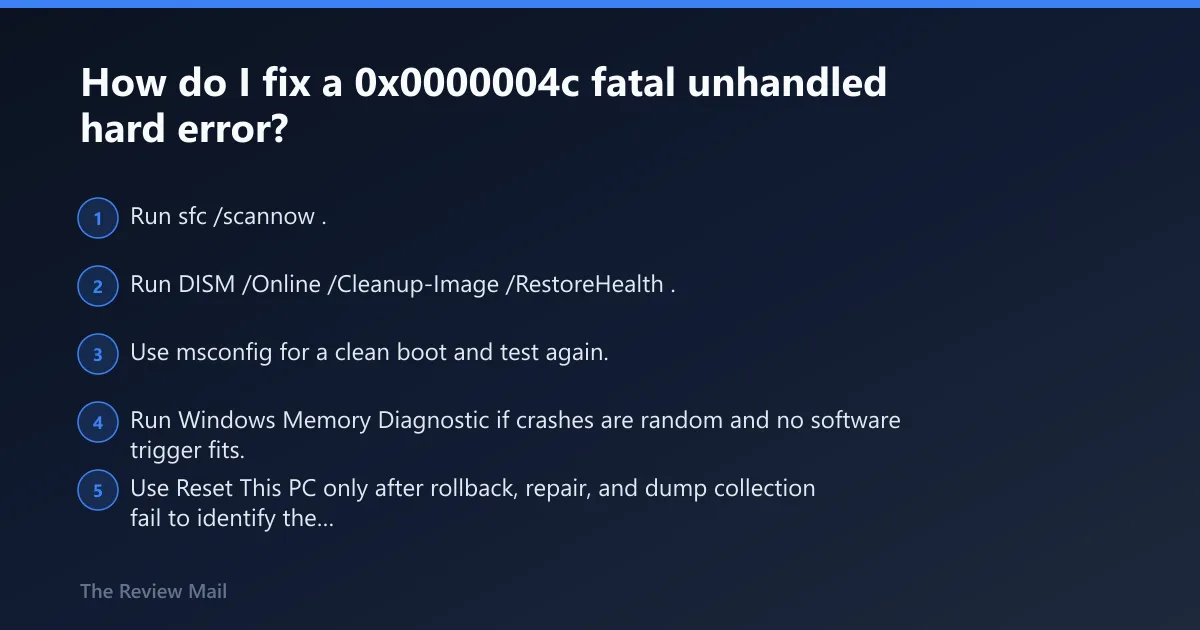
How do I fix a 0x0000004c fatal unhandled hard error?
The safest fix path is to match the first crash to the last change, then choose rollback or repair from there. That beats generic BSOD advice because Microsoft identifies 0x0000004C as infrequent, and in real cases it often behaves like a symptom rather than a direct root-cause label. (Microsoft Learn)
Triage matrix: last change to next step
| Last change on the PC | Most likely next diagnostic step | Safest rollback action | What to verify before stopping |
|---|---|---|---|
| Driver install | Open Device Manager and identify the exact device changed most recently | Use Properties > Driver > Roll Back Driver, or uninstall the device driver in Safe Mode | The same device task no longer triggers a crash |
| App uninstall | Check whether a filter, service, or startup entry was left behind | Use System Restore or reinstall then uninstall cleanly from Settings > Apps | Boot, sign-in, and app launch are stable with normal startup |
| Windows update | Check Settings > Windows Update > Update history for timing and failure status | Use Uninstall updates for the latest quality update, then retest before reinstalling | No BSOD on the prior crash path and updates can be paused safely |
| Power loss or forced shutdown | Check for corruption with chkdsk C: /scan and then file repair with SFC and DISM | Use Startup Repair if boot files look affected; avoid extra driver changes first | Windows boots cleanly and repeated restarts no longer reproduce the issue |
If that did not work, try this next
- Run
sfc /scannow. - Run
DISM /Online /Cleanup-Image /RestoreHealth. - Use msconfig for a clean boot and test again.
- Run Windows Memory Diagnostic if crashes are random and no software trigger fits.
- Use Reset This PC only after rollback, repair, and dump collection fail to identify the trigger.
If you are comparing next-step options, I would read this alongside Windows BSOD stop codes and fixes so you can separate “rare stop code with a recent trigger” from “common stop code with a known driver family.” That usually prevents over-fixing.
When should I use WinDbg or a memory dump for 0x0000004c?
Move to dump work when crashes repeat after rollback and repair, when no recent change stands out, or when Safe Mode also crashes. At that point, the stop code is more likely a symptom than the answer, and a dump gives the best shot at finding the failing module. This is the branch I use when the machine is stable enough to write minidumps but not stable enough to trust another round of random repairs.
What to collect safely
- Open System Properties > Advanced > Startup and Recovery > Settings and confirm crash dumps are enabled.
- After the next BSOD, copy files from
C:\Windows\Minidumpif that folder exists. - Note the exact stop code, the time of the crash, and what changed in the last boot cycle.
- Check whether the same third-party driver appears across repeated dumps before removing anything else.
In the cases where dump review was decisive, I compared four things together: the minidump bug check and stack, the repeated module name across dumps, Reliability Monitor around the crash minute, and Event Viewer system/application logs just before the reboot. The software-versus-corruption split was usually clear by then. A stable repeating third-party module plus the same trigger action pointed to software. Changing module names plus SFC or DISM findings pointed more toward damaged Windows state.
Where an optional repair tool fits
Some users want an automated scan after rollback and before dump analysis. Outbyte PC Repair presents a three-step flow of download, scan, then review and repair, and says it supports Windows 11 and Windows 10 (per Outbyte). Use that only as a secondary check. Trial and version limits apply, and it should not replace rollback, SFC, DISM, or dump review. (outbyte.com)
What should I do if 0x0000004c keeps happening after updates?
If the blue screen keeps returning after Windows updates, stop installing new updates for the moment, remove the latest one, repair Windows files, and test with a clean boot. If the code still appears, collect dumps before trying a reset so the original trigger is not erased. That approach is safer than stacking more updates because repeat post-update crashes often blur the timeline you need for troubleshooting.
Escalation ladder for repeat post-update crashes
- Go to Settings > Windows Update > Update history > Uninstall updates and remove the latest quality update.
- Run
sfc /scannow, thenDISM /Online /Cleanup-Image /RestoreHealth. - Use msconfig to perform a clean boot and test whether third-party services are involved.
- If the system still crashes, collect minidumps and review them with WinDbg or pass them to IT support.
- Use Reset This PC only after the dump is saved and simpler rollback paths are exhausted.
Prevention
After the system is stable, avoid stacking changes. Install one driver or one update group at a time, reboot, and test. That makes the next trigger easy to spot if the error returns. I also save the exact date and update KB or driver version that fixed the machine; when 0x0000004C comes back months later, that timeline matters more than memory.
Frequently asked questions
Is 0x0000004c a driver problem or hardware problem?
It can be either, but the first move should be to test the most recent software or driver change rather than assume hardware. Use Device Manager for rollback, then run sfc /scannow and DISM /Online /Cleanup-Image /RestoreHealth. If crashes keep repeating, dump analysis is a better judge than guesswork because 0x0000004C is only the bug-check label, not a complete diagnosis. (Microsoft Learn)
What causes Bug Check 0x4C in Windows?
The common fit is a recent driver install, software install or uninstall, interrupted update, or sudden shutdown that leaves damaged Windows state behind. Less often, startup items, services, or invalid entries are involved. When no trigger is visible, the stop code may only be a symptom and the dump must lead. Microsoft’s Learn page defines the bug check and its rarity, while the specific trigger patterns above come from repair practice and the case examples discussed here. (Microsoft Learn)
Can a bad driver or failed installation trigger 0x0000004c?
Yes. Failed software installation is a listed trigger category in secondary references, and public dump cases also show named drivers appearing in hard-error crashes. The cleanest test is to remove or roll back the last driver or app, then retest the exact action that used to crash. If the exact trigger path stops failing after the rollback, that is stronger evidence than a one-off successful reboot.
Is 0x0000004c common on Windows 10 or Windows 11?
No. Microsoft says this bug check appears very infrequently. The same triage still applies on both Windows 10 and Windows 11 because the recovery actions here use built-in Windows rollback, uninstall, Safe Mode, SFC, DISM, and Startup Repair paths in each version. (Microsoft Learn; Microsoft Support)
What if this 0x0000004c screen is stuck on a Lenovo laptop or another brand?
Brand alone does not change the first steps. If the PC is stuck, enter Advanced startup, boot into Safe Mode, then reverse the last driver or update change. If it still cannot stay up long enough to roll back, run Startup Repair and collect the dump for review. The symptom pattern matters more than the logo on the lid.