0xC004F041: Fix KMS Host Not Activated on Windows
0xC004F041 usually means the client reached a KMS host that cannot finish activation, so I check the host’s activation and license state first, then DNS and reachability, then key and channel mismatches. Treating it like a client-only problem burns hours and can leave whole groups of machines unlicensed or stuck in repeat activation failures after reimage, renewal, or patch cycles. This guide gives a fast triage path, the exact checks on host and client, and the fixes for KMS host failure, DNS issues, blocked TCP 1688, and wrong keys.
What 0xC004F041 means in plain language
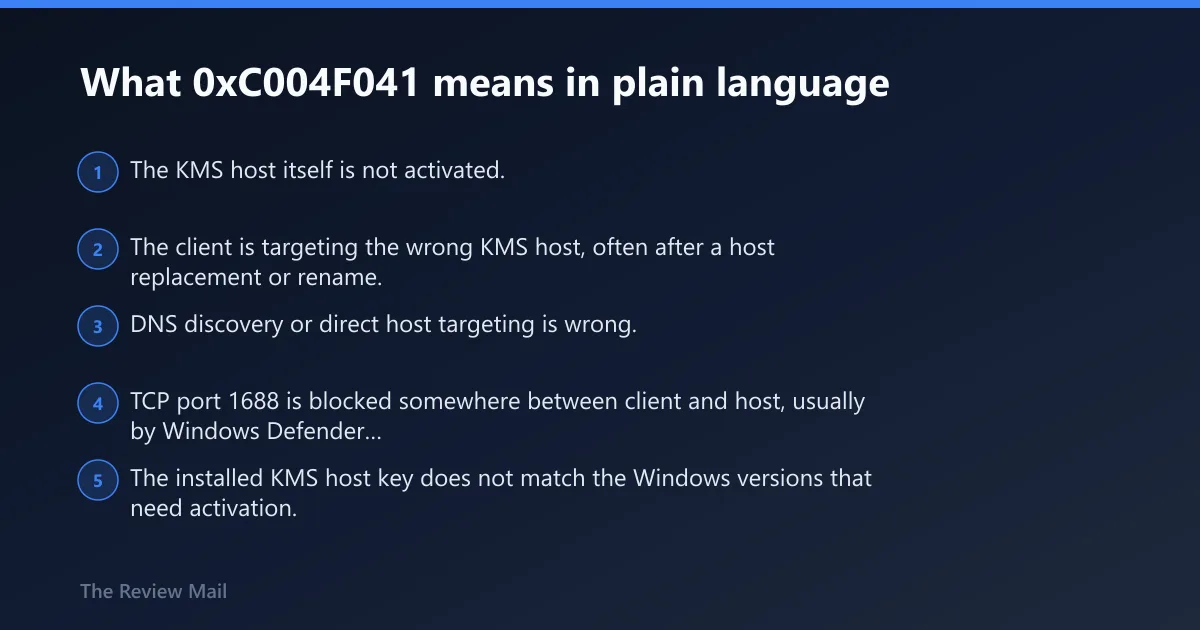
0xC004F041 is a Windows activation error tied to Key Management Service, and Microsoft documents it as a KMS client error code. It shows up in volume activation setups where a Windows client or server depends on an activated KMS host, and the fastest first check is the host, before you touch client settings. (Microsoft Learn)
Who this applies to
Key Management Service is a volume activation method with a client-server activation flow. It is used for Windows client and server editions, and those clients depend on an activated KMS host to complete activation.
Who should stop here
If the device shows activation by digital license, OEM, or retail product key in Settings > System > Activation, this is the wrong troubleshooting path. Home users usually do not use KMS, so they should not start changing KMS targets or host settings.
Likely causes, ranked
- The KMS host itself is not activated.
- The client is targeting the wrong KMS host, often after a host replacement or rename.
- DNS discovery or direct host targeting is wrong.
- TCP port 1688 is blocked somewhere between client and host, usually by Windows Defender Firewall, a server firewall policy, or a network ACL.
- The installed KMS host key does not match the Windows versions that need activation.
What should I check first when Windows says the KMS host is not activated?
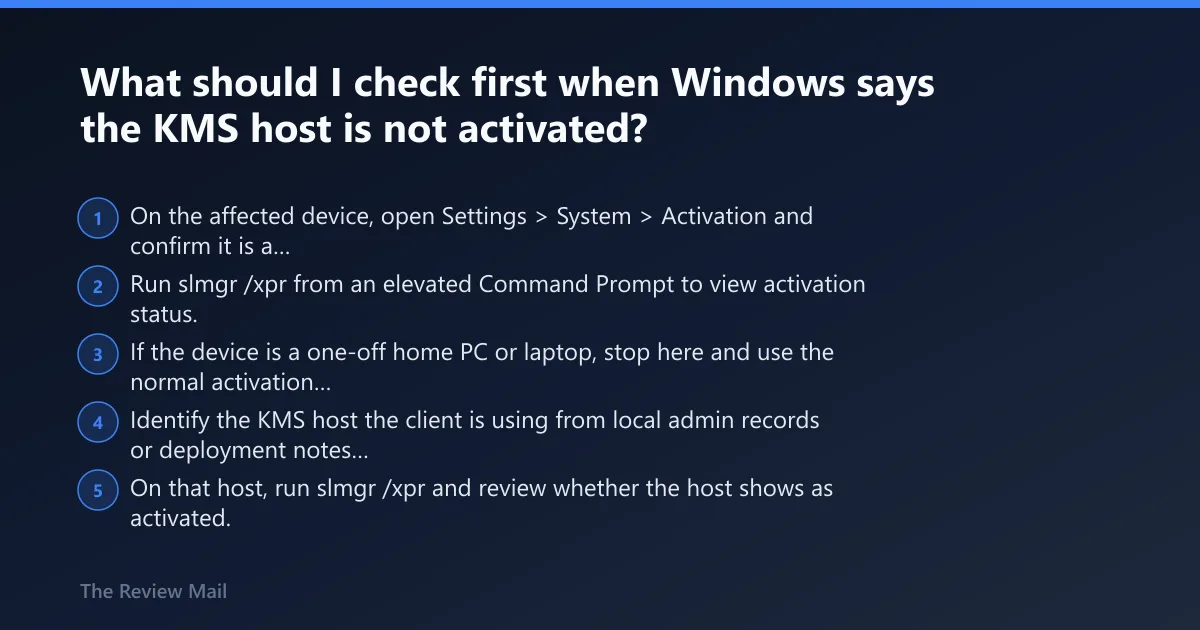
Check the host the client is actually trying to use, then confirm that host’s activation state before changing DNS, firewall rules, or client keys. For this error, host health comes first because Microsoft’s documented cause is an unactivated KMS host, and the documented fix is to activate that host with Microsoft, either over the internet or by using the telephone activation flow.
Step 1: Confirm the client is really on a KMS path
- On the affected device, open Settings > System > Activation and confirm it is a volume-activation case, not digital license or retail.
- Run slmgr /xpr from an elevated Command Prompt to view activation status.
- If the device is a one-off home PC or laptop, stop here and use the normal activation path shown in Settings > System > Activation instead of KMS.
Step 2: Verify the host state on the actual KMS host
- Identify the KMS host the client is using from local admin records or deployment notes before making changes.
- On that host, run slmgr /xpr and review whether the host shows as activated.
- If the host is not activated, treat that as the primary fault. Microsoft’s cause and fix for this code are that the KMS host has not been activated and should be activated with Microsoft, either online from the host or through phone activation.
Step 3: Activate the host, then retry from the client
- On the KMS host, finish activation with Microsoft, either over the internet from the Activation Wizard or by using the phone activation method.
- After the host activation succeeds, go back to the client and run slmgr /ato.
- Recheck Settings > System > Activation to confirm the client state changed.
How do I fix error 0xc004f041 on Windows 10 or Windows 11?
The general troubleshooting order is similar across current Windows versions: verify the host is activated, check that the client points to the correct host, then test DNS and the KMS port, and finally confirm the version and key are compatible. The menu path for activation is the same in both: Settings > System > Activation. (Microsoft Support)
Windows 10 and Windows 11 quick path
- Open Settings > System > Activation and confirm the device is on a KMS path.
- Run slmgr /xpr on the client to check status.
- Validate the KMS host state on the host itself, then activate that host if needed.
- Retry with slmgr /ato on the client.
- If the error changes, use the triage table below to follow the new failure layer instead of repeating the same step.
Client-side validation that is safe to do
- Open Services and locate Software Protection.
- Confirm the service exists and is running; this is the Software Protection Service, also known as sppsvc, which handles Windows licensing activity.
- If it is stopped, start it, then retry with slmgr /ato. This is a validation step, not a guaranteed fix.
Is the KMS host itself activated?
If there is one question to answer before anything else, it is this one. Microsoft documents 0xC004F041 as a KMS client symptom whose cause is an unactivated KMS host, so the first clean test is on the host, not on the client, and the repair is host activation online or by phone.
Exact host-first sequence
- Go to the server that is supposed to provide KMS for the affected devices.
- Run slmgr /xpr on that host and record the result.
- If the host is not activated, complete host activation using the online route or telephone activation.
- After host activation finishes, return to one affected client and run slmgr /ato.
- If the client still fails, do not change the client key yet. Move to host targeting and reachability next.
Why this order matters
0xC004F041 often gets treated like a network problem first, but that wastes time when the host itself cannot issue activations. I have seen admins chase DNS and firewall rules for an hour, then find the host was never activated after a rebuild. The clean order is host state, then target correctness, then DNS and port checks, then version and key compatibility.
Are clients pointing to the right KMS host?
After host activation is confirmed, the next likely issue is wrong host targeting. In mixed or recently changed environments, clients may still point to a retired, renamed, or replacement server, which makes the symptom look like a host problem even when the current KMS host is healthy.
Check for stale or wrong targeting
- Identify whether clients use auto-discovery through DNS or a manually assigned KMS host in deployment tooling.
- Compare the target host name in your records with the currently active KMS host.
- If a server was replaced, renamed, or decommissioned, update the client’s assigned target in the same tool or script that set it originally.
- After correcting the target, run slmgr /ato on the client and note whether the code changes to a DNS or reachability error.
What to collect before changing more settings
- The client’s current activation status from Settings > System > Activation
- The result of slmgr /xpr
- The host name the client is expected to use
- Whether that host was recently replaced or renamed
Could DNS, port 1688, or the Software Protection Service be the blocker?
Yes, but check these after host activation and host targeting. DNS failure, no host contacted, and blocked traffic each send you down a different path, and TCP port 1688 is the default KMS port, while a firewall can stop KMS communication cold.
DNS and discovery checks
- If clients rely on discovery, compare the intended KMS host name with what your environment publishes through DNS.
- If the error changes to
0x8007232B, treat that as a DNS-name-does-not-exist problem rather than a host-activation problem. - Flush the client resolver cache with
ipconfig /flushdns, then retry with slmgr /ato.
Port 1688 and filtering checks
- Review host and network firewall rules for TCP port 1688, which is the default KMS port.
- Allow KMS traffic on that port wherever host firewall rules, perimeter firewalls, or upstream filtering are dropping the connection.
- Retry activation with slmgr /ato. If the code shifts to
0xC004F074, follow the “no KMS contacted” path instead of repeating host activation.
Software Protection Service check
- Open Services on the client and locate Software Protection.
- Confirm sppsvc is present and running.
- Once confirmed, run slmgr /ato again. If the error code remains unchanged, move on to host key and version checks rather than service restarts.
Do I need a different KMS host key for Windows 10 activation?
Sometimes, yes. Different KMS host keys may be required by Windows version, so a healthy and reachable host can still fail if its installed host key does not cover the newest client or server versions it is expected to activate. I see this most often in mixed environments and right after version upgrades.
Version and key compatibility check
- Make a list of the Windows client editions and Windows Server versions that rely on this KMS host.
- Compare that list with the KMS host key currently installed on the host.
- If the host must activate Windows 10 Enterprise and the KMS host is on Server 2012 R2 or 2008 R2, use an updated KMS host product key before testing clients again.
- After the correct host key path is in place, retry from one client with slmgr /ato.
Related nearby errors that point elsewhere
A key mismatch on the client side is a different condition. 0xC004F042 is a KMS client mismatch error, which points away from host activation and toward edition, channel, or key alignment. (Microsoft Learn)