0x0000007a: KERNEL_DATA_INPAGE_ERROR fix guide for Windows
0x0000007A is KERNEL_DATA_INPAGE_ERROR. Its value is 0x0000007A, and it means the requested page of kernel data from the paging file couldn’t be read into memory. The stop code that appears in parameter 2 usually points to the storage path, cabling, controller visibility, or a resource shortage, so start with that code before choosing the next test.
This guide is part of our Windows BSOD stop codes: full list and fixes series.
What 0x0000007a means on the blue screen
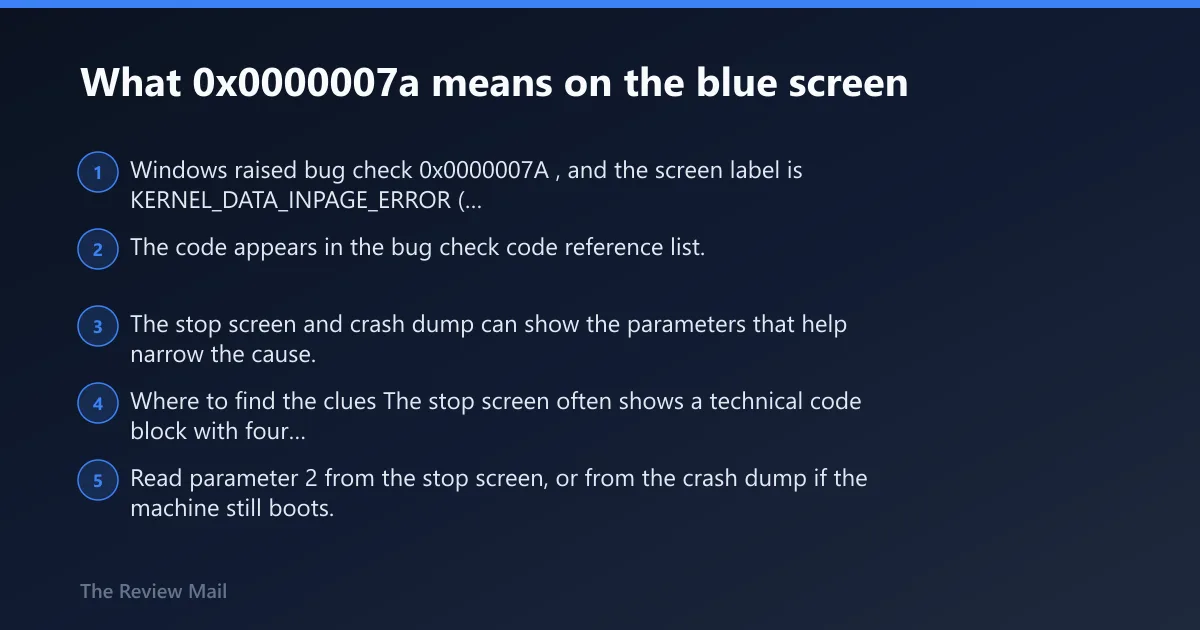
Windows raised bug check 0x0000007A, and the screen label is KERNEL_DATA_INPAGE_ERROR (Microsoft Learn). The code appears in the bug check code reference list. The stop screen and crash dump can show the parameters that help narrow the cause.
Where to find the clues
The stop screen often shows a technical code block with four parameters. Read parameter 2 from the stop screen, or from the crash dump if the machine still boots.
Which cause is most likely? Start with parameter 2
Parameter 2 is the triage clue. Match that code to the table below, then use the first check for that same path only. If the first check does not solve the problem, move to the next step for that same path.
| Parameter 2 code | Plain-language meaning | Most likely path | First check | Next step |
|---|---|---|---|---|
0xC000009C | Bad blocks on the hard disk | Disk / SSD media | Run chkdsk C: /f /r | Check Event Viewer System logs, then vendor health tools |
0xC0000185 | Improper termination or defective cabling on SCSI devices | Cable / termination / controller | Power off and reseat cables | Try another port, then test a cold boot |
0xC000000E | Hardware failure or incorrect drive configuration | Drive not seen, wrong path, or controller issue | Check BIOS/UEFI storage detection | Test cable, port, and vendor utility |
0xC000009A | Lack of non-paged pool resources | Resource pressure, sometimes with driver or memory stress | Reboot and remove recently added hardware | Run RAM test if storage checks stay clean |
0xC000009D | Defective or loose cabling, or controller visibility issues | Cable / controller | Power off and reseat cables | Swap SATA cable or port |
0xC000016A | Bad blocks on the hard disk | Disk / SSD media | Run chkdsk C: /f /r | Escalate to vendor diagnostics or replace the drive |
What does the second parameter in 0x0000007a mean?
Parameter 2 is the error code that explains why the paging read failed, and on many crashes it is an NTSTATUS value. That is why one 0x7A can mean bad disk blocks, while another points to cabling or a device that vanished from the controller.
How to use it
- Read parameter 2 from the stop screen, or from the crash dump if the machine still boots.
- Match the code to the table above.
- Follow the first check for that path only.
- If the first check fails, move to the next step for that same path.
Fix storage hardware and file-system faults first
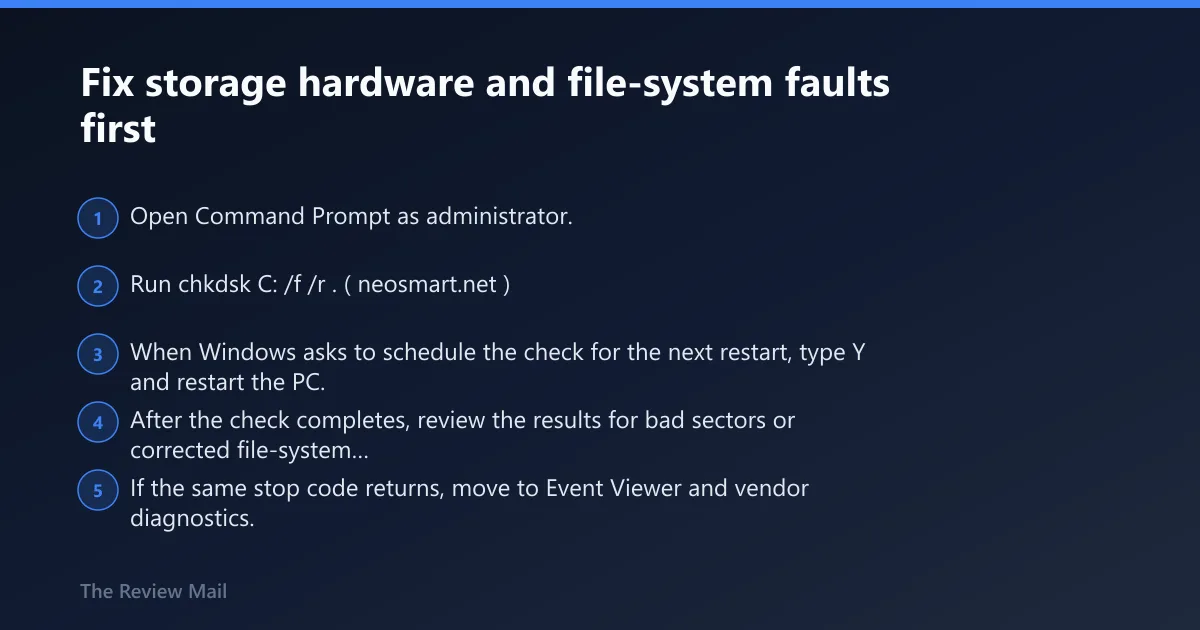
Storage is the first path to test, because bad blocks, a missing drive, or a broken connection can all stop the paging file read. Run disk checks before memory testing unless parameter 2 already points away from storage. If the machine uses SATA, reseat both the data and power cables.
Run chkdsk and review the result
- Open Command Prompt as administrator.
- Run
chkdskC: /f /r. (neosmart.net) - When Windows asks to schedule the check for the next restart, type Y and restart the PC.
- After the check completes, review the results for bad sectors or corrected file-system errors.
- If the same stop code returns, move to Event Viewer and vendor diagnostics.
Check Event Viewer and the storage chain
- Open Event Viewer.
- Go to Windows Logs > System.
- Sort the events by Date and Time.
- Look at the errors immediately before the bug check time.
- If the system uses SATA, power off, reseat the data and power cables, and try another port.
- For SSD or NVMe systems, check the vendor utility and firmware update tool.
Can bad RAM cause 0x0000007a?
Yes, bad RAM can be part of the problem, but it is not the first stop on this path. Run the disk path first unless parameter 2 points to memory pressure or the storage checks come back clean. A clean memory test helps, but it does not always end the investigation.
Test memory after the disk path is clean
- Open Start and search for Windows Memory Diagnostic.
- Select Restart now and check for problems.
- Let the PC reboot and complete the test.
- Review the result after Windows starts again.
- If no errors appear but 0x7A keeps returning, do not stop there; continue with cables, controller, and vendor tests.
How do I tell if 0x0000007a is a disk, cable, or driver problem?
Use the parameter 2 code, then test the storage path in order. Bad blocks point to the disk itself. Loose cabling, termination problems, or a controller that cannot see the drive point to the connection path. A recent storage driver, controller change, or added device can also shift the problem into the same stop code.
Use a short decision path
- If parameter 2 is
0xC000009Cor0xC000016A, runchkdsk, then vendor drive health checks. - If parameter 2 is
0xC000009Dor0xC0000185, power off, reseat cables, and try another port. - If parameter 2 is
0xC000000E, check BIOS/UEFI storage detection, then cable and port. - If the drive path is clean, remove newly added hardware or peripherals and retest.
- If the machine still crashes after a cold start from full shutdown, move to the next section.
What causes stop code 0x0000007a after waking from sleep?
Storage devices, controllers, or cables that do not initialize correctly after startup can trigger the same stop code. A full shutdown test is the quickest way to separate a resume issue from a steady-state hardware fault. If a cold start works but the crash still appears later, focus on the storage path, cabling, controller, and firmware.
Test the cold-start path
- Shut the PC down fully.
- Wait a few seconds.
- Start the PC again instead of resuming from sleep.
- If the issue is tied to startup behavior, check SSD/NVMe vendor utilities and firmware update tools.
- On SATA systems, swap the SATA cable or port if the code points to connectivity.
Is 0x0000007a related to failing storage hardware?
Often, yes. Bad sectors, a failing SSD or hard disk, a loose cable, or a controller that cannot see the drive all fit this stop code family. Check the drive health and the connection path before replacing parts.
Check the drive and scan for malware
- Run the drive maker’s health utility and firmware tool if available.
- Run a malware scan that includes boot-related files.
- When possible, include the MBR in the scan.
- Recheck Event Viewer System logs for drive warnings at the crash time.
- If the disk keeps reporting faults, back up data and plan drive replacement.
0x0000007a triage table and decision path
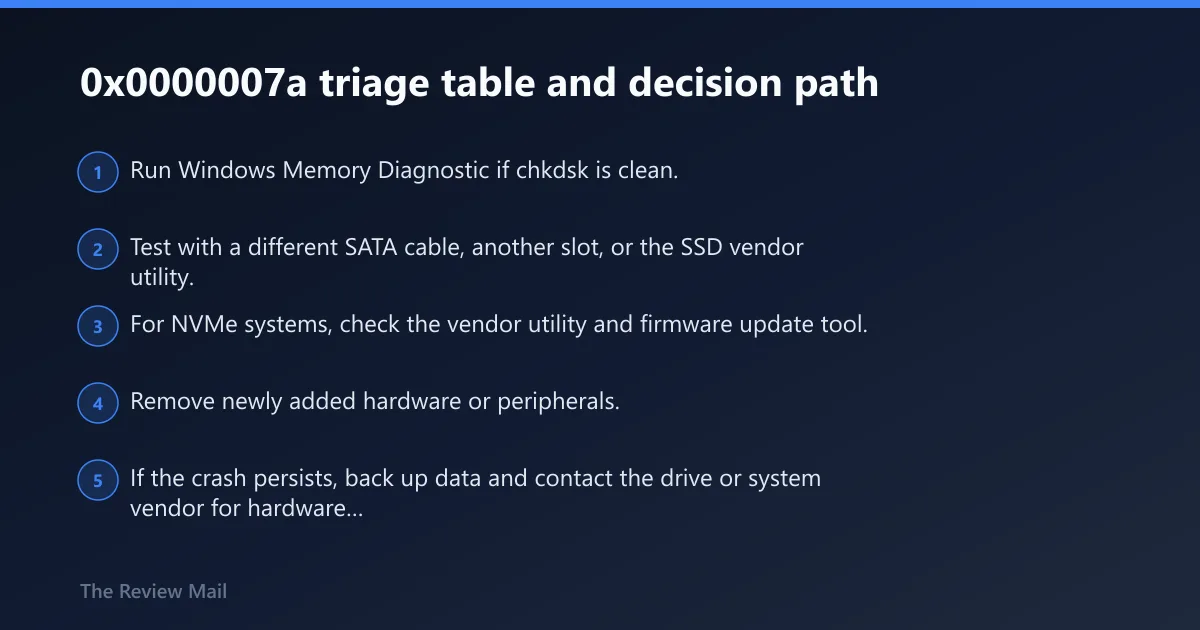
Use this as the one-page path when the machine is stuck in a reboot loop. Start with parameter 2, then move only within the branch that matches the code. If chkdsk and memory testing both come back clean but the stop code keeps returning, the problem is usually deeper in the storage chain or the controller path.