0x00000077 KERNEL_STACK_INPAGE_ERROR fixes and checks
0x00000077 is KERNEL_STACK_INPAGE_ERROR. The fix path is to split storage, cabling, RAM, and driver-stack faults by testing disk health first, then SATA/NVMe power and data paths, then memory, then drivers; printer error hits are unrelated. Guess wrong and you can swap the wrong part, keep losing boots, and miss a failing drive before data is gone. I use a Windows 11 diagnosis path, the tests to run, and the order that saves time.
What 0x00000077 means
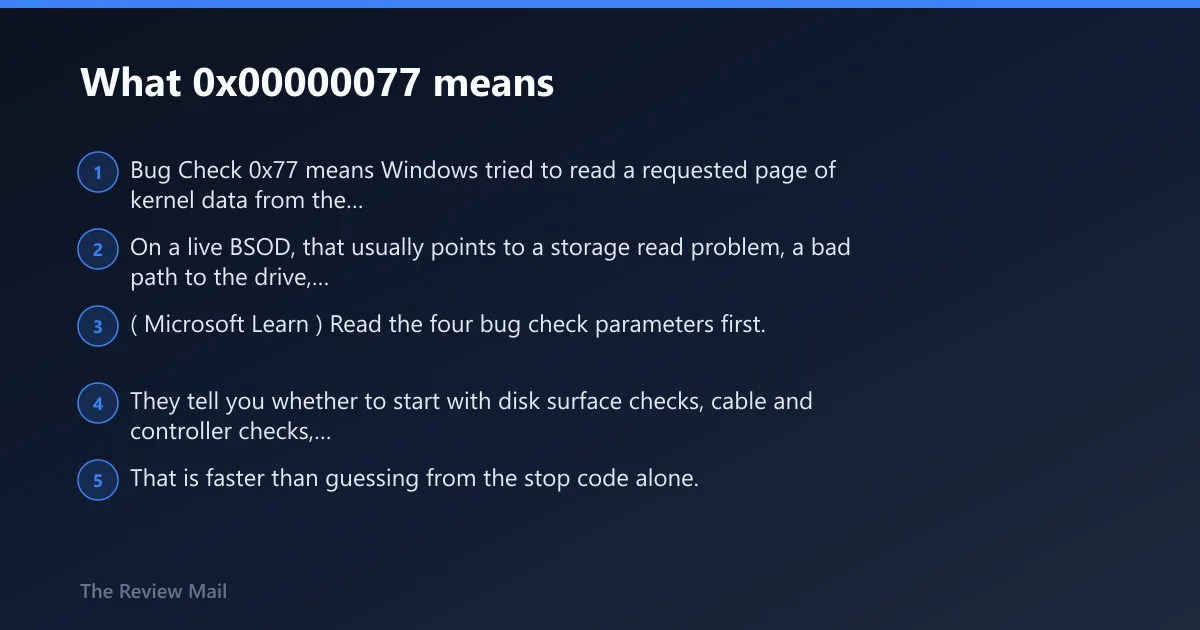
Bug Check 0x77 means Windows tried to read a requested page of kernel data from the paging file and could not get it into memory, per Microsoft support. On a live BSOD, that usually points to a storage read problem, a bad path to the drive, a memory fault, or a storage driver that returned a misleading result. (Microsoft Learn)
Read the four bug check parameters first. They tell you whether to start with disk surface checks, cable and controller checks, RAM testing, or driver-stack work. That is faster than guessing from the stop code alone.
not the printer error
Search results also show a printer-related 0x00000077 page. That one describes a broken pipe and applies to Windows 11 and Windows 10 22H2, which is a different problem entirely. This BSOD is about the paging file and kernel data, not a print job. (howfixes.com)
How do the four parameters point to the cause?
The first parameter is the best place to start. It can be an NTSTATUS code, or it can be one of the special values Microsoft uses to flag where the read failed. The second parameter is often the I/O status code. The third often shows the paging-file offset or a related address, and the fourth can help identify the failing path when the first three are ambiguous.
Use the parameters to separate hardware from software. A bad disk sector, loose cable, or missing drive usually leaves a different fingerprint than a driver stack that reported success before the page was actually read.
| Parameter pattern | Likely root cause | First checks | Escalation |
|---|---|---|---|
| Parameter 1 = 0 or 1 | Defective hardware, often RAM; the stack signature was not found (per Microsoft support) | Run Windows Memory Diagnostic or the drive or memory maker’s diagnostic tool. | Reseat or replace memory, then retest the boot path |
| Parameter 1 = 2 | Driver stack returned SUCCESS without reading the whole page | Inspect storage and chipset drivers in Device Manager | Rollback or update the storage driver, then test under a clean boot |
Parameter 1 = 0xC000009C or 0xC000016A | Bad blocks or sectors on the hard disk | Run chkdsk /f /r on the system partition | Back up data, then test the drive in another system or replace it |
Parameter 1 = 0xC000009D or 0xC0000185 | Loose or defective cabling, disconnected drive, or bad SCSI termination | Inspect data and power connections; check the port and seating | Move the drive to another cable, port, or controller path |
| Parameter 1 is another NTSTATUS value | Driver-stack failure or storage-stack error | Check Event Viewer and storage logs for the failing device | Update, roll back, or remove the storage/controller driver |
Likely causes, ranked
Most often, the problem is storage hardware or the path to it. Less often, the drive is fine and the memory subsystem or storage driver breaks the read. Malware is possible, but it should stay lower on the list unless the system also shows other corruption signs.
Storage drive errors and bad sectors
Bad sectors and read failures are the first thing to test when the status code points to the disk. 0xC000009C and 0xC000016A both point to bad blocks on the hard disk. That makes the drive itself a prime suspect.
- Open an elevated Command Prompt.
- Run
chkdskC: /f /r on the Windows volume. - Restart and let Autochk run if Windows schedules it after reboot; it can map a bad sector automatically when the system can reboot.
- After Windows loads, open Event Viewer > Windows Logs > System and look for disk or storage errors around the crash time.
- If the same status returns, back up data and test the drive in vendor diagnostics or replace it.
Loose or bad SATA, NVMe, or power cabling
0xC000009D points to a drive the controller cannot see. 0xC0000185 points to improper termination or defective cabling on SCSI devices, and it can also point to an IRQ conflict on older or unusual storage setups. That is a cable, connector, or controller-path problem until proven otherwise.
- Shut the PC down and remove power.
- Reseat the SATA data cable and power lead, or reseat the NVMe module if the system uses M.2 storage.
- Move the drive to a different port or use a different cable.
- Check BIOS/UEFI storage detection and confirm the drive is visible.
- Open Device Manager and inspect storage controllers for warning icons, then check Event Viewer for disconnect or reset events.
RAM faults and memory instability
When parameter 1 is 0 or 1, defective hardware such as RAM is a common cause, per Microsoft support. A memory read failure can look like a disk problem because the page never makes it cleanly through the read path.
- Press Win+R, run mdsched.exe, and restart into Windows Memory Diagnostic.
- If the machine still boots, run a longer memory scanner from a USB or bootable medium.
- Power down, reseat each stick, then test one module at a time.
- Remove any overclock or XMP setting in BIOS/UEFI before retesting.
- If a single stick fails again, replace it.
Driver stack or controller issues
When parameter 1 is 2, the driver stack returned an inconsistent status for the page read, per Microsoft support. That means the storage path may have reported SUCCESS even though the full page was not read. In that case, the drive can be fine and the driver path is the real problem.
- Open Device Manager.
- Expand IDE ATA/ATAPI controllers or Storage controllers.
- Use Properties > Driver to try Roll Back Driver first, then Update driver if rollback is unavailable.
- Boot into Safe Mode or perform a clean boot with msconfig to see whether the crash stops.
- Check Event Viewer for repeated storage resets, controller errors, or device-not-ready messages.
Malware as a less common cause
Malware can corrupt system files or interfere with storage drivers. That is less common than a bad disk, cable, or RAM stick, but it is still worth checking if the machine also shows other unexplained failures.
- Boot into Safe Mode.
- Run Windows Security > Virus & threat protection and start a full scan.
- Run
sfc /scannowfrom an elevated Command Prompt. - If system file damage is found, run
DISM /Online /Cleanup-Image /RestoreHealthand scan again.
What NTSTATUS codes are linked to bug check 0x77?
The most useful codes are 0xC0000185, 0xC000009C, 0xC000009D, and 0xC000016A. 0xC000009A can also appear as a storage-stack resource problem, while 0xC0000185 usually means cabling or termination trouble on SCSI-type paths. These values matter because they tell you which branch to test first.
Do not treat every code as a bad disk. 0xC000009D points to the drive not being seen, which is a path problem. 0xC0000185 points to cabling or termination. 0xC000009C and 0xC000016A point to bad blocks or sectors, which makes drive health the top suspect.
What does parameter 4 mean on bug check 0x77?
Parameter 4 often helps identify the failing path or the precise point where the page read broke, especially when the first parameter is not enough on its own. If the first parameter is 2, the driver stack may have lied about success, so parameter 4 can help separate a storage device fault from a driver-stack bug, per Microsoft support.
Use it with the third parameter and the event log, not alone. A page offset or address plus a storage error in Event Viewer is far more useful than the number by itself.
Is it a hard drive, SSD, or cabling problem?
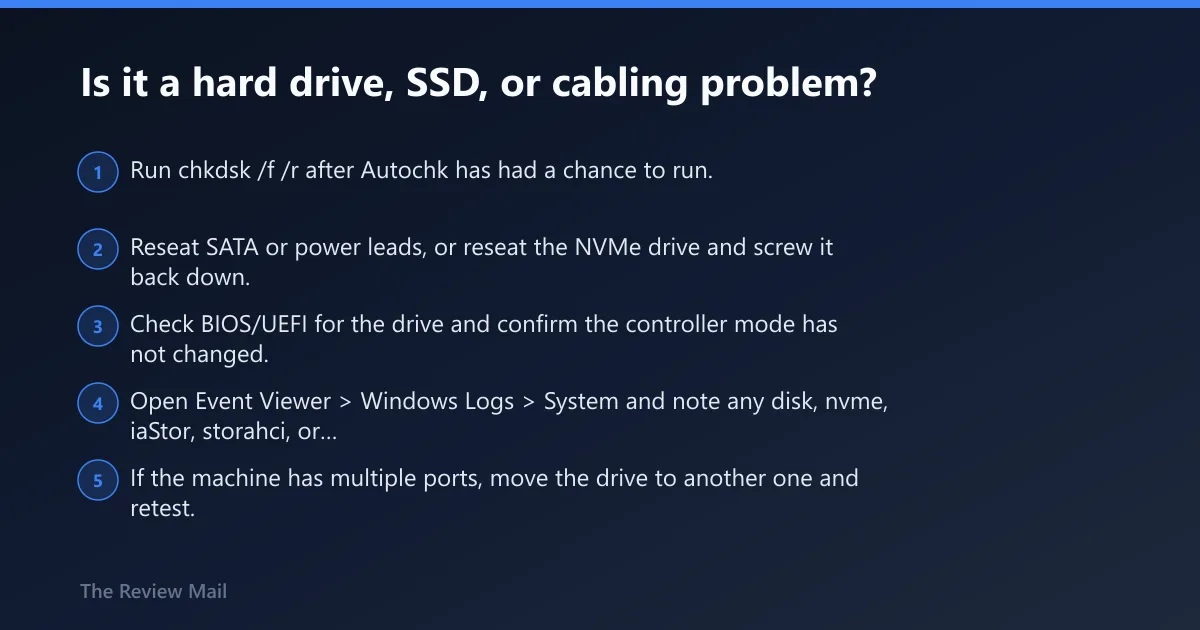
It can be any of the three. If the status code points to bad blocks, start with the drive. If the status points to a disconnected device or cabling fault, inspect the connection path first. Event Viewer and storage logs often tell you which side of that split is more likely.
- Run
chkdsk /f /rafter Autochk has had a chance to run. - Reseat SATA or power leads, or reseat the NVMe drive and screw it back down.
- Check BIOS/UEFI for the drive and confirm the controller mode has not changed.
- Open Event Viewer > Windows Logs > System and note any disk, nvme, iaStor, storahci, or controller errors near the crash.
- If the machine has multiple ports, move the drive to another one and retest.
Could RAM be causing the blue screen?
Yes. RAM is a realistic cause when the first parameter is 0 or 1, and Microsoft calls defective hardware such as RAM a probable explanation in that case, per Microsoft support. Memory faults can surface as storage failures because the kernel page never gets read cleanly into memory.
- Run mdsched.exe for Windows Memory Diagnostic.
- If available, run the motherboard or system maker’s memory test.
- Test one stick at a time, in the same slot, then swap slots if the failure follows the slot.
- Turn off memory overclocking or XMP before the next boot test.
What if the driver stack is the real problem?
Storage drivers can mimic a disk fault and still be the real reason the page never arrives. When the first parameter is 2, Microsoft says the driver stack returned an inconsistent status for the read. That is a strong sign to inspect the controller, chipset, or storage driver path before replacing hardware.
- Open Device Manager and inspect the storage controller and chipset devices.
- Use Roll Back Driver if the crash started after an update.
- If rollback is unavailable, use Update driver from the same screen.
- Try a clean boot with msconfig to rule out a filter driver or utility.
- If the system began crashing after a driver change, undo that change first.
Still not working?
If the drive checks, cable checks, RAM tests, and driver changes do not stop the crash, the motherboard storage controller or the drive itself may be failing in a way that basic tools cannot isolate. At that point, move to hardware repair or vendor diagnostics rather than cycling through the same fixes again.
- Back up any data you can still reach.
- Test the drive in another machine or with the vendor’s diagnostic boot tool.
- Try a different SATA port, controller, or storage path if the hardware allows it.
- If the same stop code returns across known-good parts, stop troubleshooting and ask for repair.
Prevention: keep regular backups before a drive starts throwing read errors. Once paging faults begin, data can disappear quickly.
Frequently asked questions
What does stop code 0x00000077 mean in Windows?
It means Windows could not read a required kernel page from the paging file. Start with the bug check parameters, then check disk health, cable seating, memory, and storage drivers in that order. Event Viewer often points to the device or controller that failed first.
How do I fix 0x00000077 on Windows 11?
Run chkdsk /f /r, inspect SATA or NVMe seating, test memory with mdsched.exe, and check Device Manager for storage driver changes. If the crash began after an update, roll back the storage or chipset driver before replacing hardware.
Can bad cabling cause a 0x00000077 blue screen?
Yes. A loose data or power connection can produce 0xC000009D, and 0xC0000185 points to improper termination or defective cabling on SCSI devices. Reseat the drive, swap the cable, move the port, and then retest before assuming the disk is dead.
Should I run chkdsk or memory diagnostics for 0x00000077?
Run both, but choose the order from the parameters. If parameter 1 is 0 or 1, start with memory diagnostics. If you see 0xC000009C or 0xC000016A, run chkdsk /f /r first. Do not skip cabling checks when the status says the drive is not connected.
How do I tell 0x00000077 from printer error 0x00000077?
The BSOD is KERNEL_STACK_INPAGE_ERROR and points to paging-file reads. The printer page with the same number describes a broken pipe. If Windows stops on a blue screen, use disk, cable, RAM, and driver checks; if the problem is printing, inspect the spooler or the print queue instead.