0x00000113 VIDEO_DXGKRNL_FATAL_ERROR Fixes for Windows
Stop 0x00000113 VIDEO_DXGKRNL_FATAL_ERROR by reading the crash context first: if the stack names a GPU driver or DWM, start with graphics drivers; if it points to BIOS or firmware or appears after an update, check firmware and recent software changes first. Leaving it alone can trap you in boot loops, break external displays, or trigger repeat crashes during games and video playback. This guide shows how to triage the crash by module names, timing, and symptom pattern, then pick the right fix path.
This guide is part of our Windows BSOD stop codes: full list and fixes series.
What 0x00000113 means on Windows
0x00000113 is the Bug Check 0x113 code and it maps to VIDEO_DXGKRNL_FATAL_ERROR, which Microsoft links to the DirectX graphics kernel subsystem and describes as a detected violation. Microsoft’s own page is aimed at programmers, and it sends customers to a separate blue-screen troubleshooting article. That framing matters: this stop code usually points at the graphics stack, not random Windows noise. (per Microsoft support) (Microsoft Learn)
How dxgkrnl.sys and watchdog.sys fit in
dxgkrnl.sys is the Windows DirectX graphics kernel module, so it is a strong clue that the failure sits inside the graphics path. watchdog.sys can appear in crash analysis when Windows sees the GPU stack hang or take too long to answer. In dump notes, the module name helps decide whether to start with drivers, firmware, or a software conflict instead of guessing. (Microsoft Learn)
According to Bug Check 0x113 VIDEO_DXGKRNL_FATAL_ERROR – Windows drivers — Microsoft says the bug check value is 0x00000113. (source)
Which fix should you try first?
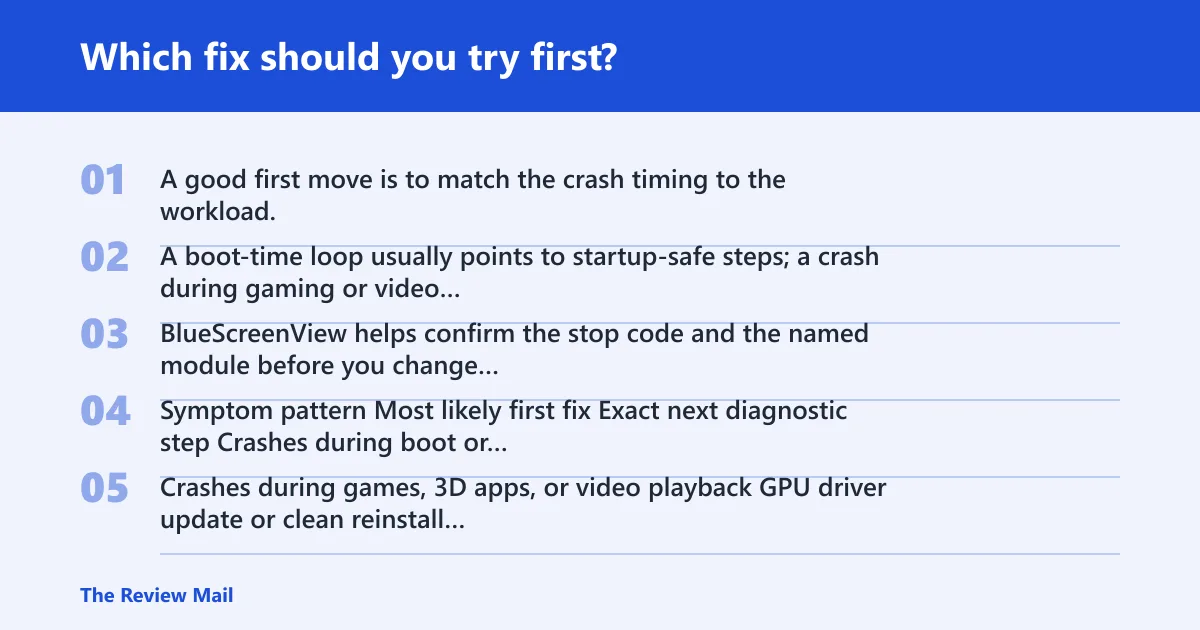
A good first move is to match the crash timing to the workload. A boot-time loop usually points to startup-safe steps; a crash during gaming or video playback often points to the GPU driver path; an external-monitor failure can point to the display chain; a post-update crash may point to the last Windows change. BlueScreenView helps confirm the stop code and the named module before you change anything else.
| Symptom pattern | Most likely first fix | Exact next diagnostic step |
|---|---|---|
| Crashes during boot or before sign-in | Safe Mode plus driver review | Hold Shift while selecting Restart, then open Troubleshoot > Advanced options > Startup Settings > Restart and boot Safe Mode. |
| Crashes during games, 3D apps, or video playback | GPU driver update or clean reinstall | Use Device Manager to update the display adapter; if that fails, uninstall the device and reinstall the latest vendor package. |
| Crashes only on an external monitor or dock | Display-path isolation | Disconnect the dock, move the cable to a different port, then retest the laptop panel alone before reconnecting the display path. |
| Crashes right after Windows Update | Update review and rollback test | Open Settings > Windows Update > Update history, note the last graphics or feature update, then uninstall that update only if the timing fits. |
Are GPU drivers the most likely cause?
Yes. GPU driver trouble is the first place to look when the stack names a graphics module or the crash happens under load. That includes NVIDIA, Intel, and AMD packages. A standard update is fine when the current driver is simply old. A clean remove and reinstall works better when the system keeps crashing after an update or when the old package may still be in place. (reported by howtogeek.com)
- Open Settings > Windows Update > Check for updates and install any offered display-driver update.
- If the crash returns, open Device Manager > Display adapters, right-click the GPU, and choose Update driver.
- If updating does not help, choose Uninstall device, restart, and install the latest driver package from the GPU vendor.
- Retest the same game, video app, or 3D workload that caused the blue screen.
When a clean reinstall beats a simple update
Use the clean path when the update itself fails, when the same crash repeats after install, or when BlueScreenView keeps naming the same graphics module. A simple update refreshes files. A clean remove clears out the older driver set that may still be fighting the new one. If rollback is available, try that first; if it is not, remove the device and reinstall the latest package.
Why does 0x00000113 happen after a Windows update?
A Windows update can change the graphics stack, and that can expose a driver that was stable before the change. This issue is also reported after major Windows updates and on recent Windows versions. The right response is to test timing first, then decide whether the update or the driver changed the behavior. (reported by howtogeek.com)
- Open Settings > Windows Update > Update history and note the most recent quality or feature update.
- Run Windows Update again and install any optional graphics update.
- If the crash started immediately after the update, uninstall only that recent update and retest.
- If the system is stuck in a boot loop, start in Safe Mode before you change updates or drivers.
Could a third-party security suite be involved?
It can, but treat it as a testable conflict source rather than a default culprit. If the blue screens started after a security-suite change, update the suite first. If the crashes continue, remove it for a clean test and watch whether the system stabilizes. If the blue screens stop, reinstall the suite only after confirming the latest version is available.
- Open the security suite’s own updater and install the latest definitions and program build.
- Reboot and retest the same workload.
- If the crash continues, use Settings > Apps > Installed apps to uninstall the suite.
- Reboot again and test for the same blue screen before reinstalling anything.
How do I handle external-monitor or dock crashes?
Start by isolating the display path. If the crash happens only when a dock or external monitor is attached, disconnect the dock and run the laptop on its own panel. Then swap the cable, try another port, and test the same display setup again after each change. That sequence tells you whether the fault tracks the dock, the cable, the port, or the GPU path itself.
- Disconnect the dock and unplug the external monitor.
- Boot on the laptop display only and retest the workload.
- Reconnect the monitor with a different cable and a different port.
- Test the original dock or monitor on another machine if the crash persists.
Should I check BIOS, firmware, or hardware next?
Yes, if driver work does not change the pattern. Outdated BIOS or firmware can sit underneath a graphics problem and keep the crash alive after a clean driver reinstall. If the stop code appears during heavy load, and especially if temperatures climb or the system shuts down under stress, start thinking about a failing GPU, power issue, or memory trouble instead of another driver pass.
- Check the PC or laptop support page for the latest BIOS or firmware package.
- Install the update only after backing up and plugging into reliable power.
- Run
sfc /scannowfrom an elevated Command Prompt to rule out file damage. - If crashes continue, run Windows Memory Diagnostic or memtest86, then check temperatures during the same workload.
Prevention: after the system is stable, keep the GPU driver and Windows Update current, and retest external-display setups after dock or cable changes. That catches regressions before they become another boot loop.
If that didn’t work, try this next
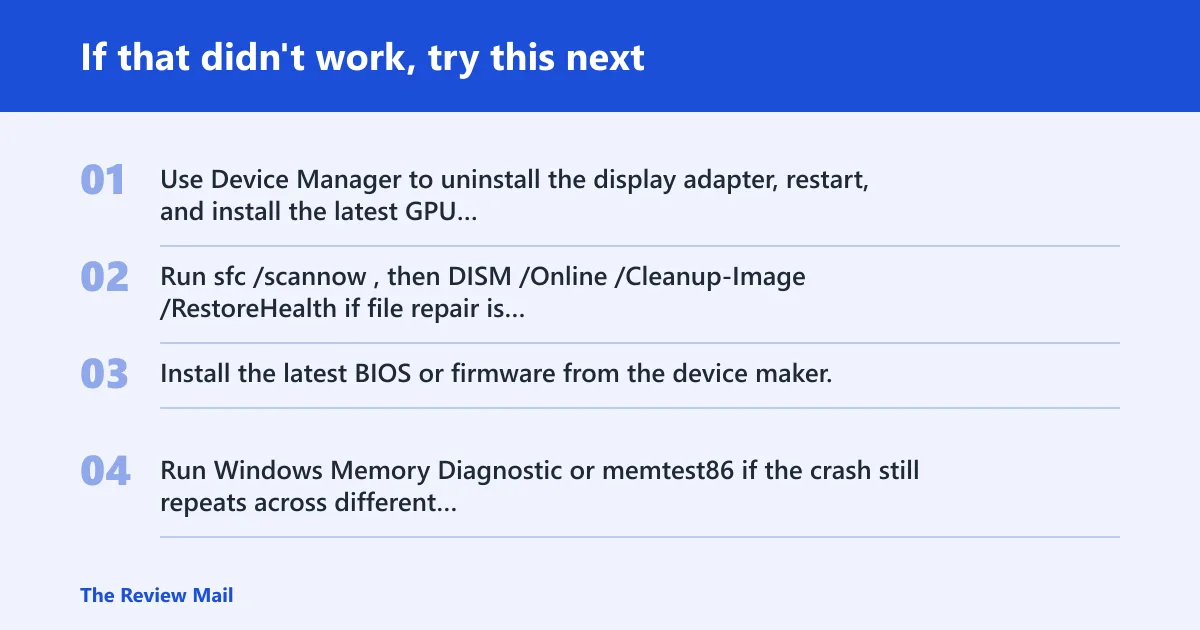
If the first driver pass did not stop the crash, move one level deeper instead of repeating the same update. A typical next ladder is clean driver removal, then BIOS or firmware checks, then system-file repair, then hardware tests. That order matches how often the graphics stack, recent software changes, and platform firmware show up in crash notes.
- Use Device Manager to uninstall the display adapter, restart, and install the latest GPU package.
- Run
sfc /scannow, thenDISM /Online /Cleanup-Image /RestoreHealthif file repair is needed. - Install the latest BIOS or firmware from the device maker.
- Run Windows Memory Diagnostic or memtest86 if the crash still repeats across different drivers and display setups.
Frequently asked questions
What does 0x00000113 mean in Windows?
It is the Bug Check 0x113 code that maps to VIDEO_DXGKRNL_FATAL_ERROR. In practice, that means Windows hit a fatal problem in the DirectX graphics kernel path. Start by checking the crash module name in BlueScreenView, then move to the display driver, recent updates, or firmware if the same module keeps appearing.
Is 0x00000113 the same as VIDEO_DXGKRNL_FATAL_ERROR?
Yes. The stop code value is 0x00000113, and the label is VIDEO_DXGKRNL_FATAL_ERROR. If you see either one in a dump, treat it as a graphics-stack crash. The quickest confirmation is the dump’s module list, especially entries such as dxgkrnl.sys or watchdog.sys.
Can a GPU driver cause bug check 0x113?
Yes. A bad, old, or conflicting GPU driver is one of the first things to check. Open Device Manager > Display adapters, update the driver, and if that fails, uninstall the device and reinstall the latest vendor package. Retest the same game or video workload after each change.
Why does 0x00000113 happen after a Windows update?
A Windows update can change the graphics stack and expose a driver problem that was already sitting there. Check Settings > Windows Update > Update history, install any optional graphics update, and if the crash started right after a specific update, uninstall that update and retest before changing anything else.
How do I fix VIDEO_DXGKRNL_FATAL_ERROR on Windows 11?
Use the same triage path as Windows 10. Start with the display driver, then check Windows Update, then test Safe Mode if the machine will not boot normally. Windows 11 users report the same stop code, so the key is the crash context, not the version badge on the taskbar.
How do I tell if the problem is hardware or software?
If the crash changes after a driver reinstall, update, or rollback, software is still in play. If it survives clean driver work, BIOS or firmware updates, and the same pattern shows up across different apps and ports, hardware climbs the list. Use BlueScreenView, then run memory and temperature checks before replacing parts.
Could antivirus software cause 0x00000113?
It can be part of the problem if the timing lines up with a security-suite install or update. Update the suite first, then uninstall it for a test if the blue screens continue. If the crashes stop, reinstall only the latest build and keep the graphics driver path under review.