0x00000103: What It Means and How to Fix It in Windows
0x00000103 is a Windows BSOD stop code. I narrow it down by checking crash timing, Safe Mode behavior, Event Viewer, and minidumps, then comparing whether the issue appears after a driver change, under load, or during normal idle use.
0x00000103 is a Windows stop code named MUP_FILE_SYSTEM. (Microsoft Learn)
What 0x00000103 means in plain English
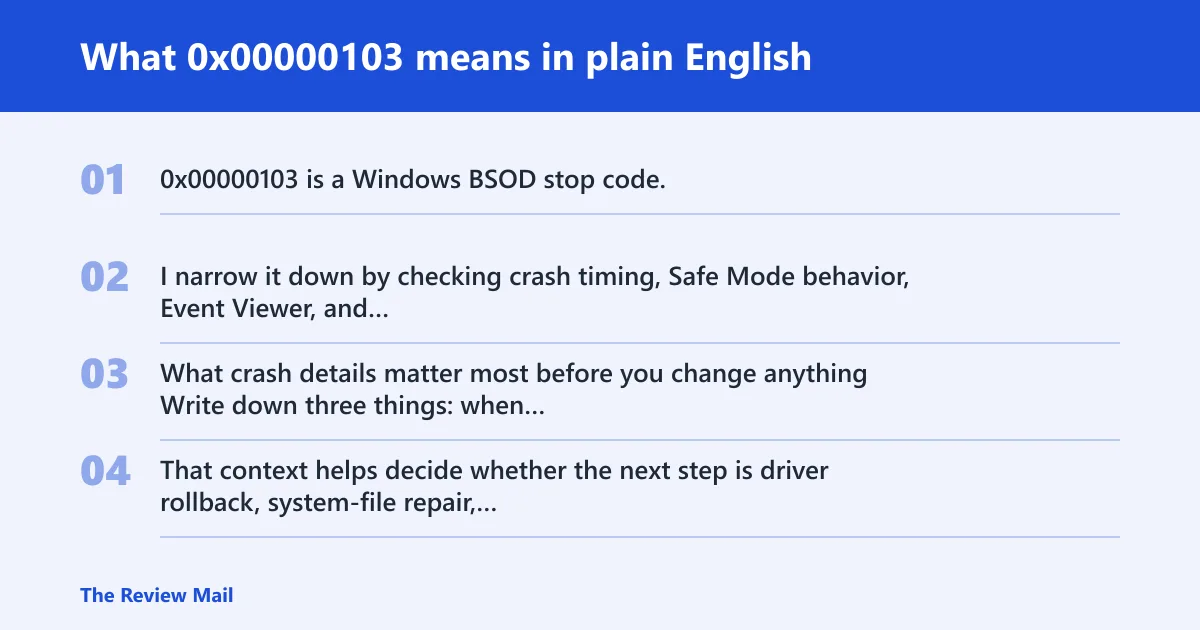
What crash details matter most before you change anything
Write down three things: when the crash happened, what the PC was doing, and whether a driver or firmware change happened recently. That context helps decide whether the next step is driver rollback, system-file repair, memory testing, or checking the storage path.
What should you do first after a 0x00000103 blue screen?
Start with the last change, then compare the crash to the symptom pattern. If the machine still boots, open Event Viewer and check the exact crash time before you change anything. That saves time and avoids guesswork.
First three checks
- Open Settings > Windows Update > Update history and note any recent display-driver, chipset, or firmware update.
- Write down whether the crash happens at idle, during gaming or other heavy load, or before the sign-in screen.
- Open Event Viewer > Windows Logs > System and match entries around the crash timestamp, especially BugCheck and other errors near that time.
Likely causes, from most useful to least obvious
Most often, the first branch I test is the most recent driver or system change. If that does not fit the symptom pattern, I move to load-related instability, file corruption, and memory or firmware issues. After that, storage-related causes move up the list.
| Observed symptom | Most probable branch | Next action |
|---|---|---|
| Crash started after a recent driver or firmware update | Recent change regression | Roll back the device driver; if rollback is unavailable, uninstall the device and restart |
| Crash happens during gaming or other heavy load | Load-related instability | Test Safe Mode, then compare behavior in normal boot |
| Crash before login | Driver load or system-state problem | Boot to Safe Mode and compare behavior |
| Safe Mode is stable, normal boot is not | Driver or startup stack | Rollback or clean reinstall the suspected device driver |
| The same crash appears after multiple restarts | Repeatable system fault | Check dumps, Event Viewer, memory, and recent firmware changes |
How do you tell if the display driver is the problem?
If the crash began after a driver change, that driver is the first thing I test. Safe Mode stability, a recent driver update, or repeated crashes right after desktop load all point to the driver stack before deeper hardware testing.
Driver rollback and reinstall steps
- Open Device Manager > Display adapters.
- Right-click the graphics adapter, select Properties > Driver > Roll Back Driver if available.
- If rollback is unavailable, choose Uninstall device, then restart.
- Install the correct signed driver from the hardware maker.
- After install, reboot and test normal boot before changing anything else.
How do you test whether the GPU or graphics stack is unstable?
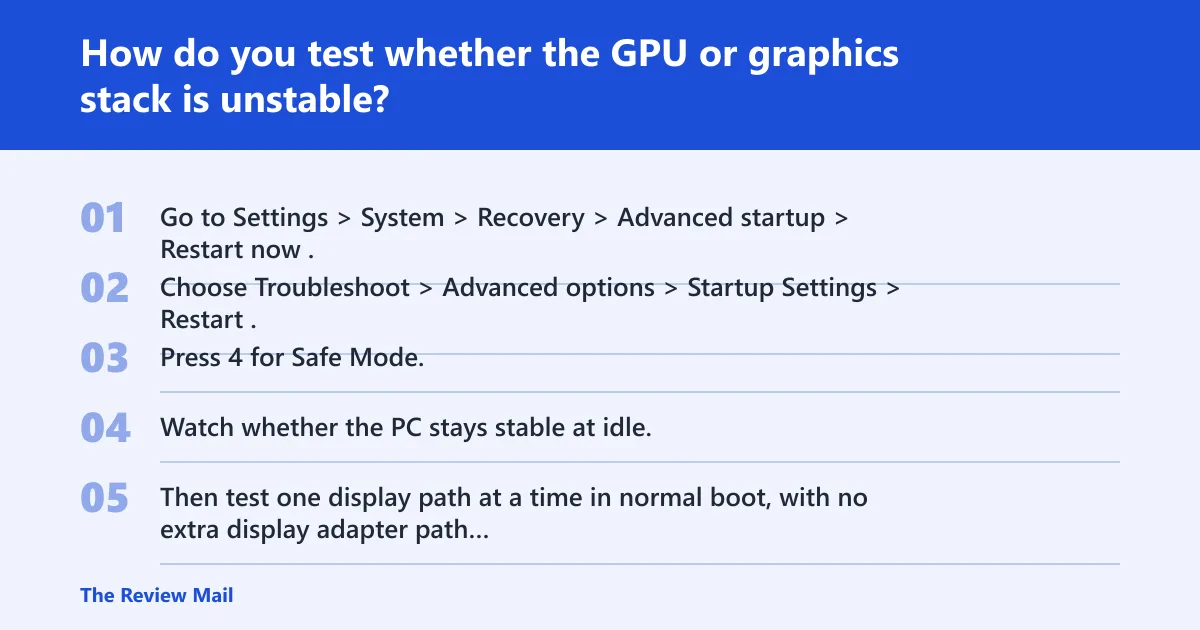
Use Safe Mode to separate a driver issue from the rest of Windows. If Safe Mode is stable but normal boot fails, the problem usually sits in the driver or startup path. If both modes fail under load, hardware stability moves up the list.
Safe Mode and load checks
- Go to Settings > System > Recovery > Advanced startup > Restart now.
- Choose Troubleshoot > Advanced options > Startup Settings > Restart.
- Press 4 for Safe Mode.
- Watch whether the PC stays stable at idle.
- Then test one display path at a time in normal boot, with no extra display adapter path changes and no extra changes elsewhere.
What logs and dumps should you check?
Event Viewer and minidumps often tell the same story from different angles. Event Viewer gives the timestamp and nearby system events; the dump file shows the failing module or driver. When both point to the same component, the next step becomes much clearer.
Where to look
- Open Event Viewer > Windows Logs > System.
- Find entries around the crash time, especially BugCheck and nearby system errors.
- Open
C:\Windows\Minidumpand sort by date. - Use a debugger tool to inspect the newest dump and note the module name.
- Compare two or more crashes. Repeated modules matter more than a single file name.
Can RAM or firmware cause 0x00000103?
Yes. A bad driver can trigger the crash, and unstable RAM or firmware settings can make the same system look like a driver fault. That is why the next step changes based on the crash pattern, not the code alone. Driver history, memory testing, and firmware review all matter.
Memory and firmware checks
- Run Windows Memory Diagnostic from the Start menu, or use memtest86 for a longer pass.
- Update or compare the current BIOS/UEFI version with the device vendor’s release notes.
- If the system became unstable after firmware work, return settings to defaults before testing again.
- Retest normal boot after the memory pass completes.
How do I fix stop code 0x00000103 on Windows 11?
On Windows 11, start with the most recent driver or firmware change, then check Safe Mode, then use Event Viewer and dumps to confirm the branch. If Windows files look damaged after that, run SFC and DISM. If the machine still crashes, move to memory or firmware checks.
Windows 11 repair ladder
- Open Device Manager and roll back the device driver if a recent update preceded the crash.
- If rollback is unavailable, use Uninstall device, then restart.
- Run
sfc /scannowfrom an elevated Command Prompt. - Run
DISM /Online /Cleanup-Image /RestoreHealth. - Retest in normal boot before changing more than one thing.
Should I run Safe Mode, SFC, or DISM for 0x00000103?
Yes, but in the right order. Safe Mode is for isolating the driver path. SFC and DISM are for suspected file damage. They help with corruption, but they do not replace a driver, memory, or firmware test when the symptom pattern points there.
When each tool fits
- Use Safe Mode first when normal boot crashes but Safe Mode stays up.
- Use
sfc /scannowwhen system files may be damaged. - Use
DISM /Online /Cleanup-Image /RestoreHealthif SFC finds problems or Windows still behaves oddly. - Do not stop there if the crash returns under the same workload.
What if Windows files or memory are involved?
When the system stays unstable after a driver fix, I treat file damage and memory instability as separate branches. Repair commands can clear corrupted Windows files, while memory testing checks whether RAM is causing repeatable crashes that look like driver failures.
Corruption and RAM checks
- Run
sfc /scannow. - Run
DISM /Online /Cleanup-Image /RestoreHealth. - Run Windows Memory Diagnostic, or a longer pass with memtest86.
- If memory errors appear, stop treating the issue as a pure driver fault.
What should I do if 0x00000103 keeps looping at boot?
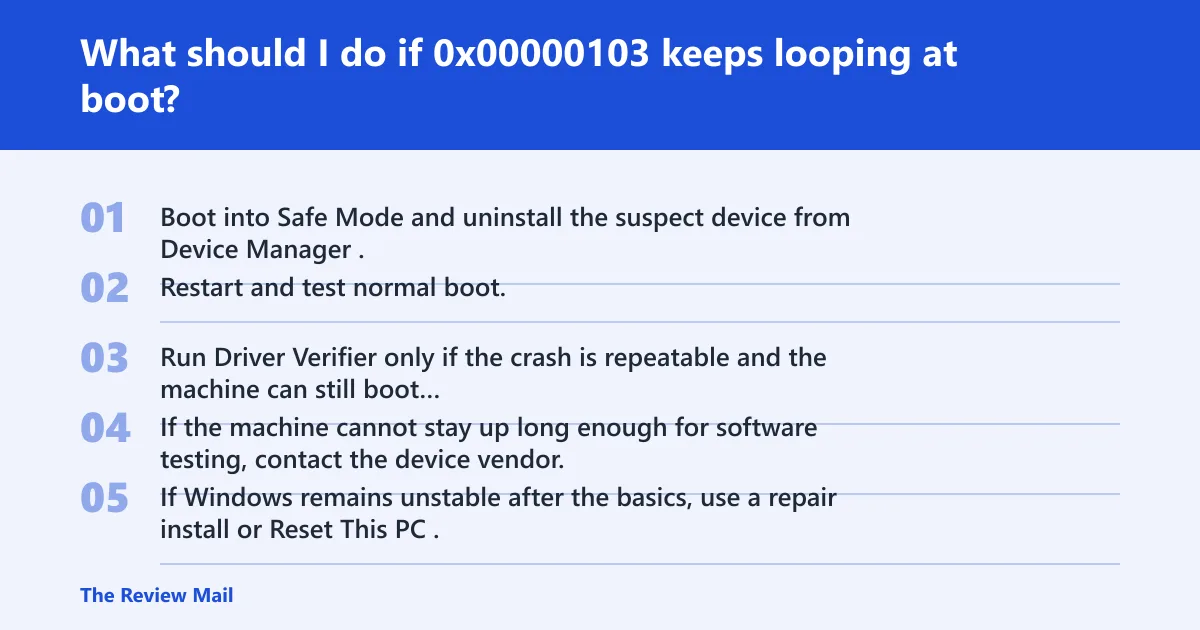
A crash loop usually means the system cannot stay stable long enough for normal repair work. In that case, use Safe Mode first, then remove the suspect device driver. If the PC still cannot remain up, the next step is repair install or vendor support.
If that didn’t work, try this next
- Boot into Safe Mode and uninstall the suspect device from Device Manager.
- Restart and test normal boot.
- Run Driver Verifier only if the crash is repeatable and the machine can still boot afterward.
- If the machine cannot stay up long enough for software testing, contact the device vendor.
- If Windows remains unstable after the basics, use a repair install or Reset This PC.
Frequently asked questions
What does 0x00000103 mean in Windows?
It is a Windows stop code named MUP_FILE_SYSTEM. Treat it as a starting point for troubleshooting. The crash context decides whether the next step is driver rollback, Safe Mode testing, dump analysis, or a broader repair path.
Is 0x00000103 a hardware problem or a driver problem?
It can be either, and the crash pattern decides which is more likely. A recent driver change or a Safe Mode/normal boot split points to a driver path. Repeated crashes under load, or errors that survive driver changes, push hardware higher on the list.
When does 0x00000103 mean I need to reinstall Windows?
A repair install or Reset This PC becomes reasonable only after driver rollback, Safe Mode testing, Event Viewer review, SFC, DISM, and memory checks fail to stabilize the machine. If the PC cannot stay up long enough for those steps, contact the device vendor first.