Video Memory Management Internal BSOD Fix for Windows 11
For VIDEO_MEMORY_MANAGEMENT_INTERNAL on Windows 11, start with the graphics driver, then check memory, then remove recent hardware changes. The stop code means a problem was detected in the video memory management path, and the bug check screen may also provide a dump file with more information about the memory contents when the stop code occurred. This guide gives a step-by-step path for driver, memory, and new-hardware checks, with practical steps to isolate each one.
What VIDEO_MEMORY_MANAGEMENT_INTERNAL means on Windows 11
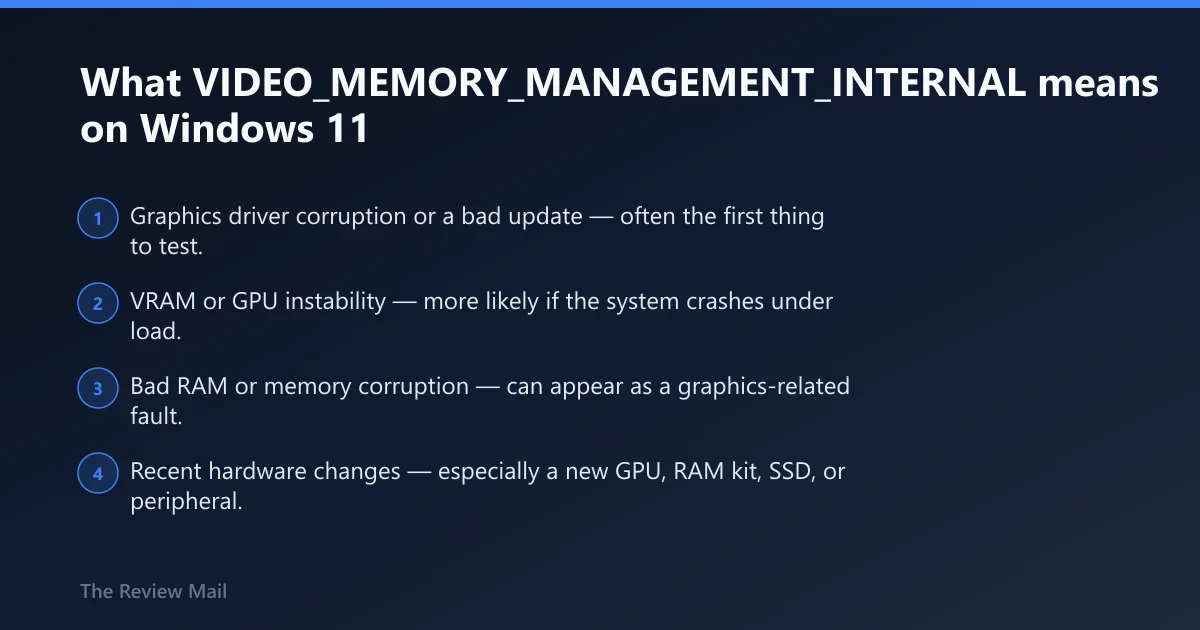
This stop code is commonly associated with the graphics-memory path rather than a random restart. A driver problem, unstable memory, or a recent hardware change can all be possibilities.
The fastest first move is to note whether the crash started after a driver update or a new GPU, RAM, or other hardware was added. That timing usually helps narrow the next test.
Likely causes, ranked from most to least common
- Graphics driver corruption or a bad update — often the first thing to test.
- VRAM or GPU instability — more likely if the system crashes under load.
- Bad RAM or memory corruption — can appear as a graphics-related fault.
- Recent hardware changes — especially a new GPU, RAM kit, SSD, or peripheral.
This article describes common bug check codes displayed on the bug check screen, and WinDbg can display information about a specified bug check code using the !analyze extension.
According to Řešení potíží s neočekávanými restartováními systému Windows a… — Windows 11 support page says stop-code errors can be caused by hardware, drivers, or software.
What causes VIDEO_MEMORY_MANAGEMENT_INTERNAL BSOD in Windows 11?
Common possibilities include a damaged graphics driver package, unstable VRAM, bad RAM, or a recent hardware change that altered timing or power behavior. A Windows update or software that hooks the display path can also be a possibility.
When the crash repeats after reboot, the trigger is usually still present. That is why it helps to start with the graphics driver, then move to memory and hardware changes.
Is the graphics driver the problem?
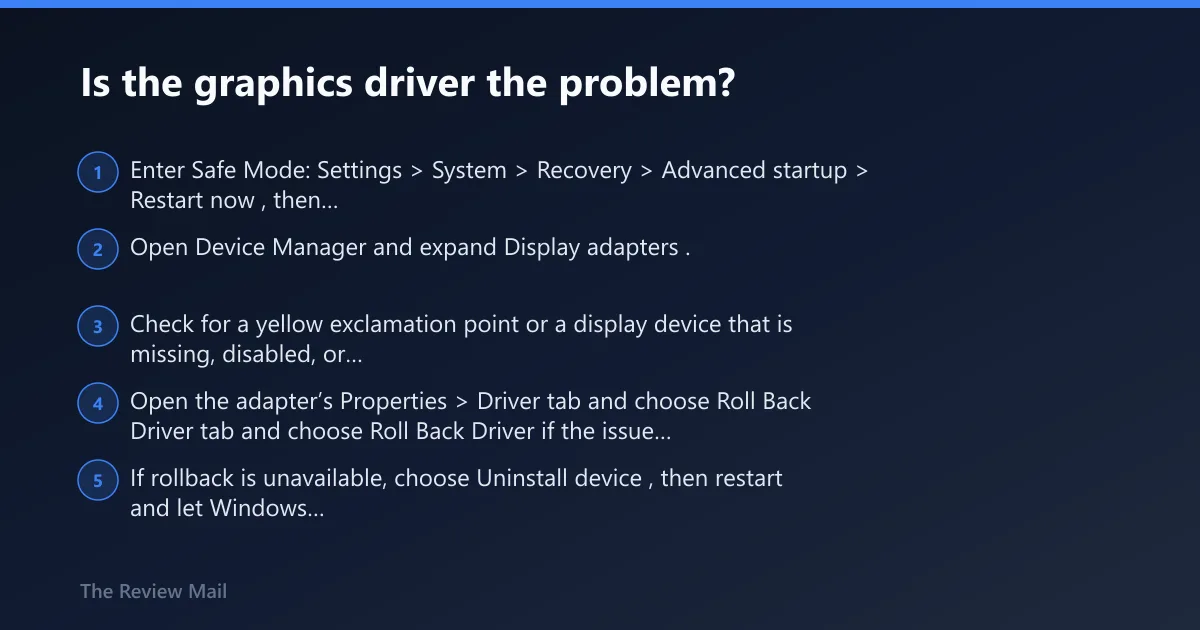
Very often, yes. If normal boot is unstable, Safe Mode can help isolate whether the graphics driver is involved because it loads a minimal set of drivers and startup items. Use Device Manager to look for warning icons, then update, roll back, or uninstall the graphics driver if needed.
- Enter Safe Mode: Settings > System > Recovery > Advanced startup > Restart now, then Troubleshoot > Advanced options > Startup Settings.
- Open Device Manager and expand Display adapters.
- Check for a yellow exclamation point or a display device that is missing, disabled, or marked with an error.
- Open the adapter’s Properties > Driver tab and choose Roll Back Driver if the issue began after an update.
- If rollback is unavailable, choose Uninstall device, then restart and let Windows reload the driver.
- Go to Settings > Windows Update and install the latest updates before testing again.
If the crash got worse right after a driver update, treat that update as suspect first. A clean uninstall or rollback usually tells you more than a repair install.
Windows 11 and Windows 10 menu paths differ here
On Windows 11, the path starts in Settings > System > Recovery. On Windows 10, use Settings > Update & Security > Recovery to reach advanced startup. The driver steps in Device Manager are the same on both platforms.
Safe Mode entry:
Settings > System > Recovery > Advanced startup > Restart now
Troubleshoot > Advanced options > Startup Settings

Driver rollback path:
In Device Manager, open Display adapters, then Properties and the Driver tab, and use Roll Back Driver if it is available.
Device Manager > Display adapters > Properties > Driver tab > Uninstall device

Driver and system-file cleanup checks can include sfc /scannow and DISM /Online /Cleanup-Image /RestoreHealth.
Can bad RAM cause VIDEO_MEMORY_MANAGEMENT_INTERNAL?
Yes. Bad RAM can corrupt the memory path the graphics stack depends on, and that can show up as a video-memory stop code instead of a plain memory error. If the machine is stable in Safe Mode but fails during normal use, memory is still worth checking.
- Run Windows Memory Diagnostic by opening mdsched.exe, then restart and let the test run.
- If the system has multiple sticks, test one stick at a time in the same slot.
- Remove any memory overclock or XMP/EXPO-style profile in firmware.
- Watch for flicker, checkerboard artifacting, or hard crashes under GPU load.
- If the crash follows one stick or one slot, the fault is more likely RAM or the board than the driver.
Separate RAM faults from GPU faults by changing one variable at a time. Replace only one stick, one slot, or one driver version per test.
Should I remove new hardware after a blue screen in Windows 11?
Yes. Newly added hardware is one of the first things to remove during triage, especially a new GPU, RAM kit, SSD, or peripheral. If the system worked before the change, test the old configuration first and then add parts back one at a time.
- Power down and remove the newest part first.
- For desktops, reseat the GPU and power connectors if the card was recently installed.
- For laptops, remove any external dock, USB graphics adapter, extra storage, or attached display hardware.
- Undo any recent memory profile or overclock change in firmware.
- Boot again and see whether the stop code disappears.
Laptops with integrated graphics usually have a simpler recovery path than desktops with discrete GPUs. On a desktop, the discrete card and its driver are the first suspects; on a laptop, the memory path and recent firmware or driver changes often matter more.
How do I boot Windows 11 into Safe Mode after a BSOD?
If normal boot is unstable, use Advanced startup to reach Safe Mode. It loads a minimal set of drivers and startup items, which makes it a useful way to check whether the graphics driver or a startup tool is involved.
- Go to Settings > System > Recovery > Advanced startup > Restart now.
- Choose Troubleshoot > Advanced options > Startup Settings.
- Select Restart.
- Press the key for Safe Mode or Safe Mode with Networking when the list appears.
- Open Device Manager and inspect the display adapter before doing anything else.
Safe Mode stability is useful evidence. If the machine is stable there, the next test should be the graphics driver.
What should I check in Device Manager for BSODs?
Look for warning icons, missing devices, disabled hardware, and a display adapter that recently changed.
- Open Device Manager.
- Expand Display adapters, then check whether the GPU name is correct.
- Open Properties for any device with a warning icon.
- Use the Driver tab to Update Driver, Roll Back Driver, or Uninstall device.
- If the display adapter looks normal but the crash continues, inspect other flagged devices too.
A graphics error can be triggered by a non-graphics device if it is breaking memory timing, power delivery, or startup order. Device Manager helps narrow that down quickly.
| Observed behavior | Next test | Likely culprit |
|---|---|---|
| Boot loop before desktop | Enter Safe Mode and compare against the last driver change | Graphics driver corruption or startup software |
| Safe Mode is stable | Check Device Manager, then roll back or uninstall the display driver | Graphics driver or overlay software |
| Artifacting, flicker, or black screens under load | Test at stock settings, then recheck the GPU and power connections | GPU or VRAM instability |
| Problem began after new RAM or GPU install | Remove the part and retest on the old configuration | New hardware or compatibility issue |
| Crash follows a driver update | Roll back the driver or clean-install the prior package | Bad graphics driver update |
How much free disk space do I need to troubleshoot BSODs?
Low disk space can make startup repairs and paging less reliable, so it is worth checking early in the checklist. Keep enough space available on the system drive for normal operation and troubleshooting.
- Open Settings > System > Storage.
- Confirm the system drive has adequate free space.
- Empty temporary files, downloads you do not need, and old update cleanup items.
- Reboot and retest the stop code.
If the free space is too low, fix that before deeper repair work. A nearly full system drive can make every other test look worse.
Should I install the latest Windows 11 updates for stop code errors?
Windows Update belongs early because updates can include fixes for system components that the graphics path depends on.
- Open Settings > Windows Update.
- Choose Check for updates.
- Install all pending updates, then restart.
- Test the machine again before moving to more invasive repair steps.
If a recent update made things worse, switch back to the driver rollback path first. Do not keep stacking updates on top of a broken graphics stack.
When should I use System Restore for a Windows 11 BSOD?
Use System Restore after the basic checks fail and the crash seems to follow a driver, update, or software change. It can return system settings and drivers to an earlier restore point.
- Open Control Panel > Recovery > Open System Restore.
- Choose a restore point from before the crash started.
- Confirm that the point predates the last driver update or hardware change.
- Finish the restore, then reboot and test.
If the machine will not stay up long enough to launch restore from the desktop, use Advanced startup instead. That path is often the last practical software fix before hardware testing.
Still not working?
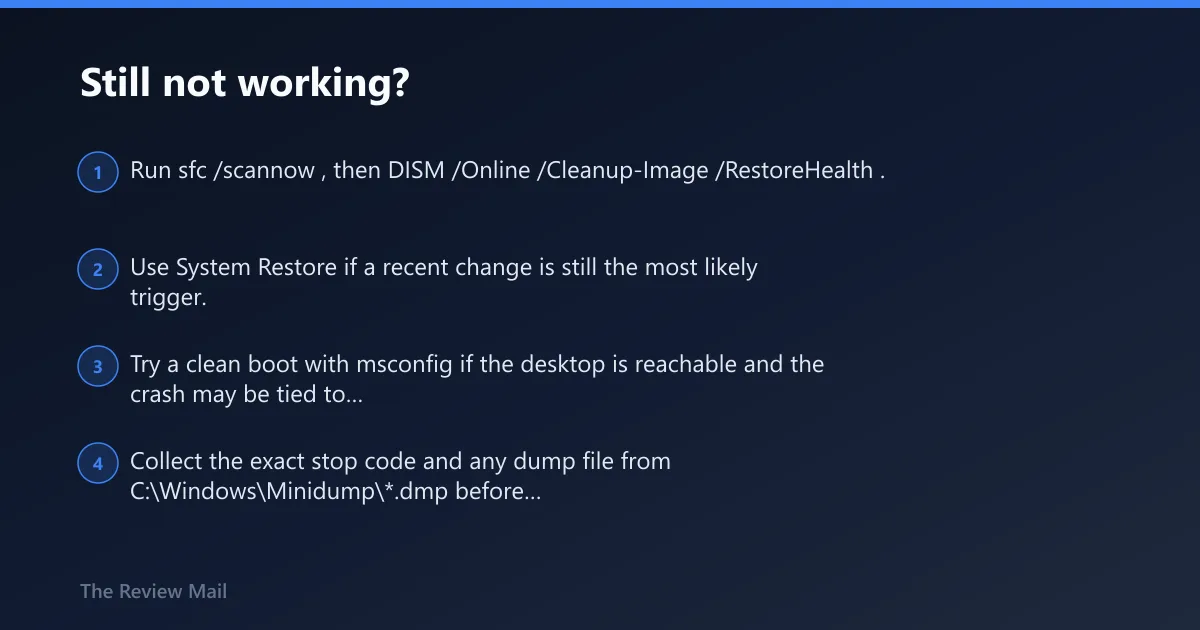
If the driver rollback, Safe Mode check, memory test, and hardware removal do not stop the crashes, move to a cleaner recovery path. The next sensible step is a restore point or a repair-style reinstall rather than repeated driver churn.
- Run
sfc /scannow, thenDISM /Online /Cleanup-Image /RestoreHealth. - Use System Restore if a recent change is still the most likely trigger.
- Try a clean boot with msconfig if the desktop is reachable and the crash may be tied to startup software.
- Collect the exact stop code and any dump file from
C:\Windows\Minidump\*.dmpbefore contacting a repair shop or the PC vendor.
Collect:
- Exact STOP code and parameters from the blue screen
- C:\Windows\Minidump\*.dmp if present

Repair commands:
sfc /scannow
DISM /Online /Cleanup-Image /RestoreHealth

Recovery path:
Settings > System > Recovery > Advanced startup > Restart now
Troubleshoot > Advanced options > System Restore
Prevention: After the machine is stable again, keep the graphics driver on a known-good version, leave some free disk space on the system drive, and avoid stacking driver updates with new hardware installs on the same day.
Frequently asked questions
How do I fix VIDEO_MEMORY_MANAGEMENT_INTERNAL on Windows 11?
Start in Safe Mode, open Device Manager, and roll back or uninstall the display adapter driver if the crash began after a change. Then run Windows Update, check free disk space, and test RAM if the system still fails. That sequence isolates the most common graphics-memory possibilities first.
Is VIDEO_MEMORY_MANAGEMENT_INTERNAL a GPU driver problem?
Often it is. If the machine crashes after a driver update, use Device Manager to roll back the adapter driver or uninstall it and let Windows reload a clean copy. If Safe Mode is stable, that makes the graphics driver more likely than the hardware.
How do I check a bug check code in WinDbg?
Use the !analyze extension in kernel mode with the syntax !analyze -show <code>. If the default number base is not 16, prefix the code with 0x. The bug check dump file, when available, can provide additional information about the memory contents when the stop code occurred.
What does Arg3 mean in the example?
In the example, Arg3 is nt!_TRIAGE_9F_POWER on Win7 and higher.