0x00000137: WIN32K_HANDLE_MANAGER meaning and fixes
0x00000137 is the WIN32K_HANDLE_MANAGER bug check. It indicates that the win32k/ntuser handle manager has detected a fatal error. Start by recording the stop details, saving the newest dump file, and noting what changed immediately before the crash.
This guide is part of our Windows BSOD stop codes: full list and fixes series.
What 0x00000137 means on a blue screen
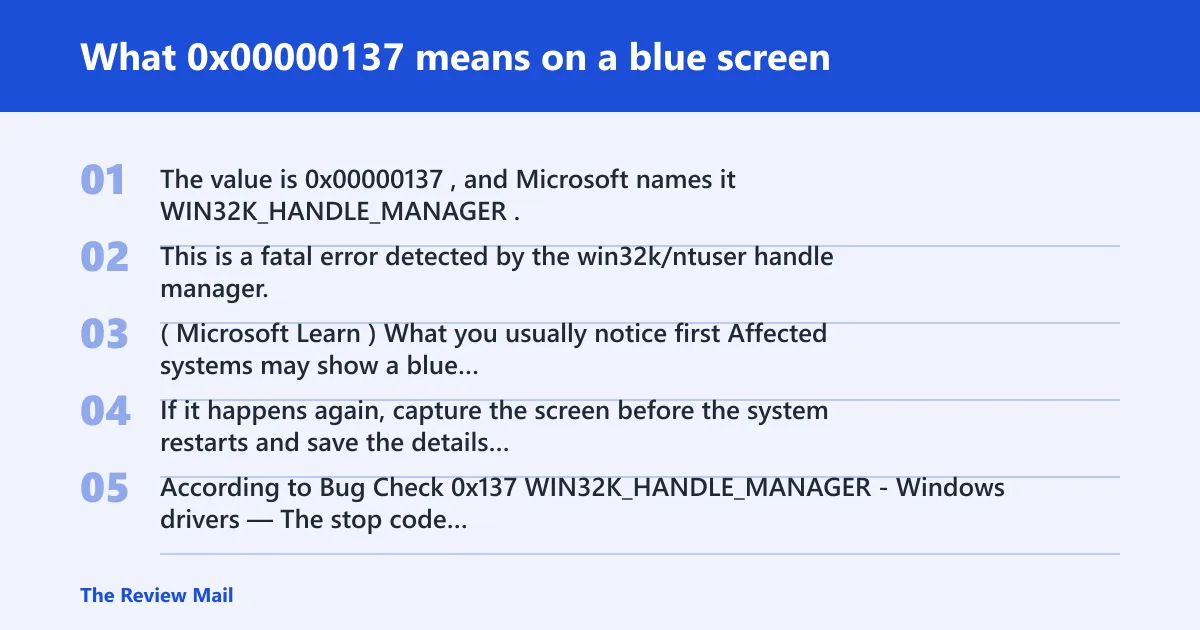
The value is 0x00000137, and Microsoft names it WIN32K_HANDLE_MANAGER. This is a fatal error detected by the win32k/ntuser handle manager. (Microsoft Learn)
What you usually notice first
Affected systems may show a blue screen and then restart. If it happens again, capture the screen before the system restarts and save the details for later review.
According to Bug Check 0x137 WIN32K_HANDLE_MANAGER – Windows drivers — The stop code value is 0x00000137. (source)
Is 0x00000137 the same as WIN32K_HANDLE_MANAGER?
Yes. 0x00000137 is the bug check value for WIN32K_HANDLE_MANAGER. Use both the number and the name when you document the crash.
Bug check parameters, explained
Microsoft lists parameter 1 as reserved, parameter 2 as the address of the object if available, and parameters 3 and 4 as reserved. The object address, when present, is the most specific value provided for this stop code. (Microsoft Learn)
What causes a 0x00000137 blue screen?
The provided bug check information does not name a specific external cause. If the crash is recurring, focus on collecting the crash data first instead of trying to infer a cause from the screen alone.
Check whether the issue started after a recent system change, update, or new app install, because that timing can help narrow the next step. If nothing obvious changed, use the dump file and event records to compare crashes.
Likely causes, ranked
- Recent system change. Review anything installed or updated shortly before the first crash.
- Recurrent crash pattern. Compare repeated stop screens and dump files for the same code and parameters.
- Object-related failure in the win32k/ntuser handle manager. The bug check points to a fatal error in that component.
- Unknown until the dump is reviewed. If the stop repeats, the dump file is the best next source of detail.
Should I update graphics or display drivers for a 0x137 BSOD?
A driver change can be worth reviewing if it happened right before the crash, but the stop code itself does not identify a graphics or display driver as the cause. Use standard Windows troubleshooting to confirm whether a recent driver update coincides with the issue.
Open Device Manager and review recent changes under the relevant device categories. If the crash started right after a driver update, you can try a rollback. If that does not apply, keep the focus on collecting crash data instead of guessing at a specific driver.
- Open Device Manager.
- Review the devices that changed recently.
- If a recent driver update matches the crash timing, open the device Properties and check the Driver tab.
- Use Roll Back Driver only if the option is available and the crash began after that update.
- Check Settings > Windows Update for any installed updates that match the crash timeline.
How do you read the bug check parameters?
Start with parameter 2. If it contains a valid object address, that is the most useful value Microsoft provides for this stop code. Parameter 1 is reserved, and parameters 3 and 4 are reserved.
Before the machine restarts, take a photo of the BSOD screen if it appears again and write down the stop code and the four parameters exactly as shown. That makes it easier to compare multiple crashes.
What to capture before rebooting
- The full stop code value:
0x00000137 - All four bug check parameters in order
- The last app or device used before the crash
- Whether the screen froze, flickered, or went blank first
- The approximate crash time
What logs and dump files should you collect?
For first-pass triage, collect the newest minidump from C:\Windows\Minidump. It is usually the most useful file to keep when the crash repeats.
Save the Event Viewer records around the crash time too. On Windows 10 and Windows 11, note Windows Logs > System entries for the reboot and any warnings or errors near the stop code.
- Open File Explorer and go to
C:\Windows\Minidump. - Copy the newest .dmp files to a separate folder.
- Open Event Viewer > Windows Logs > System.
- Save events from the crash window, plus the five minutes before it.
- Take a photo of the BSOD screen if it appears again.
What not to send first
Do not start by chasing unrelated system files. The newest minidump and the stop details are the first items to preserve because they are the most directly tied to the bug check.
One-page triage table for 0x00000137
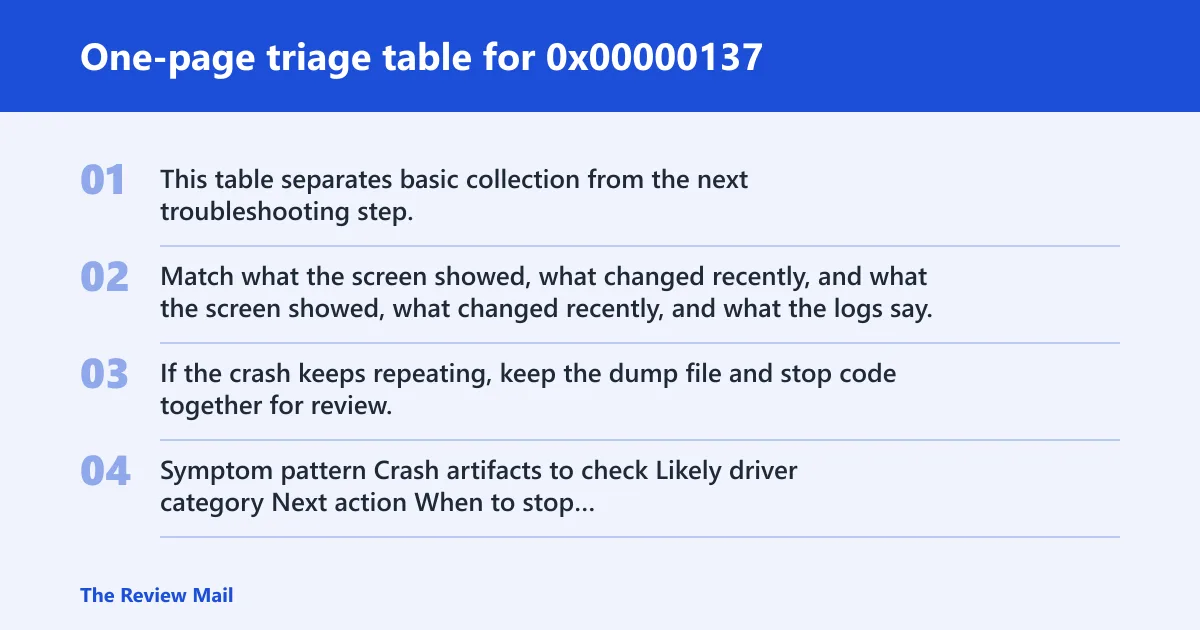
This table separates basic collection from the next troubleshooting step. Match what the screen showed, what changed recently, and what the logs say. If the crash keeps repeating, keep the dump file and stop code together for review.
| Symptom pattern | Crash artifacts to check | Likely driver category | Next action | When to stop and escalate |
|---|---|---|---|---|
| Crash started right after a driver or update change | Minidump, System log at crash time | Recent change | Roll back the change if it is clearly connected | If the crash returns after the rollback |
| Crash follows a new app or tool install | Recent installs, startup items, Event Viewer warnings | Recent software change | Remove the recent app and test again | If the same stop code appears after removal |
| Screen flickers, then the system resets during desktop use | Bug check parameters, minidump, system events | Unknown until reviewed | Keep the dump and event data together | If the pattern repeats with the same code |
| Crashes happen again after basic cleanup | Multiple minidumps, repeated system events | Unknown until reviewed | Collect the newest crash data for deeper analysis | After repeated failures with the same bug check |
When should you move to WinDbg analysis?
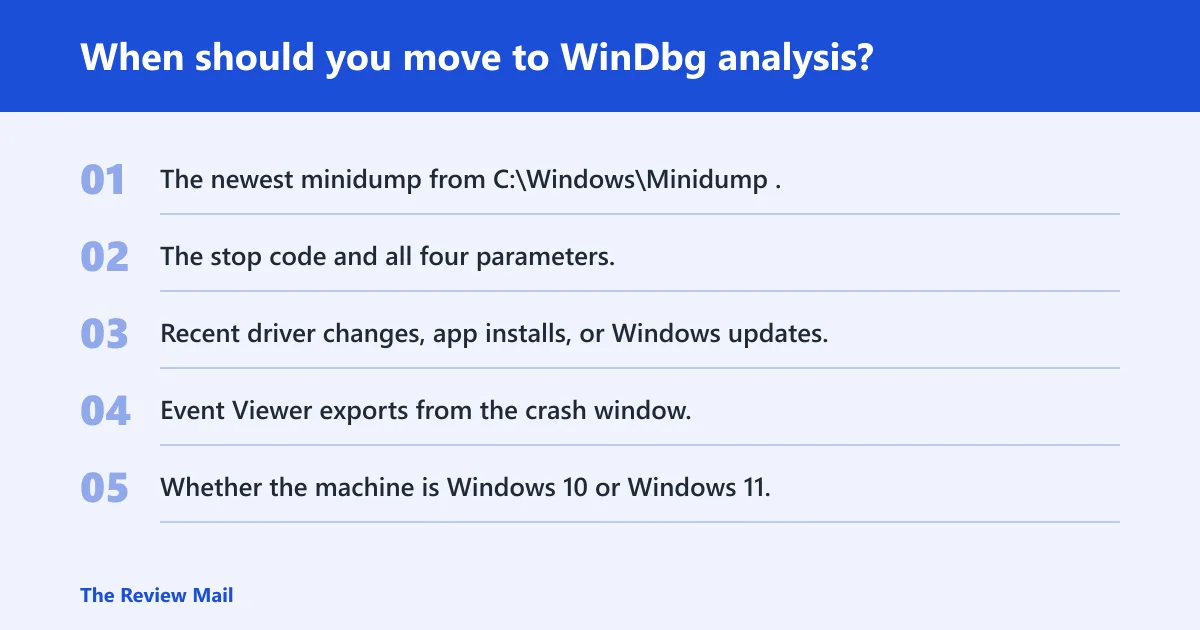
Move to deeper dump review when the crash keeps repeating after basic steps, when parameter 2 appears to point to the same kind of object across crashes, or when the minidump and Event Viewer entries do not explain the pattern. At that point, the dump file becomes the main source of detail.
A debugger can inspect the minidump and show the stack and loaded modules that were present at the time of the crash. That is the right next step after you have saved the crash data.
What a support engineer should ask for next
- The newest minidump from
C:\Windows\Minidump. - The stop code and all four parameters.
- Recent driver changes, app installs, or Windows updates.
- Event Viewer exports from the crash window.
- Whether the machine is Windows 10 or Windows 11.
If that did not work: keep the crash data together, review recent changes, and test whether the issue repeats after a rollback or removal of the most recent change. If the same stop code continues, move to a deeper review of the dump and event records.
Prevention: keep a copy of the latest working configuration before applying new updates. That makes it easier to undo the most recent change if the crash begins afterward.
Frequently asked questions
What does stop code 0x00000137 mean in Windows?
It is the WIN32K_HANDLE_MANAGER bug check. Microsoft says it indicates that the win32k/ntuser handle manager has detected a fatal error.
Is 0x00000137 the same as WIN32K_HANDLE_MANAGER?
Yes. The hex value is 0x00000137, and Microsoft names the bug check WIN32K_HANDLE_MANAGER. Keep both when documenting the failure.
What causes a 0x00000137 blue screen?
The supplied bug check details do not name a specific external cause. Start by checking the crash timing, recent changes, the newest minidump, and the system log entries near the event.
How do I check the parameters shown with bug check 0x137?
Write down all four values from the stop screen before rebooting. Parameter 2 may show an object address if available; parameter 1 is reserved, and parameters 3 and 4 are reserved.
Should I update graphics or display drivers for a 0x137 BSOD?
If a driver update happened immediately before the crash, roll it back or review it as a recent change. If there was no driver change, collect the minidump and event data first.
When do I need minidumps for 0x00000137?
Use the newest minidump as soon as the stop repeats. The file in C:\Windows\Minidump is one of the best starting points for comparing repeated crashes.
Can Windows 11 and Windows 10 both get stop code 0x00000137?
Yes. Windows 10 and Windows 11 can both record this bug check, and both can save related system events in Event Viewer.
Does 0x00000137 indicate a hardware or software problem?
The bug check itself does not identify a specific hardware or software fault. Use the crash timing, minidump, and Event Viewer data to narrow the next step.