0x00000154: Meaning and Fix for the Windows Stop Code
0x00000154 by itself is ambiguous: first verify whether it is a Windows bug check, a memory address, or a log field, and only treat it as a stop code if it appears as the full BSOD code with parameters. I’ve seen people chase the wrong driver for hours because they grabbed a lone hex value from the wrong place. This guide shows how to identify the source of the hex value and the safest next step from a blue screen, dump, or event log.
This guide is part of our Windows BSOD stop codes: full list and fixes series.
What 0x00000154 means on a blue screen
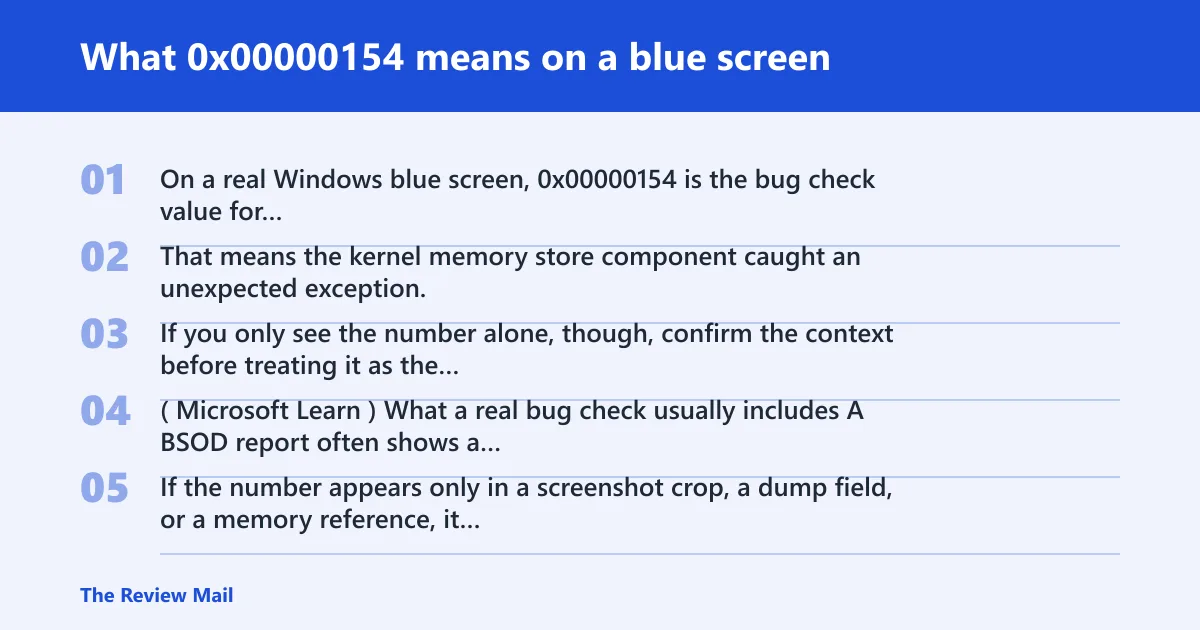
On a real Windows blue screen, 0x00000154 is the bug check value for UNEXPECTED_STORE_EXCEPTION (per Microsoft support). That means the kernel memory store component caught an unexpected exception. If you only see the number alone, though, confirm the context before treating it as the failure cause. (Microsoft Learn)
What a real bug check usually includes
A BSOD report often shows a stop code, one or more parameter values, and sometimes a short label. If the number appears only in a screenshot crop, a dump field, or a memory reference, it may be a piece of data rather than the stop code itself.
Why context matters here
The same number can appear in a blue-screen photo, an Event Viewer record, a minidump, or a memory-map reference. In one representative memory-map example, 0x00000154 is a memory-map entry, not a Windows bug check, and the mmap section describes entries as fourCC, length, and offset. The page shows a file size of 0x0042a8f0 bytes and 14 chunks in its memory map, which is a very different use of the number.
How to tell what kind of error you are seeing
Start by identifying the artifact. A phone photo of the BSOD, an Event Viewer log line, a minidump, and a memory-map or address string each point to a different next step. If you skip this check, you can spend an hour fixing the wrong layer.
Quick clues by source
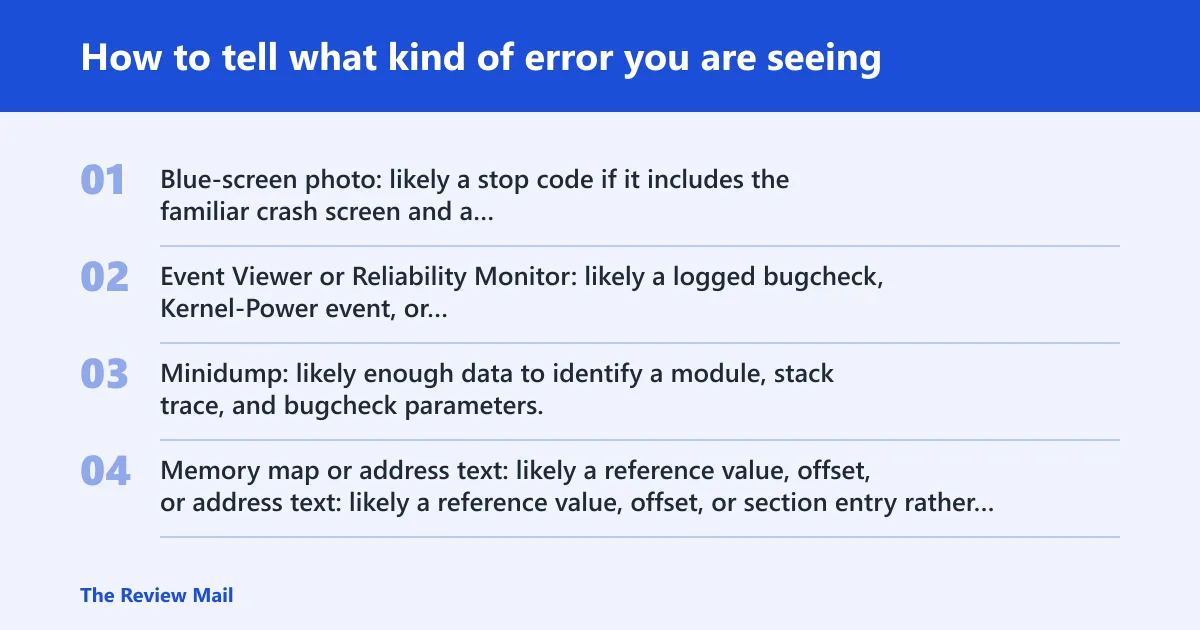
- Blue-screen photo: likely a stop code if it includes the familiar crash screen and a label.
- Event Viewer or Reliability Monitor: likely a logged bugcheck, Kernel-Power event, or follow-up driver error.
- Minidump: likely enough data to identify a module, stack trace, and bugcheck parameters.
- Memory map or address text: likely a reference value, offset, or section entry rather than a crash code.
| Source of the sighting | What it usually is | Next best action |
|---|---|---|
| Blue-screen photo | Possible Windows stop code | Write down the full code and any parameters, then check Event Viewer |
| Event Viewer or Reliability Monitor | Logged bugcheck or Kernel-Power follow-up | Match the timestamp, then inspect the bugcheck event and recent driver changes |
| Minidump in WinDbg | Crash dump with module and stack data | Run !analyze -v and inspect the failing module and stack trace |
| Memory map or address text | Offset, reference, or section entry | Do not treat it as a BSOD yet; identify the file or map format first |
Likely causes ranked by how often they show up
Most often, this kind of crash follows a bad driver after a recent update. Less often, unstable RAM settings, storage corruption, or a BIOS or hardware change create the same stop. Use the source of the number to narrow the branch before you change anything major.
Problem driver after an update
If the crash started after a driver install or Windows update, start with that branch. Recent display, storage, chipset, or antivirus filter drivers are common suspects in post-update crashes.
Faulty RAM or unstable XMP/EXPO settings
Memory instability can surface as random stop codes, boot loops, or crashes that move around between apps. I’ve fixed more than one machine by turning off XMP or EXPO in BIOS and retesting before touching anything else.
Storage corruption or a failing SSD/HDD
Repeated boot-time crashes, file corruption, and long repair times often point toward storage or system-file damage. I see this most when a drive starts throwing read errors, then the same stop code returns after a clean reboot.
Firmware, BIOS, or recent hardware change
New RAM, a motherboard setting change, or a BIOS update can shift stability without changing Windows itself. If the crash started right after hardware work, test that branch before chasing software ghosts.
Use this triage table first
This is the quickest way to choose the right lane. It separates screenshot-only cases from cases where dump analysis is available, which matters because the fix path is different for each.
- Source: blue-screen photo. Record the full text, then open Settings > Windows Update > Update history and Control Panel > Security and Maintenance > Reliability Monitor to correlate the time of the crash.
- Source: Event Viewer or Reliability Monitor. Open Event Viewer with Win+R, type
eventvwr.msc, and check the System log for the bugcheck and Kernel-Power entries near the crash time (per Microsoft support). - Source: minidump in WinDbg. Open the dump in WinDbg, run !analyze -v, and note the failing module, stack trace, and bugcheck parameters.
- Source: memory map or address text. Identify the file, section, or offset first; do not apply BSOD fixes until you know whether the value is a reference, not a stop code.
How to check logs and dump files for the real culprit
If you can reach logs or dumps, you can usually get past the ambiguity. Event Viewer gives the time link. A minidump gives the crash shape. Together they show whether a driver, memory fault, or storage issue lined up with the stop.
Check Event Viewer and Reliability Monitor
- Press Win+R, type
eventvwr.msc, and press Enter. - Open Windows Logs > System.
- Look for the bugcheck and Kernel-Power entries at the same time as the crash.
- Open Control Panel > Security and Maintenance > Maintenance > View reliability history and match the timestamp to recent driver or hardware changes.
Open the minidump in WinDbg
Minidumps are small crash dump files that often identify the failing module. In WinDbg, run !analyze -v, then read the bugcheck data, stack trace, and blamed module name. If several dumps point to the same binary, that is a strong lead (per Microsoft support).
Match the crash time to changes
Check the install date for the last driver, BIOS update, or hardware swap. If the crash started within minutes or hours of that change, that branch gets priority over generic repair commands.
How do I fix a 0x00000154 error after a driver update?
If the first crash followed a driver update, roll that driver back or remove it before you start disk or memory testing. A bad driver is often the fastest path when the timing lines up with the update. If the issue keeps returning, use Driver Verifier to expose the faulty package.
Roll back or uninstall the last driver change
- Open Device Manager.
- Right-click the recently changed device.
- Select Properties > Driver > Roll Back Driver if available.
- If rollback is unavailable, choose Uninstall device, then reboot.
Use Driver Verifier to surface the bad driver
- Open Start and search for verifier.
- Choose custom settings for standard driver checks.
- Select non-Microsoft drivers first, if available.
- Reboot and wait for the crash to repeat under test conditions.
Try Safe Mode or a clean boot
- Open msconfig.
- On Services, check Hide all Microsoft services, then disable the rest.
- On Startup, open Task Manager and disable startup items.
- Reboot and test. If the crash stops, re-enable items in small groups.
Can bad RAM or storage trigger 0x00000154?
Yes. Memory instability and storage faults can trigger the same stop, especially when the crash happens during boot, file access, or after waking from sleep. If driver rollback did nothing, test RAM and disk health next.
Test memory
- Press Start, type Windows Memory Diagnostics, and press Enter (per Microsoft support).
- Choose to restart now or schedule the test for later.
- If the machine uses XMP or EXPO, turn that profile off in BIOS or UEFI and retest.
- For a deeper pass, boot MemTest86 from external media.
Check storage and system files
- Open an elevated Command Prompt.
- Run
chkdskC: /f /r. - Run
sfc /scannow. - Run
DISM /Online /Cleanup-Image /RestoreHealth.
Look for signs of a failing drive
Repeated CHKDSK repairs, missing files, or crashes that return after a clean boot make storage a stronger suspect. If the drive health tool from your vendor reports warnings, back up data before continuing.
Still not working?
If driver rollback, memory testing, and disk checks do not settle it, move to a repair install before a full reinstall. When dump files exist but the blame keeps moving, the case needs deeper crash forensics rather than more random repairs. If the PC still cannot boot reliably, vendor support or a repair shop is the sensible next stop.
If that didn’t work, try this next
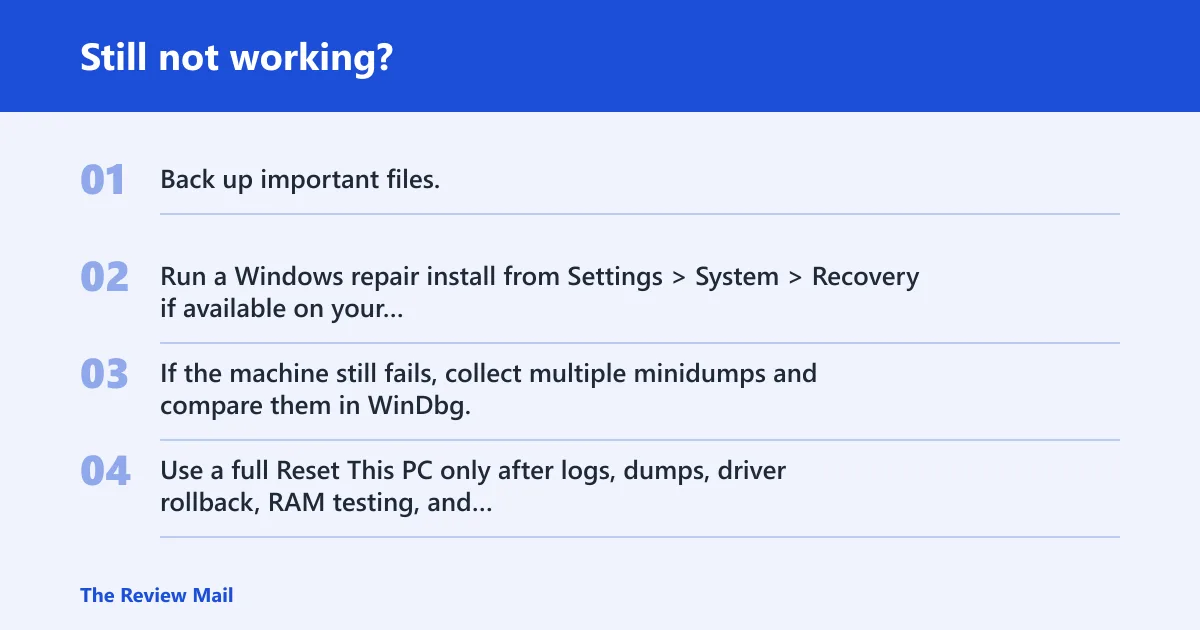
- Back up important files.
- Run a Windows repair install from Settings > System > Recovery if available on your version.
- If the machine still fails, collect multiple minidumps and compare them in WinDbg.
- Use a full Reset This PC only after logs, dumps, driver rollback, RAM testing, and storage repair have failed.
Prevention: After the machine is stable, avoid changing the memory profile, chipset driver, and BIOS at the same time. Make one change, then test for several boots before moving to the next.
Frequently asked questions
What does 0x00000154 mean on a blue screen?
On a BSOD, it is the bug check value for UNEXPECTED_STORE_EXCEPTION (per Microsoft support). The next step is to confirm the full stop screen or dump context, then check Event Viewer and any minidump before changing drivers or hardware settings.
Is 0x00000154 a Windows stop code or a hex offset?
It can be either, depending on where you found it. In a crash screen or dump, it may be the stop code; in a memory map or address string, it may be a plain reference value. Check the artifact type first, then choose the fix path.
What causes a 0x00000154 BSOD in Windows 11?
The most common branches are a bad driver after an update, unstable RAM settings, storage corruption, or a recent firmware or hardware change. On Windows 11, check Reliability Monitor, then open Event Viewer and review any minidump before running broader repair steps.
How do I fix a 0x00000154 error after a driver update?
Go to Device Manager, roll back the recently changed driver, or uninstall it and reboot. If the crash repeats, turn on Driver Verifier for non-Microsoft drivers, then test in Safe Mode or a clean boot to narrow the offender.
Can bad RAM or storage trigger 0x00000154?
Yes. Run Windows Memory Diagnostics or MemTest86 for RAM, and use chkdsk, sfc /scannow, and DISM /Online /Cleanup-Image /RestoreHealth for disk and system files. If XMP or EXPO is enabled, disable it and retest.
How do I find the exact failing driver for a BSOD code?
Open the minidump in WinDbg, run !analyze -v, and note the blamed module and stack trace. If several dumps point to the same file, that driver is a strong candidate. Match the crash time to Driver Manager changes and Event Viewer logs.