0x00000080 NMI_HARDWARE_FAILURE Fixes and Checks for Windows
0x00000080 is an NMI_HARDWARE_FAILURE blue screen: Windows got a non-maskable hardware alert, so I look at hardware and firmware before drivers. If you start with software fixes, you waste time and can miss a bad DIMM, PSU, motherboard, or PCIe card. Remove the newest hardware or driver change first, then see whether the crash comes back.
This guide is part of our Windows BSOD stop codes: full list and fixes series.
What 0x00000080 means in Windows
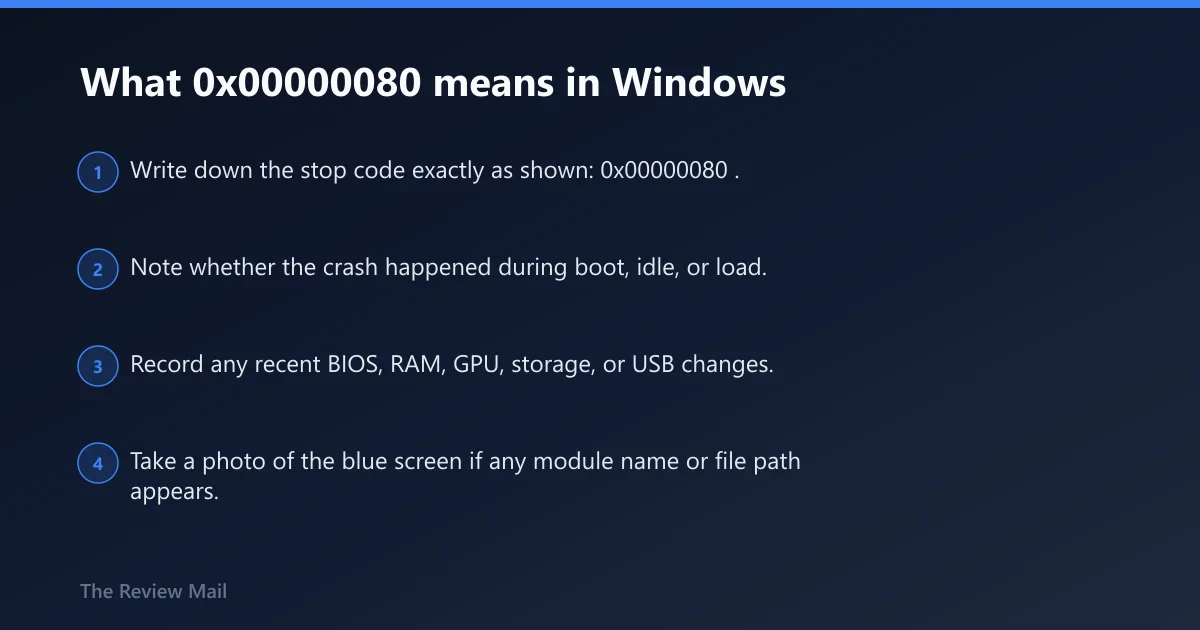
Bug Check 0x80 has the value 0x00000080, and Microsoft labels it NMI_HARDWARE_FAILURE. NMI means non-maskable interrupt, a hardware-level signal that skips normal software handling. That is why this stop code differs from an app crash or a routine driver error. It points straight at a hardware fault, though the exact cause is often hard to pin down from the code alone (per Microsoft support). (Microsoft Learn)
Before you reboot, record the stop code, whether the machine was under load, and any driver or module names on screen. If the screen shows a dump file path, save that too. I use those details later when I compare the crash against memory, power, or add-in card tests.
What information to note before the reboot
- Write down the stop code exactly as shown:
0x00000080. - Note whether the crash happened during boot, idle, or load.
- Record any recent BIOS, RAM, GPU, storage, or USB changes.
- Take a photo of the blue screen if any module name or file path appears.
What usually causes 0x00000080?
The usual suspects are recently added hardware, unstable memory, power delivery faults, add-in cards, and heat problems. The code does not rank them for you, because many hardware faults can trigger the stop and the exact cause is often hard to determine (per Microsoft support). That is why I isolate parts instead of guessing.
Intermittent failures often point to power or heat: the system may run for a while, then fail when load changes. Permanent failures usually repeat at the same point in startup, or fail even after the same part is moved to another slot or test system. Timing matters. It is one of the few clues that separates a weak component from a bad connection.
Likely causes from most to least common
- Recently installed hardware or a driver change
- Unstable or mismatched memory modules
- Loose or failing power delivery hardware
- Nonessential add-in cards
- Heat buildup, fan failure, or blocked airflow
Should I remove recently installed hardware for 0x00000080?
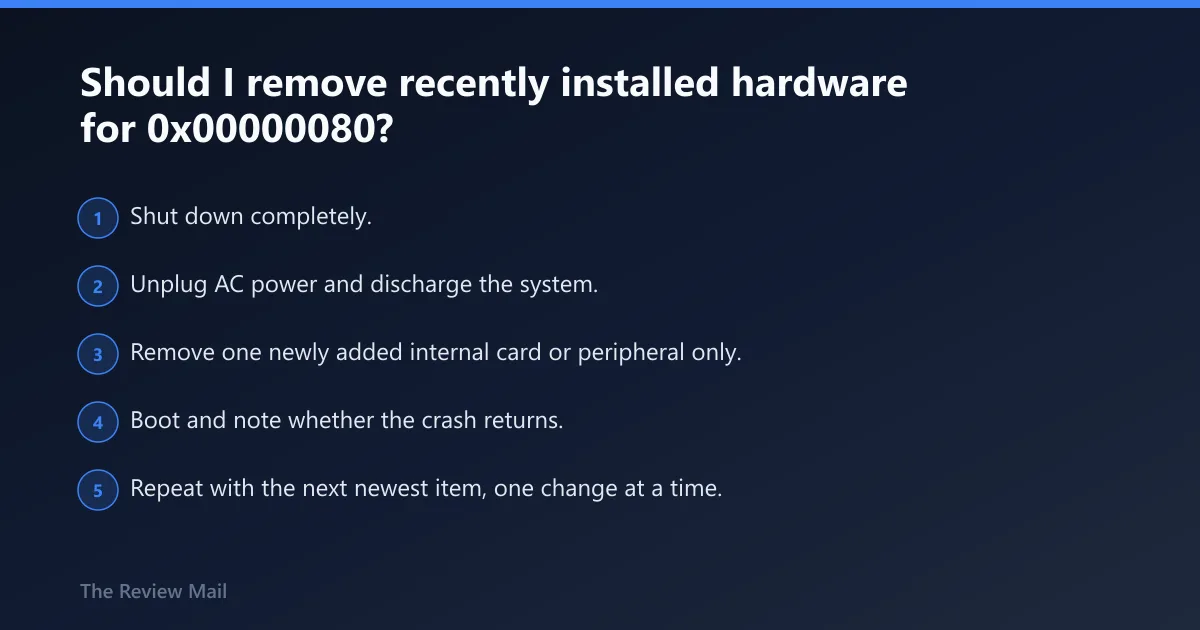
Yes. Remove any hardware or drivers installed recently before deeper testing, because that is the fastest first-pass isolation step Microsoft calls out (per Microsoft support). Test one item at a time and keep a change log. If the crash stops after removal, leave that part out and verify it in another machine or with known-good hardware before you put it back.
- Shut down completely.
- Unplug AC power and discharge the system.
- Remove one newly added internal card or peripheral only.
- Boot and note whether the crash returns.
- Repeat with the next newest item, one change at a time.
- If a removal fixes the crash, keep that part out until it can be tested elsewhere.
Recently installed hardware or driver rollback path
If the part is a device driver rather than a card, open Device Manager, right-click the device, and choose Properties > Driver > Roll Back Driver or Uninstall Device. Reboot after each change. For storage, GPU, Wi-Fi, and chipset drivers, keep the test window simple: one change, one boot, one result.
Can bad RAM cause bug check 0x80?
Yes. Bad or mismatched memory can trigger the crash, especially when the installed modules are not the same type or when one stick fails only in a specific slot. Microsoft advises checking that memory modules are of the same type (per Microsoft support). Use a one-stick, one-slot test order and record every result.
- Power off, unplug, and remove all but one memory module.
- Install that module in the primary slot recommended by the board manual.
- Boot and run Windows Memory Diagnostic from the Start menu.
- If needed, run a longer pass with memtest86 from bootable media.
- Move the same stick to the next slot and repeat.
- Write down the exact stick, slot, pass/fail result, and error count.
If one stick fails in every slot, replace that module first. If the same slot fails with multiple sticks, suspect the motherboard slot or memory channel. If every module passes alone but fails together, mixing may be the issue.
Check power hardware next
Power faults can trigger intermittent crashes that look random at first. Inspect the main power connectors, the CPU power lead, and any PCIe power connectors for looseness, heat damage, or bent pins. If the system clicks, rattles, or a drive makes mechanical noise, disconnect secondary drives and retest. A noisy drive can be a separate fault or a clue that power is unstable under load (reported by windowscentral.com).
- Shut down and unplug the PC.
- Reseat the 24-pin ATX connector and CPU power connector.
- Check PCIe power plugs on GPU or add-in cards.
- Inspect for scorch marks, melted plastic, or bent contacts.
- Detach secondary drives if there is clicking or rattling.
- Swap in known-good power hardware or move to bench testing if the crash persists.
When the failure happens only under load, or only after a warm-up period, power delivery and heat move up the list. A PSU that looks fine at idle can still fail when current demand rises.
Could an add-in card or thermal fault be the trigger?
Yes. Remove nonessential add-in cards and boot with the minimum setup. Then check fans, heatsinks, airflow, and dust buildup. A crash that appears only after the machine warms up points away from a fixed part defect and toward cooling or power instability. A crash that happens as soon as a card is installed points more strongly at that card or its slot.
- Shut down and remove nonessential PCIe cards.
- Boot with only the boot drive, one memory module, a keyboard, and a display.
- Listen for fan startup and watch for sudden thermal shutdown behavior.
- Inspect the CPU cooler, PSU fan, intake fans, and exhaust fans for blockage.
- Clear dust from heatsinks and airflow paths.
- Reinstall cards one at a time until the crash returns.
If the system behaves normally at idle but fails under stress, the timing matters. That pattern can separate a weak card from a cooling fault, especially when the same setup survives only when the case is open or the load is reduced.
Use this hardware-isolation checklist
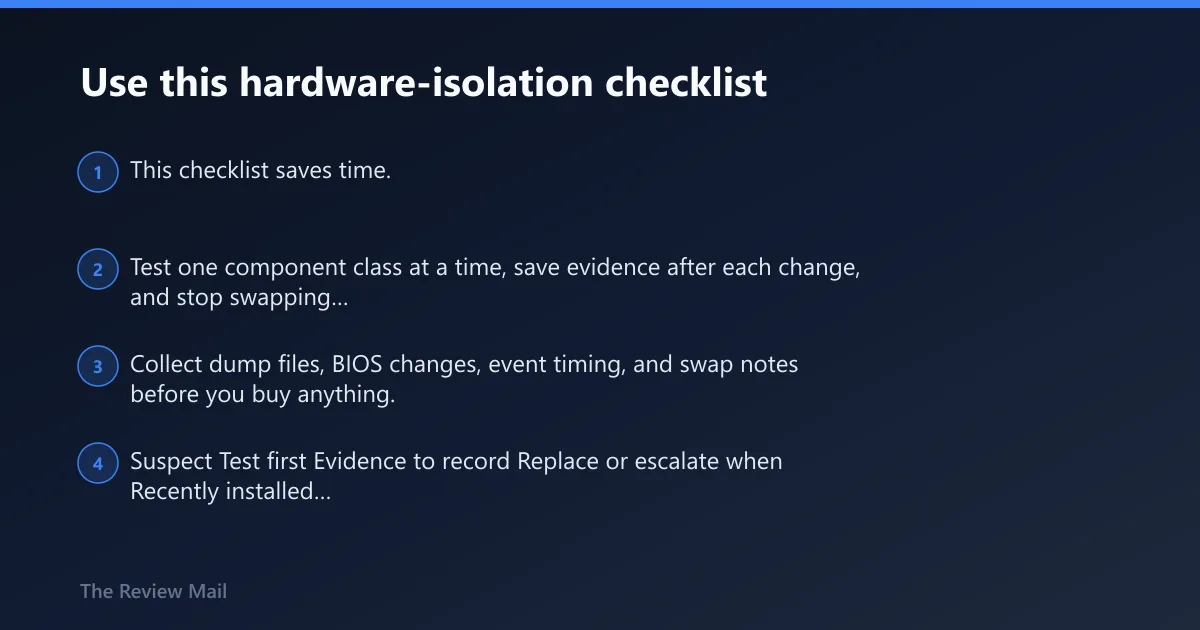
This checklist saves time. Test one component class at a time, save evidence after each change, and stop swapping parts until the pattern is clear. Collect dump files, BIOS changes, event timing, and swap notes before you buy anything.
| Suspect | Test first | Evidence to record | Replace or escalate when |
|---|---|---|---|
| Recently installed hardware | Remove one new card or peripheral | Boot result, exact item removed, date/time | The crash stops only when that item is absent |
| Memory modules | One stick at a time, then move slots | Stick ID, slot, pass/fail, error count | A stick fails everywhere, or one slot fails every stick |
| Power hardware | Reseat 24-pin, CPU, and PCIe power | Connector condition, load behavior, noise | Crashes persist after known-good power is fitted |
| Add-in card | Boot with minimum hardware | Which card was removed, whether crash timing changed | The crash returns only when that card is installed |
| Cooling / thermals | Check fans, heatsinks, dust, airflow | Fan speed, heat buildup, crash timing under load | The fault tracks temperature or load, not a specific part |
When should you stop software troubleshooting?
Stop chasing software when the dump data and swap tests keep pointing back to hardware. Open the dump in WinDbg and run !analyze; Microsoft says that debug extension shows information about the bug check and can help with root-cause work (per Microsoft support). Use it to confirm whether the trace is useful, not to force a software story onto a hardware signal.
- Collect the latest minidump or memory dump before changing more parts.
- Run !analyze in WinDbg and save the output.
- Compare the result with your swap log and crash timing.
- If the same part fails in another system, replace that part.
- If the motherboard or CPU remains suspect after known-good swaps, move to bench testing or a repair shop.
Prevention: after the repair, avoid mixing memory types and keep a record of firmware, driver, and hardware changes so the next failure is easier to isolate.
Is 0x00000080 the same as NMI_HARDWARE_FAILURE?
Yes. 0x00000080 is the bug check value, and NMI_HARDWARE_FAILURE is the label Windows uses for it. When that stop code appears, the signal means a non-maskable hardware alert reached Windows and the failure path should be treated as hardware-first.
What causes a 0x00000080 BSOD?
Common triggers include a newly added card or driver, unstable RAM, a weak power path, a faulty add-in card, or a heat-related fault. The exact cause is often hard to pin down from the stop code alone, so the best evidence comes from one-part-at-a-time testing and the crash timing.
How do I fix NMI_HARDWARE_FAILURE 0x00000080?
Start by removing any recent hardware or driver change, then test memory one module at a time, then inspect power connectors, and then strip the system to minimum hardware. Use !analyze on the dump if you have one, but do not wait on it before isolating obvious hardware changes.
What should I check first when 0x00000080 keeps happening?
Check the newest hardware or driver change first, then memory, then power connectors. If the crash happens under load or after warm-up, move thermals higher on the list. Save dump files, event timing, and swap notes before changing anything else so the pattern remains easier to follow.
Do I need a dump analysis tool for 0x00000080?
It helps, but it is not the first step. Collect the dump first, then run !analyze in WinDbg if the system is stable enough to boot again. The output can confirm whether the trace gives useful detail, but it should not replace physical isolation of RAM, power, and add-in cards.