0x00000144 BSOD: Causes and Fixes for USB Driver Errors
0x00000144 is a Windows stop code for BUGCODE_USB3_DRIVER. It is used for all USB 3 bug checks. Use the crash timing and the USB-related parameter value, if shown, to guide the next step instead of guessing.
What does stop code 0x00000144 mean in Windows?
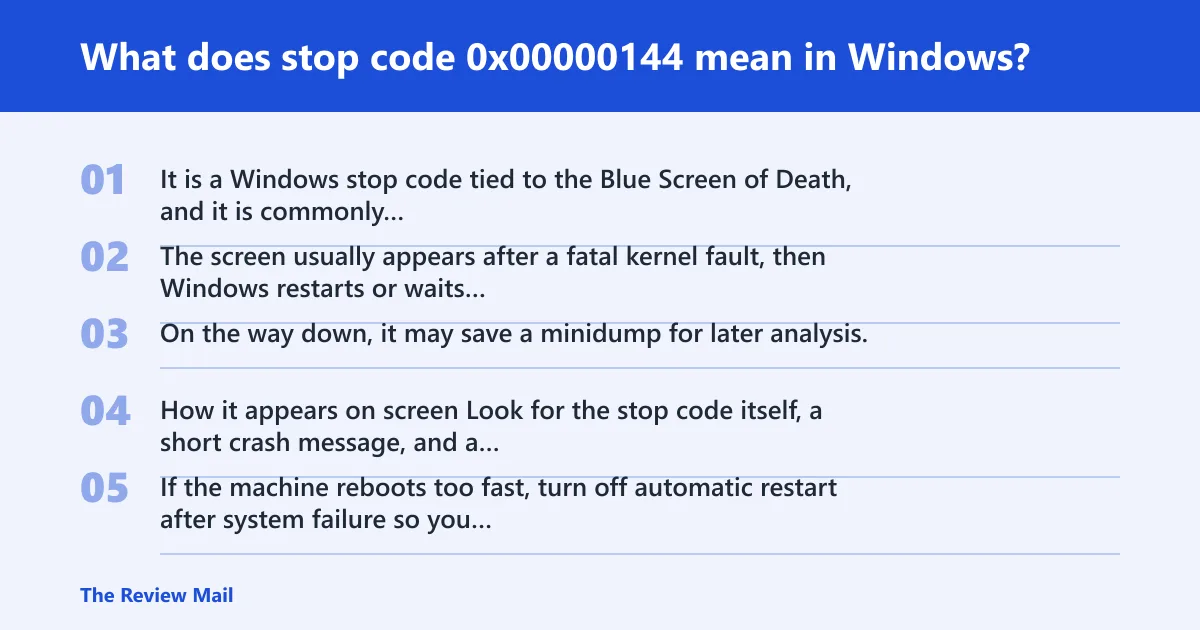
It is a Windows stop code tied to the Blue Screen of Death, and it is commonly associated with BUGCODE_USB3_DRIVER and the value 0x00000144. The screen usually appears after a fatal kernel fault, then Windows restarts or waits for a reboot setting to kick in. On the way down, it may save a minidump for later analysis.
How it appears on screen
Look for the stop code itself, a short crash message, and a sudden reboot. If the machine reboots too fast, turn off automatic restart after system failure so you can read the full screen and match the timing to a minidump.
Why timing matters before you change settings
Boot-time crashes point one way. Crashes after sign-in, during a game, or on USB action point another. The timing is often the best clue you get before logs or dumps are open.
According to DeKoduj.CZ / šifra ze dne 18.10.2017 — The code shown is 0x00000144.
Use this decision tree before changing anything
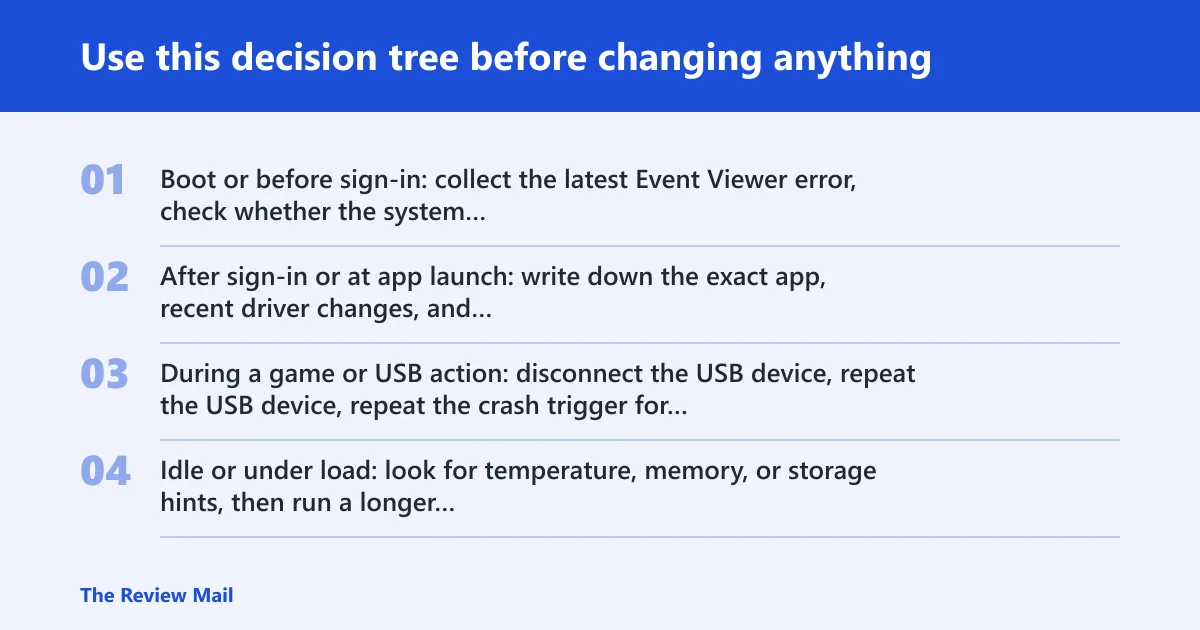
Start with trigger timing, then collect evidence, then pick the safest next test. That order keeps you from replacing the wrong driver or running repairs when the disk is the real problem.
Decision-tree checklist
- Boot or before sign-in: collect the latest Event Viewer error, check whether the system loops through startup repair, then move to disk and firmware checks first.
- After sign-in or at app launch: write down the exact app, recent driver changes, and Windows Update history, then test Safe Mode.
- During a game or USB action: disconnect the USB device, repeat the crash trigger for that same app, game, or USB action, and check whether the same subsystem fails again.
- Idle or under load: look for temperature, memory, or storage hints, then run a longer memory or disk test instead of changing random settings.
| Symptom | Probable cause | First verification step |
|---|---|---|
| Crash during boot, repair loop, or before sign-in | Storage, controller, firmware, or boot-related driver | Open Event Viewer and check for repeated disk or boot errors |
| Crash right after launching one app or game | Device driver or corrupted app component | Launch the same app in Safe Mode or after a clean boot |
| Crash after plugging in USB gear | USB device, hub, or driver stack issue | Repeat the crash trigger with the device unplugged |
| Random crashes, reboots, or mixed symptoms | RAM, XMP, or unstable overclock | Turn off XMP or any overclock and retest |
What evidence to collect first
Find the minidump path at C:\Windows\Minidump, open Reliability Monitor, and check Event Viewer under Windows Logs. Keep the exact crash time, recent changes, and the trigger you can reproduce. That record matters more than a guess.
Likely causes, ranked by the clue you see first
Most often, this stop code is tied to a driver or USB path, but less commonly the real fault is memory, storage, or firmware. The clue is the trigger, not the code by itself.
Could a driver be causing 0x00000144?
Yes. A recent driver update is one of the first things to check, especially if the crash follows a device action, app launch, or game launch. USB-related crashes can also point to a client driver that handled the wrong URB or used static streams incorrectly, per Microsoft support.
Next safest test
- Hold Shift while selecting Restart, then go to Troubleshoot > Advanced options > Startup Settings and start in Safe Mode.
- Repeat the same app launch, game launch, or USB action that caused the crash.
- If the crash stops in Safe Mode, open Device Manager and roll back, uninstall, or update the device driver linked to the trigger.
- If it still crashes, do a clean boot: msconfig > Services > hide Microsoft services and disable the rest, then retest the same trigger.
Could faulty RAM or a driver cause 0x00000144?
Yes. Faulty RAM, unstable XMP, and overclock settings can trigger repeat crashes, but so can a bad driver. Memory failures often look random, while a driver fault usually tracks one action or one device more closely. If the crash pattern changes after boot settings change, that is useful evidence.
Next safest test
- Go into BIOS/UEFI and turn off XMP or any overclock.
- Boot Windows and repeat the same workload that triggered the crash.
- Run Windows Memory Diagnostic; if you want a deeper pass, use memtest86 and let it run long enough to catch repeat errors, not just one quick pass.
- If errors appear, stop using the current profile and keep the result for later diagnosis.
- If the first pass points to memory, shut down, unplug power, and remove AC/battery where possible. Reseat each DIMM and retest.
Is the storage drive or file system failing?
Very possibly. If the crash happens before sign-in, or you see boot-time repair loops and repeated I/O errors, put storage and controller faults near the top. A damaged file system can also make Windows look unstable even when the hardware is only partly at fault.
Next safest test
- Open an elevated Command Prompt and run
chkdskC: /f to fix file-system errors on the Windows drive. - After that, run
sfc /scannow. - If SFC finds corruption or cannot repair files, run
DISM /Online /Cleanup-Image /RestoreHealth. - Watch for repeated I/O errors or boot-time repair loops. If they continue, check drive health in the vendor tool or move the disk to a known-good system for isolation.
How do I fix 0x00000144 on Windows 11?
On Windows 11, start with isolation, then repair. Safe Mode, a clean boot, driver rollback, and integrity checks are the safest first-line moves. If the crash survives those, shift from software repair to hardware checks instead of looping the same steps.
Repair path for Windows 11
- Hold Shift and choose Restart, then use Troubleshoot > Advanced options > Startup Settings to enter Safe Mode.
- Open msconfig, go to Services, hide Microsoft services, and disable the rest for a clean boot test.
- Run
sfc /scannowand thenDISM /Online /Cleanup-Image /RestoreHealth. - If the crash started after a driver update, use Device Manager to roll back or uninstall that driver.
- Retest the same trigger after each change.
How can I check the exact crash details for 0x00000144?
Use the minidump, Event Viewer, and Reliability Monitor together. A dump file confirms the bug check, Event Viewer tells you what happened around the crash time, and Reliability Monitor gives you the timeline. No single tool is enough on its own.
What to open first
- Check
C:\Windows\Minidumpfor the newest .dmp file. - Open Event Viewer and review Windows Logs > System around the crash time.
- Open Reliability Monitor and compare the crash timestamp with app failures, driver installs, and update events.
- If needed, load the dump in WinDbg and confirm the stop code, then look for the driver or module named in the report.
When is 0x00000144 a hardware problem instead of software?
It leans hardware when the crash survives Safe Mode, file checks, and driver rollback, or when the timing points to boot, storage, memory, or firmware before any app even loads. If it appears on a laptop after AC/battery changes, or on a desktop after PSU or motherboard changes, hardware climbs fast on the list.
Where to stop guessing
- If the system still crashes in Safe Mode, stop chasing apps and focus on the subsystem tied to the trigger.
- For boot failures, check storage, controller firmware, and BIOS/UEFI first.
- For random crashes under load, recheck memory and temperatures with XMP off.
- If the crash survives those checks, contact the OEM, a repair shop, or warranty support.
What should I do if 0x00000144 happens only when I launch a specific app or game?
That pattern usually points to the app, its anti-cheat, its overlay, or the device driver it touches, more than to storage or RAM. Repeat the same launch in Safe Mode or a clean boot. If the crash disappears there, focus on the related driver or the app install itself.
App or game branch
- Quit overlays, capture tools, and RGB utilities.
- Launch the app again after a clean boot.
- Update or roll back the GPU, USB, or audio driver tied to the launch path.
- If the app still fails, repair or reinstall it, then retest the same launch path.
Is 0x00000144 related to malware or corrupted system files?
Corrupted system files can matter, and malware checks are reasonable if the system also shows strange startup items, broken security tools, or unexplained app failures. Malware is less likely than a driver or hardware fault when the crash lines up with one device, one port, or one boot stage.
What to run
- Run
sfc /scannow. - Follow with
DISM /Online /Cleanup-Image /RestoreHealth. - If the machine is still stable enough to scan, run a full antivirus scan with the installed security tool.
- If SFC and DISM fail but the disk checks clean, return to driver or hardware isolation.
Still not working?
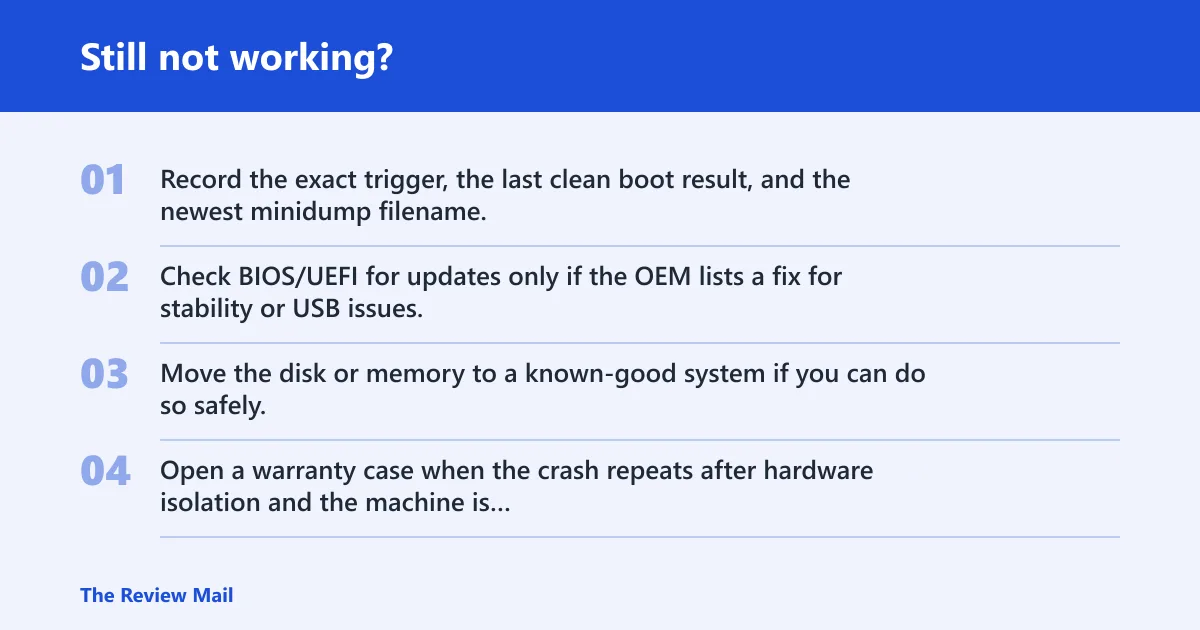
If the crash keeps returning after Safe Mode, clean boot, driver rollback, memory testing, and storage checks, stop forcing software fixes. At that point, the next move is usually firmware, controller, motherboard, or PSU isolation, and that is often better handled with OEM or repair-shop diagnostics.
If that didn’t work, try this next
- Record the exact trigger, the last clean boot result, and the newest minidump filename.
- Check BIOS/UEFI for updates only if the OEM lists a fix for stability or USB issues.
- Move the disk or memory to a known-good system if you can do so safely.
- Open a warranty case when the crash repeats after hardware isolation and the machine is under support.
Frequently asked questions
Why am I getting a 0x00000144 blue screen after startup?
A crash right after startup often points to a boot driver, storage issue, or a device that fails during re-enumeration. Check Event Viewer first, then start in Safe Mode and repeat the same startup sequence so you can see whether the problem follows third-party software.