driver corrupted expool windows 11: fix it fast now
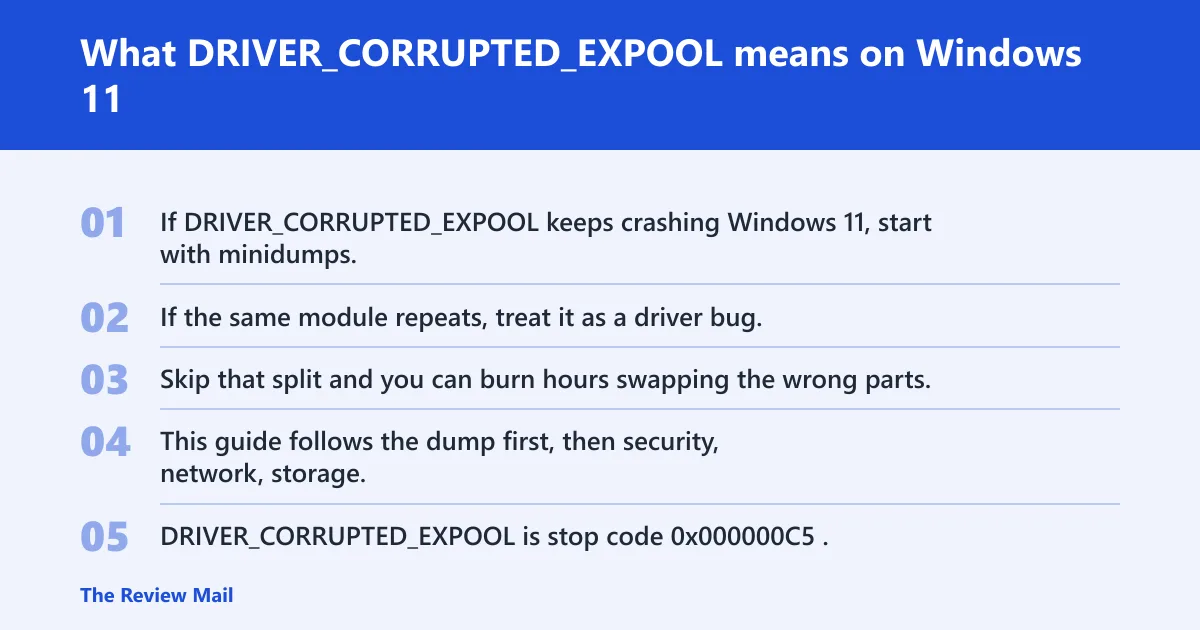
If DRIVER_CORRUPTED_EXPOOL keeps crashing Windows 11, start with minidumps. If the same module repeats, treat it as a driver bug; if crashes move around or memory checks fail, suspect RAM or instability first. Skip that split and you can burn hours swapping the wrong parts, then make boot loops worse. This guide follows the dump first, then security, network, storage, and utility drivers in the order I use on real machines.
DRIVER_CORRUPTED_EXPOOL is stop code 0x000000C5. It points to kernel executive pool corruption, which means something wrote where it should not have written. The driver named on the blue screen is often the victim, not the source.
What DRIVER_CORRUPTED_EXPOOL means on Windows 11
That matters because pool corruption can show up far from the real fault. A GPU utility, a VPN filter, a security hook, or unstable memory can damage the pool earlier, while a later driver takes the blame when Windows finally stops.
What pool corruption usually tells you about the failure path
Pool corruption is a memory-safety failure. A driver touched freed memory, used a bad pointer, or collided with unstable RAM or memory timings. The useful clue is repetition: the same module across several crashes is stronger evidence than one lonely screen.
How do I read the minidump first?
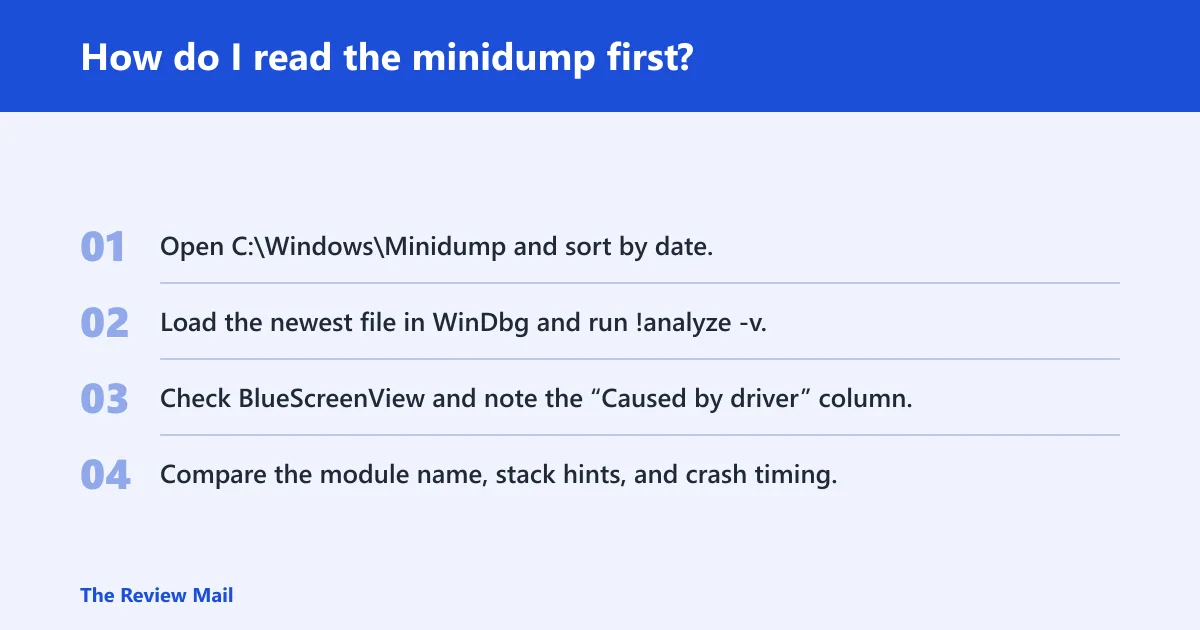
Start with the newest minidump in C:\Windows\Minidump, then compare WinDbg !analyze -v with BlueScreenView’s “Caused by driver” column if you have both tools available. If both point to the same module, treat that driver or its category as the lead suspect and begin with rollback-ready changes.
Find the newest dump and read it
- Open
C:\Windows\Minidumpand sort by date. - Load the newest file in WinDbg and run !analyze -v.
- Check BlueScreenView and note the “Caused by driver” column.
- Compare the module name, stack hints, and crash timing.
Techeia recommends starting with the latest minidump, and that is the right order here. A single old file can point to a driver that has already changed, while the newest dump usually matches the current fault path.
When the dump names a driver, what to do next
If the same driver appears again, use the vendor’s latest package or remove it if it is an add-on you do not need. After any risky change, keep a rollback point: export the driver version, note the package name, and be ready to restore the prior release.
Use this decision checklist before changing anything
This checklist separates true driver faults from unstable memory or overclocking. Use one branch only at first. That keeps the system from changing in three directions at once, which is how many repair jobs turn into guesswork.
| Branch | What you see | Exact next actions | Rollback point |
|---|---|---|---|
| 1. Minidump names a driver | Same module repeats in WinDbg and BlueScreenView | Update or reinstall that driver from the vendor; if it is security, VPN, storage, or utility software, uninstall the package first, then test again | Create a restore point; keep the old installer ready |
| 2. Minidump is inconclusive | Different modules, generic stack, or no useful repeat | Run MemTest86 for memory stability, load BIOS defaults, then use Driver Verifier on a short list of non-Microsoft drivers | Disable Verifier, restore BIOS settings, and re-enable baseline security only |
| 3. Crashes happen only after XMP or EXPO | Stable at BIOS defaults, unstable with memory profile on | Turn off XMP or EXPO, test again, then run MemTest86 before touching drivers | Keep the default memory profile until tests stay clean |
Could faulty RAM or XMP be the real cause?
Yes. Faulty RAM, borderline memory timings, or XMP and EXPO profiles can corrupt pool memory and mimic a bad driver. If crashes start only after memory overclocking, treat the memory profile as suspect before you spend time on driver cleanup.
Run MemTest86 from a bootable USB
Techeia recommends MemTest86, and the practical rule is simple: use a bootable USB and run at least four full passes. Even a single error is usually enough to treat RAM or memory settings as unstable. If errors appear, test sticks one at a time and leave XMP or EXPO off.
Load BIOS defaults and retest
Loading BIOS defaults is the fastest sanity check. It removes memory overclocking, tight timings, and related board tuning from the equation. If the blue screen stops at defaults, Windows is usually not the first problem to chase.
Which driver categories fail most often?
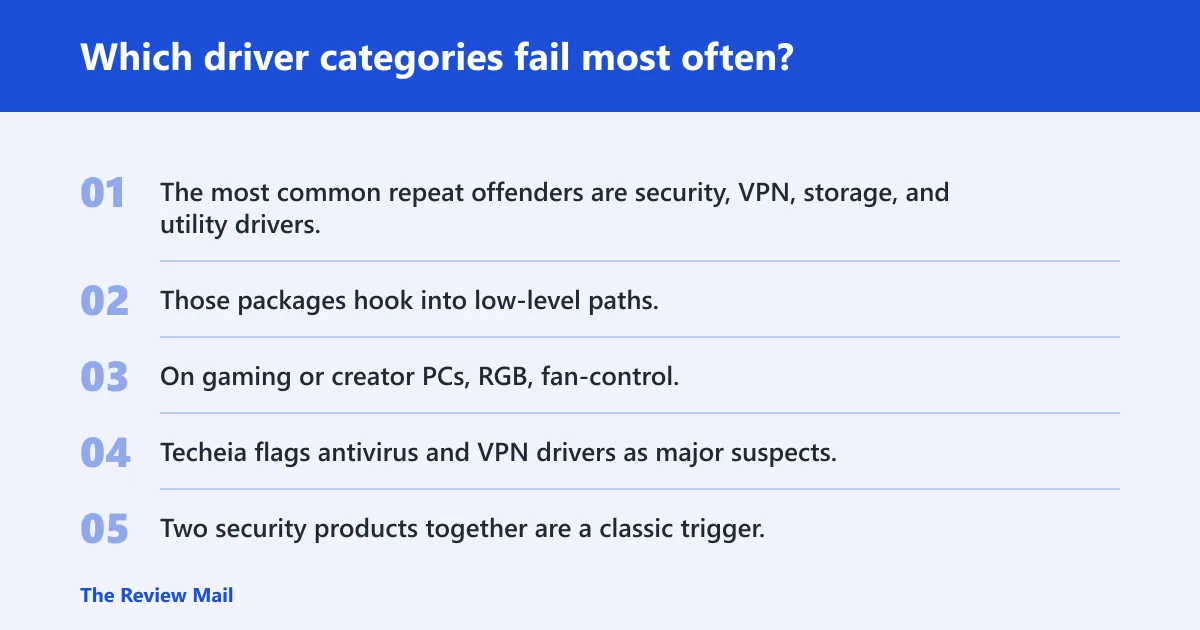
The most common repeat offenders are security, VPN, storage, and utility drivers. Those packages hook into low-level paths, so a bug there can corrupt pool memory long before the stop code appears. On gaming or creator PCs, RGB, fan-control, and motherboard utilities deserve the same suspicion.
Antivirus and EDR drivers
Techeia flags antivirus and VPN drivers as major suspects, and security products are frequent repeat offenders because they inspect deep I/O paths. Two security products together are a classic trigger. If one is third-party, remove the extra layer and leave Windows Security active during testing.
VPN and other network filter drivers
VPN clients often install NDIS filter drivers. Those drivers sit in elevated IRQL contexts, so a bad revision can cause 0xC5 even when the VPN app itself looks fine. Install the latest vendor build, then roll back if the crash returns.
Chipset, storage, NVMe, GPU, and utility drivers
Vendor-supplied chipset packages matter because they touch the direct I/O path. Storage and NVMe drivers can do the same, and a buggy revision can corrupt memory under load. GPU utilities and motherboard tools can also install hidden kernel components that stay behind after a simple uninstall.
Should I update or remove security and VPN drivers?
Yes, when the dump points there. Security and VPN drivers are common 0xC5 suspects because they sit close to disk and network traffic. If the package looks involved, remove the overlapping product first, keep Windows Security on, and retest before reinstalling anything.
Use vendor cleanup tools when uninstalling is not enough
Uninstalling an app does not always remove its kernel driver. That is where vendor cleanup tools matter. Use them when the package leaves behind filter drivers, network components, or self-protection modules that survive a normal uninstall.
Keep Windows Security active while testing
Windows Security should generally stay active during this work. It lets the machine stay protected while a third-party security suite is removed, repaired, or held back for testing. Reinstall the third-party product only after the blue screens stop.
How do I isolate a bad driver with Driver Verifier?
Driver Verifier is the next step when the dump stays vague. Use custom settings and special pool, then select specific driver names from the list so the corruption becomes repeatable. It is meant to force the real offender to fail sooner, not to guess at every driver on the machine.
Turn on special pool for a short test
Techeia notes that Driver Verifier can use special pool, and that is the useful setting here. Start with non-Microsoft drivers only, at least at first. Avoid random selection. Pick the suspicious security, VPN, storage, or utility driver that already has the strongest evidence.
Rollback point: how to turn Verifier off after the test
Keep a clear escape route. If the system starts boot-looping or the test is finished, turn Verifier off from Safe Mode or recovery options before doing anything else. Then reboot, confirm stability, and continue with one branch at a time.
Where do I download chipset and GPU drivers safely?
Use the device maker or motherboard vendor, not third-party driver sites. Vendor chipset packages are often recommended, and NVIDIA and AMD both provide official driver paths for Windows 10 and 11. That matters because the wrong revision can create the same corruption you are trying to fix.
Use official vendor categories
- Chipset: motherboard or system vendor package first.
- Storage and NVMe: device or board vendor package.
- GPU: the official NVIDIA or AMD driver portal.
- Utilities: the hardware maker’s support page only.
OEM laptops deserve extra caution. Their audio, touchpad, thermal, and power-management drivers are often packaged for that exact model, and a generic replacement can break a working setup.
How to fix corrupted drivers windows 10
The same dump-first method can also work on Windows 10. Read the minidump, separate a named driver from memory instability, then test security, VPN, storage, and utility suspects in that order. Do not start with reinstalling Windows unless the machine cannot stay stable long enough to gather evidence.
Use the same rollback discipline
Every risky change needs a rollback point: a restore point, a saved installer, or a note of the prior driver version. That prevents a bad update from becoming the second problem. The fix should leave you with a known good path back.
Frequently asked questions
how do I fix DRIVER_CORRUPTED_EXPOOL on Windows 11
Start with the newest minidump, then decide whether the crash points to a driver or to memory instability. Install the vendor’s latest driver or remove it, run MemTest86, and turn off XMP or EXPO while you test. Keep a rollback point after every change.
what causes DRIVER_CORRUPTED_EXPOOL blue screen
The stop code is tied to kernel executive pool corruption. Common causes can include bad driver writes, security and VPN filter drivers, storage path bugs, and unstable RAM or memory overclocking. The crash site is often the victim, so the first module shown is not always guilty.
is faulty RAM a common cause of driver corrupted expool
Yes. Faulty RAM and unstable memory settings can corrupt pool memory and produce the same stop code as a bad driver. Run MemTest86 from a bootable USB for at least four full passes. One error is enough to treat the memory path as unstable.
should I update VPN or antivirus drivers for 0xC5
Yes, especially if the dump points at a security or network filter module. Those drivers are common 0xC5 suspects because they sit deep in I/O paths. If removing one product is not enough, use the vendor cleanup tool and keep Windows Security active during testing.
how do I read a minidump for DRIVER_CORRUPTED_EXPOOL
Open C:\Windows\Minidump, choose the newest file, and run WinDbg with !analyze -v. Then compare the result with BlueScreenView’s “Caused by driver” column. If the same driver repeats, treat that module as the lead suspect and work backward from there.
can XMP or EXPO cause driver corrupted expool
Yes. XMP and EXPO can corrupt pool memory when the memory profile is unstable, even if Windows looks fine at idle. Load BIOS defaults first, then retest. If the crashes vanish, address memory settings before changing drivers.