Driver Verifier Detected Violation BSOD Fix Windows 11
If Windows 11 loops on DRIVER_VERIFIER_DETECTED_VIOLATION, boot Safe Mode and turn off Driver Verifier first. If the PC starts normally after that, Verifier caught a bad driver, and you can roll back, update, or remove that device-class driver. Leaving it alone can trap you in a boot loop and keep breaking the same driver path. This guide shows the crash-first decision path, how to disable Driver Verifier, how to identify the faulty driver, and when dump analysis is the next step.
What Driver Verifier Detected Violation means in Windows 11
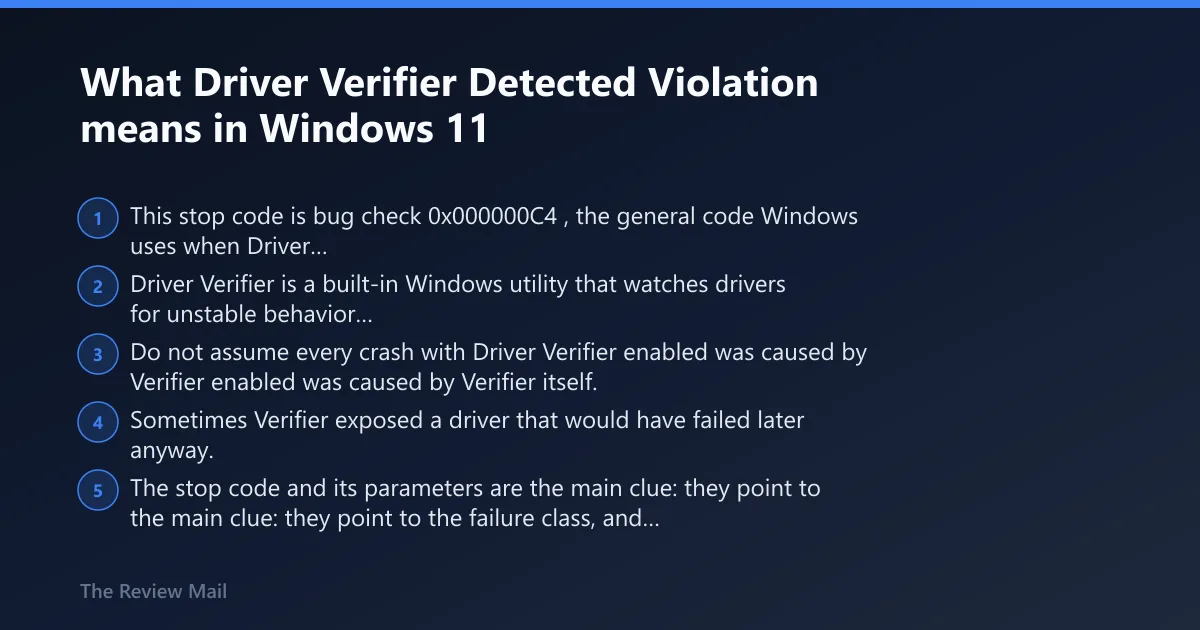
This stop code is bug check 0x000000C4, the general code Windows uses when Driver Verifier finds a fatal driver error, per Microsoft support. Driver Verifier is a built-in Windows utility that watches drivers for unstable behavior and can force a blue screen on purpose when a driver breaks memory or IRQL rules.
Do not assume every crash with Driver Verifier enabled was caused by Verifier itself. Sometimes Verifier exposed a driver that would have failed later anyway. The stop code and its parameters are the main clue: they point to the failure class, and sometimes to the device family.
What the stop code and parameters can tell you
Microsoft says bug checks are the common blue screen stop codes, and WinDbg can display information about a bug check code. The hex code and parameters matter. Prefix code values with 0x if the radix is not 16.
Collect the exact STOP code/parameters from the blue screen or C:\Windows\Minidump\*.dmp.
Use WinDbg !analyze -v on the dump.
Write down the bug check name, hex code, and four parameters.
Examples in the same family include IRQL_NOT_LESS_OR_EQUAL as bug check 0x0000000A and MEMORY_MANAGEMENT as bug check 0x0000001A. Those names help separate a driver fault from a memory fault.
Which fix should you try first?
Start by matching the crash pattern to the safest next step. If Windows still boots, use Device Manager first. If Windows will not reach the desktop, disable Driver Verifier from Safe Mode or the Recovery Environment. The table below sorts the usual patterns before you make the wrong change.
| Likely symptom pattern | Most probable faulty driver class | Safest next action |
|---|---|---|
| Crash starts right after a GPU driver update, game launch, or display flicker | GPU driver, often NVIDIA or Intel graphics | Boot Safe Mode, then roll back the display driver in Device Manager |
| Crash follows storage changes, boot delays, or disk I/O hangs | Storage, NVMe, SATA, controller, or firmware driver | Disable Verifier, then check Device Manager for the storage controller and roll back only if a recent change exists |
| Crash appears after Wi-Fi drops, docking, or Ethernet changes | Network adapter driver | Uninstall or roll back the adapter driver in Safe Mode, then reboot with the adapter only |
| No desktop, repeated blue screens during startup | Recently installed or incompatible driver, sometimes a peripheral driver | Use Shift + Restart to reach Recovery, then run verifier /reset and disconnect external devices |
Pick the safest next step if Windows still boots
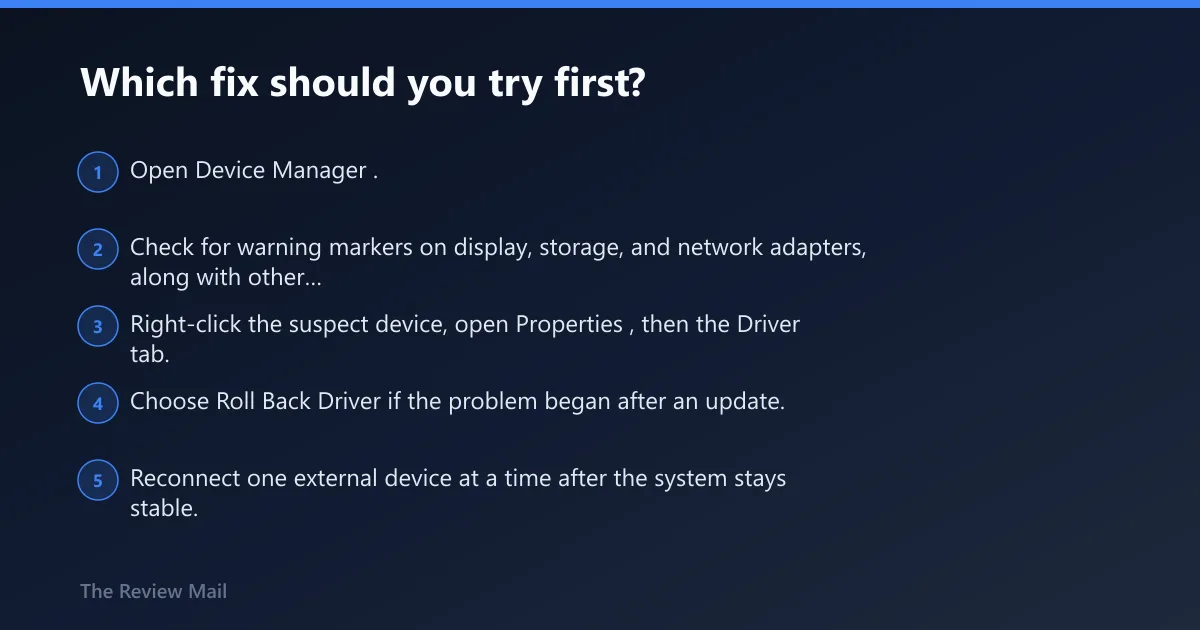
- Open Device Manager.
- Check for warning markers on display, storage, and network adapters, along with other recently added devices.
- Right-click the suspect device, open Properties, then the Driver tab.
- Choose Roll Back Driver if the problem began after an update. If rollback is unavailable, use Uninstall device, then restart.
- Reconnect one external device at a time after the system stays stable.
Pick the safest next step if Windows will not boot
- Hold Shift while selecting Restart from the sign-in or power menu.
- Go to Troubleshoot > Advanced options > Startup Settings > Restart.
- Press the Safe Mode key, then log in.
- Run verifier /reset from an elevated Command Prompt or from Recovery Command Prompt.
- Restart and confirm the boot loop is gone before changing drivers.
How do you turn off Driver Verifier after a BSOD?
Use verifier /reset to disable Driver Verifier, then restart. If the desktop is unreachable, do it from Safe Mode or the Recovery Environment. That is the quickest way to stop Verifier from re-triggering the same boot loop while you repair the driver underneath.
Fastest recovery path
- If you can reach the desktop, open Command Prompt as administrator.
- Run verifier /reset.
- Restart the PC.
- If Windows still loops, hold Shift and click Restart.
- Navigate to Troubleshoot > Advanced options > Startup Settings, then enter Safe Mode and repeat verifier /reset.
What does verifier /reset do? It turns off the Verifier settings that are forcing the crash path, which lets Windows start normally again so you can fix the driver or remove it. It does not repair the driver itself.
Which driver type is most likely failing?
The most common offenders are GPU, storage, chipset, and network drivers. Less often, printers, docks, audio interfaces, and USB devices are involved, especially after a fresh install or a vendor update. Windows Central also notes that compatibility problems with a specific app or security software can sit in the same failure chain, especially during an upgrade.
GPU drivers: NVIDIA and Intel graphics cases
Yes, this stop code can be linked to NVIDIA or Intel graphics drivers. NVIDIA provides official driver downloads and automatic updates, and Intel offers an automatic driver update tool for Intel hardware. Use the vendor package only after Verifier is disabled, or you may keep chasing the same crash loop.
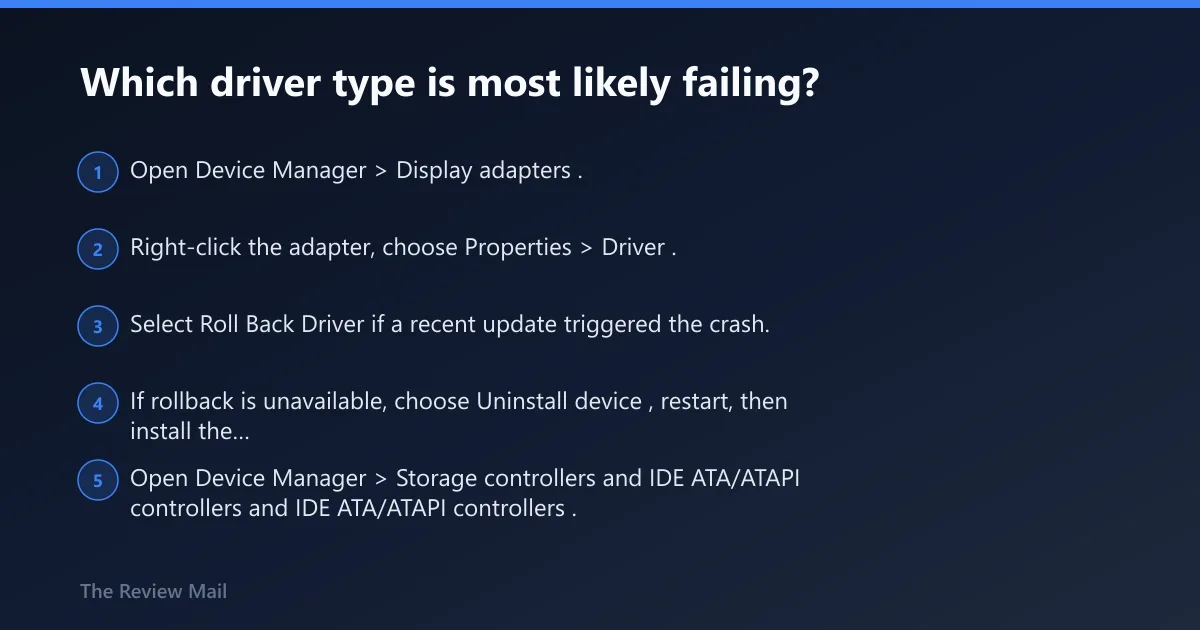
- Open Device Manager > Display adapters.
- Right-click the adapter, choose Properties > Driver.
- Select Roll Back Driver if a recent update triggered the crash.
- If rollback is unavailable, choose Uninstall device, restart, then install the known-good package.
Storage and chipset drivers
Storage and chipset failures often appear as boot hangs, disk timeouts, or a stop code that returns before the desktop appears. Treat these carefully. A bad rollback on the wrong controller can make the machine harder to boot, so verify the device name before changing it.
- Open Device Manager > Storage controllers and IDE ATA/ATAPI controllers.
- Look for a recent driver update or a warning symbol.
- Use Roll Back Driver if the change was recent.
- Restart and test with external drives unplugged.
Network and peripheral drivers
Wi-Fi, Ethernet, printer, dock, and USB interface drivers can all trip Verifier after an update or a new device install. Windows101Tricks recommends disconnecting external devices before rebooting, which matters here because a dock or USB device can keep reintroducing the same bad path.
- Shut down the PC.
- Disconnect USB drives, printers, external hard drives, docks, and audio interfaces.
- Boot again and test stability.
- If the machine holds, reconnect devices one at a time.
Should you update, roll back, or remove a driver?
Roll back first when the BSOD started after a known update. Update when the driver is old, unsigned, or clearly incompatible. Remove the driver when rollback is not available or the device was added recently and Windows started failing immediately after. Device Manager is the right place for all three actions.
Use Device Manager to pick the right move
- Open Device Manager.
- Find the device class that matches the symptom pattern.
- Open Properties > Driver.
- Choose Roll Back Driver after a bad update, or Update driver if the installed version is clearly older.
- If rollback is unavailable, choose Uninstall device, then restart.
One source frames this error around several solutions, and it recommends updating drivers through Device Manager and rolling back a driver if a recent update seems to have caused the issue. That is the right order when the desktop still works.
How do I find the buggy driver causing the BSOD?
Use the dump file when the same crash returns after you disable Verifier and retry the driver fix. The dump, the bug check name, the hex code, and the parameters often point to the device class. WinDbg is the escalation path, not the first move for every user.
Read the dump without guessing
- Open
C:\Windows\Minidump\and sort by date. - Load the newest dump in WinDbg.
- Run !analyze -v.
- Check the faulting module, the bug check code, and the stack hints.
- Match the result to the device class in Device Manager.
Microsoft says WinDbg can display information about a bug check code. That is the point where you stop guessing and move from a general driver class to a specific file name. If the same module appears more than once, that is a stronger clue than a one-off crash.
What causes Driver Verifier Detected Violation?
Most often, the cause is a faulty or incompatible driver that breaks a memory rule, especially after a new install or update. Microsoft documents several common verifier-triggered failures, including invalid pool allocation requests, allocating memory at the wrong IRQL, or freeing an address that was never allocated.
Less commonly, a compatibility issue with an app or security software, a bad upgrade, or corrupted installation files can sit beside the driver problem. Windows Central also notes that hardware needing replacement can be part of the picture, which is why the next section matters when driver changes do not hold.
Can bad RAM cause Driver Verifier Detected Violation?
Yes. Bad RAM can produce verifier-looking crashes because broken memory makes a good driver fail and a bad driver look worse. If the driver rollback does not stop the blue screens, run a memory test before assuming the software fix failed. Memory faults often survive every driver change.
Run memory and storage checks
- Open Windows Memory Diagnostic by running mdsched.exe, or use memtest86.
- Run a storage check with
chkdskon the system drive. - If Windows still boots, run
sfc /scannowand thenDISM /Online /Cleanup-Image /RestoreHealth. - Restart and retest with external devices still disconnected.
How do I boot Safe Mode when Windows keeps crashing?
Use Shift + Restart to reach Safe Mode when normal boot fails. On Windows 11, the path is Settings > Recovery > Advanced startup > Restart now > Troubleshoot > Advanced options > Startup Settings. Safe Mode loads a minimal driver set, which helps avoid third-party drivers while you disable Verifier or roll back the bad one.
When normal sign-in is blocked
- Hold Shift and click Restart.
- Choose Troubleshoot.
- Open Advanced options.
- Select Startup Settings and restart again.
- Choose the Safe Mode option that fits your need.
Still crashing after the driver fix?
If the loop returns after you disable Verifier and repair the obvious driver, stop treating it as a single-driver problem. Disconnect external devices, run RAM and storage diagnostics, and use System Restore if the bad change was recent. If the crash persists, a clean boot or a reinstall becomes the sane next step.
System Restore and the escalation ladder
- Open Control Panel > Recovery > Open System Restore, or use the Recovery Environment if Windows will not boot.
- Choose a restore point from before the driver change.
- If restore fails, use clean boot via msconfig to rule out third-party software.
- If the system still crashes, back up data and consider a repair install or vendor support.
Prevention: After the machine is stable, keep a restore point before major driver updates, and install one device-class driver change at a time so the next crash is easier to trace.
Frequently asked questions
How do I fix Driver Verifier Detected Violation in Windows 11?
Boot Safe Mode, run verifier /reset, then restart. If Windows opens normally, check Device Manager for recent driver changes and roll back the suspect device class first. If the same blue screen returns, use the dump file and !analyze -v to identify the offending module.
Should I update or roll back drivers for this BSOD?
Roll back a driver if the crash began right after an update. Update only when the installed driver is clearly stale or incompatible. In Device Manager, open the device’s Driver tab and choose Roll Back Driver, Update driver, or Uninstall device based on what changed last.
Do I need to use WinDbg for Driver Verifier crashes?
No, not at first. Use WinDbg only when the crash keeps returning after you disable Verifier and test the likely driver class. Then run !analyze -v on C:\Windows\Minidump\*.dmp to confirm the exact module and bug check pattern.