Video driver init failure: fixes and causes on Windows
The VIDEO_DRIVER_INIT_FAILURE: How to Fix the BSOD Error? bug check has a value of 0x000000B4 and indicates that Windows was unable to enter graphics mode. Start with the graphics driver and then work outward to Windows repair and firmware settings if the PC still fails to start normally.
What VIDEO_DRIVER_INIT_FAILURE means
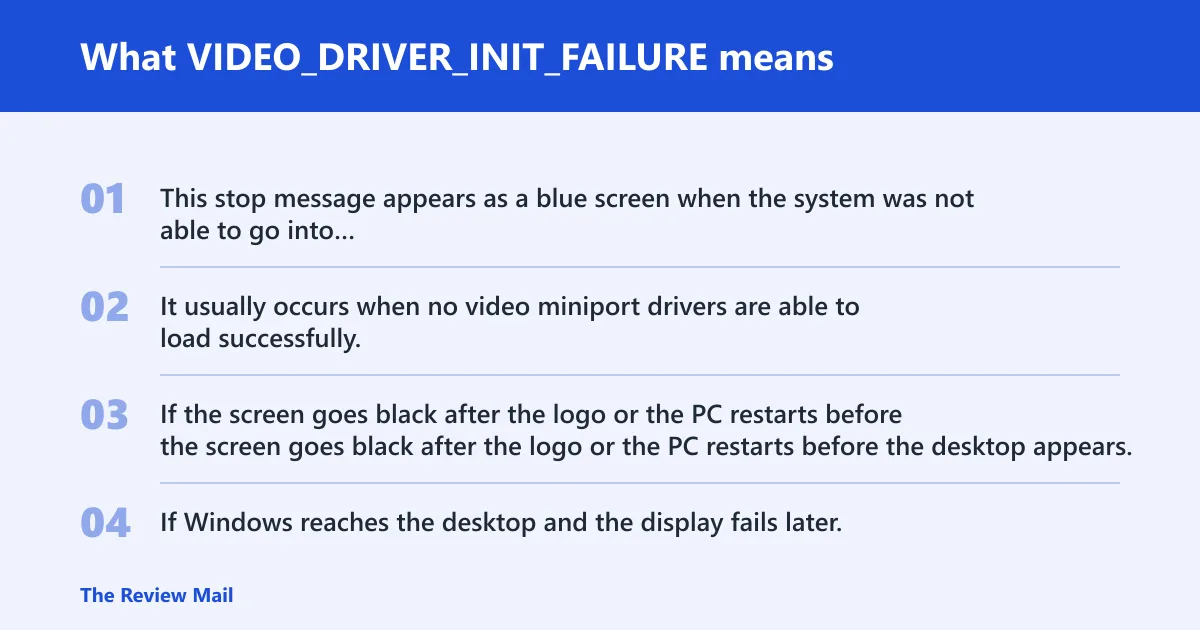
This stop message appears as a blue screen when the system was not able to go into graphics mode because no display drivers were able to start. It usually occurs when no video miniport drivers are able to load successfully.
If the screen goes black after the logo or the PC restarts before the desktop appears, treat it as a startup problem first. If Windows reaches the desktop and the display fails later, focus on the display driver and monitor connection rather than on boot-time repair.
Likely causes
Most often, the cause is a faulty, outdated, incompatible, or corrupted graphics driver. In some cases, Windows files or firmware settings can also interfere with startup.
- Driver integrity problems: faulty, incompatible, outdated, or corrupted graphics drivers.
- Windows image or file damage: corrupted system files or a damaged Windows image.
- Firmware settings issues: incorrect or unstable BIOS/UEFI settings after a change.
Fix a bad or incompatible graphics driver
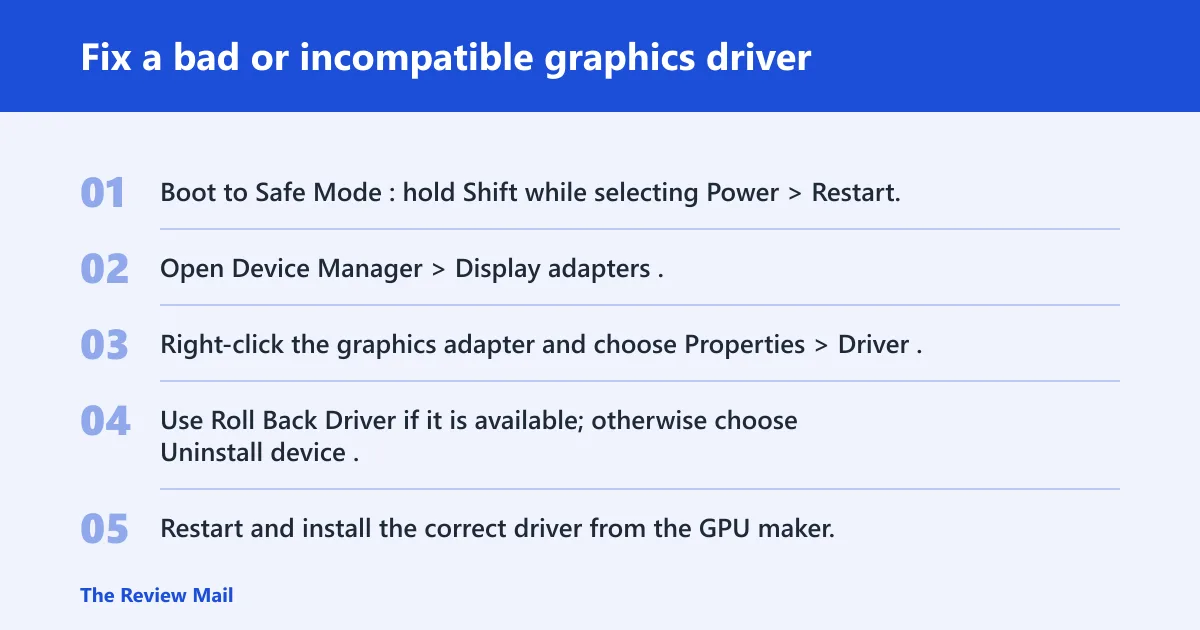
Update the driver only if Windows still boots. If the PC fails before login, remove or roll back the driver from Safe Mode instead.
- Boot to Safe Mode: hold Shift while selecting Power > Restart, then choose Troubleshoot > Advanced options > Startup Settings > Restart and press 4 or 5.
- Open Device Manager > Display adapters.
- Right-click the graphics adapter and choose Properties > Driver.
- Use Roll Back Driver if it is available; otherwise choose Uninstall device.
- Restart and install the correct driver from the GPU maker, or use Update driver in Device Manager if Windows has a stable path back to the desktop.
Check Windows files and repair the image
If the driver looks fine but the system still fails early, repair Windows before you try more hardware changes.
- Open Command Prompt as administrator and run
chkdskC: /f /r. - Run
DISM /Online /Cleanup-Image /RestoreHealth. (Microsoft Learn) - Run
sfc /scannow. (Microsoft Support) - Restart and test the boot again.
Can BIOS or firmware cause this error?
Yes. Incorrect BIOS/UEFI settings can prevent graphics mode from starting, especially after a firmware change or hardware swap.
- Enter BIOS/UEFI setup during startup using the key shown by your device vendor, such as F2, Delete, or Esc.
- Find the option named Load Setup Defaults, Load Optimized Defaults, or a similarly named reset option in the firmware menus.
- Save the change and reboot.
- If the problem started right after a BIOS update, use the vendor’s supported BIOS rollback method if one is available for your model.
- After a stable boot, retest the graphics driver before making more changes.
Use the decision table to narrow the fault
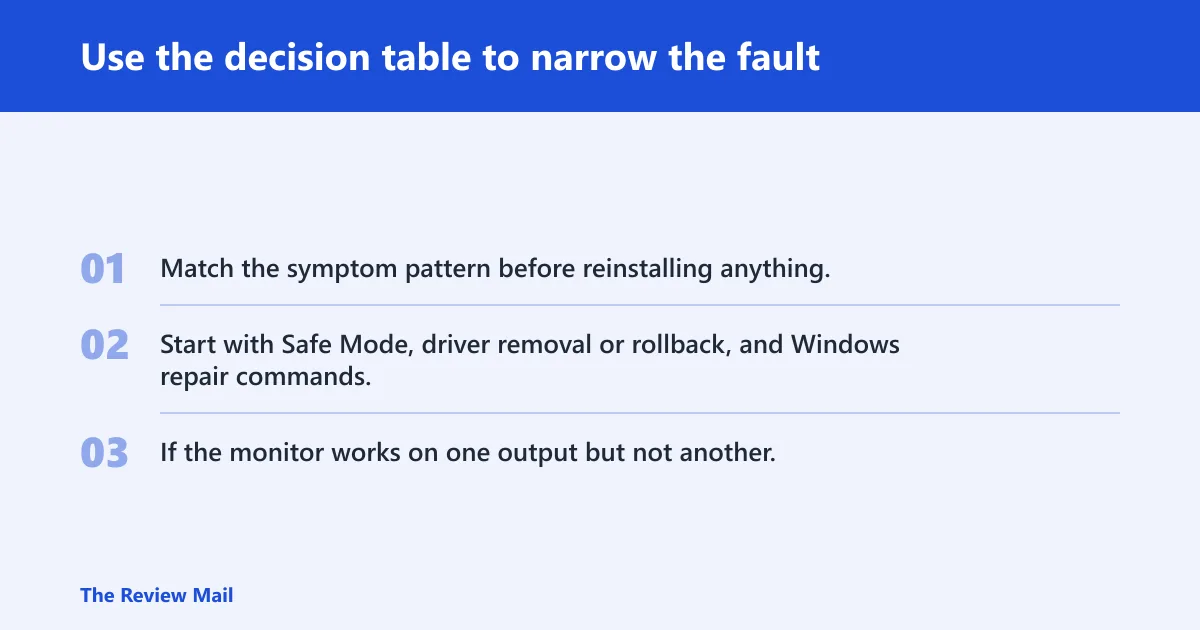
Match the symptom pattern before reinstalling anything. Start with Safe Mode, driver removal or rollback, and Windows repair commands. If the monitor works on one output but not another, the display connection may also be part of the problem.
| Symptom pattern | Most likely cause | First test to run | Safest next action |
|---|---|---|---|
| Boot loop at startup | Driver load failure or broken Windows image | Boot Safe Mode | Run DISM, then remove or roll back the display driver |
| BSOD at startup | Driver cannot start or firmware settings are blocking graphics mode | Disable automatic restart and read the code | Check BIOS defaults, then repair or reinstall the graphics driver |
| Black screen after the logo | Display driver or output path problem | Switch monitor cable or port | Change the display connection, then retest the driver |
| Display works on one GPU output but not another | Output-specific connection issue | Move the monitor cable to another GPU output | Keep the monitor on the working output and reinstall the display driver if needed |
Still not working?
If the driver, Windows repair, and firmware checks do not change the symptom, the graphics hardware may need service. Test with the correct driver installed and the firmware settings restored first, then contact the device or GPU vendor for repair options.
- Run a full virus scan from Windows Security > Virus & threat protection > Quick scan or Scan options > Full scan if you want to rule out additional software interference.
- Use a clean boot to reduce startup conflicts: open System Configuration with msconfig, on the Services tab select Hide all Microsoft services, click Disable all, then on the Startup tab open Task Manager and disable startup items. Restart and test again.
- Use System Restore if a recent driver, firmware, or Windows change preceded the crash.
- If the system still fails after these steps, the GPU or motherboard may need vendor service.
Prevention: Keep Windows and graphics drivers current, and only change firmware settings when you have a specific reason to do so.
Frequently asked questions
What does VIDEO_DRIVER_INIT_FAILURE mean?
It means Windows was unable to enter graphics mode because no display drivers were able to start. The practical first step is to boot Safe Mode and check whether the system can start with the basic display path.
How do I fix VIDEO_DRIVER_INIT_FAILURE 0x000000B4?
Start with Safe Mode, then remove or roll back the display driver in Device Manager > Display adapters. After that, run DISM /Online /Cleanup-Image /RestoreHealth and sfc /scannow, then restart. If the system still crashes at boot, check BIOS defaults and test the monitor cable on a different GPU output.
Is video driver init failure caused by a bad graphics driver?
Yes, often. A corrupt, incompatible, or outdated graphics driver is a common trigger, especially after an update. The cleanest check is to boot Safe Mode and either roll back the driver or uninstall it, then install the correct package from the GPU vendor or use Device Manager to update it.
Can updating Windows fix video driver init failure?
It can help if the installed Windows build needs updates or image repair. Use Settings > Windows Update > Check for updates after you have run DISM and sfc. If Windows will not boot, repair the image first from Safe Mode.
Should I boot Safe Mode before troubleshooting VIDEO_DRIVER_INIT_FAILURE?
Yes. Safe Mode is the right first step when normal boot fails because it strips the system down enough to work with the basic display path. That lets you remove the graphics driver, test repair commands, and check whether the failure is tied to startup components instead of the GPU itself.
Does VIDEO_DRIVER_INIT_FAILURE happen on Windows 10 and Windows 11?
Yes, both versions can show the same 0x000000B4 stop message. The fix path is similar on Windows 10 and Windows 11: Safe Mode, driver removal or rollback, Windows repair commands, and hardware checks. The exact Settings paths differ slightly, but the diagnostic order stays the same.
Can a corrupted BIOS trigger VIDEO_DRIVER_INIT_FAILURE?
Yes. BIOS or UEFI settings can stop graphics mode from starting, especially after a recent firmware change or a settings reset. Load the firmware defaults first, then retest. If the problem began immediately after a BIOS update, use the vendor’s supported rollback method if available.
What should I do if the blue screen keeps restarting before I can read the error?
Disable automatic restart so the code stays on screen long enough to read. Use Control Panel > System > Advanced system settings > Startup and Recovery > Settings, then clear Automatically restart. If Windows will not stay up long enough, boot Safe Mode and change it there.