DATA_BUS_ERROR BSOD Fix Windows 11: What to Test First
Start by checking the most recent hardware or driver change. Then test memory after any RAM swap, storage after any SSD or cable change, drivers after updates, and BIOS after tuning or flashing. Skipping that order can turn one bad setting into repeat crashes, lost files, and wasted parts money. This guide gives a Windows 11 DATA_BUS_ERROR triage path that tells you what to test first based on the change that happened right before the blue screen.
This guide is part of our Windows BSOD stop codes: full list and fixes series.
What DATA_BUS_ERROR means on Windows 11
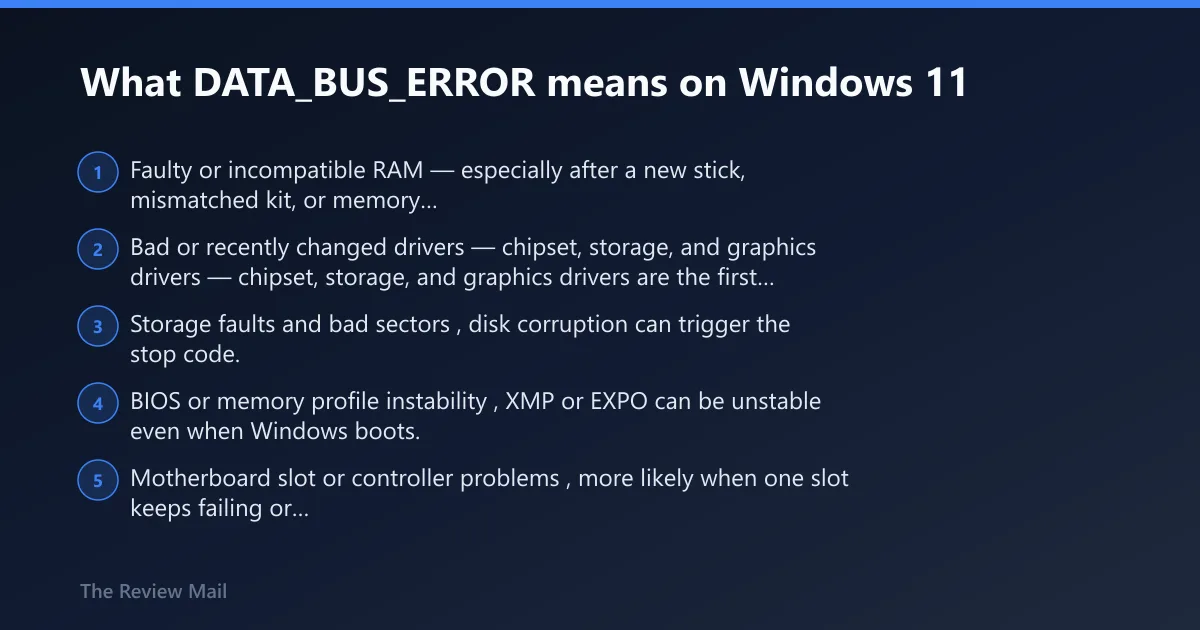
DATA_BUS_ERROR is a blue-screen stop code with bug check value 0x0000002E. It usually points to a parity error in system memory, which is why memory, slot, cache, or bus instability moves to the front before software-only fixes. The crash is usually hardware-related, though a bad driver or disk corruption can be involved. (per Microsoft support)
The fastest first move is to ask what changed right before the crash. That answer usually tells you whether to start with RAM, a driver rollback, storage checks, or BIOS settings instead of guessing.
What changed right before the BSOD?
Look for one recent change: new RAM, a new GPU or SSD, a driver update, a Windows update, or a BIOS setting change such as XMP or EXPO. If the crash started after one of those, test that change first. If nothing changed, move to memory diagnostics and Event Viewer.
Likely causes, ranked by how often they show up
- Faulty or incompatible RAM — especially after a new stick, mismatched kit, or memory profile change.
- Bad or recently changed drivers — chipset, storage, and graphics drivers are the first suspects.
- Storage faults and bad sectors, disk corruption can trigger the stop code.
- BIOS or memory profile instability, XMP or EXPO can be unstable even when Windows boots.
- Motherboard slot or controller problems, more likely when one slot keeps failing or errors return after clean RAM tests.
| Latest change or symptom pattern | Most likely cause | First test to run | If that fails, escalate to |
|---|---|---|---|
| New RAM, reseat, or memory profile change | RAM or slot instability | Windows Memory Diagnostic | Test one stick per slot, then different slots |
| Crash after driver install or Windows update | Driver regression | Device Manager rollback or uninstall | Install the OEM driver package or pause the update path |
| Crash while copying files or booting from drive | Storage corruption | CHKDSK /f /r /x | Vendor storage diagnostics and drive replacement |
| Clean memory test, repeat BSODs, one slot always fails | Motherboard or controller fault | Swap sticks and slots one by one | BIOS update, then board service or replacement |
According to Fix DATA_BUS_ERROR Blue Screen Of Death on Windows 11/10 — DATA_BUS_ERROR bug check value is 0x0000002E.
How do I fix DATA_BUS_ERROR in Windows 11?
Start with the last change, then move through memory, drivers, storage, and BIOS in that order. If Windows will not boot normally, use Safe Mode or Advanced startup first; if it does boot, use Event Viewer and Device Manager before reinstalling anything. That keeps the fix path narrow and avoids random part swapping. (per Microsoft support)
- Open Settings > System > Recovery > Advanced startup > Restart now if Windows is unstable.
- Use Troubleshoot > Advanced options > Startup Settings to reach Safe Mode.
- Check Event Viewer > Windows Logs > System, then filter for Error and Critical.
- Run the memory test, then test storage and recent drivers.
- Only after those steps, review BIOS updates and memory profile settings.
Safe Mode entry:
Settings > Recovery > Advanced startup > Restart now > Troubleshoot > Advanced options > Startup Settings

Memory test:
mdsched.exe

Storage check:
chkdsk /x /f /r

System File Checker + DISM:
sfc /scannow
DISM /Online /Cleanup-Image /RestoreHealth
How do you test RAM first?
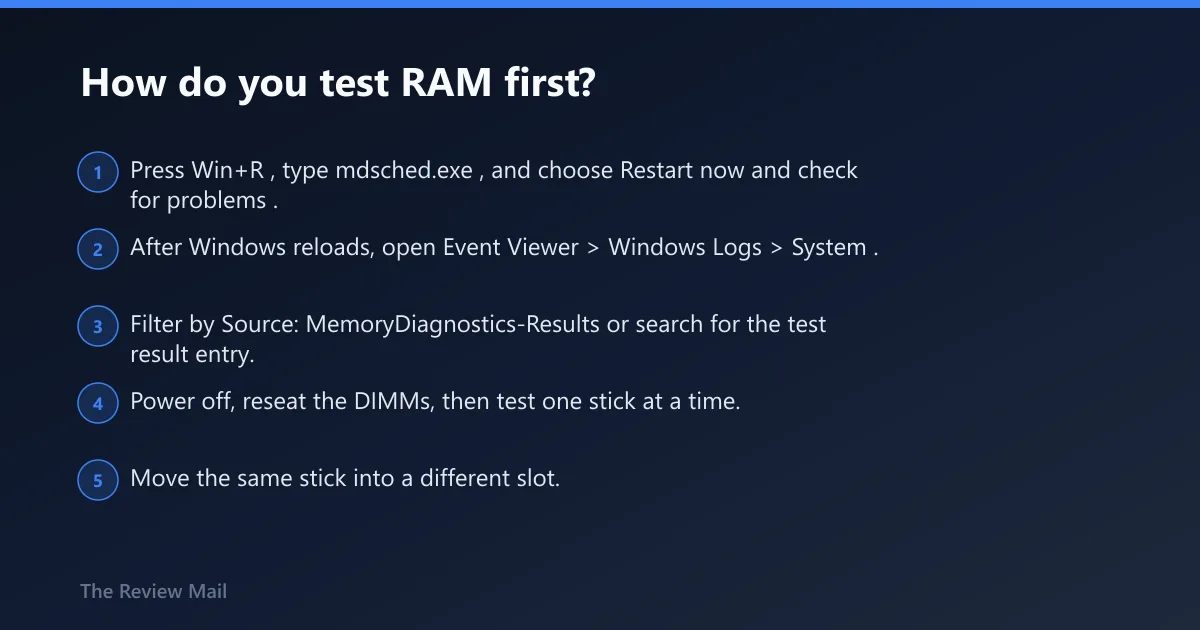
Run Windows Memory Diagnostic first because the stop code often points to system memory, and then verify the result in the System log in Event Viewer. If the result is clean but the crash continues, isolate each stick and each slot, because a bad slot can look like bad RAM. (per Microsoft support)
- Press Win+R, type mdsched.exe, and choose Restart now and check for problems.
- After Windows reloads, open Event Viewer > Windows Logs > System.
- Filter by Source: MemoryDiagnostics-Results or search for the test result entry.
- Power off, reseat the DIMMs, then test one stick at a time.
- Move the same stick into a different slot. If one slot repeats the crash, suspect the board or memory channel.
If Memory Diagnostic finds errors, treat the stick as suspect first. If the test is clean and the BSOD returns only under load or in one slot, that points away from simple bad RAM and toward slot, board, or BIOS instability.
Is DATA_BUS_ERROR caused by RAM or drivers?
Most often it is RAM or another hardware fault, but a bad driver can also trigger the stop code. A recent chipset, storage, or graphics driver is often the first driver path to test, especially if the crash started after an update or after installing new hardware. (per Microsoft support)
- Open Device Manager.
- Expand Display adapters, IDE ATA/ATAPI controllers, Storage controllers, and System devices.
- Right-click the newest or suspicious device, then choose Properties > Driver > Roll Back Driver or Uninstall device.
- Restart and retest before installing anything else.
- Check Windows Update > Advanced options > Optional updates for a newer OEM driver if rollback helps.
If Event Viewer points to a device right before the crash, that device gets priority. If the crash started immediately after a driver swap, the fastest fix is often rollback, not another update.
Can bad hard drive sectors cause DATA_BUS_ERROR?
Yes. Hard disk corruption can trigger this stop code, so CHKDSK belongs in the path when the crash follows file copies, booting, updates, or storage changes. It is less useful when the failure clearly tracks to new RAM or a BIOS memory profile. (per Microsoft support)
- Open an elevated Command Prompt.
- Run
chkdsk /x /f /ron the system volume. - Restart and let the scan finish before judging the result.
- If
CHKDSKreports errors or bad sectors, run the drive maker’s diagnostic tool next. - If storage tests fail twice, plan for backup and drive replacement.
Use CHKDSK to rule out file-system damage and surface defects. Do not treat it as a memory fix; if the machine still crashes after a clean storage scan, move back to RAM, slots, and BIOS.
Should I remove new hardware after a DATA_BUS_ERROR BSOD?
Yes, if the crash began after added hardware, remove that device first and see whether the error returns. New RAM, a new GPU, a new SSD, or a new adapter card can create an incompatibility or seating problem that looks like a deeper system fault. (per Microsoft support)
- Power off and unplug the PC.
- Remove the most recent hardware addition.
- Check that adapter cards are properly seated and contacts are clean.
- Boot and retest before reinstalling anything else.
- If the same crash returns, reinstall the part only after another baseline test.
On a desktop, a reseat is worth doing before replacing parts. On a laptop, the practical version is to remove external adapters and any removable storage first, then retest.
What if DATA_BUS_ERROR started after a Windows update?
If the crash began after Windows Update, test the newest driver path first, then any optional driver updates, because the stop code can follow a driver that no longer matches the system. If the update also changed BIOS-adjacent firmware or memory settings, those come next. (reported by thewindowsclub.com)
- Open Device Manager and roll back the newest relevant driver.
- Check Windows Update > Advanced options > Optional updates for a replacement driver.
- Run Event Viewer > Windows Logs > System and look for the device tied to the crash.
- If rollback helps, leave the older driver in place until the OEM posts a stable release.
- If the PC still crashes, use Safe Mode and remove the update only if the driver path is clean.
Can updating BIOS fix DATA_BUS_ERROR?
Sometimes. BIOS updates can help when the crash follows a new system build, memory profile change, or controller instability, but they are not the first move. If XMP or EXPO is enabled, backing off to default memory settings is often a good first test before flashing firmware. (per Microsoft support)
- Record the motherboard model and current BIOS version.
- Disable XMP or EXPO in BIOS, then retest at default memory settings.
- If the crash continues, check the motherboard vendor site for a BIOS update for your exact model.
- Back up important files before flashing.
- After updating, clear the profile again and test stability before re-enabling memory tuning.
If the machine is already unstable with default memory settings, a BIOS update may help only if the board vendor notes memory compatibility fixes. If the board is old enough that updates have stopped, do not keep chasing firmware as the only answer.
How do I tell whether DATA_BUS_ERROR is a RAM problem or motherboard problem?
Use pattern, not guesswork. If one stick fails in every slot, that stick is the more likely suspect. If one slot fails with known-good sticks, the motherboard or memory channel becomes a more likely suspect. If every test is clean but the crash keeps returning, a board-level fault or BIOS instability becomes more likely. (per Microsoft support)
- Test one RAM stick at a time in the same slot.
- Then move that same stick to each slot.
- Repeat with the second stick if present.
- Use the motherboard vendor’s diagnostics if available.
- If the fault follows a slot, stop replacing sticks and inspect the board.
If Memory Diagnostic reports no errors but the BSOD persists, that is where many guides stop too early. The next step is not a blind RAM purchase; it is slot isolation, BIOS stability review, and then board-level diagnosis.
Still not working?
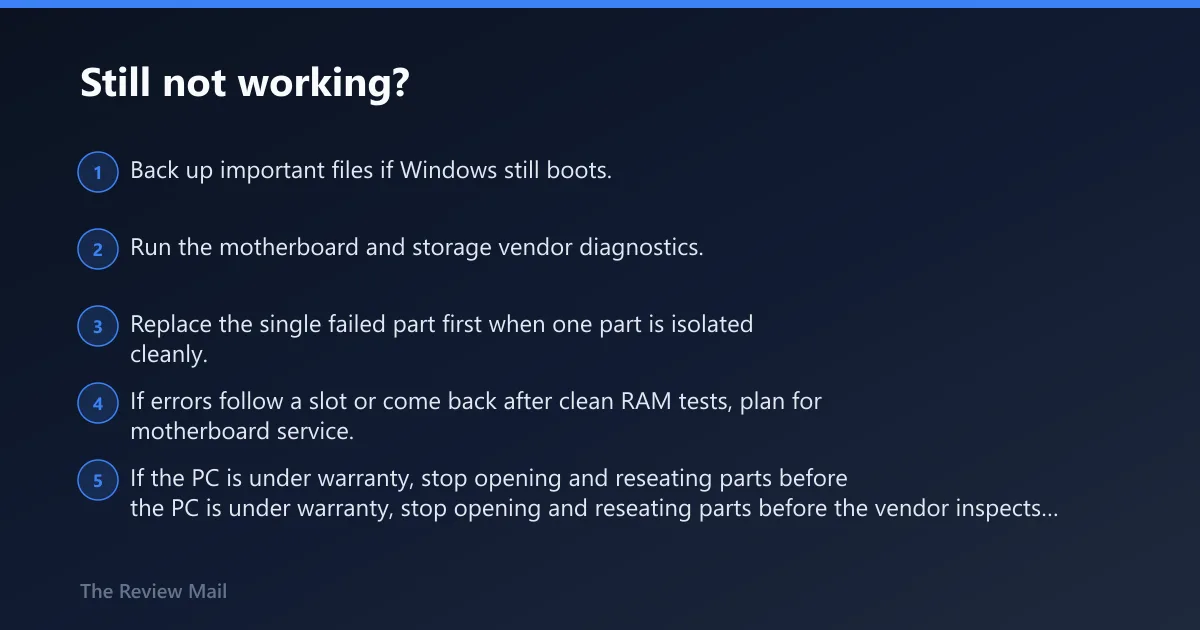
At this point, stop cycling random fixes. If memory, driver, and storage checks are clean, move to motherboard diagnostics, vendor storage tools, or repair service. If the system will not stay up long enough to test, protect data first and then decide whether the cost is a replacement stick, a drive, or a board. (per Microsoft support)
- Back up important files if Windows still boots.
- Run the motherboard and storage vendor diagnostics.
- Replace the single failed part first when one part is isolated cleanly.
- If errors follow a slot or come back after clean RAM tests, plan for motherboard service.
- If the PC is under warranty, stop opening and reseating parts before the vendor inspects it.
Prevention: After the system is stable, keep XMP or EXPO conservative, install one driver change at a time, and note which update came before any future crash. That makes the next failure far easier to sort.