
0x00000035 in Windows: What It Means and How to Fix It
Bug Check 0x35 is the NO_MORE_IRP_STACK_LOCATIONS bug check. On a laptop, it can still show up when a driver chain runs out of room while passing a request to the next layer, so check the last storage, network, filter, or imaging change that was made before the crash.
What 0x00000035 means in Windows
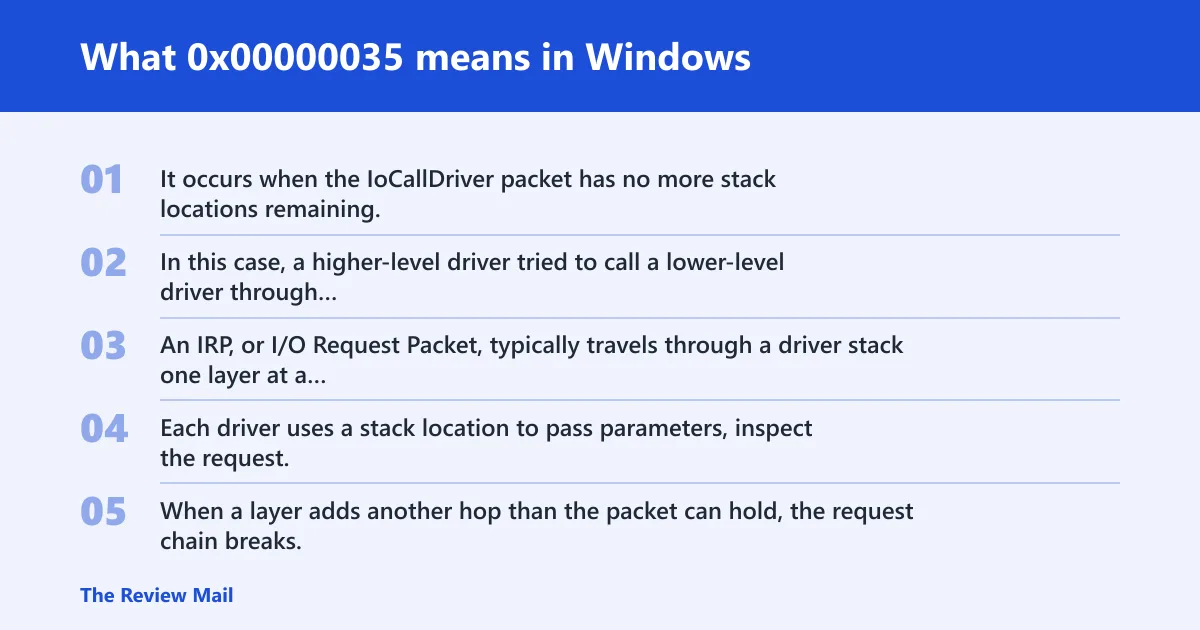
Bug Check 0x35 has a value of 0x00000035. It occurs when the IoCallDriver packet has no more stack locations remaining. In this case, a higher-level driver tried to call a lower-level driver through IoCallDriver, but there were no more stack locations in the packet, which can prevent the lower-level driver from accessing its parameters.
How IRPs move through stacked drivers
An IRP, or I/O Request Packet, typically travels through a driver stack one layer at a time. Each driver uses a stack location to pass parameters, inspect the request, and hand it down. When a layer adds another hop than the packet can hold, the request chain breaks.
Why a driver layer can run out of room
Filter drivers are a common pressure point. Storage and network paths often include upper and lower filters, and extra layers from backup software, antivirus, encryption, or imaging tools can add to the stack.
📊 The bug check value is 0x00000035. Source: Bug Check 0x35: NO_MORE_IRP_STACK_LOCATIONS.
What usually causes this stop code?
The usual cause is a driver-chain problem. The strongest clue is crash context: what changed, what device was active, and whether the failure happened during storage access, network activity, endpoint protection, or an imaging task sequence. Microsoft also notes that this bug check can mean some other memory has been corrupted as well, so a broader hardware check is reasonable if the pattern is not tied to one path.
Use this decision table to find the layer that failed
| Crash trigger | Likely layer | Fastest next diagnostic step |
|---|---|---|
| Blue screen during file copy, disk access, USB storage, or after a storage driver update | Storage controller, disk filter, or USB bridge | Device Manager > IDE ATA/ATAPI controllers, Storage controllers, or Disk drives > Properties > Driver > Roll Back Driver or Update Driver |
| Crash while mapping a drive, joining a VPN, or accessing a network share | NIC driver, VPN client, or network filter | Device Manager > Network adapters > Properties > Driver > Roll Back Driver, then test without the VPN client |
| Crash after antivirus, DLP, backup, encryption, or endpoint agent install | Upper or lower filter driver | Remove the matching security, backup, or encryption app from Settings > Apps > Installed apps, then test from a clean boot |
| Failure during SCCM or imaging at Connect Network Drive | Imaging task sequence plus network stack | Review the task sequence step order and test the same image without extra storage or network filter tools |
Storage driver and filter stack fixes
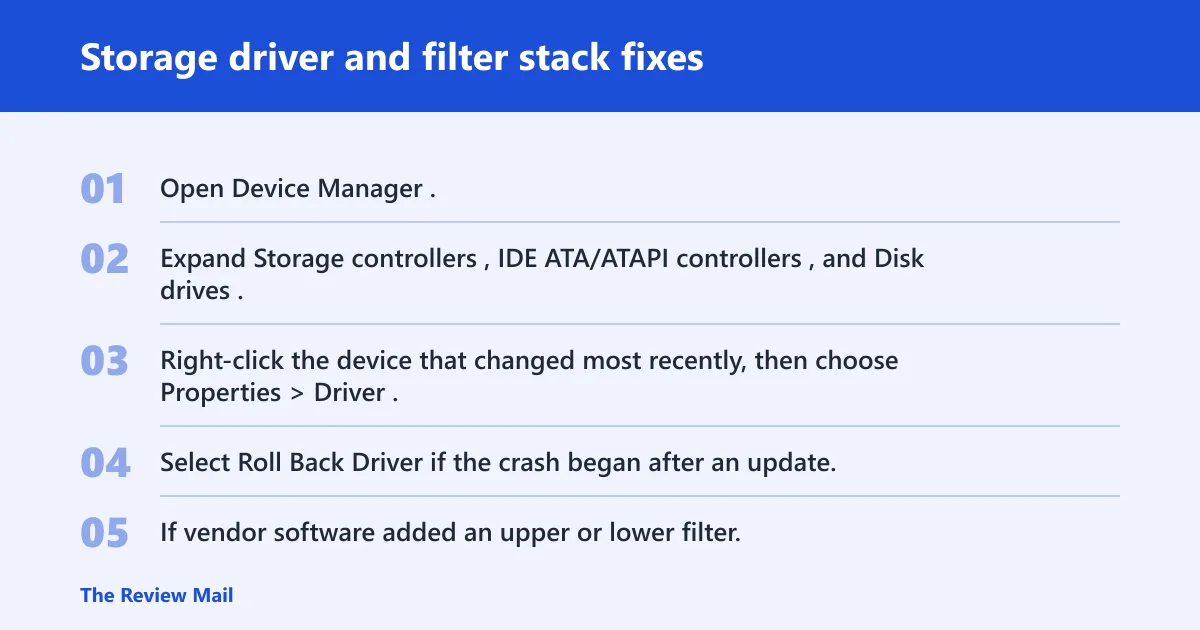
If the crash follows a disk, controller, or bridge change, fix that layer first. Storage stacks are dense, and one misbehaving filter can consume the last IRP slot before Windows has time to point at the real offender.
- Open Device Manager.
- Expand Storage controllers, IDE ATA/ATAPI controllers, and Disk drives.
- Right-click the device that changed most recently, then choose Properties > Driver.
- Select Roll Back Driver if the crash began after an update, or Update Driver if the installed version is older.
- If vendor software added an upper or lower filter, remove that package from Settings > Apps > Installed apps and retest.
If the crash only appears on one USB dock, one virtual disk product, or one storage enclosure, that hardware path is the better suspect than the base OS.
Network, antivirus, and imaging path fixes
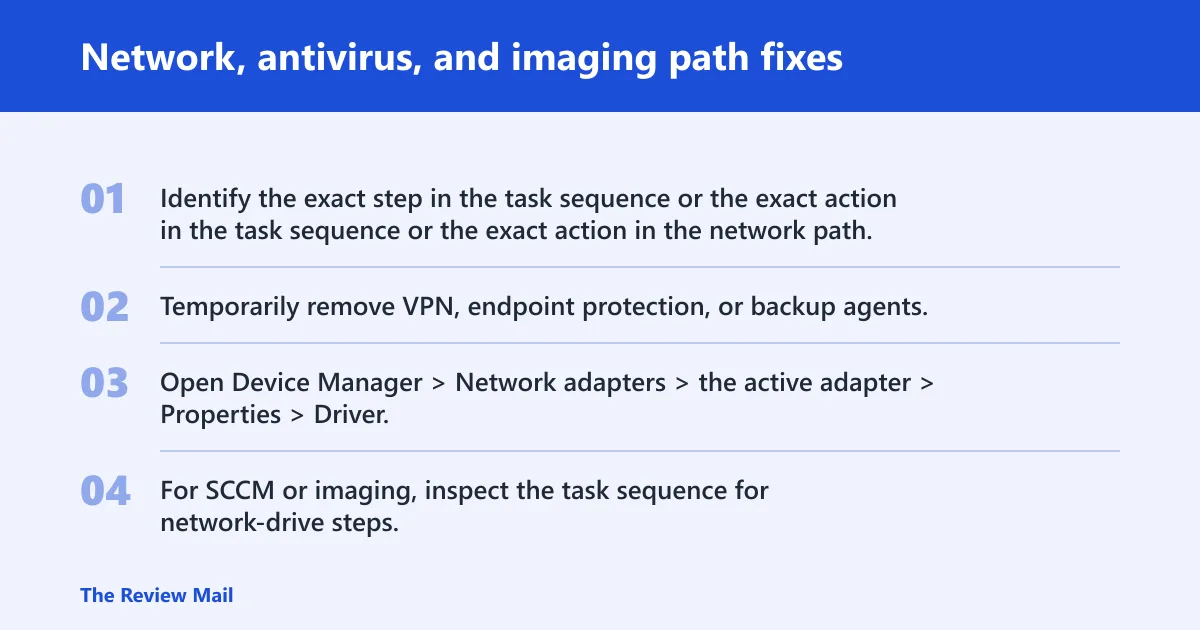
When the failure shows up during network drive mapping, VPN use, or SCCM imaging, the driver chain is usually longer than it looks. A NIC driver, a VPN client filter, or a task-sequence step can add enough layers to exhaust the packet before the request reaches the target device.
- Identify the exact step in the task sequence or the exact action in the network path.
- Temporarily remove VPN, endpoint protection, or backup agents.
- Open Device Manager > Network adapters > the active adapter > Properties > Driver, then roll back or update the NIC driver.
- For SCCM or imaging, inspect the task sequence for network-drive steps, storage injection steps, or added driver packs that layer on extra filters.
When should you update, roll back, or remove a driver?
Use the last known-good state as the anchor. Update when the vendor notes mention stack handling, filter interaction, or storage/network fixes. Roll back when the crash started right after a driver or software change. Remove the driver or related software when rollback does not stop the crash and the same stack still fails.
- Open Device Manager and find the device changed most recently.
- Compare the driver date and provider with the prior build you trust.
- Choose Roll Back Driver if the problem started after an update.
- Choose Update Driver if the driver is stale or came from the wrong package.
- Remove the related software if the filter remains in the chain after rollback.
Can SFC or DISM fix 0x00000035?
They can help, but only after the driver path has been checked. SFC /scannow and DISM /Online /Cleanup-Image /RestoreHealth repair system files and the component store; they do not replace a bad miniport, filter, or task-sequence layer. Use them when the stack triage does not point to one driver.
- Open an elevated Command Prompt.
- Run
sfc /scannow. - Run
DISM /Online /Cleanup-Image /RestoreHealth. - Reboot and test the same crash path again.
How do I know if a third-party filter driver is causing this BSOD?
A filter driver is suspect when the crash starts after security, backup, encryption, VPN, or disk management software is installed, and the BSOD disappears after that software is removed. Both third-party and inbox filters can be part of the chain, so the test is whether the failure follows the layer, not the brand.
- Boot once in Safe Mode to see whether the problem disappears.
- Run a clean boot using msconfig and disable non-Microsoft services.
- Remove the most recent filter-based software from Settings > Apps > Installed apps.
- Retest the same storage or network action that caused the crash.
Is 0x00000035 a driver problem or a hardware problem?
Most cases point to a driver-chain problem. Hardware enters the picture when crashes are random, show up across unrelated devices, or continue after the suspect stack has been removed. Microsoft’s note that other memory may also be corrupted means a hardware check is fair when the pattern is broad, not tied to one path.
- Run Windows Memory Diagnostic and let it reboot the system.
- Check whether the crash happens only on one device path, such as one disk or one NIC.
- Update BIOS and chipset drivers from the system vendor.
- If the same stop code keeps returning across multiple paths, save the dump file and escalate it.
How do I fix NO_MORE_IRP_STACK_LOCATIONS BSOD?
Start with the stack, not broad repair steps. A practical first step is to identify the driver layer that changed most recently, then try rolling it back or updating it, and remove any extra filter software above it. If the same path still fails after that, move to SFC, DISM, and a clean boot.
- Match the crash trigger to storage, network, antivirus/filter, or imaging.
- Use Device Manager to roll back or update the suspect driver.
- Remove related filter software if rollback does not clear the failure.
- Run
sfc /scannowandDISM /Online /Cleanup-Image /RestoreHealth. - Use a clean boot to test third-party service conflicts.
What triggers bug check 0x35 during imaging or network drive mapping?
The imaging path can fail because task-sequence steps add storage or network layers before the system finishes handing off the IRP. Drive mapping and VPN flows can do the same through NIC drivers, filter drivers, or endpoint tools. The tell is that the crash happens at one repeatable step, such as Connect Network Drive, rather than randomly across the desktop.
- Identify the exact step in the task sequence or the exact action in the network path.
- Temporarily remove VPN, endpoint protection, or backup agents.
- Check the NIC driver in Device Manager and roll back recent changes.
- Retry the imaging step with the minimum driver stack possible.
Which drivers are most likely to cause stop code 0x00000035?
Storage controller drivers, NIC drivers, virtual disk providers, and filter drivers are reasonable first places to check. They sit near the top of the usual failure list because they extend the path between the request and the hardware. Recently installed hardware drivers matter too, especially when the crash began right after a setup change.
- Check Device Manager for recently changed storage and network devices.
- Look for antivirus, DLP, VPN, backup, or encryption software with filter components.
- Test one driver family at a time instead of changing several at once.
Frequently asked questions
What does 0x00000035 mean in Windows?
It is a stop condition tied to the IRP stack running out of space during a driver handoff. If the crash appears on a laptop, the same rule applies: check the most recent storage, network, or filter change first.
Can SFC or DISM fix 0x00000035?
They can help if system files or the component store are damaged, but they do not fix a bad driver chain by themselves. Run them after you have checked the trigger path and the suspect driver.
What triggers bug check 0x35 during imaging or network drive mapping?
Extra layers in the request path. In imaging, that can be the task sequence, storage injection, or a network step like Connect Network Drive. For drive mapping or VPN use, the likely layer is the NIC driver, a VPN filter, or endpoint protection.
Which drivers are most likely to cause stop code 0x00000035?
Storage controller drivers, network adapters, virtual disk software, and filter drivers are the first places to check. If a recent update touched any of those, reverse that change first. If the crash follows third-party security or backup software, remove it and test again.
Is 0x00000035 a driver problem or a hardware problem?
Usually it is a driver-chain problem, especially when one storage, network, VPN, or filter layer repeats the crash. Hardware becomes more likely when failures are scattered across unrelated paths. If the pattern is broad, run Windows Memory Diagnostic and update BIOS and chipset drivers next.
How do I fix NO_MORE_IRP_STACK_LOCATIONS BSOD?
Start with the driver that changed most recently. Use Device Manager to roll back or update it, remove related filter software, and retest the exact trigger path. If that fails, run sfc /scannow, then DISM /Online /Cleanup-Image /RestoreHealth, and finish with a clean boot.