unmountable_boot_volume bsod fix windows 11: safe steps
For UNMOUNTABLE_BOOT_VOLUME on Windows 11, start by sorting the failure. If CHKDSK or Startup Repair works, the problem is usually boot-file or file-system damage; if the drive vanishes, clicks, or fails SMART tests, treat it as a storage hardware fault and stop writing to it. Mixing those up can turn a fixable boot issue into permanent data loss. This guide sets the safest order, then covers corruption, BIOS reset boot changes, and when to image the disk or pull files first.
What UNMOUNTABLE_BOOT_VOLUME means on Windows 11
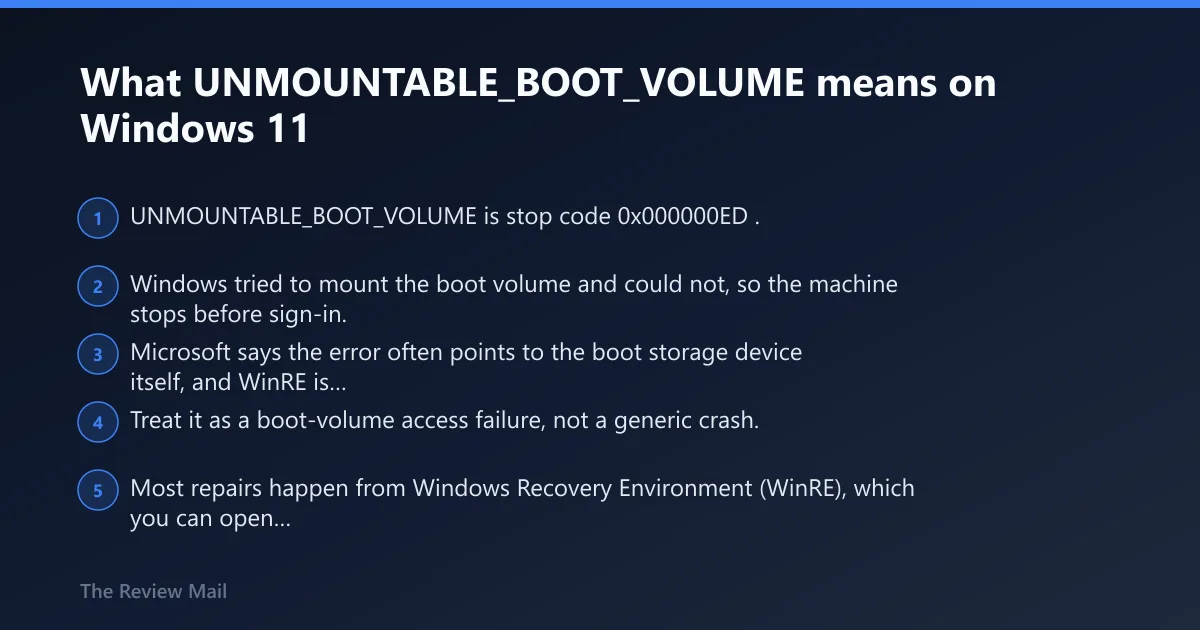
UNMOUNTABLE_BOOT_VOLUME is stop code 0x000000ED. Windows tried to mount the boot volume and could not, so the machine stops before sign-in. Microsoft says the error often points to the boot storage device itself, and WinRE is the normal repair path. Treat it as a boot-volume access failure, not a generic crash.
Most repairs happen from Windows Recovery Environment (WinRE), which you can open through Automatic Repair or by booting install media. That is where Startup Repair, Command Prompt, CHKDSK, bootrec, and offline SFC or DISM live. If the PC keeps returning to the same stop code, stop guessing inside normal Windows.
How to triage it before you run any repair commands
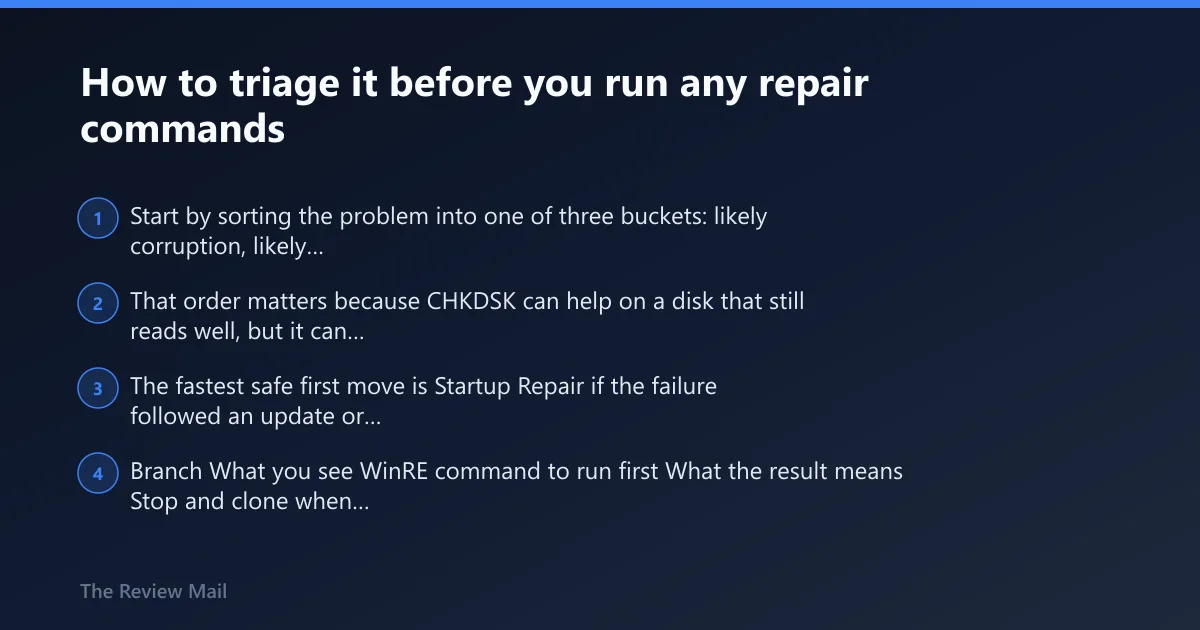
Start by sorting the problem into one of three buckets: likely corruption, likely failing drive, or urgent data-rescue mode. That order matters because CHKDSK can help on a disk that still reads well, but it can also push a dying disk over the edge and cut short file recovery. The fastest safe first move is Startup Repair if the failure followed an update or abrupt shutdown.
| Branch | What you see | WinRE command to run first | What the result means | Stop and clone when |
|---|---|---|---|---|
| Likely corruption | Failed update, sudden power loss, no strange noises, disk still detected | Startup Repair | Boot files or startup metadata may be fixable | Startup Repair loops or CHKDSK reports many bad sectors |
| Likely failing drive | Drive drops out, SMART warnings, repeated read errors, clicking on HDD | None first; check health and image | Hardware risk is higher than file-system damage | Immediately after one failed read pass or if the disk disappears |
| Urgent data-rescue mode | Important files are not backed up and the disk is unstable | Clone or image before repairs | Preservation takes priority over fixing Windows | Before CHKDSK /r, bootrec, or repeated reboot attempts |
How do I get into WinRE and start with the safest fix?
The safest first repair is Startup Repair in WinRE. If Windows will not boot, you can enter WinRE through Automatic Repair or boot from Windows installation media and choose Repair your computer. This is the right first pass after a failed update, abrupt shutdown, or a boot loop that started without any hardware change.
- Power on the PC and let it fail into Automatic Repair, or boot from Windows installation media and choose Repair your computer.
- Go to Troubleshoot > Advanced options > Startup Repair and let it run.
- If it reports that it could not repair the PC, return to WinRE instead of forcing repeated normal boots.
- If the problem began right after a Windows 11 update, consider uninstalling the update from WinRE before deeper repairs.
If Startup Repair loops or gives a dead end, that does not prove hardware failure. It only means the first-pass boot repair did not find enough to fix, so the next step is file-system repair and then offline file repair.
Can chkdsk fix UNMOUNTABLE_BOOT_VOLUME?
Yes, CHKDSK can fix this error when the boot volume is damaged but still readable. Run it from WinRE Command Prompt, not from a half-booting Windows session. Use the correct drive letter first, because the Windows partition often shifts in WinRE and is not always C: there.
- In WinRE, open Advanced options > Command Prompt.
- Find the Windows volume: run diskpart, then list volume, then exit.
- Run
chkdskX: /f /r with the correct drive letter for the Windows partition. - Wait for the scan to finish. Techeia notes that a large drive can take an hour or more.
- If
CHKDSKfinds many bad sectors, or the disk becomes slower, louder, or unreadable, stop and clone the disk.
A clean file-system repair points toward corruption. A heavy bad-sector report points toward a failing drive. Techeia recommends CHKDSK /r from WinRE as the main repair, but once the scan starts finding repeated read failures, the goal should switch to preserving data.
When should I use offline SFC and DISM?
Use offline SFC and DISM after CHKDSK if the file system looks intact but Windows system files may be damaged. SFC repairs protected Windows files; DISM repairs the component store that SFC depends on. They help when startup components are broken, but they will not rescue a dead disk or fix a drive that keeps disappearing.
- Open WinRE Command Prompt.
- Find the Windows drive letter with diskpart and list volume.
- Run offline SFC with the proper paths, for example:
sfc /scannow/offbootdir=X:\ /offwindir=X:\Windows. - If component-store damage is suspected, run
Dism /Image:X:\ /Cleanup-Image /RestoreHealth.
Windowscult recommends offline SFC from WinRE using offbootdir and offwindir, and DISM as the follow-up repair. These commands help when the boot volume exists and can be read, but they do not replace disk-health checks or a backup plan.
How do I repair boot files and BCD if Windows still will not start?
Use boot record repair only after Startup Repair, CHKDSK, and offline file repair if the system still cannot find Windows. Boot Configuration Data stores the boot metadata that points Windows to the OS volume. If that metadata is missing or damaged, bootrec can rebuild it. On modern UEFI systems, one step may return Access denied, and that does not always mean the whole repair failed.
- Open Command Prompt in WinRE.
- Run bootrec /fixmbr, then bootrec /fixboot, then bootrec /rebuildbcd.
- If bootrec /fixboot returns Access denied on a UEFI machine, continue to the next step rather than repeating it endlessly.
- Reboot once and test.
Bootrec helps when boot metadata is broken, but it is not always the first move. If the disk itself is unstable, rebuilding BCD on top of a failing device often buys little time.
One-page triage checklist for corruption, drive failure, and data rescue
Use this as a stop-go sheet before running more commands. It separates safe repair attempts from cases where the disk should be cloned first. The key decision is whether the machine still reads the Windows volume consistently.
- Branch 1: likely corruption. Run Startup Repair first. If that fails, run
chkdskX: /f /r, then offlinesfc /scannow, thenDism /Image:X:\ /Cleanup-Image /RestoreHealth. - Branch 2: likely failing drive. If
CHKDSKreports many bad sectors, the disk drops offline, or reads stall badly, stop repairs and clone the disk. - Branch 3: urgent data-rescue mode. If files are not backed up and the drive is unstable, image the disk before bootrec or repeat
CHKDSKpasses.
What if it still does not boot after the usual fixes?
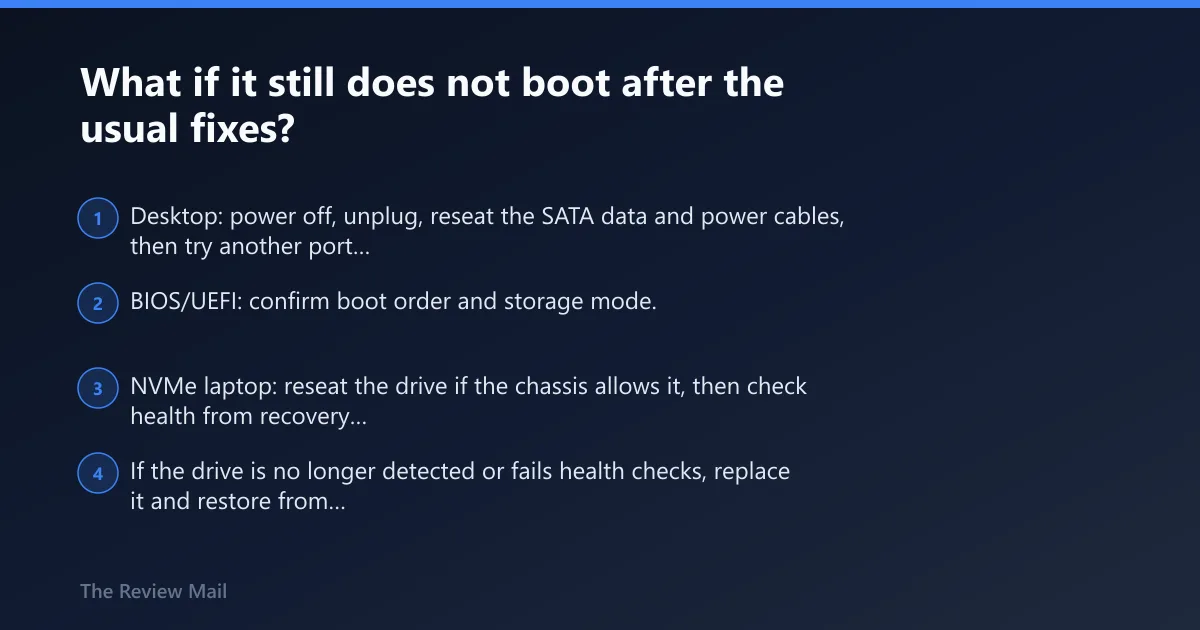
If the usual WinRE repairs fail, shift to hardware checks and platform-specific storage settings. On desktops, reseat the SATA cable, swap the cable, and try a different SATA port. On laptops and NVMe systems, the path is different: the storage device is usually the point to inspect, not a loose cable. After a BIOS update or CMOS reset, storage mode can also change and block mounting.
- Desktop: power off, unplug, reseat the SATA data and power cables, then try another port and cable.
- BIOS/UEFI: confirm boot order and storage mode. An AHCI/RAID mismatch after a BIOS reset can stop Windows from mounting the volume.
- NVMe laptop: reseat the drive if the chassis allows it, then check health from recovery media or vendor diagnostics.
- If the drive is no longer detected or fails health checks, replace it and restore from backup or clone.
For ASUS systems, the same logic applies. Check whether a BIOS update, CMOS reset, or storage-mode change happened before the stop code appeared. That detail often separates a simple boot-setting mismatch from a real drive problem.
What causes UNMOUNTABLE_BOOT_VOLUME on Windows 11?
The most common causes are file-system corruption after power loss or a failed update, damaged boot metadata, or a storage device that is starting to fail. Less commonly, a BIOS or UEFI storage-mode change prevents Windows from mounting the boot volume. Desktop SATA cables and ports can also mimic file-system damage.
Windows 11 update failures matter here. A reported Security Update issue can trigger startup crashes with this stop error on some systems, and affected users may need to remove the update from WinRE before anything else. If the boot loop started right after patching, that is the first thing to check.
Can I fix UNMOUNTABLE_BOOT_VOLUME without reinstalling Windows?
Yes, many cases can be fixed without reinstalling. CHKDSK, Startup Repair, offline SFC, DISM, and bootrec often recover a system when the disk is still healthy enough to read. Reinstalling Windows should be the last resort after the storage path is stable and the data is backed up or cloned.
If CHKDSK reports repeated bad sectors, the drive disappears during scans, or the repair steps keep failing in the same way, stop trying to force a Windows repair. At that point, the better path is disk imaging, drive replacement, and then a clean install.
What should I do if Startup Repair does not fix UNMOUNTABLE_BOOT_VOLUME?
If Startup Repair fails, move to CHKDSK from WinRE, then offline SFC and DISM, then bootrec. That order gives the boot volume a chance to recover before you rewrite boot metadata. If the machine started failing after a failed update, WinRE may also let you uninstall the update before the deeper repairs.
Do not loop Startup Repair for hours. One failed pass is a signal to move to the next layer. If the disk looks unstable, pause and preserve data first.
How do I run chkdsk when Windows 11 will not boot?
Run CHKDSK from WinRE Command Prompt, not from the desktop. First identify the correct Windows partition, because the drive letter can change in recovery mode. Then run the repair on that volume with a file-system and bad-sector scan. That is the safest way to check the boot volume when Windows will not load.
diskpart
list volume
exit
chkdsk X: /f /r
Replace X: with the actual Windows volume. If the scan takes a long time on a large drive, that is normal. If it returns many unreadable sectors or the disk drops out during the scan, stop and image the drive.
Why does Windows 11 show UNMOUNTABLE_BOOT_VOLUME after a failed update?
A failed update can leave boot files, boot metadata, or system files in an inconsistent state. Windows then cannot mount the boot volume and stops before sign-in. If the issue begins right after patching, the fastest path is WinRE, then Startup Repair, then update removal if the update is known to be the trigger.
In reported cases, the update has been linked to boot issues on some Windows 11 devices. The recovery step is to boot WinRE and uninstall the update manually if that update matches the failure timeline.
Frequently asked questions
Which WinRE command should I run first for stop code 0xED?
Start with Startup Repair if the failure followed an update or shutdown, because it checks missing or damaged startup files without changing the disk. If you are already at Command Prompt, the first direct repair command is usually chkdsk X: /f /r on the Windows volume you identified in WinRE.
How do I know if my SSD or HDD is failing after this BSOD?
Look for repeated bad-sector reports, the drive dropping out in WinRE, very slow reads, or clicking on an HDD. If the disk vanishes or fails health checks, stop running repairs and clone it. A file-system issue that can be repaired usually stays readable during CHKDSK and settles down after one pass.