System Thread Exception Not Handled BSOD Fix for Windows 11
For a System Thread Exception Not Handled BSOD on Windows 11, use the stop file name to identify the driver involved, then roll back or remove that driver in Safe Mode. If you ignore it, the PC can loop at boot and turn one driver fault into lost work and a long recovery.
This guide is part of our Windows BSOD stop codes: full list and fixes series.
What the stop code is telling you
The bug check has a value of 0x0000007E. It indicates that a system thread generated an exception that the error handler didn’t catch. The exception code 0xC0000005 indicates a memory access violation occurred.
The named .sys file matters because it can point to the driver that failed first. If the screen shows a driver name, use that name to guide the next repair instead of guessing.
According to How to Fix the "System Thread Exception Not Handled" BSOD — wikiHow lists 9 ways to fix the error. (source)
Which cause is most likely in your case?
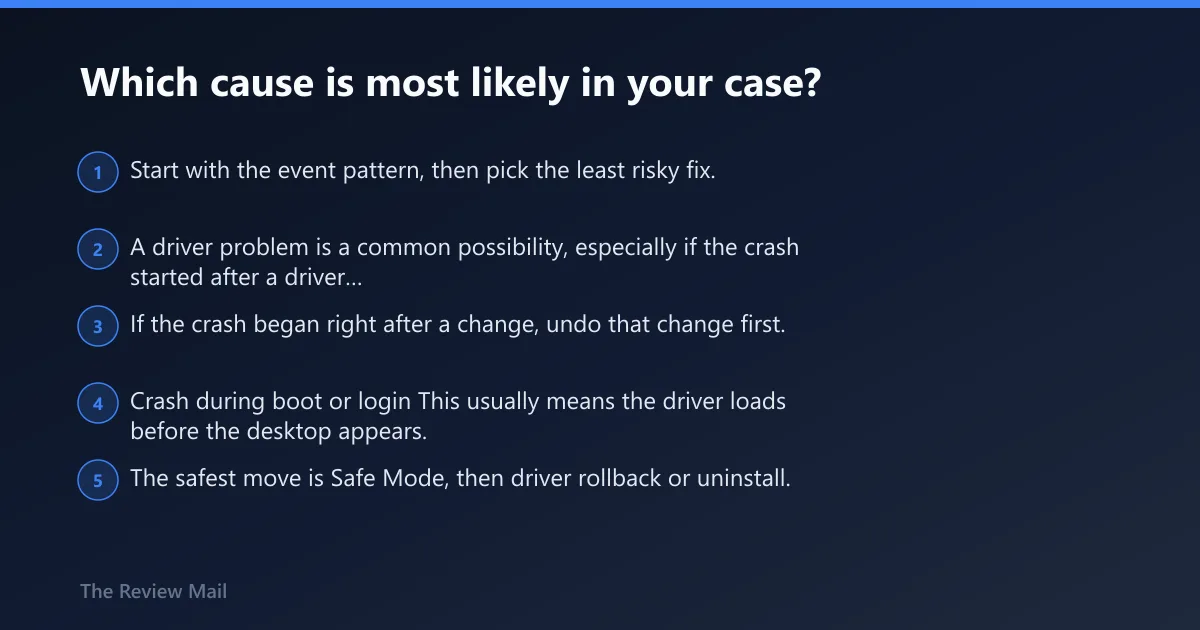
Start with the event pattern, then pick the least risky fix. A driver problem is a common possibility, especially if the crash started after a driver change or the blue screen names a specific file. If the crash began right after a change, undo that change first.
Crash during boot or login
This usually means the driver loads before the desktop appears. The safest move is Safe Mode, then driver rollback or uninstall. If Windows will not stay up long enough to open Settings, use WinRE first.
Crash after Windows Update
If the timing lines up with a recent Windows change, try System Restore before chasing unrelated drivers. If the named file is a graphics driver, roll it back first.
Crash after a new driver, GPU install, or hardware change
Undo the last change. Remove the new driver in Device Manager, or return the system to a restore point from before the install. If the crash started after adding a device, focus on that device first.
Crash only in a heavy app or game
That pattern often points to the display stack or another driver that is stressed by the app. Start with the named driver, then move to system file checks if the crash persists.
How do I fix System Thread Exception Not Handled on Windows 11?
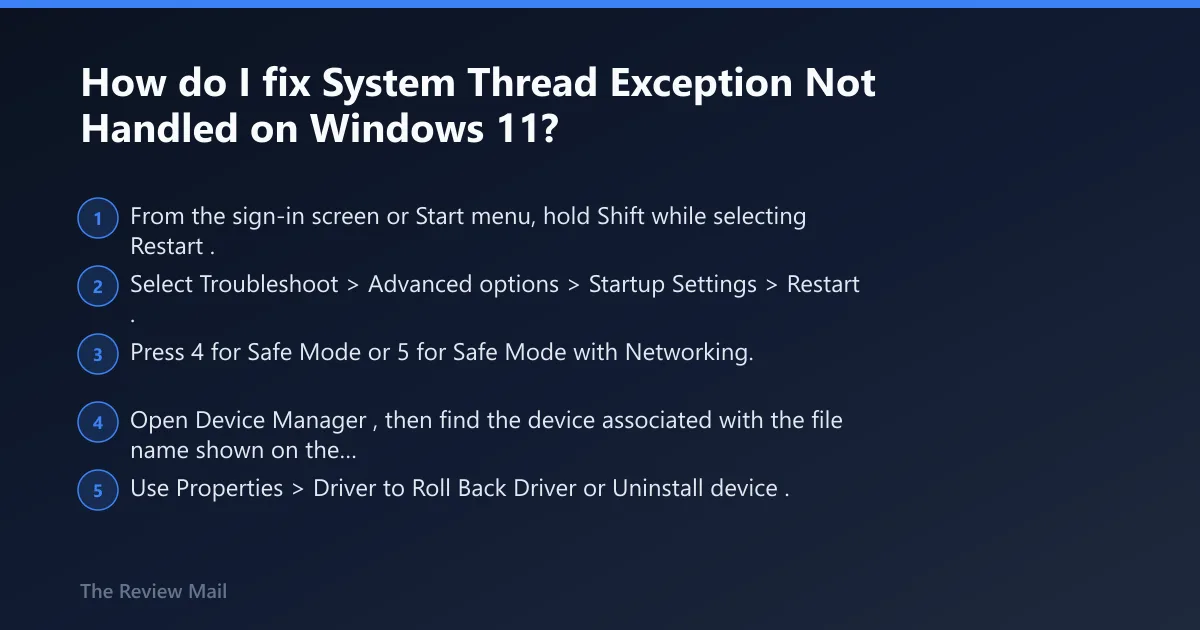
The fastest safe first move is Safe Mode, then a driver rollback or uninstall for the file named on the blue screen. If Windows will not boot normally, use WinRE to reach Startup Settings. Safe Mode gives you room to repair the bad package without loading the full driver stack.
Microsoft’s debugger tools can also help confirm the root cause. !analyze displays information about the bug check, and further analysis can be done with !thread plus the dds, dps, and dqs commands. If the issue is narrowed down to a single driver, you can set breakpoints and single-step forward in code.
- From the sign-in screen or Start menu, hold Shift while selecting Restart.
- Select Troubleshoot > Advanced options > Startup Settings > Restart.
- Press 4 for Safe Mode or 5 for Safe Mode with Networking.
- Open Device Manager, then find the device associated with the file name shown on the blue screen.
- Use Properties > Driver to Roll Back Driver or Uninstall device.
How to get into Safe Mode when Windows will not boot
Use WinRE when the PC loops before the desktop. Safe Mode through Startup Settings is the cleanest way to make driver changes when Windows will not stay up normally.
- Press Shift while selecting Restart, or force Windows into recovery by interrupting startup three times if needed.
- Go to Troubleshoot > Advanced options > Startup Settings.
- Select Restart, then press 4 or 5.
- If the desktop opens, save anything important before making driver changes.
Should I update or roll back my GPU driver for this error?
If the crash started right after a GPU update, roll it back first. If the driver has not changed in a long time and the problem continues, install the latest package from the GPU vendor. If the crash returns after a normal reinstall, removing the display driver in Safe Mode and installing it again can help.
- Open Device Manager.
- Expand Display adapters.
- Right-click the GPU > Properties > Driver.
- Select Roll Back Driver if the problem started after an update.
- Select Uninstall device if rollback is unavailable or the driver is corrupted.
- Restart and install the latest package from the GPU vendor site.
If the crash returns after reinstall, use a clean driver removal approach in Safe Mode, then install the vendor driver again.
How do I handle a different driver family named in the.sys file?
Match the file name to the device that Windows names or the driver package you recently changed before touching unrelated devices. Update or remove only the device that matches the file first, then reboot and test.
- Open the blue screen note or check
C:\Windows\Minidump\*.dmpfor the file name. - Use the file name and recent changes to identify the most likely driver.
- Open Device Manager.
- Right-click the matching device > Properties > Driver.
- Choose Update Driver, Roll Back Driver, or Uninstall device based on when the crash began.
- Restart and test before changing another driver.
Can SFC and DISM fix System Thread Exception Not Handled?
Yes, when the blue screen comes from corrupted system files rather than a bad driver package. Use DISM and SFC after driver cleanup, or sooner if the crash timing does not point cleanly at one file.
- Open Command Prompt as administrator.
- Run
DISM /Online /Cleanup-Image /RestoreHealth. - After DISM finishes, run
sfc /scannow. - Restart and test the boot path.
DISM /Online /Cleanup-Image /RestoreHealth
sfc /scannow
If the system will not stay up normally, run them in Safe Mode with Networking or from recovery if the desktop is unstable.
One-page decision table
Use the file name and crash timing together. That narrows the safest next step faster than guessing. If the file name is blank, begin with the driver that changed most recently, then test the next likely driver only after that.
| .sys file or scenario | Likely driver family | Crash scenario | Safest next step | How to confirm it worked |
|---|---|---|---|---|
| Driver name shown on the blue screen | The named driver | After a driver install or update | Roll back or uninstall that driver in Device Manager | Boots twice in a row without the same blue screen |
| Crash after a recent update | The driver changed most recently | At boot or right after sign-in | Use Safe Mode, then rollback or uninstall the recent driver | No crash during sign-in and the desktop loads normally |
| Only in a heavy app | Possibly a display or other loaded driver | While launching or using the app | Update or reinstall the driver that changed most recently, then test again | The app opens and runs without a blue screen |
| Blank or missing file name | Unclear | Loop at boot | Use Safe Mode and begin with the last driver change | The machine reaches the desktop and survives a full reboot |
Validation checklist
- Windows reaches the desktop without another blue screen.
- The same app or boot step that triggered the crash now completes twice in a row.
- Device Manager shows no yellow warning icon on the fixed device.
sfc /scannowfinishes without new file repair errors.- DISM completes without a source or repair failure.
- The named .sys file no longer appears on the next crash, if one happens.
Can a bad Windows update trigger System Thread Exception Not Handled?
Yes. A recent update can expose an older driver, replace a working package, or change the timing of a fragile driver load. When the problem starts right after Windows Update, use Safe Mode, then try System Restore before reinstalling every driver on the machine.
- Open Settings > System > Recovery > Advanced startup > Restart now.
- Choose Troubleshoot > Advanced options > System Restore.
- Select a restore point from before the update or driver change.
- Restart and test the same path that used to crash.
What if System Thread Exception Not Handled keeps looping and I can’t boot?
When the PC loops before the desktop, stop chasing in-place fixes and move to recovery mode. Use WinRE, remove the last driver change, then run Safe Mode repairs. If that still fails, more advanced hardware or storage checks may be needed.
If that didn’t work
- Run System Restore from WinRE if the issue began after a change.
- Disconnect newly added hardware and retry booting.
- Run Windows Memory Diagnostic (mdsched.exe) if you want a built-in Windows check.
- Check the drive with
chkdskif storage corruption is likely. - Reset BIOS/CMOS only after software fixes fail.
Some systems may be more sensitive to a recent driver or firmware change than others. If the error started right after a BIOS change on a laptop or desktop, revert that setting before chasing Windows files.
Frequently asked questions
What driver causes System Thread Exception Not Handled BSOD?
The named driver on the blue screen is the one to check first. If no driver is named, use the most recent driver change as your starting point instead of assuming a specific family.
Why does System Thread Exception Not Handled happen at startup?
Startup crashes usually mean the bad driver loads before Windows can fully build the desktop. That is why Safe Mode matters: it loads fewer drivers, which makes rollback or uninstall possible. WinRE is the path to reach Startup Settings when the machine will not stay up.
How do I identify the.sys file causing the BSOD?
Read the blue screen message, then check C:\Windows\Minidump\*.dmp if the screen disappears too fast. The named file points to the driver involved. If no file appears, start with the last driver you changed.