Duplicate Device Was Detected Windows 10 Fix
Fix a duplicate device in Windows 10 by removing the stale or hidden entry first, then keeping the device with the working driver and current status. If you delete the wrong one, Windows can drop a functioning keyboard, adapter, or storage device. Start in Device Manager, then show hidden devices if the extra entry is not obvious.
This guide is part of our Windows driver errors: full list and fixes series.
What the message means in Device Manager
In Device Manager, this warning usually means Windows has built more than one device instance for the same hardware, often after a replug, image restore, or driver change. The fastest first try is to expand the device class, compare the live entry with hidden ones, and remove only the non-present copy.
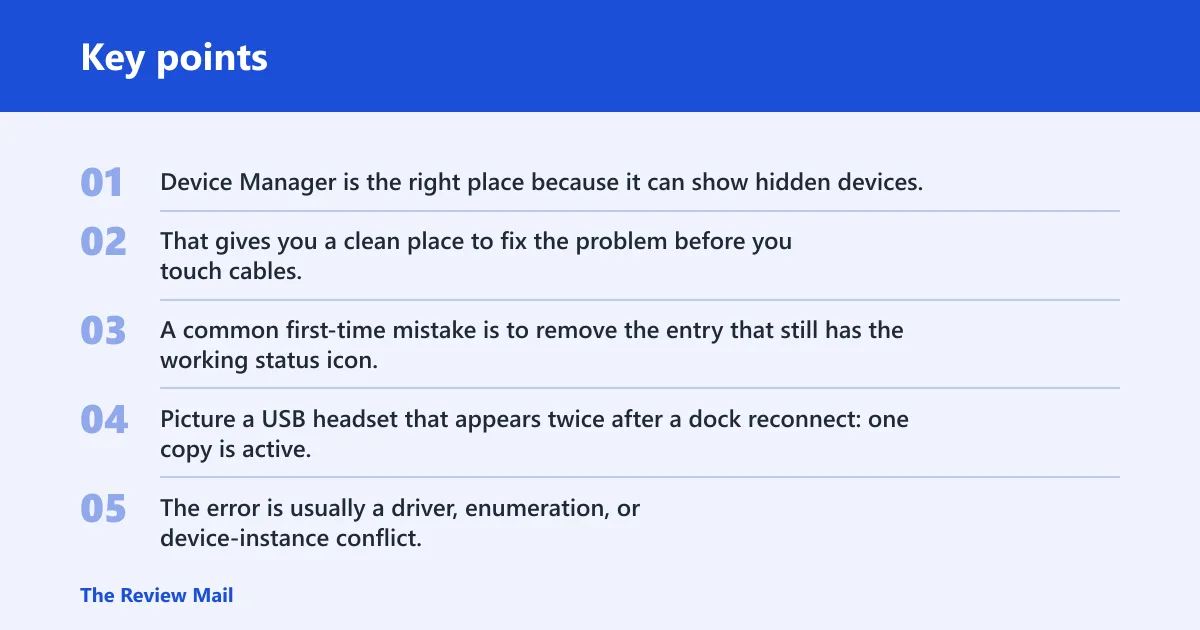
Device Manager is the right place because it can show hidden devices, uninstall a bad entry, update a driver, disable a conflicting instance, and roll back a recent change. That gives you a clean place to fix the problem before you touch cables, install packages, or try heavier recovery steps.
A common first-time mistake is to remove the entry that still has the working status icon. Picture a USB headset that appears twice after a dock reconnect: one copy is active, one is gray and hidden. The gray copy is the one to target.
The error is usually a driver, enumeration, or device-instance conflict, not a file problem. It often shows up with Bluetooth adapters, network adapters, USB peripherals, and display devices because those classes get re-enumerated when connections change.
Likely causes
Most often, the duplicate comes from a stale hidden entry, a dock or hub that made Windows enumerate the device again, or a driver that did not cleanly reinstall. Less commonly, Windows Update reapplies the same problematic driver after reboot and brings the duplicate back.
Stale hidden device entry
Windows can sometimes keep a non-present copy of a device after removal, imaging, or a failed driver refresh. The safest first move is to reveal hidden devices and remove the gray entry, not the live one.
- Open Device Manager.
- Select View > Show hidden devices.
- Expand the affected class, such as Bluetooth, Network adapters, or Universal Serial Bus controllers.
- Look for a faded or duplicated entry, then right-click the stale one and choose Uninstall device.
- Select Action > Scan for hardware changes.
- Confirm the working entry remains and the gray one does not return.
USB hub or dock re-enumeration
A dock or USB hub can sometimes make Windows create more than one valid instance of the same peripheral if you move between ports or reconnect through a different path. That is not always an error. The fix is to test the device directly, then remove only the wrong instance if the duplicate persists.
- Disconnect the dock or hub.
- Plug the device into a direct port on the PC.
- Open Device Manager and compare the entries under the relevant class.
- Right-click the extra instance and choose Uninstall device.
- Select Action > Scan for hardware changes.
- Reconnect the hub or dock only after the direct connection is clean.
Driver refresh or update conflict
Sometimes the device was removed correctly, but the driver store still has the wrong package and Windows rebuilds the same bad entry. That is common with network adapters and Bluetooth, and it can also affect display adapters. In those cases, a clean reinstall or rollback is safer than repeated uninstall attempts.
- Open Device Manager.
- Right-click the affected device and choose Properties.
- On the Driver tab, choose Roll Back Driver only if the duplicate began after a driver change.
- If rollback is unavailable, choose Uninstall device.
- Select Action > Scan for hardware changes or restart the PC.
- Open the device again and confirm the driver status is current and the duplicate is gone.
Duplicate device decision table
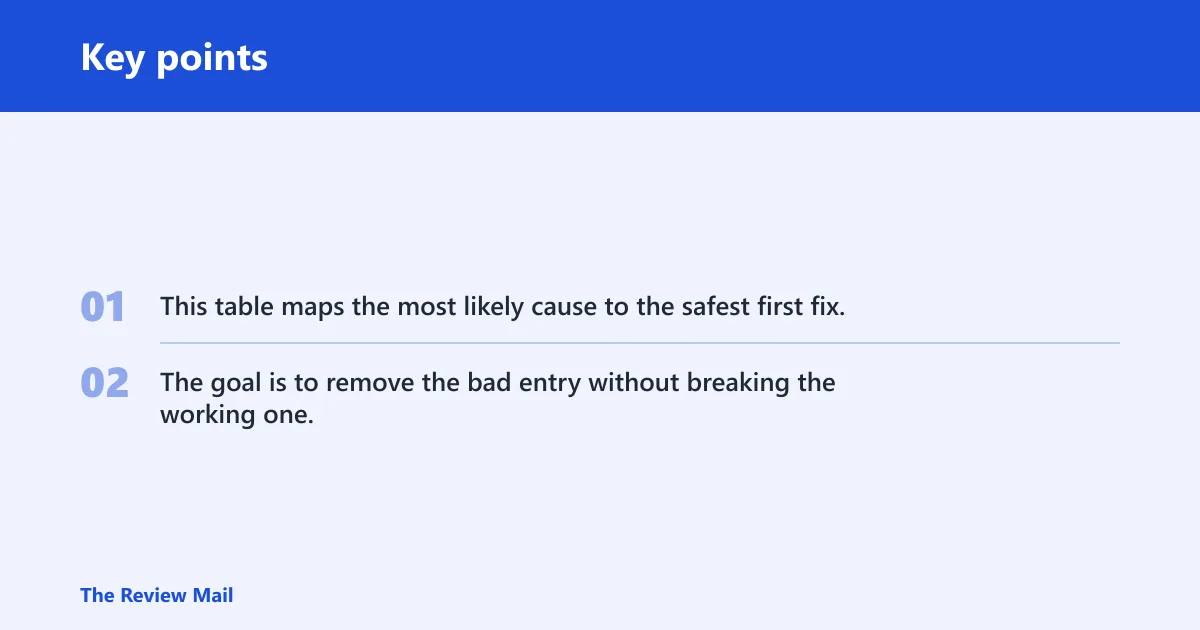
This table maps the most likely cause to the safest first fix, the exact Device Manager action, and the rollback point. Use it before you make broad changes. The goal is to remove the bad entry without breaking the working one.
| Symptom pattern | Likely cause | Safest action | What not to do | How to confirm the fix |
|---|---|---|---|---|
| Gray and active copies of the same adapter | Hidden stale entry | Show hidden devices, uninstall the faded copy | Do not remove the live entry | Only one active device remains after a scan |
| Duplicate appears after docking or moving ports | USB hub or dock enumeration | Test direct connection, then uninstall the wrong instance | Do not assume every extra entry is broken | Direct port works and the duplicate does not reappear |
| Device returns right after a driver change | Driver reinstall conflict | Use Roll Back Driver or uninstall, then scan for changes | Do not delete drivers blindly | Device loads once with the expected status |
| Duplicate comes back after reboot or update | Windows Update reapplied the driver | Pause updates, test again, then reinstall or rollback | Do not keep repeating the same uninstall without checking updates | The entry stays gone after restart |
USB hub or dock problem?
If the duplicate appears after a dock or hub connection, start by testing the device on a direct port. Windows can create separate valid instances when the connection path changes, so the extra entry is not always the fault. The safest fix is to simplify the path first, then clean up the bad copy.
For a Surface dock, a USB keyboard, or a USB headset, the same rule applies: different ports or hubs can create different instances. If the device behaves normally on a direct port, the dock path is the likely trigger, not the hardware itself.
- Unplug the dock or hub.
- Connect the device straight to the PC.
- Open Device Manager and locate the extra entry.
- Right-click the wrong instance and choose Uninstall device.
- Select Action > Scan for hardware changes.
- Reconnect the dock and confirm the duplicate does not return.
Hidden devices and ghost entries
Hidden devices matter because Windows often leaves behind non-present entries after a replug, image restore, or failed driver cleanup. Those ghost entries can keep the error alive even when the physical device is fine. Reveal them first so you can remove the stale copy, not the working one.
- Open Device Manager.
- Choose View > Show hidden devices.
- Expand the affected category and look for dimmed entries.
- Right-click the non-present device and choose Uninstall device.
- If the device class is Bluetooth or network, right-click the live entry and choose Disable device, then Enable device if the duplicate stays gone.
- Use Action > Scan for hardware changes to rebuild the clean entry.
Do you need to reinstall the driver?
Yes, if uninstalling the stale entry does not stop the duplicate, the driver may need to be rebuilt. A clean reinstall forces Windows to create a fresh device entry, which is often enough for network adapters, Bluetooth radios, and display adapters. Roll back only when the issue began right after a driver change.
- Open Device Manager.
- Right-click the device and choose Uninstall device.
- Restart the PC, or choose Action > Scan for hardware changes.
- Return to the device’s Driver tab if the duplicate started after a new driver.
- Choose Roll Back Driver if it is available and the timing matches.
- If rollback is unavailable, let Windows reinstall the driver and then verify the device appears once.
Could Windows Update be causing the duplicate device error?
Windows Update can replace or reapply a driver, and that may bring the duplicate back after reboot. If the device looked fixed until the next restart, pause updates long enough to test whether the same driver is being pushed again. That is often the clue that the update path is reintroducing the conflict.
- Open Settings > Update & Security > Windows Update.
- Pause updates long enough to test the device after a restart.
- Open Device Manager and check the driver version on the affected device.
- If the issue returned after an update, use Roll Back Driver or uninstall the device and scan again.
- If normal mode keeps restoring the bad entry, boot into Safe Mode and repeat the cleanup there.
Still not working?
If the duplicate keeps coming back, move to a more controlled cleanup path. Start with Safe Mode, because third-party driver helpers and companion software can reapply the bad entry during a normal boot. If that still fails, use a clean boot or vendor driver package instead of repeating the same uninstall.
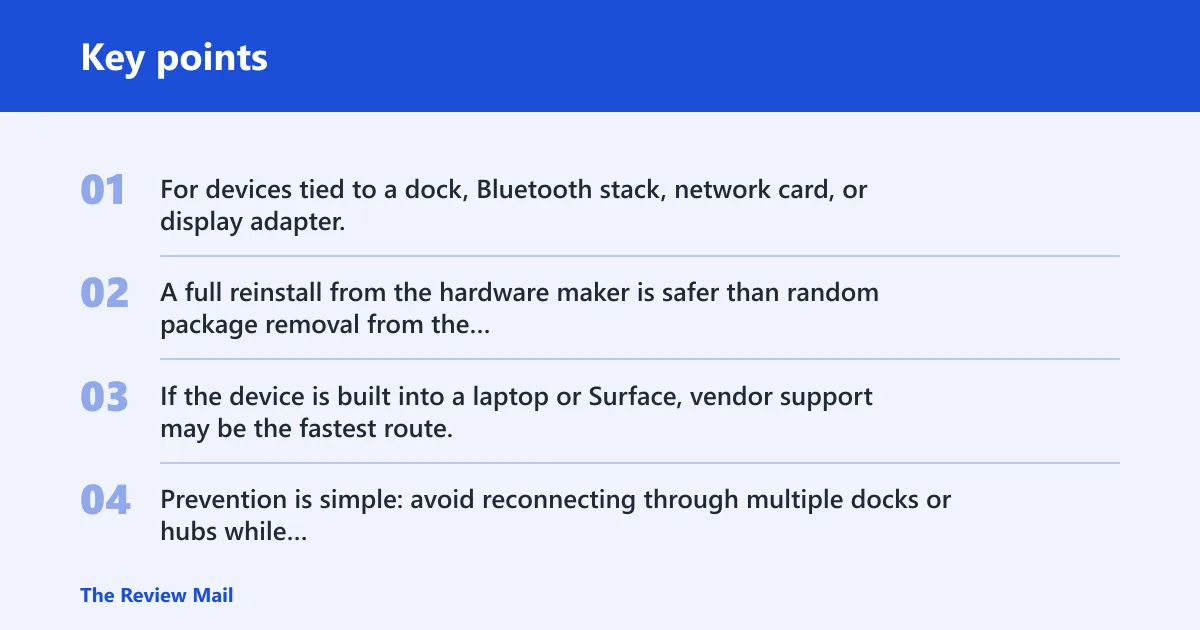
For devices tied to a dock, Bluetooth stack, network card, or display adapter, a vendor driver refresh is often the next step after Device Manager cleanup. A full reinstall from the hardware maker is safer than random package removal from the driver store. If the device is built into a laptop or Surface, vendor support may be the fastest route.
Prevention is simple: avoid reconnecting through multiple docks or hubs while troubleshooting, and make driver changes one at a time so you can see which step caused the duplicate to return.
Frequently asked questions
What does duplicate device was detected mean in Windows 10?
It usually means Windows created more than one instance of the same hardware in Device Manager. The cleanup starts there: show hidden devices, identify the gray copy, then uninstall the stale entry and scan for hardware changes. That keeps the working device in place.
How do I fix duplicate device was detected in Windows 10?
Open Device Manager, enable hidden devices, remove the non-present copy, and scan for hardware changes. If the problem started after a driver update, use the Driver tab to roll back first. For a dock or hub, test a direct port before you remove anything else.
Is duplicate device was detected a driver problem or a hardware problem?
Most often it is a driver or enumeration problem, not a failed device. Bluetooth radios, network adapters, and USB peripherals are common examples. If the duplicate appears only through a dock, the connection path is part of the diagnosis, so test the device directly before replacing hardware.
Can I safely uninstall the duplicate device in Device Manager?
Yes, if you remove the stale or hidden entry rather than the live one. Use View > Show hidden devices, then compare which entry is faded or marked non-present. Uninstall that copy, then use Action > Scan for hardware changes to rebuild the clean instance.
What should I do if the duplicate device comes back after reboot?
Check whether Windows Update reapplied the driver, then pause updates and test again. If the duplicate still returns, open Device Manager in Safe Mode and repeat the cleanup there. That helps isolate software that is restoring the bad entry during a normal startup.
Do I need to update, roll back, or reinstall the driver?
Use rollback if the problem started right after a driver change. Use uninstall and scan for hardware changes if the entry is stale or hidden. Use update only when Device Manager shows an older or broken driver and the device class is known to need a fresh package.
How do I remove duplicate devices from Device Manager?
Turn on Show hidden devices, expand the relevant class, and uninstall the gray or non-present copy. Then scan for hardware changes so Windows rebuilds the entry it still needs. Do not remove the active copy unless the vendor specifically tells you to.