Device not recognized Windows 10: quick fixes by symptom
If Windows 10 says “device not recognized,” start with the cable and USB port, then reinstall the device driver if the hardware works on another port or PC; if a known-good device fails in every port, Windows detection is the likely fault. Skipping that order wastes time, can risk data loss on storage devices, and can hide a failing port or driver. This guide shows how to read the symptoms and sort bad cable, bad port, bad driver, and Windows detection problems in the right order.
What the error means and when Windows is the problem
“Device not recognized,” “USB device malfunctioned,” “Unknown device,” and repeated pop-up errors do not mean the same thing. Some point to a bad cable or port, while others point to Windows seeing the device but loading the wrong driver. If the device works on another PC, the hardware is usually fine and Windows, the port, or power delivery is the likely trouble.
Read the symptom before you touch drivers
Device not recognized usually means Windows saw something connect, then failed to identify it cleanly. USB device malfunctioned often appears when the connection is unstable. Unknown device in Device Manager means Windows has an entry but cannot match it to a proper driver. A repeated pop-up often points to a device that keeps reconnecting and dropping off the bus.
That split matters. A storage drive with a bad cable can trigger the same Windows message as a broken driver. A printer that keeps disconnecting may be fighting for power, not software. A microphone can be detected yet still fail because the wrong recording device is active.
Start with the fastest physical checks
Check the cable and port first. MiniTool lists a faulty USB cable as a possible cause and recommends checking hardware and connection integrity. That matters most for USB storage, phones, printers, and audio gear, where a loose or damaged cable is common.
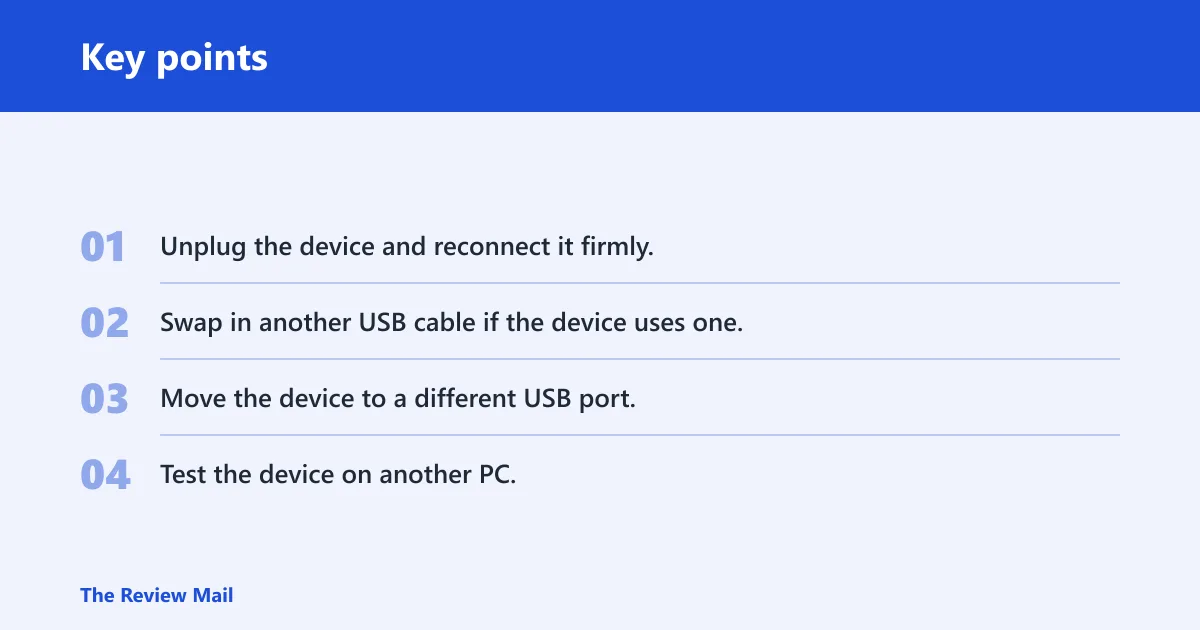
- Unplug the device and reconnect it firmly.
- Swap in another USB cable if the device uses one.
- Move the device to a different USB port.
- Test the device on another PC.
Watch for whether one port fails or all ports fail. A single-port failure points to port damage or contamination. Failure across every port pushes the fault toward the device itself, the USB controller, or power delivery.
Picture a USB SSD that mounts on a laptop dock but not on the rear ports of a desktop tower. That pattern does not call for a driver hunt first. It points to the cable, the port, or insufficient power from the connection path.
📊 Device Manager is the Windows 10 starting point for device troubleshooting. Source: Open Device Manager.
How do you check the device in Device Manager?
Device Manager is the Windows 10 starting point for device troubleshooting. Open it from Start search, or press Run and enter devmgmt.msc. Microsoft says to open Device Manager by searching for it from Start, and MiniTool also uses devmgmt.msc as a direct path.
Look for warning signs, then check the USB tree
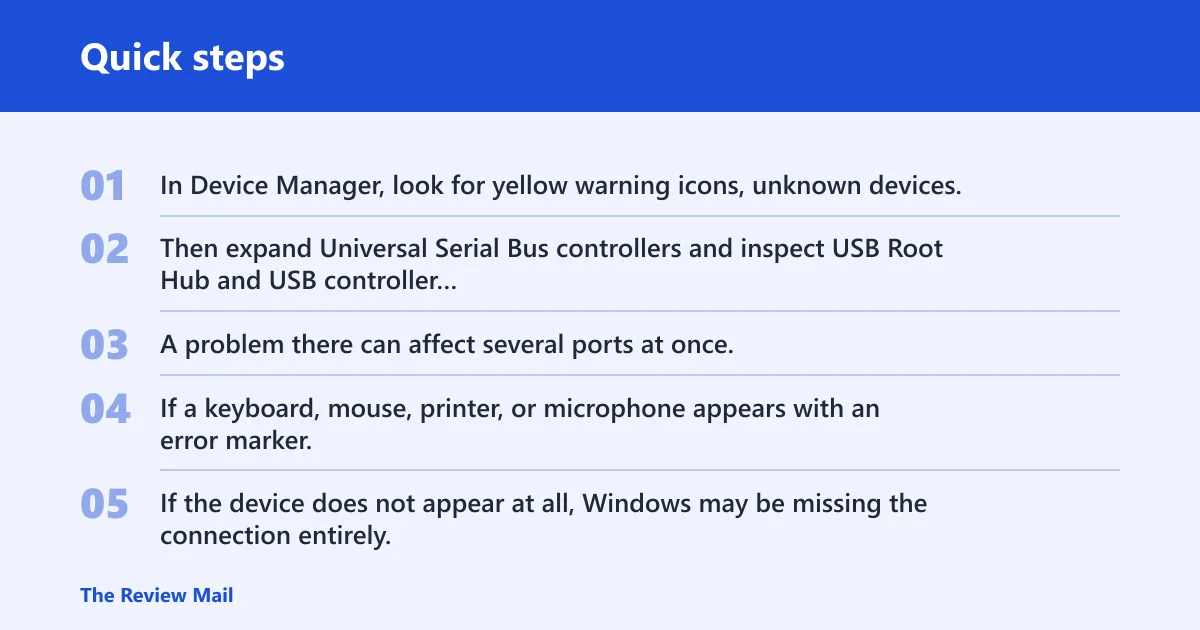
In Device Manager, look for yellow warning icons, unknown devices, or missing hardware categories that should be present. Then expand Universal Serial Bus controllers and inspect USB Root Hub and USB controller entries. A problem there can affect several ports at once, so a device may fail across multiple ports even if the cable seems fine.
If a keyboard, mouse, printer, or microphone appears with an error marker, Windows sees the hardware but does not trust the current driver state. If the device does not appear at all, Windows may be missing the connection entirely.
Which driver fix should you try first?
Use Update driver in Device Manager first, then move to remove-and-reinstall or a vendor download if needed. MiniTool shows Device Manager driver updating for the Blue Yeti, which is a practical model for many peripherals. If Windows loads the wrong driver or a corrupted one, reinstalling the device can force a clean enumeration.
Start with automatic search. Right-click the device, choose Update driver, and let Windows search. If Windows says the best driver is already installed but the device still fails, try uninstalling the device entry and reconnecting it. If Windows cannot find a suitable driver, use the manufacturer’s driver package.
Corrupted drivers and outdated drivers are not the same problem. A corrupted driver can break a device that used to work. An outdated driver may still load, but fail with newer peripherals, firmware, or Windows changes. Do not assume every error means “update everything.”
Why is my USB device not recognized on every port?
When every port fails, stop blaming the cable alone. A device that fails on multiple ports may have a power problem, a damaged connector, a bad hub, or a motherboard USB controller fault. Try a rear port first, then another PC, before you spend time reinstalling drivers.
Separate port failure from controller failure
Rear ports usually give cleaner power than front-panel ports or unpowered hubs. If the device works in one rear port but not another, the problem may be port-specific. If nothing works anywhere, the USB controller, the root hub, or the device itself needs attention.
For a phone or Apple device, a charging-only cable can trick you into thinking Windows is wrong. The device may power up but not expose data lines. For a printer, a weak connection can allow partial detection and then repeated disconnects. For storage, that pattern raises the risk of data corruption, so stop repeated reconnect attempts.
Suppose a portable 2.5-inch SSD works on a laptop but not a desktop’s front port. That suggests power or port quality, not a dead drive. Move it to a rear port before you try driver changes.
When to stop driver chasing
If the same known-good peripheral fails across several ports and another known-good peripheral also fails there, suspect the USB controller, motherboard hub, or power delivery path. At that point, more driver installs are usually noise. The next step is hardware-level diagnosis, not another Windows loop.
Use the symptom-to-fix decision matrix
This matrix separates storage, keyboards and mice, printers, microphones, and Apple devices so you can stop guessing. Start with the exact symptom, then follow the first test and the next escalation step. That is faster than trying every generic fix in random order.
| Exact symptom | Likely cause | First test | Next escalation step |
|---|---|---|---|
| “Device not recognized” appears once after plugging in a USB SSD | Bad USB cable, loose connection, or unstable port power | Swap the cable and try a rear USB port | Test the SSD on another PC; if it fails there too, suspect the drive or enclosure |
| “USB device malfunctioned” keeps returning for a keyboard or mouse | Port instability, hub issue, or driver conflict | Move to a direct rear port and check Device Manager | Inspect USB Root Hub and USB controller entries; reinstall the device if needed |
| Printer is detected, then drops offline | Cable fault, power issue, or printer driver problem | Swap the cable and bypass any hub or dock | Remove and reinstall the printer driver, then test on another PC |
| Microphone appears, but no input is recorded | Wrong default recording device or driver problem | Open Sound settings and set it as the default device | Run the audio troubleshooter and update or reinstall the driver |
| Apple device charges but does not show in Windows | Charge-only cable, trust prompt issue, or data path failure | Use a data-capable cable and try another port | Test on another PC; if Windows still does not see it, inspect the USB controller |
How to read the matrix
If a device works on one PC but not another, the second PC is the problem more often than the device. If a device fails only on one port, focus on that port before the driver. If a device fails everywhere, move up the chain: cable, controller, power, then hardware.
What should you do for no-input or audio-specific failures?
When keyboard or mouse input is gone, use the few paths that do not require that device. For audio devices, Windows may detect the hardware but still send sound to the wrong input. For printers and storage drives, once detection returns, the next step is verifying they work in the app or folder you expect.
Recover a keyboard or mouse failure
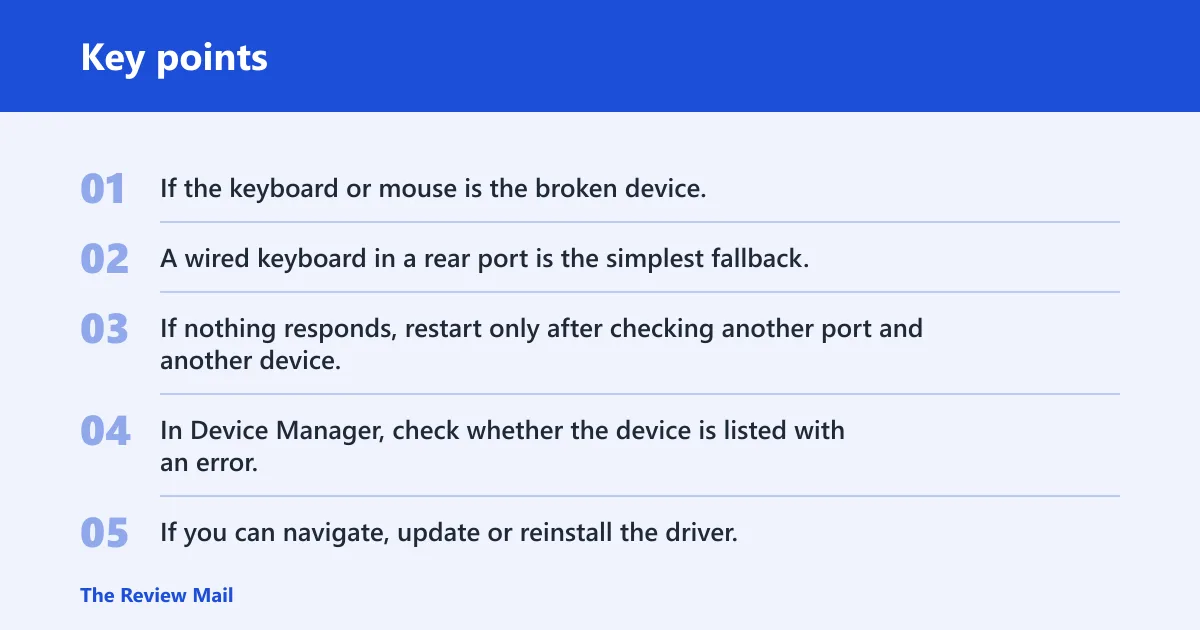
If the keyboard or mouse is the broken device, you may need a spare USB input device to continue. A wired keyboard in a rear port is the simplest fallback. If nothing responds, restart only after checking another port and another device, because restart alone does not fix a dead port or a missing USB controller.
In Device Manager, check whether the device is listed with an error. If you can navigate, update or reinstall the driver. If you cannot navigate, use another input path first. A no-input problem needs a recovery path, not a loop of clicks you cannot perform.
Set the microphone or recording device as default
MiniTool recommends setting the microphone as the default device. Open Sound settings, go to the Recording tab, and make the correct microphone the default device. MiniTool also includes the Windows Playing Audio troubleshooter, which is useful after the physical connection is sound.
A common mistake is to unplug a keyboard or USB drive when Windows 10 says the device is not recognized, even though the real issue is a driver or port problem. A headset mic can be detected while the laptop’s built-in array stays selected as the default. In that case, the hardware is fine, but Windows is recording from the wrong source.
Use the troubleshooter after basic checks
Run the built-in Hardware troubleshooter after you have checked the cable, port, and connection integrity. That keeps Windows diagnostics in the right place: after the obvious physical faults, before deeper driver work. It is useful when the device is present but misbehaves.
Frequently asked questions
how to fix device not recognized in windows 10
Start with the cable and USB port, then check the device in Device Manager. If the device works on another PC, reinstall or update the driver on the problem PC. If it fails everywhere, suspect the device, cable, or power path rather than Windows alone.
how fix usb device not recognized windows 10
Try a different port, preferably a rear port, and swap the USB cable if the device uses one. Then open Device Manager and look for unknown devices or USB controller errors. If the hardware works elsewhere, use Update driver or remove and reinstall the device.
how to fix usb not recognized windows 10
Do not start with random fixes. Check whether one port fails or all ports fail, then test the device on another PC. If the device is stable elsewhere, the issue is usually Windows, the port, or a driver problem rather than the peripheral itself.
why usb not recognized windows 10
Common causes are a faulty cable, bad port, corrupted driver, or a USB controller problem. Windows may also see the device but assign the wrong driver. The quickest way to sort that is to test the hardware first, then inspect Device Manager for warning signs.
usb device not recognized windows 10 how to fix
Use a symptom-first order: cable, port, another PC, Device Manager, then driver update or reinstall. If a microphone or other audio device is involved, check the default device setting in Sound and the Recording tab. Stop driver chasing if every port fails.
how to fix boot device not found windows 10
That error is different from USB peripheral errors. It points to a boot drive, BIOS or UEFI setting, or storage detection problem before Windows loads. Check the boot drive connection, then the boot order, and only after that move into Windows repair or storage diagnostics.