This Device Cannot Find Enough Free Resources Windows 10 Fix
In Windows 10, “This device cannot find enough free resources that it can use” means two devices have been assigned the same I/O ports, the same interrupt, or the same DMA channel. The assignment can be made by the BIOS, the operating system, or both. Use Device Manager to find the conflict and, if you want to use this device, disable one of the other devices on this system.
This guide is part of our Windows driver errors: full list and fixes series.
What Code 12 means
Code 12 appears in Device Manager on the affected device’s Properties dialog box, usually on the General tab under Device status, and a yellow warning icon often marks the device. Use Device Manager to determine the source of the conflict and to resolve it.
What to record before you change anything
Write down the exact device name and the full status text. Note whether the problem started after a new device was added, a BIOS setting changed, or Windows changed how resources were assigned.
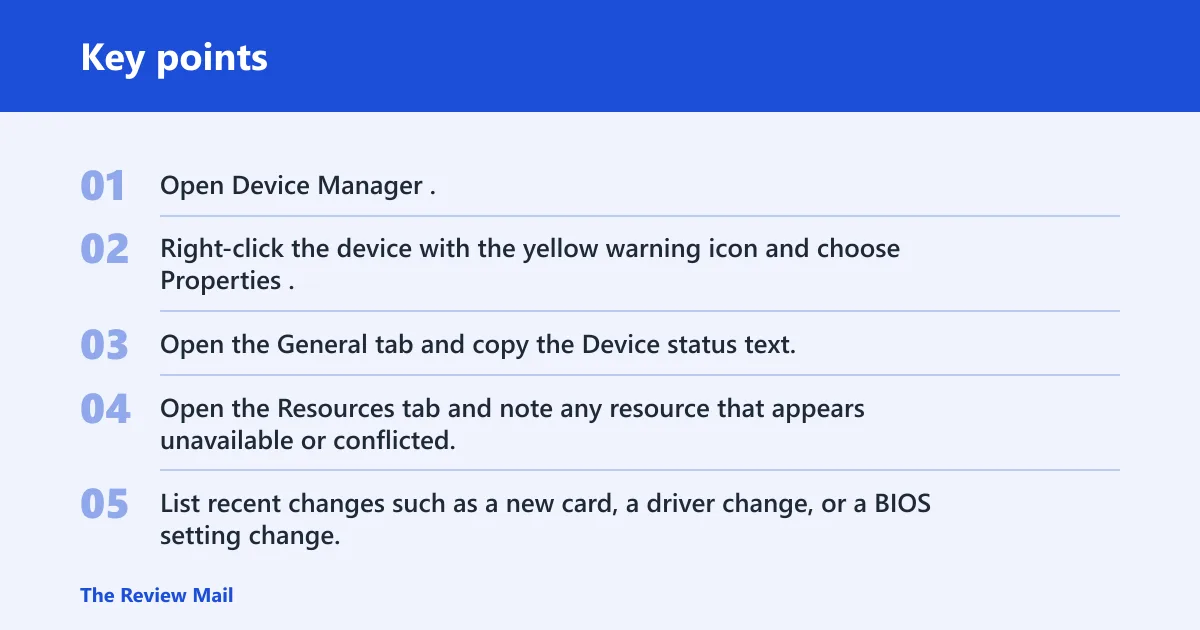
- Open Device Manager.
- Right-click the device with the yellow warning icon and choose Properties.
- Open the General tab and copy the Device status text.
- Open the Resources tab and note any resource that appears unavailable or conflicted.
- List recent changes such as a new card, a driver change, or a BIOS setting change.
📊 Code 12 is shown in the Device Properties dialog box on the General tab. Source: Microsoft.
Likely causes
Start by identifying the device that owns the conflict, then compare it with the most recent hardware or firmware change.
- New device: a recently added card may be sharing resources with another device.
- BIOS or UEFI change: firmware may not have allocated sufficient resources to a device.
- Windows assignment: Windows may have assigned the same resources as another device.
- USB controller issue: the BIOS may not allocate an interrupt to a USB controller loses because of an invalid multiprocessor specification (MPS) table.
Driver conflict fix
If the Resources tab shows a conflict tied to a specific device, start with Device Manager. Update, roll back, or uninstall and reinstall the affected device only if that matches the problem device.
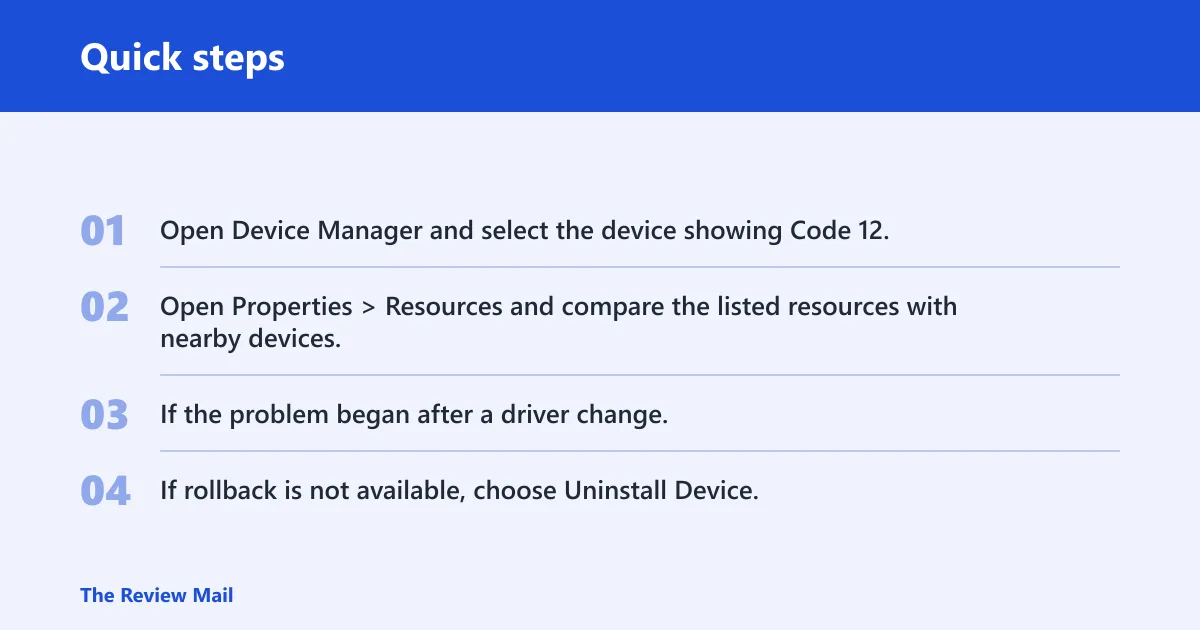
- Open Device Manager and select the device showing Code 12.
- Open Properties > Resources and compare the listed resources with nearby devices.
- If the problem began after a driver change, check the driver order and choose Driver > Roll Back Driver if available.
- If rollback is not available, choose Uninstall Device, then restart and let Windows reinstall it.
If the conflict remains after the device is reinstalled, use Device Manager again to identify the other device that is sharing the resource and disable one of the other devices on this system.
Should you disable Hyper-V?
Disable Hyper-V only if the problem began after turning on virtualization and you do not need it for your work. If the device conflict remains after you review Device Manager, Hyper-V is not the only possible cause.
- Open Control Panel > Programs > Turn Windows features on or off.
- Clear Hyper-V and any unused virtualization features.
- Select OK and restart the PC.
- Return to Device Manager and check the device status again.
Can resetting BIOS help this device cannot find enough free resources?
A BIOS or UEFI reset makes sense when the issue began after a firmware change or after a BIOS setting change. Microsoft notes that this error message can appear if the BIOS did not allocate sufficient resources to a device.
- Restart the PC and enter setup with the manufacturer’s key.
- Load Setup Defaults or Optimized Defaults.
- Save and exit, then return to Windows.
- Check whether the device still shows Code 12 in Device Manager.
If the same conflict returns after defaults are restored, review the affected device in Device Manager and compare it with other devices on the system.
How do I fix Code 12 on Windows 10?
Start with Device Manager, identify the source of the conflict, and then apply the smallest change that removes the resource overlap.
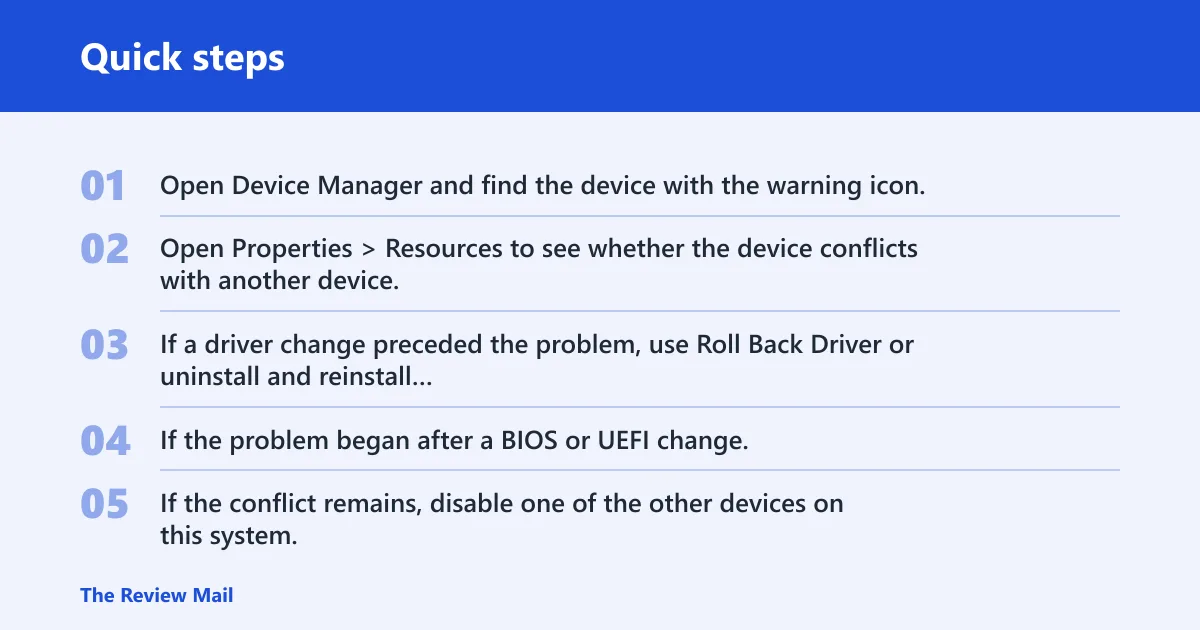
- Open Device Manager and find the device with the warning icon.
- Open Properties > Resources to see whether the device conflicts with another device.
- If a driver change preceded the problem, use Roll Back Driver or uninstall and reinstall the device.
- If the problem began after a BIOS or UEFI change, load Setup Defaults or Optimized Defaults.
- If the conflict remains, disable one of the other devices on this system.
Can external hardware trigger Code 12 after Windows updates?
External hardware may be part of the resource conflict if it is one of the devices competing for the same resources. Disconnect unneeded external devices, then check Device Manager again to see whether the conflict changes.
- Unplug docks, USB drives, external storage, and similar accessories.
- Restart the PC.
- Open Device Manager and check the device status again.
What should I do if the conflict is with a specific PCIe or graphics card?
Use Device Manager to see whether the card shares a resource with another device. If the motherboard manual shows another valid slot path, you can move the card to that slot. If the same conflict returns in multiple slots, stop and review the card and the motherboard configuration.
- Open Device Manager and confirm the card name.
- Check the Resources tab and note the exact conflicting resource.
- Disable one other device at a time only if the board layout allows it.
- Move the card to another slot only if the motherboard manual shows an alternate lane or slot path.
- If the same conflict returns in multiple slots, stop and review the card, slot topology, or motherboard documentation.
Still not working?
If the same device keeps failing, keep using Device Manager to identify the resource conflict and review the motherboard documentation for the affected slot or device. If the board still assigns the same conflict, contact the device maker or motherboard vendor.
- Remove the affected card and test another compatible slot, if available.
- Check the motherboard manual for shared lanes or slot limits.
- Test with minimal external hardware attached.
- If the board still assigns the same conflict, contact the device maker or motherboard vendor.
Prevention: after a successful fix, keep a short note of the device, the slot used, and the BIOS state. That makes the next Code 12 easier to trace.
Frequently asked questions
What does this device cannot find enough free resources mean in Windows 10?
It means Device Manager has found a resource conflict between devices. Check the General tab first, then the Resources tab, and compare the result with recently changed hardware or firmware settings.
Can outdated drivers cause Code 12?
Yes, a driver change can be involved. Use Device Manager to roll back, reinstall, or update the driver for the affected device.
How do I check which device is causing the resource conflict?
Open Device Manager, look for the yellow warning icon, and open Properties > Resources. Then compare the affected device with other devices on the system.
Should I disable Hyper-V to fix Code 12?
Only if the problem started after virtualization was turned on and you do not need Hyper-V. Disable it in Control Panel > Programs > Turn Windows features on or off, then restart.