0x8004fe93 Office Activation Error
Start with the license account, then check the subscription, then move to repair. If Office stays unlicensed, it may restrict editing, saving, or activation prompts.
Say your laptop shows Unlicensed Product in Word after a recent sign-in change. That points to the account or license path first, not a Windows activation problem. Suppose the same PC also shows a separate Windows activation notice in Settings; treat those as two different checks.
What the error means
That code usually means Office could not activate with the current account, subscription, or installed copy.
Why Office shows Unlicensed Product
Microsoft says activation failures can appear as Unlicensed Product or Non-commercial use / Unlicensed Product. That status usually means Office cannot match the current sign-in, subscription, or installed copy to a valid license. It does not automatically mean the app is broken. (Microsoft Support)
How this differs from a Windows activation error
Office activation and Windows activation are different paths. Office issues are often visible in Word, Excel, PowerPoint, or Outlook. Windows activation problems show in Settings > System > Activation. If the PC also shows a Windows code such as 0xC004F211 or 0xC004F213, that is a separate issue.
Fastest fix order
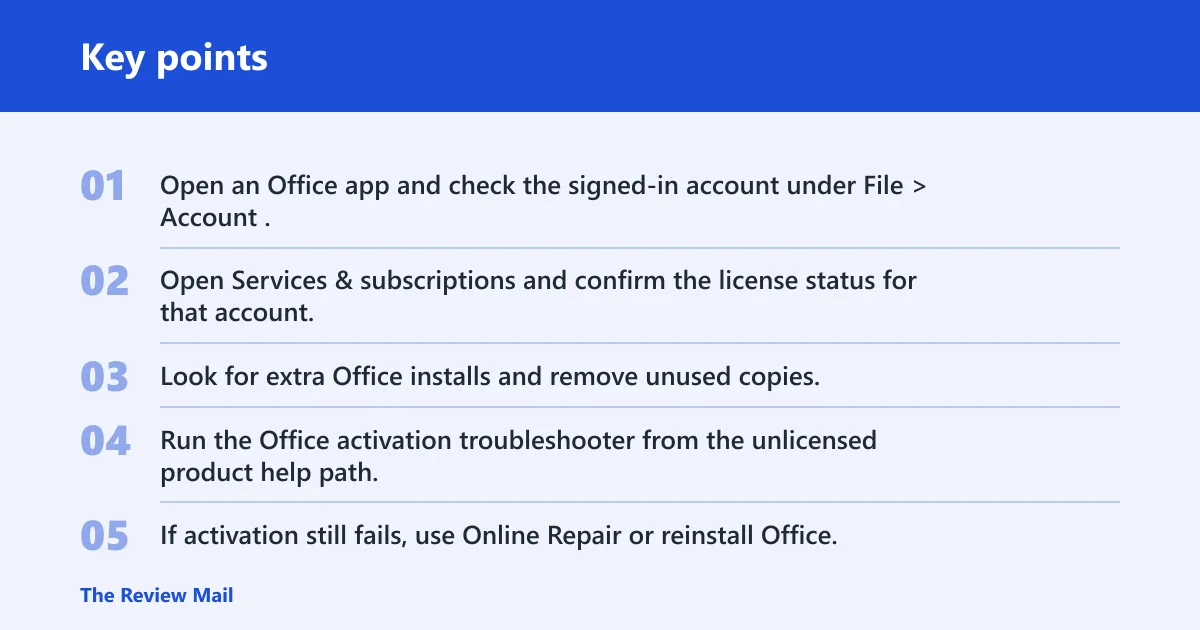
- Open an Office app and check the signed-in account under File > Account.
- Open Services & subscriptions and confirm the license status for that account.
- Look for extra Office installs and remove unused copies.
- Run the Office activation troubleshooter from the unlicensed product help path.
- If activation still fails, use Online Repair or reinstall Office.
📊 Microsoft’s Office troubleshooting page supports Windows 11, Windows 10, and Mac in one install guide. Source: Microsoft.
Office activation triage table
| Symptom | Next action |
|---|---|
| Word, Excel, or another app shows Unlicensed Product | Sign out, then sign back in with the account used to buy Office. |
| You see Non-commercial use / Unlicensed Product | Check whether the sign-in is a personal account or a work or school account. |
| Office says it cannot find any products for that account | Open Services & subscriptions and confirm the purchase account. |
| Activation started after installing another Office version | Remove extra Office copies from Programs and Features, then restart. |
| Subscription looks expired or missing | Renew Microsoft 365, close all Office apps, then reopen one app. |
| Sign-in and subscription look right, but activation still fails | Run the activation troubleshooter, then use Online Repair. |
Likely causes, ranked
The most common failure point is a bad account match. After that, check the subscription, then the install itself. Microsoft support also separates home licensing from business licensing, so do not mix a personal account with a work or school license path.
Wrong Microsoft account or wrong license type
If the wrong account is signed in, Office may not find the license. Microsoft says a wrong Microsoft account can trigger We couldn’t find any Office products. For home use, the purchase account is the one to sign in with. For business use, the work or school account matters.
- Open Word or Excel.
- Go to File > Account.
- Select Sign out under every account shown there.
- Sign back in with the Microsoft account used to buy Office.
- If you are unsure which address was used, try the personal email addresses you may have used.
- If this is a business license, sign in with the work or school account that owns the subscription.
Expired Microsoft 365 subscription
An expired Microsoft 365 subscription can block activation. Renewal may be required before Office can activate again. Microsoft also says to check Services & subscriptions when you are verifying the license status.
- Go to the Microsoft account Services & subscriptions page.
- Confirm the Microsoft 365 status is active.
- If it shows expired, renew the subscription.
- After renewal, close every Office app.
- Reopen Word or Excel and wait for the license to refresh.
Multiple Office installs or a damaged install
Multiple Office copies can cause activation conflicts. Microsoft advises uninstalling any Office versions you are not using before continuing troubleshooting. This matters on Windows 10 and Windows 11, especially if one PC has Office 2024, 2021, 2019, and 2016 remnants mixed together.
- Open Control Panel > Programs > Programs and Features.
- Find extra Office versions you do not use.
- Uninstall the unused copies.
- Restart the PC after uninstalling.
- Open one remaining Office version and try activation again.
Is this the wrong account?
If the license owner is not signed in, Office often fails before any repair step helps. The fix is to clear the current sign-in and use the account tied to the purchase or assignment. That differs from Windows sign-in and from the local account on the PC.
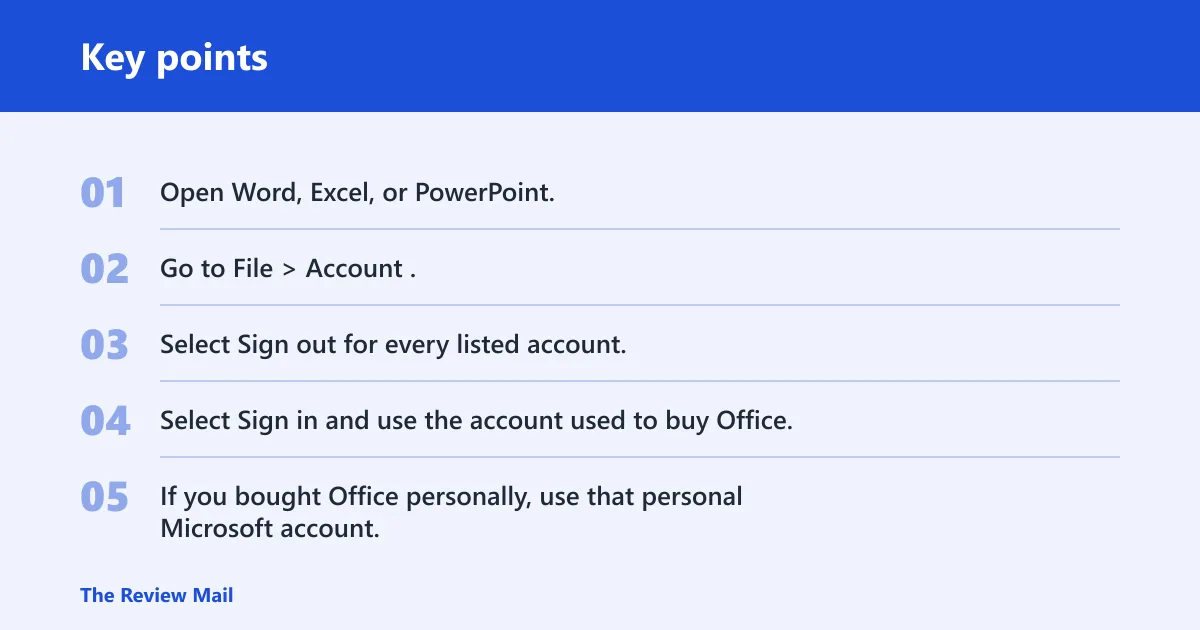
- Open Word, Excel, or PowerPoint.
- Go to File > Account.
- Select Sign out for every listed account.
- Select Sign in and use the account used to buy Office.
- If you bought Office personally, use that personal Microsoft account.
- If the license is for work or school, sign in with the organization account instead of a personal account.
- On a shared device, verify that no other user’s account is controlling the license.
Has your subscription expired?
An expired Microsoft 365 plan can stop activation even when the app installation is fine. Check the status first, then renew if needed. After renewal, Office usually needs a fresh sign-in or a reopened app to pull the new license state.
- Open the Microsoft account Services & subscriptions page.
- Check whether Microsoft 365 is active, expired, or missing.
- If it is expired, renew the subscription.
- Close all Office apps after renewal.
- Open Word or Excel again and wait for the license to refresh.
Can multiple Office installs block activation?
Yes. Extra Office installations can conflict with activation, especially if the PC has older or unused versions left behind. Microsoft advises removing Office versions you are not using before moving on to repair. That step often fixes cases that look like a license problem.
- Open Control Panel > Programs > Programs and Features.
- Look for more than one Office entry.
- Uninstall versions you do not need.
- Restart the computer.
- Open the remaining Office app and test activation.
Still not working?
If sign-in, subscription, and install cleanup do not fix it, move to Microsoft’s activation tools. The built-in troubleshooter is often the next step, followed by Online Repair or a full uninstall and reinstall. For business licensing, admin assignment is the next checkpoint. On Windows 7, Microsoft also notes that TLS 1.2 must be enabled by default.
- Open Settings > System > Activation > Troubleshoot if Windows activation also needs a check.
- In Office, open the Microsoft Support activation troubleshooter from the activation or unlicensed product help path.
- Run Online Repair from Control Panel > Programs > Programs and Features if the app install looks damaged.
- If repair fails, uninstall Office and reinstall it.
- If this is a work or school license, ask IT to confirm the assignment in Microsoft 365 admin.
- If the PC is on Windows 7, confirm TLS 1.2 is enabled by default before trying activation again.
Prevention: keep one clear license path per device.
Frequently asked questions
How do I fix 0x8004fe93 Office activation error?
Start with File > Account and sign out of Office, then sign back in with the account used to buy the license. If that does not work, check Services & subscriptions, remove extra Office installs, then run the activation troubleshooter and Online Repair.
Why does microsoft Office say unlicensed product?
That status appears when Office cannot confirm a valid license for the current sign-in or install. Check the account in File > Account, confirm the subscription in Services & subscriptions, and make sure only one Office copy remains installed.
How do I sign in with the right account to activate Office?
Open any Office app, go to File > Account, and use Sign out first. Then sign in with the Microsoft account used to buy Office, or the work or school account that owns the subscription. If needed, try any personal email address tied to the purchase.
Can multiple Office installs cause activation problems?
Yes. Extra Office versions can confuse activation and leave the app unable to validate the license. Remove unused copies from Control Panel > Programs > Programs and Features, restart the PC, then try activation again in the remaining Office installation.
What if my Microsoft 365 subscription expired?
Renew it in Services & subscriptions, then close every Office app before reopening Word or Excel. That refreshes the license check. If the account is a work or school license, confirm the subscription assignment with the organization before trying again.
Is this an Office license problem or a Windows activation problem?
If the error appears inside Word or Excel, it is usually an Office license issue. If the problem appears in Settings > System > Activation, it is a Windows activation issue. Treat them separately so you do not repair the wrong product first.