Windows Activation Error 0x80070520
Windows activation error 0x80070520 means activation could not complete. Activation helps verify that your copy of Windows is genuine and hasn’t been used on more devices than the Microsoft Software License Terms allow. On Windows 10 and Windows 11, start with the Activation troubleshooter, then check whether your device is up to date, whether the edition matches, and whether the error is actually coming from Microsoft Store.
Likely causes
Separate Windows activation errors from Store errors first. On Windows 10 and Windows 11, the same code can appear for more than one issue, so the right fix depends on where the error appears and whether there was a recent change to the device.
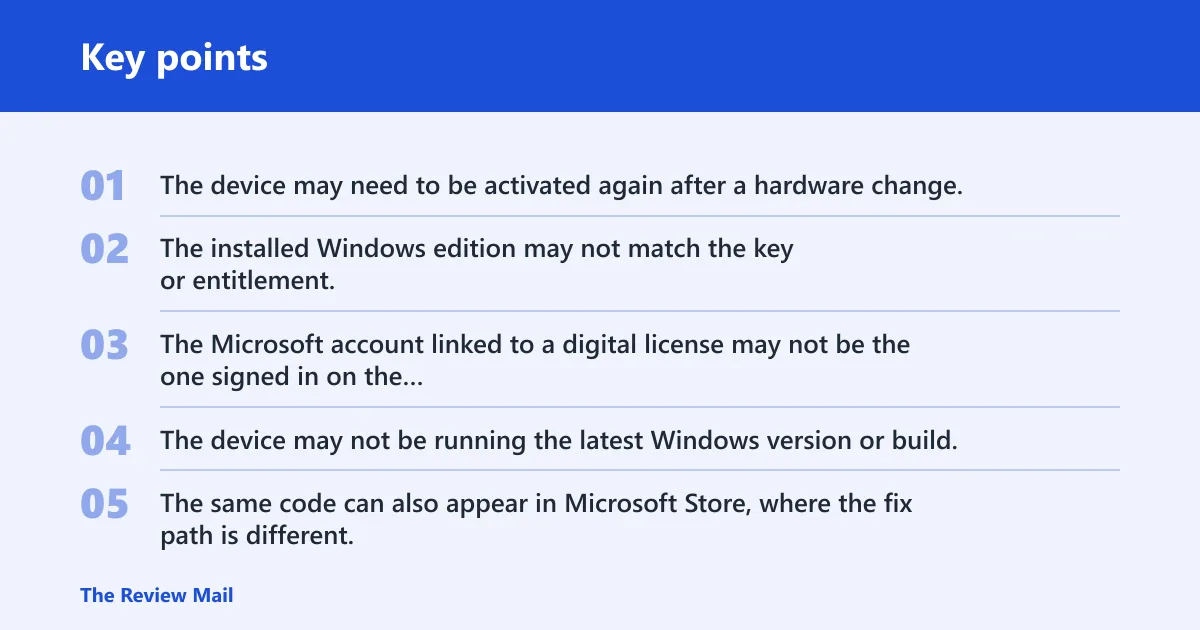
- The device may need to be activated again after a hardware change.
- The installed Windows edition may not match the key or entitlement.
- The Microsoft account linked to a digital license may not be the one signed in on the device.
- The device may not be running the latest Windows version or build.
- The same code can also appear in Microsoft Store, where the fix path is different.
Which 0x80070520 fix applies?
| Scenario | Likely license type | What to check first | Exact Settings path or command to run | When to stop and contact OEM/Microsoft |
|---|---|---|---|---|
| Clean reinstall | Retail or digital license | Was the old license tied to this device and edition? | Settings > System > Activation > Troubleshoot | If the edition is correct but activation still fails after the troubleshooter |
| Motherboard swap | Digital license or OEM | Is the linked Microsoft account signed in? | Settings > System > Activation > Troubleshoot | If activation still does not complete after trying the troubleshooter |
| Wrong edition installed | Retail, OEM, or volume | Does Home, Pro, Enterprise, or Education match the key? | Settings > System > About; then run slmgr.vbs /dlv | If the installed edition does not match the entitlement |
| No Microsoft account link | Digital license | Is the linked account signed in on the device? | Settings > Accounts > Your info; then Settings > System > Activation | If the license never linked to that account or a product key is still required |
| Microsoft Store-only error | Not a Windows activation license issue | Does the error appear inside Store downloads or updates? | Microsoft Store > Library > Get updates; then reset the Store app cache | If Store reset does not clear the download or update failure |
Is this a hardware change problem?
If the error began after a hardware change, start here. Use the Activation troubleshooter first, then move to account and license checks if activation is still not restored. If Windows 11 is installed, confirm that your device is up to date and running Windows 11 before troubleshooting.
- Open Settings > System > Activation on Windows 11, or Settings > Update & security > Activation on Windows 10.
- Select Troubleshoot.
- If the option is missing, check whether the license came from Windows 7 or Windows 8.1.
- If the device was built with an OEM license and the board was replaced, contact the device maker with the device serial number and proof of purchase.
Say your desktop has a Pro license and the board was replaced during a repair. The Activation troubleshooter may recover the digital license if the linked account is signed in. If activation still fails after that, the next step is to check the edition and account details.
Could the installed Windows edition be wrong?
Yes. A Home, Pro, Enterprise, or Education install should match the license key or entitlement, and an edition mismatch can block activation even when the key is otherwise valid. This is one of the most common branches after a reinstall, especially when setup defaults to the wrong edition or a device image was reused.
- Open Settings > System > About and confirm the Windows specifications edition.
- Run slmgr.vbs /dlv from Command Prompt as administrator to inspect the current licensing state.
- In the Windows Script Host window, check the Activation ID, Application ID, and Extended PID.
- If the edition does not match the key, reinstall with the correct edition or enter the matching key with slmgr.vbs /ipk <25-digit-key>.
- Finish with slmgr.vbs /ato.
A common mistake is installing Windows 11 Pro on a device whose entitlement is Home. The clean fix is to install the matching edition or use the proper key for the installed edition.
Is your digital license linked to the right Microsoft account?
That link matters most after a reinstall or hardware change, because Windows needs to find the entitlement again before activation will complete. If the device is using a local account, the link may never be available to the troubleshooter.
- Open Settings > Accounts > Your info and confirm the Microsoft account is signed in.
- Return to Settings > System > Activation and run Troubleshoot again.
- If Windows asks for a product key, enter the 25-digit key with Settings > System > Activation > Change product key.
- If the license is not tied to that account, sign in with the account that was used when activation was first linked.
- If the device only has an OEM license and the board changed, contact the OEM rather than trying account sign-ins at random.
Suppose a laptop was reinstalled and then switched from a local account to a Microsoft account. If that Microsoft account is not the one tied to the digital license, the Activation troubleshooter may still fail until the correct account is used.
Use slmgr.vbs to inspect or retry activation
Use slmgr.vbs when you need a clearer view of the license state or when you want to retry activation from the command line. It is most useful after the built-in troubleshooter, because it can show whether the problem is a missing key, an expired activation, or a volume-license mismatch. It does not replace edition matching.
Open Command Prompt as administrator

slmgr.vbs /dlv
slmgr.vbs /ipk <25-digit-key>
slmgr.vbs /ato
- Open Command Prompt as administrator.
- Run slmgr.vbs /dlv to open Windows Script Host and inspect the activation state.
- If you have the correct product key, run slmgr.vbs /ipk <key>.
- Run slmgr.vbs /ato to attempt online activation.
- Use slmgr.vbs /upk only when you are removing a key from the current install, such as before replacing it with another valid key; it is not a routine fix for this error.
Windows Script Host is the window that appears after /dlv.
When the code points to Microsoft Store instead
If the message appears while opening, updating, or downloading Store apps, it is usually better treated as a Microsoft Store problem rather than a Windows activation problem. The fix path is different, and activation steps such as edition checks or slmgr commands will not help a Store download error. In that case, the Store may show “Something unexpected happened.”
- Open Microsoft Store and select Library.
- Choose Get updates.
- Go to Settings > Apps > Installed apps > Microsoft Store > Advanced options and use Repair, then Reset if needed.
- Check Settings > Apps > Apps & features > Microsoft Store for app permissions if the Store keeps failing.
- If the error persists only in Store, stop using Windows activation steps and escalate as a Store issue.
This branch matters because Store cache or permission issues do not mean the Windows license is broken. Mixing the two usually wastes time.
Still not working?
If the troubleshooter, edition check, account sign-in, and slmgr.vbs checks all fail, contact the device OEM, the retailer that sold the license, or Microsoft support. Have the edition, the exact code, the activation channel if known, and the Activation ID from slmgr.vbs /dlv ready. If the code changes, look up the new code and follow the matching steps.
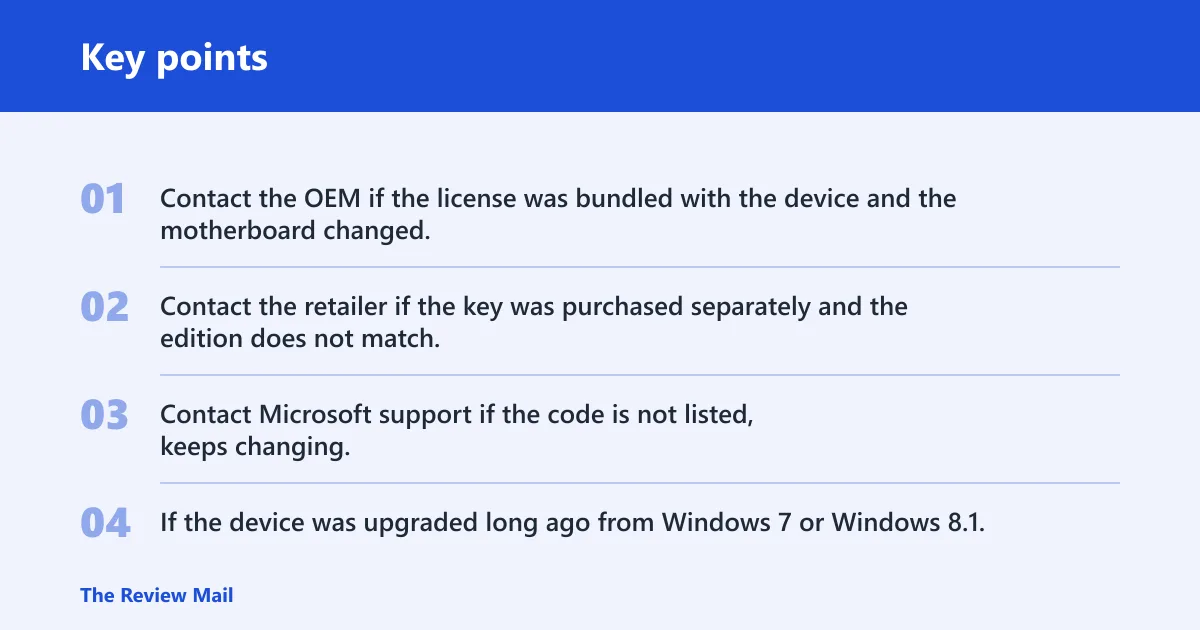
- Contact the OEM if the license was bundled with the device and the motherboard changed.
- Contact the retailer if the key was purchased separately and the edition does not match.
- Contact Microsoft support if the code is not listed, keeps changing, or the troubleshooter cannot complete.
- If the device was upgraded long ago from Windows 7 or Windows 8.1, ask support whether the license can still transfer to current hardware.
Prevention is limited here. The best guardrail is to keep the Microsoft account linked to the digital license signed in before major hardware work, and to confirm the edition before reinstalling.
Frequently asked questions
What is error code 0x80070520?
Start with Settings > System > Activation > Troubleshoot, then use slmgr.vbs /dlv if the troubleshooter does not fix it.
How do you fix Windows activation error 0x80070520?
Start with Settings > System > Activation > Troubleshoot, then confirm the edition in Settings > System > About, sign in with the Microsoft account linked to any digital license, and run slmgr.vbs /ato. If the error is only in Microsoft Store, use Store repair or reset instead.
Why does Windows activation 0x80070520 happen after hardware change?
A hardware change can require activation again.
How do you use the activation troubleshooter in Windows 10 or 11?
On Windows 11, go to Settings > System > Activation > Troubleshoot. On Windows 10, use Settings > Update & security > Activation > Troubleshoot. Sign in with the linked Microsoft account if prompted, then follow any hardware-change prompt that appears.
What command can you run to check Windows licensing details?
Run slmgr.vbs /dlv from Command Prompt as administrator. The Windows Script Host window shows the Activation ID, Application ID, and Extended PID, which help identify the installed licensing channel and whether the system points to the correct edition.
Can a wrong Windows edition cause activation error 0x80070520?
Yes. Home, Pro, Enterprise, and Education must match the license key or entitlement. Check the installed edition in Settings > System > About, then enter the correct key with slmgr.vbs /ipk <key> or reinstall the matching edition before trying slmgr.vbs /ato.