Windows activation error 0x80072efd: fix it fast now
Windows activation error 0x80072efd usually means the PC or VM cannot reach Microsoft’s activation service. Fix network, DNS, proxy, and firewall paths first, then retry activation. If you skip that, activation can keep failing after an install or upgrade, and the system may remain unlicensed. This guide shows how to diagnose the network path, then gives separate fixes for physical PCs, virtual machines, and post-install activation.
This guide is part of our Windows activation errors: full list and fixes series.
Why am I getting error 0x80072efd when activating Windows?
Activation helps verify that your copy of Windows is genuine and has not been used on more devices than the license terms allow. When this code appears during first install, after a reboot, or after an upgrade, the most likely problem is still reachability, not a bad key.
Likely causes
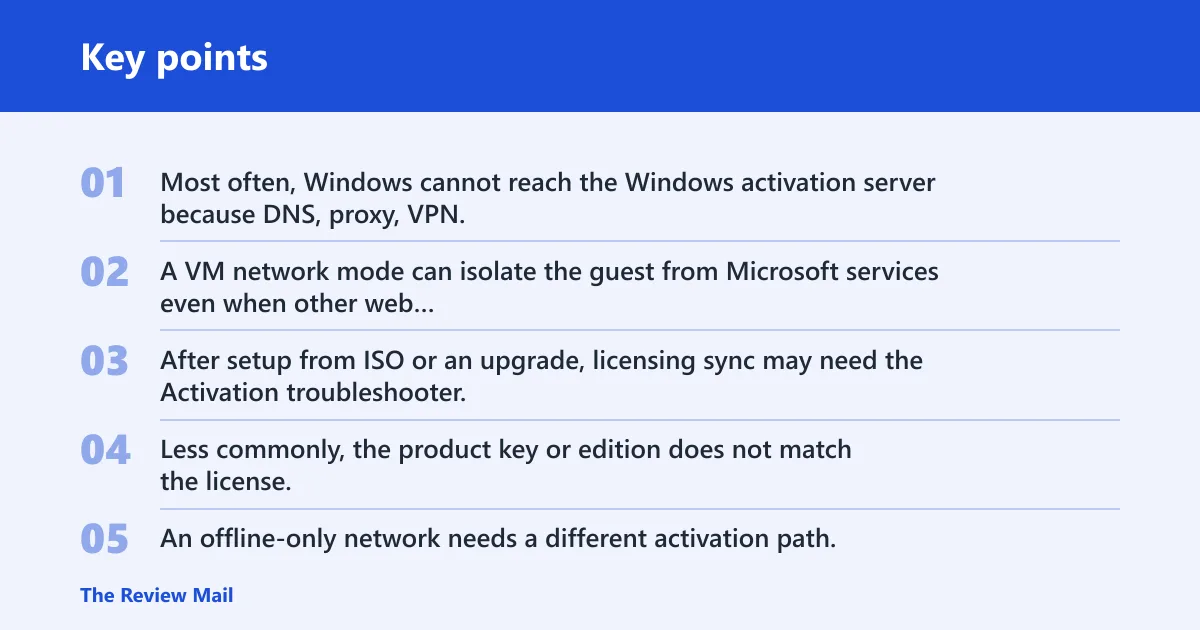
- Most often, Windows cannot reach the Windows activation server because DNS, proxy, VPN, or firewall rules block Microsoft endpoints.
- A VM network mode can isolate the guest from Microsoft services even when other web pages load.
- After setup from ISO or an upgrade, licensing sync may need the Activation troubleshooter.
- Less commonly, the product key or edition does not match the license.
- An offline-only network needs a different activation path.
📊 Microsoft says Windows 10 support ended on October 14, 2025. Source: Microsoft.
Which cause is most likely?
The fastest way to separate causes is to compare activation with other network checks. If Windows Update fails too, a shared network or routing issue is a reasonable place to look. If a browser works but activation fails, Microsoft endpoints may be blocked. If the problem appears only in a VM, focus on the virtual adapter. A local network path issue is still more likely than a key typo.
| Symptom pattern | Likely cause | Fastest confirming check | Next action |
|---|---|---|---|
| Windows Update fails too | Shared DNS, proxy, VPN, or firewall issue | Open Settings > Windows Update and try Check for updates | Clear proxy/VPN, flush DNS, and retry activation |
| Browser works but activation fails | Microsoft activation endpoints blocked | Browse to Microsoft.com from the same device, then retry activation | Test Microsoft services directly, not only general web access |
| VM only | Virtual adapter mode | Change the VM adapter in VirtualBox and retest connectivity | Use NAT first |
| First install only | Post-setup licensing sync or edition mismatch | Open Settings > System > Activation | Run Troubleshoot |
| Offline-only network | Expected service reachability limit | Confirm the device has no route to Microsoft | Use offline activation or connect the device temporarily |
Say your browser opens normal sites, but Settings > System > Activation still fails. That is a sign to test Microsoft endpoints specifically, not to assume the license is wrong. Suppose a VM can open news sites, yet Windows activation fails after the first boot; the adapter mode is a better suspect than the product key.
What should I check if Windows says it cannot connect to the activation server?
Start by confirming that the device can reach Microsoft services, not just the internet in general. If activation and Windows Update fail together, the shared path is usually DNS, proxy, VPN, firewall, or date/time sync. Restarting can clear a transient state, but it will not repair a broken route.
- Open a browser and go to Microsoft.com from the same device.
- Open Settings > Windows Update and select Check for updates.
- Open Settings > Time & language > Date & time and turn on automatic time and time zone.
- Turn off any VPN or security filter that inspects web traffic.
- Clear proxy settings in Settings > Network & internet > Proxy.
- Retry activation from Settings > System > Activation.
If the device reaches ordinary websites but not Microsoft, the activation server path is still blocked. That distinction matters, because a browser working does not prove the licensing service can be reached.
How do you fix Windows activation error 0x80072efd?
On a physical PC, start with the network path, then re-enter the product key and retry online activation. The quickest win is usually removing a proxy, VPN, or filtering rule that blocks Microsoft activation servers, followed by a second network test. Use the built-in troubleshooter after a recent install or upgrade if the issue seems tied to that change.
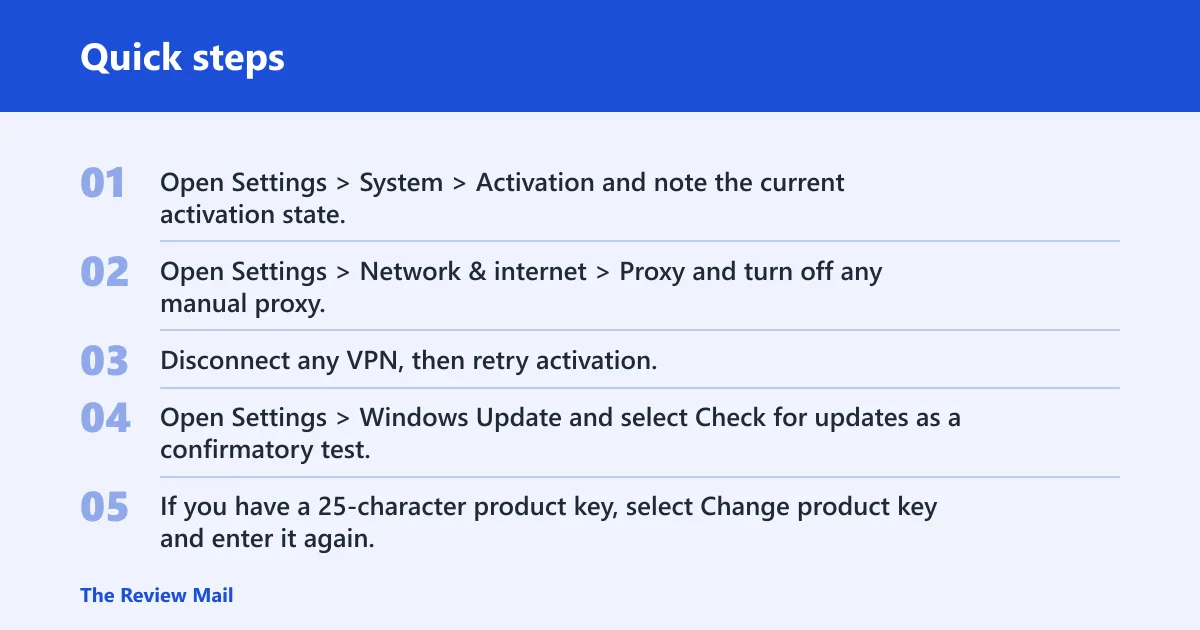
- Open Settings > System > Activation and note the current activation state.
- Open Settings > Network & internet > Proxy and turn off any manual proxy.
- Disconnect any VPN, then retry activation.
- Open Settings > Windows Update and select Check for updates as a confirmatory test.
- If you have a 25-character product key, select Change product key and enter it again.
- If the device was installed from ISO or upgraded recently, select Troubleshoot in Settings > System > Activation.
Windows support also recommends checking that the device is up to date and running Windows 11, and using winver to confirm the build, if version confusion is part of the problem (per Microsoft support).
Activation status: Settings > System > Activation
Activation troubleshooter: Settings > System > Activation > Troubleshoot

slmgr /ipk <key>
slmgr /ato
Does VirtualBox or a VM affect Windows activation?
Yes. In a VM, the guest can have general internet access and still miss Microsoft’s activation servers. For VirtualBox, NAT is often the first setting to try because it can give the guest a simpler outbound path. If activation fails only inside the VM, the virtual adapter is a stronger lead than the product key.
- Open the VM settings in VirtualBox.
- Go to Network and change the adapter mode to NAT first.
- Save the change and restart the VM.
- Inside the guest, open a browser and test Microsoft.com.
- If browsing works, ping Microsoft.com from the guest to confirm basic reachability.
- Then return to Settings > System > Activation and retry.
VirtualBox NAT is often easier for activation than bridged or host-only modes because it sends the guest’s outbound traffic through a single translated path. Host-only, by contrast, can leave the guest isolated from the public internet. If the VM still cannot reach Microsoft domains after NAT, the problem is outside the adapter mode.
Should you use the Windows Activation troubleshooter or slmgr?
Use the Activation troubleshooter first when the failure appears after an ISO install or an upgrade, because it may clear a simple licensing sync issue. Use slmgr when you need to reapply the key and force an online attempt. The /ato step still depends on Microsoft activation servers.
- Open Settings > System > Activation.
- Select Troubleshoot and let Windows check licensing state.
- If asked, sign in and follow the prompts.
- Open Command Prompt as administrator.
- Run slmgr.vbs /ipk <key> to install the 25-character product key.
- Run slmgr.vbs /ato to force an online activation attempt. (Microsoft Learn)
If /ato still fails, the command is reaching for Microsoft activation servers and getting blocked. That is the point to return to DNS, proxy, VPN, firewall, or offline-network checks rather than repeating the key entry.
How do I know if my Windows edition or license is the problem?
Check edition first, because a valid key can still fail if it does not match the installed Windows edition. Open Settings > System > Activation and compare the edition shown there with the license type you have. A 25-character product key may be required, but key entry alone does not fix an edition mismatch.
- Open Settings > System > Activation.
- Confirm the edition shown on the page.
- Compare that edition with the license or key you were issued.
- If the key is correct, select Change product key and enter it again.
- Run slmgr.vbs /xpr from an elevated prompt if you need a quick status check.
Windows 10 and Windows 11 both appear in Microsoft’s installation-media guidance, so the edition and version need to line up with the license and the install image. Microsoft also notes that Windows 10 support ended on October 14, 2025, which matters if you are troubleshooting an older image or deployment path.
Will reinstalling Windows or retrying setup trigger this error?
Yes, especially during first install, after reboot, or after an upgrade. Reinstalling does not cure a broken connection to Microsoft’s licensing service. If the device cannot reach the activation server, setup can finish and activation can still fail until the network path is fixed or the offline path is used.
- After setup, open Settings > System > Activation.
- Run Troubleshoot if the install came from ISO or was upgraded.
- Check whether the device can reach Microsoft.com.
- Retry activation with the product key already entered.
- If the network is offline by design, use the organization’s offline activation process or contact the license administrator.
Microsoft’s support guidance for installation media also notes that the Windows 11 and Windows 10 media creation flow uses a blank USB flash drive with at least 8 GB of space. That detail matters during recovery, but it does not change the activation diagnosis.
What if Windows Update also cannot connect when activation fails?
That pattern usually points to one shared network path problem rather than two unrelated faults. Treat it as DNS, proxy, VPN, firewall, or a local policy issue first. If Windows Update and activation fail together, checking the route to the relevant Microsoft services may help resolve both.
- Open Settings > Windows Update and confirm the failure.
- Open Settings > Network & internet > Proxy and disable any manual proxy.
- Turn off VPN and security software filtering that may block Microsoft services.
- Run
ipconfig /flushdnsfrom an elevated Command Prompt. - Run
netsh winsock resetand restart the device. - Retry Windows Update, then retry activation.
A common first-timer mistake is to keep entering the product key while the machine is still on a blocked network. That only repeats the same failed request.
Still not working?
If the browser can reach general sites but Microsoft endpoints still fail, try another network or a phone hotspot to isolate local routing. If that works, the original network has a DNS, proxy, firewall, or filtering problem. If it does not, contact Microsoft support or the license administrator with the exact code and edition shown in Activation.
If that did not work, try this next
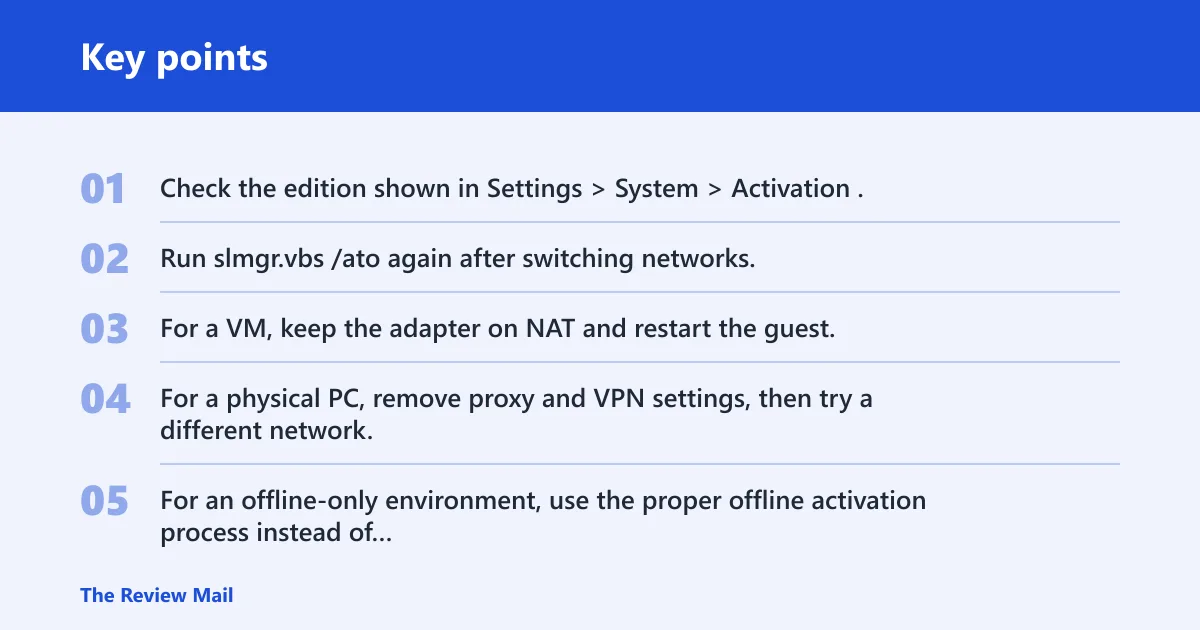
- Check the edition shown in Settings > System > Activation.
- Run slmgr.vbs /ato again after switching networks.
- For a VM, keep the adapter on NAT and restart the guest.
- For a physical PC, remove proxy and VPN settings, then try a different network.
- For an offline-only environment, use the proper offline activation process instead of repeated online retries.
Prevention: After a clean install or upgrade, finish Windows Update first, then confirm Settings > System > Activation before moving the device back behind a restrictive proxy, VPN, or filtered network.
Frequently asked questions
Can network or firewall problems cause 0x80072efd activation failure?
Yes. A firewall, proxy, VPN, or DNS issue can stop Windows from reaching Microsoft activation servers even when web browsing still works. Test Windows Update too; if it fails alongside activation, the same network path is probably blocked.