October 14 Windows 10
October 14, 2025 is the Windows 10 support cutoff: if your PC can run Windows 11, upgrade now; if it cannot but still works, enroll in Extended Security Updates; if it is old or failing, plan to replace it later. After that date, the machine keeps running, but it no longer gets security fixes, which increases malware risk and can create app compatibility problems. This guide helps you sort your PC into upgrade now, ESU, or replace later in minutes.
October 14, 2025 explained
October 14, 2025 is the date Microsoft says Windows 10 support ends. After that, consumer Windows 10 devices no longer receive technical assistance, feature updates, or security updates. The PC still boots and opens your files, but it moves onto a far riskier footing because new vulnerabilities stay unpatched.
What changes after the date
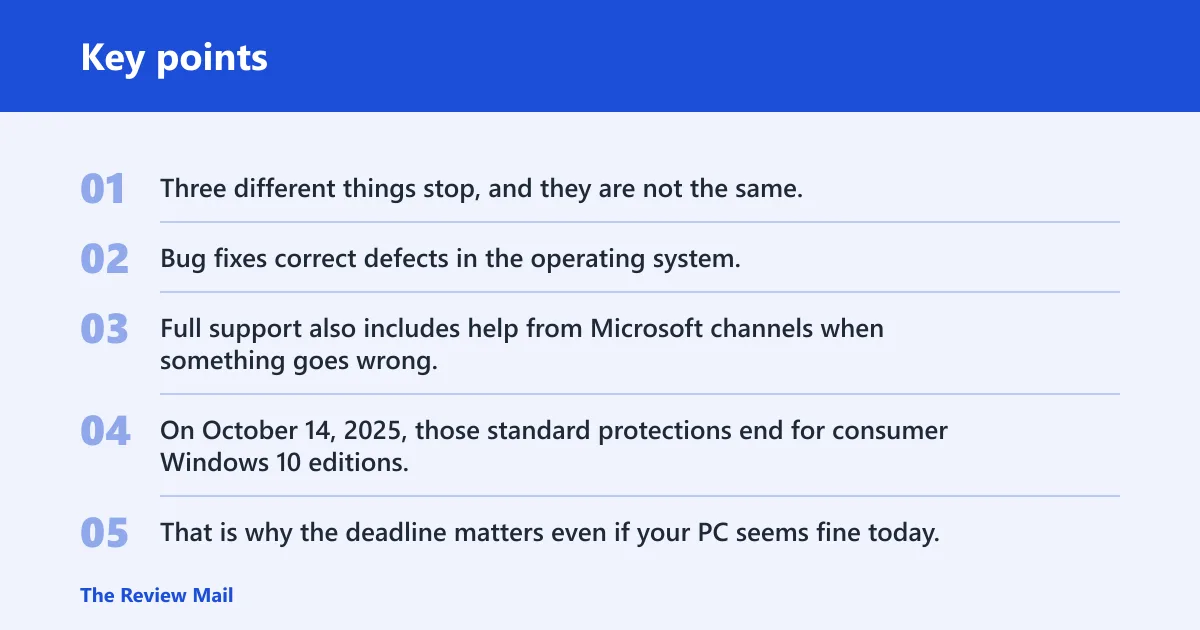
Three different things stop, and they are not the same. Security updates fix known flaws. Bug fixes correct defects in the operating system. Full support also includes help from Microsoft channels when something goes wrong. On October 14, 2025, those standard protections end for consumer Windows 10 editions.
That is why the deadline matters even if your PC seems fine today. A machine can keep running while becoming easier to exploit, harder to troubleshoot, and more likely to fall behind on app compatibility.
What still works
Your PC does not shut down on the deadline. Files, installed programs, printers, and local accounts still exist. The difference is that Windows 10 stops getting the regular security layer that keeps the operating system current.
Picture a family laptop that still opens email and browsers on October 15. It may look normal, but every unpatched flaw stays open longer than it should. That is the problem Microsoft is trying to avoid.
📊 Microsoft recommends upgrading to Windows 11 if the PC is eligible. Source: Microsoft.
Which Windows 10 devices are affected?
Most consumer Windows 10 editions are affected by the October 14, 2025 cutoff, but not every Windows 10 device is in the same lane. Mainstream consumer PCs move off standard support; some managed, enterprise, and long-term servicing editions follow different rules. Windows 10 22H2 is generally treated as the final mainstream consumer feature version, so there is no later consumer feature update to move to.
Consumer editions versus managed devices
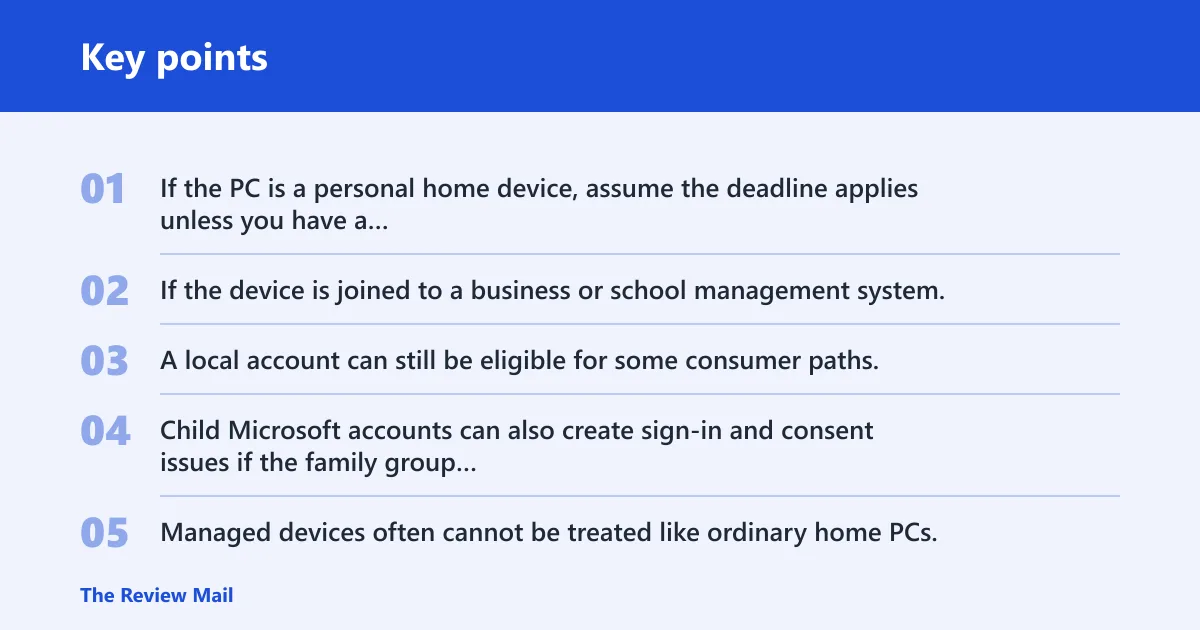
If the PC is a personal home device, assume the deadline applies unless you have a specific enterprise or long-term servicing arrangement. If the device is joined to a business or school management system, the organization may control updates, ESU enrollment, or replacement timing.
Edge cases matter. A local account can still be eligible for some consumer paths, but enrollment prompts may differ. Child Microsoft accounts can also create sign-in and consent issues if the family group manages purchases or settings. Managed devices often cannot be treated like ordinary home PCs.
Why Windows 10 22H2 matters
Windows 10 22H2 is the final mainstream consumer feature release, so checking for “the next version” is the wrong move. The real choice is between Windows 11, ESU, or replacement. That matters because some guides still imply a newer Windows 10 feature update is waiting. It is not.
How do I check my Windows 10 version before the deadline?
Use winver or Settings > System > About to confirm your Windows 10 version, build, and edition. Do not use Windows Update for this check. Windows Update is for receiving updates, not for reliably identifying the installed feature version or OS build number.
Use winver for version and build
- Press Windows key + R.
- Type winver and press Enter.
- Read the Windows version and OS build in the dialog box.
Check the edition in Settings
- Open Settings.
- Select System.
- Select About.
- Look for the edition field, such as Home, Pro, or an enterprise variant.
Confirm whether the device is managed
Open Settings and look for work or school account connections, management notices, or organization branding. If the PC is attached to a business or school tenant, do not assume consumer ESU or upgrade steps apply. Managed systems often follow separate policies.
Windows 10 action matrix
Use this table to sort the device quickly. It is meant for triage, not deep troubleshooting. Start with age, then eligibility, then management status, then the next move.
| Device age | Windows 11 eligibility | Managed/work device status | ESU eligibility | Best next step | Urgency level |
|---|---|---|---|---|---|
| 0–3 years | Likely yes, but confirm | Home or personal | Possible if on Windows 10, version 22H2 and eligible for consumer ESU | Check eligibility and upgrade to Windows 11 if available | High |
| 4–6 years | Mixed; hardware may block it | Home or personal | Possible if requirements are met | Choose Windows 11, or ESU if you need time | High |
| 7+ years | Often no | Home or personal | Possible only if the device and setup qualify | Plan replacement, or use ESU as a short bridge | Very high |
| Any age | Depends on hardware and policy | Business or school managed | Usually handled by the organization | Contact IT before making changes | Immediate |
Upgrade to Windows 11 if you can
Microsoft recommends upgrading to Windows 11 if the PC is eligible. For most users, that is the cleanest path because it keeps the device on a supported operating system without extending Windows 10’s deadline pressure. If the hardware qualifies, upgrading is usually faster than buying time with stopgap options.
What eligibility usually depends
Windows 11 eligibility usually turns on hardware and firmware checks, not just age. A device may have a fast processor and still miss one required feature. Check the upgrade path before assuming a newer PC is necessary.
Say your laptop is four years old and otherwise healthy, but the upgrade tool says it cannot move to Windows 11. That is the moment to decide between ESU and replacement. Do not wait for the deadline to make that call.
When an upgrade is the fastest move
If Windows 11 is available, move sooner rather than later. That avoids a last-minute migration, lowers the chance of app or driver surprises, and keeps support current. If the device is used for work, school, or sensitive accounts, the case for upgrading gets stronger.
Can you keep Windows 10 after October 14?
Yes, you can keep using Windows 10 after October 14, 2025, but not in the same safe way as before. The system still runs, files stay put, and everyday tasks may continue. What changes is the absence of regular security updates, feature updates, and standard Microsoft support.
What gets riskier without updates
Without updates, known weaknesses stay exposed longer. Browsers, email, banking, and cloud logins all depend on a secure operating system underneath them. That is why Microsoft says Windows 10 PCs will no longer receive security updates after the deadline.
ESU is the exception, but it is temporary. Consumer ESU can protect Windows 10 devices until October 12, 2027, and it provides critical and important security updates only. It does not restore feature improvements or full product support.
What ESU is and is not
ESU is a bridge, not a reset button. It buys time for a device that cannot move right away, but it does not make Windows 10 a full long-term platform again. If the PC is important and Windows 11 is not available, ESU can lower risk while you plan the next move.
What if your PC is not eligible?
If the PC cannot move to Windows 11, the usual choices are replacement or a temporary ESU stopgap. Replacement is the better long-term answer for aging hardware. ESU is the short-term answer when you need time to budget, migrate files, or wait for a better buying window.
Replace later, not after a failure
Old hardware often fails in unhelpful ways: slow storage, battery wear, or a dead network chip. A PC that is already struggling before the deadline is a strong replacement candidate. Waiting until it breaks can make file transfer and setup more stressful.
Watch Microsoft 365 and Office timing
Microsoft says Microsoft 365 Apps on Windows 10 will lose support on October 14, 2025. That does not mean the apps vanish at once, but it does mean app support follows the operating system deadline closely. If your work depends on Microsoft 365, treat the OS move as urgent.
What should I do before Windows 10 support ends?
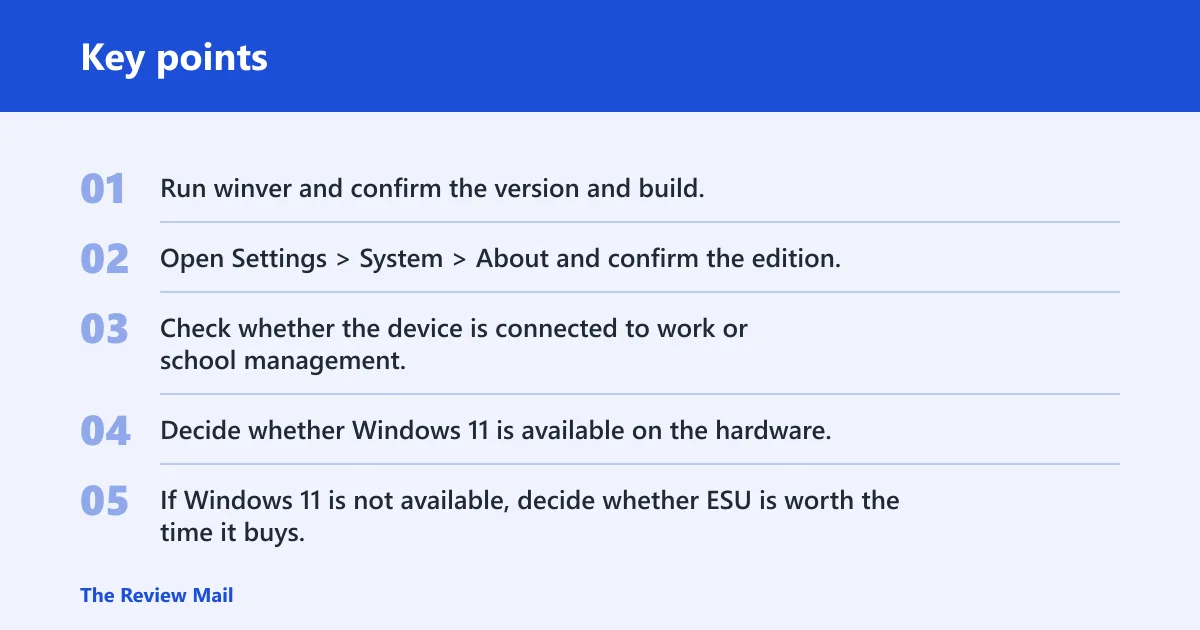
Start with a quick check, then make the decision tree simple: confirm the version, confirm the edition, confirm whether the device is managed, and then choose upgrade, ESU, or replacement. If the PC is eligible for Windows 11, upgrading is usually the best next move.
Check before you panic
- Run winver and confirm the version and build.
- Open Settings > System > About and confirm the edition.
- Check whether the device is connected to work or school management.
- Decide whether Windows 11 is available on the hardware.
- If Windows 11 is not available, decide whether ESU is worth the time it buys.
Back up before you move
Microsoft says Windows Backup can move files, settings, and apps to a new PC. That matters if replacement is likely. A clean backup before you act makes the switch easier, especially for photos, browser data, and desktop files.
Know the update channel you still use
Windows Update remains the delivery channel for normal updates and, for eligible consumer devices, ESU enrollment paths. Open Settings > Windows Update when you are ready to check for upgrade prompts or enrollment notices. It is not the place to identify the installed version, but it is the place where upgrade and update prompts typically appear.
How ESU enrollment works
Consumer ESU enrollment typically starts in Settings > Windows Update, but the prompts and eligibility checks can vary. Consumer ESU is generally reported to require Windows 10 version 22H2 and the ESU Licensing Preparation Package KB5126256. Some users may see a free option if the PC is syncing settings, while others may see a 1,000 Microsoft Rewards points option or a one-time $30 USD purchase.
What to expect in setup
The enrollment flow may ask the user to sign in with a Microsoft account, confirm syncing settings, or complete a licensing step. The free option is tied to syncing settings. If those conditions are not met, the alternative options can appear instead.
A common first-timer mistake is assuming Windows 10 will keep getting security patches after October 14 without any action. It may not. The real issue is whether the device meets the consumer ESU requirements and whether the account and syncing setup satisfy the enrollment path shown by Microsoft.
Local accounts and child accounts
Local accounts can complicate sign-in and eligibility checks, especially if the device needs Microsoft account services to finish enrollment. Child Microsoft accounts can also hit family-safety prompts or purchase restrictions. If either situation applies, expect extra steps before ESU is available.
Frequently asked questions
What time on october 14 does windows 10 support end
Microsoft publishes the end of support as October 14, 2025 in lifecycle terms, not as a user-facing countdown by clock minute. For practical planning, treat the whole day as the cutoff and finish your upgrade, ESU enrollment, or replacement planning before Microsoft’s standard rollout windows close.
What is special about 14 october?
October 14 is the date Microsoft ends Windows 10 support for the covered consumer editions. After that, Microsoft says technical assistance, feature updates, and security updates are no longer provided. That is why the date matters more than an ordinary monthly patch cycle.
Is October 14 the Windows 10 end-of-support date?
Yes. Microsoft says Windows 10 support ended on October 14, 2025. That date is the official end-of-support point for the relevant consumer Windows 10 editions, with separate treatment for some enterprise or long-term servicing scenarios. (Microsoft Support)
Which Windows 10 versions are affected by October 14?
Most consumer Windows 10 installations are affected, and Windows 10 22H2 is the final mainstream consumer feature version. There is no later consumer feature update to move to. Managed, enterprise, and special servicing editions can follow different rules, so edition matters as much as version.
Will my Windows 10 PC stop working after October 14?
No. The PC will still boot, open apps, and access files. What stops is Microsoft’s standard support, including security updates. That makes continued use possible, but much less safe over time, especially for browsing, email, and online accounts.
Can I keep using Windows 10 after October 14 safely?
Not safely in the long term. You can keep using it, and ESU can reduce risk for a limited period, but the operating system no longer receives normal security coverage. If the device handles money, work data, or personal accounts, moving off Windows 10 is the better choice.