Windows 11 Temp Profile Fix for Broken Sign-ins
Windows 11 Temp Profile Fix — start with a restart, then move to registry repair only if the same account still opens in a temporary session. A temporary profile can reset your desktop, lose changes at sign-out, and point apps at the wrong folders. Do not save files in the temporary session. If you need to recover data, copy it out before logging off.
What a temporary profile means
A temporary profile is a disposable Windows session that loads when your normal profile cannot open; it often shows a plain desktop, missing settings, and changes that vanish when you sign out. Windows discards it at logoff. Microsoft documents profile-load events such as Event ID 1511 and Event ID 1515 when a user profile cannot be loaded or restored.
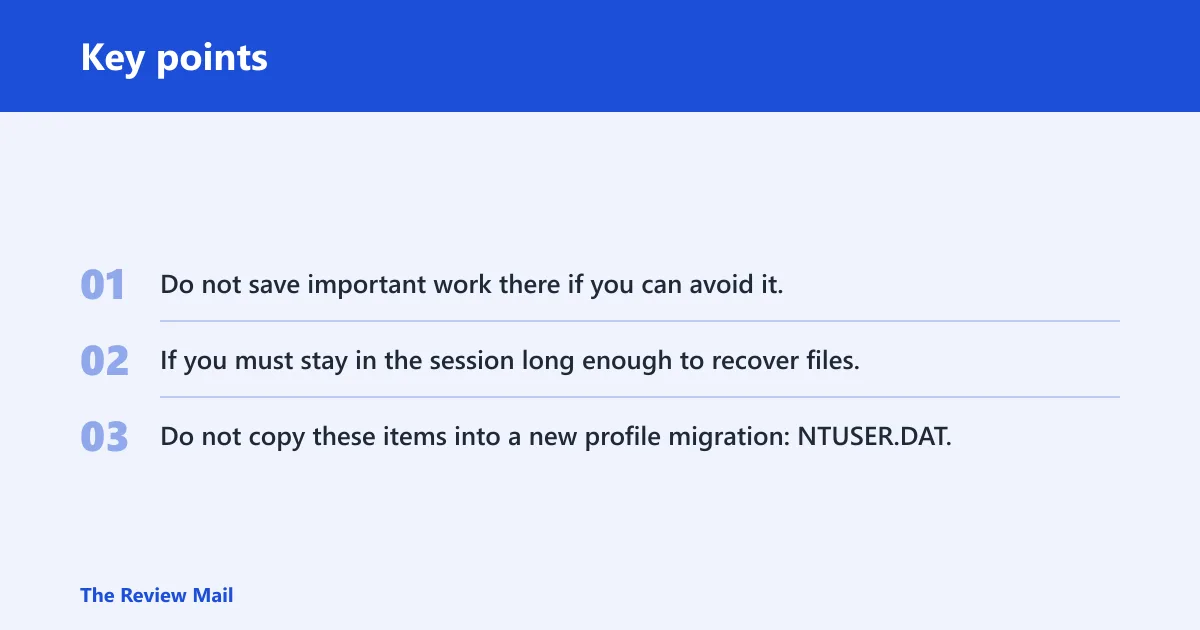
Do not save important work there if you can avoid it. If you must stay in the session long enough to recover files, copy them out before sign-out so they are not lost with the temporary profile.
Temporary profile decision table
| Symptom pattern | Likely cause | Safest next step |
|---|---|---|
| First sign-in after update or shutdown opens with a plain desktop, but the next restart may be normal | One-time load failure | Restart Windows and sign in again before changing the registry |
| Temporary profile returns after every restart | Broken ProfileList entry or wrong ProfileImagePath | Check the SID entry under ProfileList and repair the live key only if the .bak pattern exists |
| C: is nearly full | Low system-drive space | Free space on C: first, then try sign-in again |
| The profile folder name is correct, but loading still fails | Broken folder permissions | Check access control on the profile folder before more registry edits |
| Registry repair is complete, but the same account still loads as temporary | File-system damage or a deeper profile corruption | Run SFC /scannow, then CHKDSK, then consider profile migration |
| No .bak key appears beside the SID | The usual registry repair pattern is not present | Stop and check disk space, service state, and permissions first; do not force a rename |
Do not copy these items into a new profile migration: NTUSER.DAT, hidden database files you do not recognize, or unknown AppData folders. Keep the move to known user data only.
Why did Windows 11 sign you in this way?
Windows 11 signs you in with a temporary profile when it cannot load the real one at sign-in. Microsoft notes that profile-load failures can come from damaged profile data, permissions, or underlying file-system issues, which is why the safest fix order is restart, storage check, profile repair, then system-file repair.
Say your account opens to a default desktop and missing taskbar pins after a restart. If it fixes itself on the next sign-in, that points to a one-time load failure. If it happens every time and your C: drive is nearly full, the storage issue becomes a stronger candidate than the registry.
Check the quick fixes first
Start with the least risky steps. Restarting can clear a one-off load failure, and checking C: takes only a minute. Microsoft’s User Profile Service troubleshooting guidance also points you to event history and profile-loading behavior before registry changes, while the service itself should remain set to its normal automatic startup configuration.
- Restart Windows and sign in again. If the profile loads normally, stop here.
- Open Settings > System > Storage and free space on C: if it is tight.
- Open Services, find User Profile Service, and confirm its startup type is Automatic.
- If the issue repeats, sign out and try Safe Mode before any registry work.
Find the correct SID and ProfileList entry
The core registry path is HKEY_LOCAL_MACHINE\SOFTWARE\Microsoft\Windows NT\CurrentVersion\ProfileList. Microsoft’s profile troubleshooting references this path because it stores SID-based profile entries, including the ProfileImagePath that points to the user folder. The affected account’s SID usually starts with S-1-5-21-… and you can find it with whoami /user.
- Open Command Prompt and run whoami /user.
- Match the SID to the account that keeps loading as temporary.
- Open Registry Editor and go to
HKEY_LOCAL_MACHINE\SOFTWARE\Microsoft\WindowsNT\CurrentVersion\ProfileList. - Look for the SID key and a duplicate with .bak beside it.
Repair the live key only when the.bak pattern fits
The .bak duplicate usually means Windows has a second copy of the same SID entry. Use the registry repair only when you see one live SID key and one matching .bak key. If the SID is missing, if there are multiple mismatched SIDs, or if the profile path is clearly wrong in several places, stop and migrate instead of forcing a rename.
Set ProfileImagePath so it points to the real folder, such as C:\Users\John. In the live profile key, set State to 0 and RefCount to 0 if present. Microsoft’s registry path guidance and profile troubleshooting both use these values as part of the normal repair flow when the profile entry itself is the problem.
- Back up the registry before editing it.
- Rename the live SID key so you can preserve the original state if needed.
- Remove .bak from the duplicate key name.
- Open the repaired key and verify ProfileImagePath points to the correct user folder.
- Set State to 0.
- Set RefCount to 0 if the value exists.
- Restart and sign in again.
If the repair still fails after a clean .bak fix, stop repeating the same registry edit. Check permissions and system integrity next, because the profile path may be correct while access control or file-system damage still blocks loading.
Can a full C drive cause a temporary profile on Windows 11?
Yes. Low free space on C: can trigger the problem, and it is one of the first things to check before registry repair. A crowded system drive can block profile loading, updates, and file creation. Microsoft’s storage and profile guidance makes free space a practical first pass because it is safer than editing keys when storage is the real issue.
- Open Settings > System > Storage.
- Clear temporary files, uninstall something large if needed, or move non-system files off C:.
- Restart Windows and try the same account again.
- If the profile still fails, move to service and registry checks.
Do you need SFC or CHKDSK for a temp profile?
Run SFC /scannow when system files may be corrupted, and run CHKDSK when the disk may have file-system errors. Microsoft’s official documentation recommends sfc /scannow for protected system files and chkdsk for disk checks. These checks are reasonable after restart, storage, and registry review have not fixed the issue.
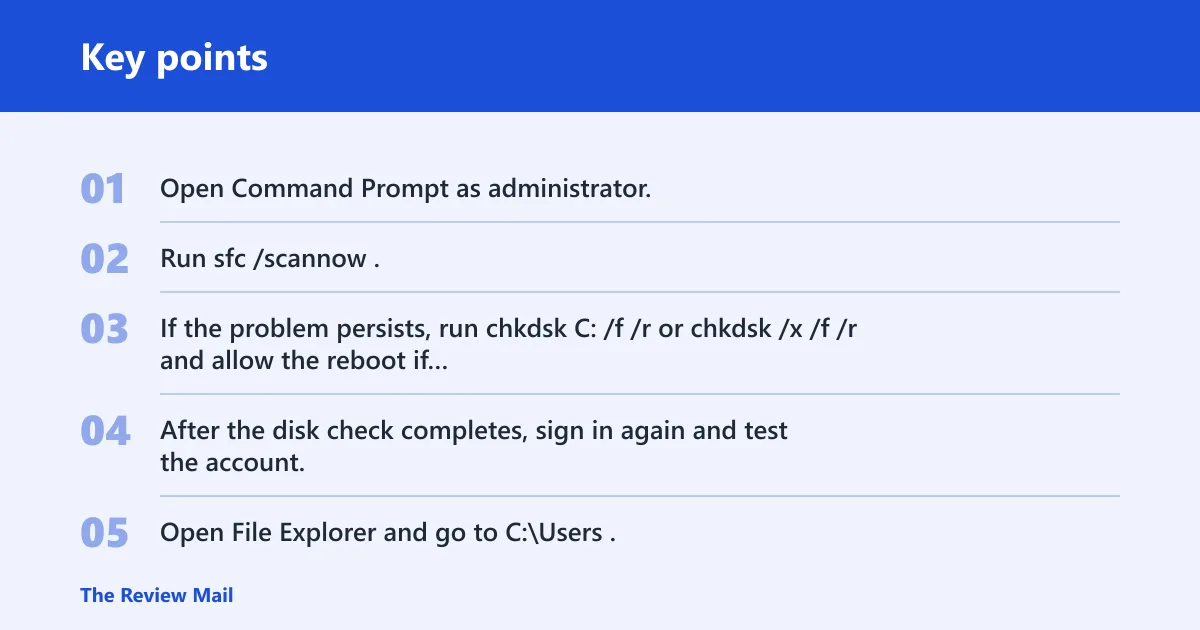
Run the built-in repair checks
- Open Command Prompt as administrator.
- Run
sfc /scannow. - If the problem persists, run
chkdskC: /f /r orchkdsk /x /f /rand allow the reboot if Windows asks for one. - After the disk check completes, sign in again and test the account.
Windows may schedule CHKDSK for the next restart if the system drive is in use. That is normal. Let it complete before judging the result.
Check folder permissions when the path is right
Sometimes the profile folder exists, the SID entry looks correct, and the account still loads as temporary because the folder permissions are wrong. That is a different failure from a missing or bad ProfileList entry. The path can be right while access is still blocked, so correct permissions before repeating registry edits.
- Open File Explorer and go to C:\Users.
- Right-click the affected profile folder and open its properties.
- Check the security permissions for the account and administrators.
- If access looks broken, correct the permissions before more registry edits.
If that did not work, the next step is a more invasive recovery path. Avoid repeated registry changes when the same account keeps failing after a clean repair, because the profile may be too damaged to reuse safely.
How do I move files from a temporary profile to my real account?
Use a new user account as the fallback when repair fails. A commonly recommended recovery path is to create a new administrator account, sign in to it, and copy the needed files from the old profile. Copy only known user data: Desktop, Documents, Downloads, Pictures, Videos, and AppData\Roaming.
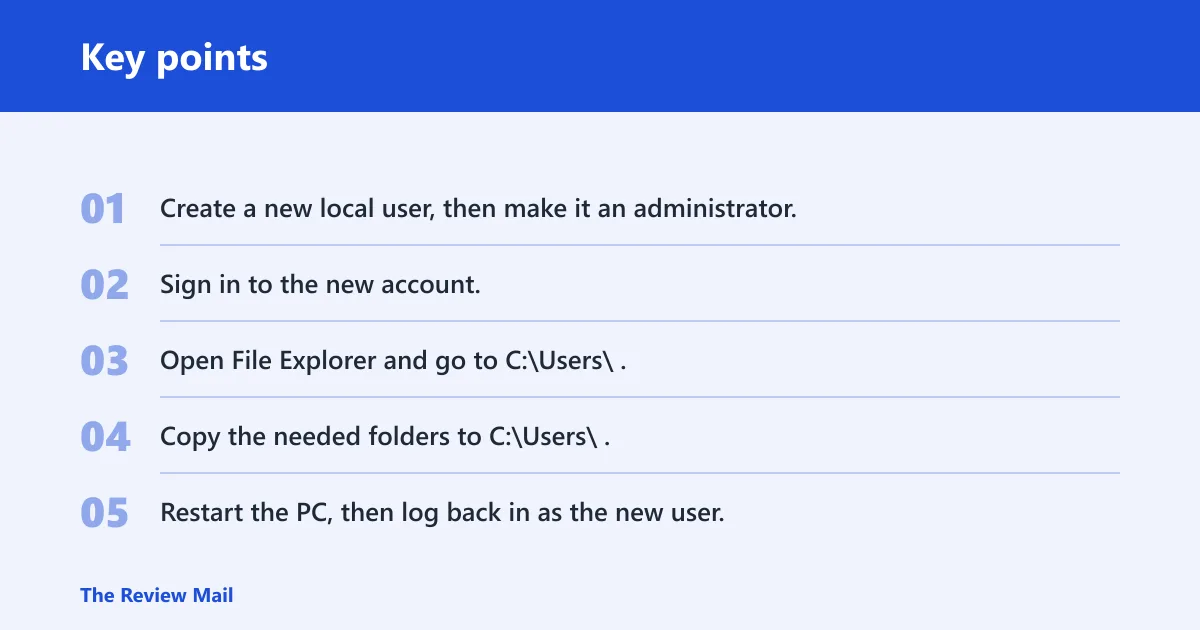
- Create a new local user, then make it an administrator.
- Sign in to the new account.
- Open File Explorer and go to C:\Users\
. - Copy the needed folders to C:\Users\
. - Restart the PC, then log back in as the new user.
- If you use a Microsoft account, switch the new user from local to Microsoft account after the files are in place.
Do not copy the whole profile wholesale. That is how hidden profile database files and bad settings move into the new account. Skip NTUSER.DAT and unknown AppData folders. If you need email data, import it separately; some apps may need reconfiguration or reinstalling, and Microsoft Store apps may need you to sign in again.
Check the new account before deleting the old one. Make sure the desktop opens normally, the copied folders are present, and your main apps launch without forcing another temporary profile.
Frequently asked questions
How do I fix the Windows 11 temporary profile issue?
Restart first, then check C: space, confirm the User Profile Service is Automatic, and only then repair the ProfileList SID entry if a matching .bak key exists. If repair fails, run sfc /scannow and chkdsk C: /f /r, then move to a new administrator account and copy the known user folders.
Why did Windows 11 sign me in with a temporary profile?
Windows signs you in this way when it cannot load your normal profile at sign-in. Common reasons are a failed startup after update or shutdown, low C: space, a damaged ProfileList entry, or folder permissions that block the real profile. Microsoft also uses profile-load events such as Event ID 1511 and Event ID 1515 to identify these failures.
How do I know if I am using a temporary profile in Windows 11?
Look for a default desktop, missing personal settings, and changes that vanish after sign-out. A temporary profile is disposable and discarded when you log out. If the same account opens normally after a restart, the first sign-in may have been a one-time load failure rather than a damaged profile.
What registry key fixes a temp profile in Windows 11?
The repair path is HKEY_LOCAL_MACHINE\SOFTWARE\Microsoft\Windows NT\CurrentVersion\ProfileList. Find the SID that starts with S-1-5-21-…, check for a matching .bak entry, and make sure ProfileImagePath points to the real folder. Set State and RefCount to 0 in the live key.
What does the.bak profile key mean in Windows?
A .bak key is usually the duplicate SID entry Windows leaves behind when it cannot finish loading the normal profile entry. It matters because the fix is valid only when the live SID key and the .bak duplicate both exist. In that case, correct the live key and remove the mismatch carefully.
What should I do before editing the registry?
Back up the registry, confirm the account’s SID with whoami /user, and check the simple causes first: restart, free space on C:, and Event Viewer signs of profile load failure. Microsoft’s profile guidance also supports checking the relevant profile events before making registry changes. If the pattern is unclear, stop and migrate instead of forcing a fix.
Will restarting Windows 11 fix a temporary profile?
Sometimes. A restart can clear a one-time profile load failure, especially after an update, shutdown issue, or transient service problem. If the same account keeps opening in a temporary session after multiple restarts, the issue is more likely a broken ProfileList entry, storage pressure, or file-system damage that needs deeper repair.