Windows 11 Temporary Profile Registry
Fix a Windows 11 temporary profile by editing ProfileList only after you confirm the account has the wrong SID mapping; if the correct SID ends in .bak, that is the usual registry repair path. Editing the wrong key, or skipping a disk check when the profile folder or system drive is damaged, can turn a login problem into a broken account. This guide shows how to tell a bad SID mapping from a locked profile folder or a failing disk before you change anything.
Quick answer
A temporary profile means Windows loaded a disposable desktop instead of your normal user profile. Files saved there are lost at sign-out, and settings do not stick. Common causes include a bad SID mapping in ProfileList, a locked or mispointed profile folder, damaged files on C:, or low free space on the system drive.
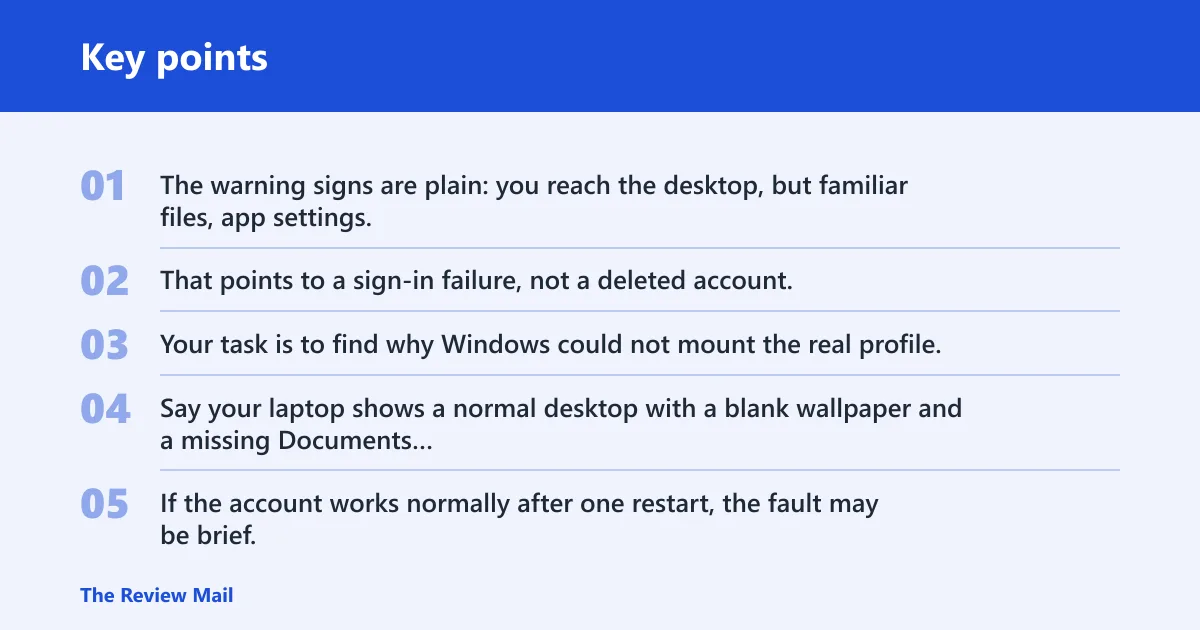
The warning signs are plain: you reach the desktop, but familiar files, app settings, or desktop changes are missing. That points to a sign-in failure, not a deleted account. Your task is to find why Windows could not mount the real profile, then fix only that branch.
Say your laptop shows a normal desktop with a blank wallpaper and a missing Documents shortcut after sign-in. If the account works normally after one restart, the fault may be brief. If the same temporary profile returns, treat it as a profile-load failure and check the registry, folder path, and disk health in that order.
What should you check before editing the registry?
Restart once and try the same account again before touching anything. If the message disappears, you may have caught a one-time load error. Next, confirm whether the account is a local consumer account or a workplace or domain account, because roaming profiles, folder redirection, and policy can change the fix. Back up or export the registry before you edit ProfileList.
That backup matters because the wrong SID key can leave the account unable to sign in at all. Use Registry Editor with regedit, then export the affected branch before changing values. If the profile folder looks damaged, or the drive is full, stop and deal with that first.
Temporary profile registry checklist
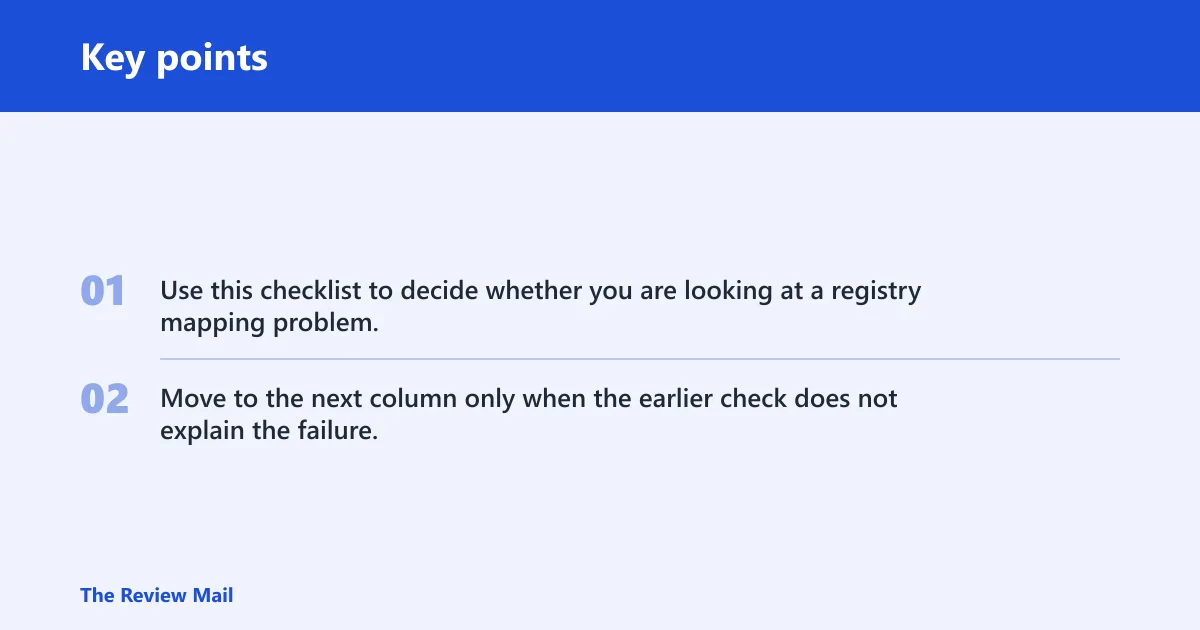
Use this checklist to decide whether you are looking at a registry mapping problem, a folder-path problem, or a storage problem. Move to the next column only when the earlier check does not explain the failure.
| Symptom | What to inspect | What a healthy value looks like | What to change | When to stop and create a new profile |
|---|---|---|---|---|
| Temporary profile appears after sign-in | SID subkeys under HKEY_LOCAL_MACHINE\SOFTWARE\Microsoft\Windows NT\CurrentVersion\ProfileList | The correct SID exists for the affected account | Repair the matching SID mapping only if the live key or .bak copy is clearly wrong | If several SIDs look damaged or you cannot match the account safely |
| Profile folder opens as a disposable desktop | ProfileImagePath | C:\Users\<username> | Change a wrong path that points to C:\Users\TEMP or another folder | If the folder path is correct but the profile still loads as temporary |
| Repeated temp-profile logons after a registry edit | State and RefCount | Both set to 0 in the live profile key when repair steps call for it | Set them to 0 only in the live key, not by guessing across multiple SID entries | If the same failure returns after a clean reboot |
| Sign-in fails after a shutdown or update interruption | Disk health and free space on C: | Enough free space and no file-system damage | Run disk repair before more registry edits | If the drive is unhealthy or the system partition is nearly full |
How do I fix a.bak profile key in ProfileList?
Open HKEY_LOCAL_MACHINE\SOFTWARE\Microsoft\Windows NT\CurrentVersion\ProfileList and compare the SID subkeys with the affected account. A broken profile often has one SID key and a matching key ending in .bak. The .bak entry is often the original profile record, but you should rename or delete anything only after you confirm the mapping.
Kapil Arya points readers to that same path under HKEY_LOCAL_MACHINE, and also notes that a bad profile path may point to C:\Users\TEMP. The target path should be C:\Users\<USERNAME>. Some repair notes also say the profile record in ProfileList often needs State set to 0.
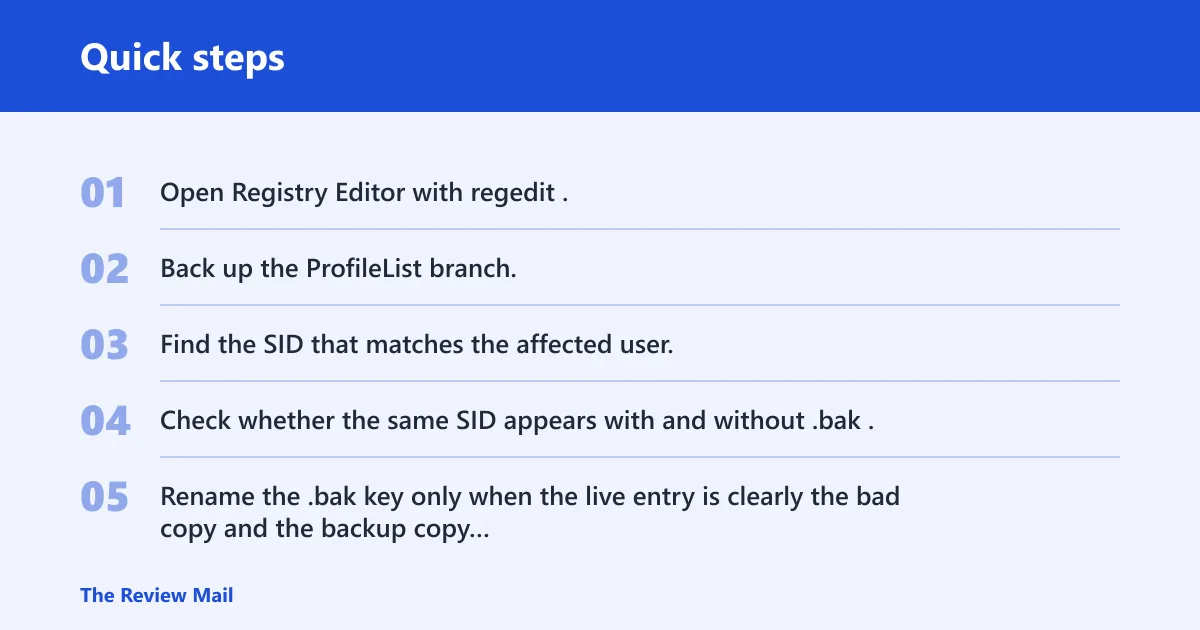
- Open Registry Editor with regedit.
- Back up the ProfileList branch.
- Find the SID that matches the affected user.
- Check whether the same SID appears with and without .bak.
- Rename the .bak key only when the live entry is clearly the bad copy and the backup copy is the one that should load.
Do not delete a profile key before you know which SID belongs to the real account. A safe rename path can recover the normal profile, but a wrong rename can point Windows to the wrong folder or make the account fail again at the next sign-in. If the SID mapping is unclear, stop and use a new profile instead.
How do you verify profileImagePath, state, and RefCount?
ProfileImagePath should point to the real user folder, usually C:\Users\<username>. If it points to C:\Users\TEMP, Windows may be loading the temporary profile because the registry entry is mispointed. In some repairs, the live key also needs State set to 0 and RefCount set to 0 if it exists.
That does not mean those values fix every case. They are part of some repair paths, especially when the profile record is stuck in an in-use or failed state. Check the live key only. Do not scatter changes across unrelated SID entries.
If the correct path is already in place and the account still lands in a temporary profile, look beyond the registry. A locked folder, a damaged profile hive, or a storage problem on C: can still block the real profile from loading.
What if the fix fails after reboot?
If the registry change looks correct but the temporary profile returns after reboot, move to disk and system-file repair. My Technician recommends checking free space first, because under about 10 GB free on C: can trigger the issue. Then run chkdsk C: /f /r so Windows can repair file-system problems after restart.
After the disk check finishes, run sfc /scannow. If SFC still cannot repair protected files, use DISM /Online /Cleanup-Image /RestoreHealth to repair the component store. That order matters: disk first, then SFC, then DISM if needed. (Microsoft Learn)
A common first-time mistake is to rename a .bak key, reboot once, and stop there even though the same temporary profile comes back the next day. When that happens, the problem is usually not the rename itself. It is often a damaged profile folder, a failing disk, or a deeper Windows file issue.
When should you stop and create a new profile?
Stop repairing and create a new local administrator account when the same temporary profile keeps returning, the profile folder is damaged, or permissions look broken enough that recovery is no longer safe. That is also the right call when the SID mapping is unclear or the account is a workplace profile controlled by policy.
The same source notes that files saved in the temporary profile are deleted on sign-out, but the original data is still in C:\Users\<yourname>. If the old profile is unrecoverable, sign in to a new local administrator account, copy the data from the old user folder, and leave the broken profile record behind. That is safer than chasing repeated registry edits.
Suppose a family PC keeps loading a temp profile after a correct ProfileImagePath repair and a clean reboot. At that point, moving to a new account is usually faster and safer than trying to rescue a record that Windows will not mount reliably.
Frequently asked questions
How do I fix a temporary profile in Windows 11?
Start with a restart, then check ProfileList for the correct SID and a possible .bak copy. Verify ProfileImagePath, and only then consider State and RefCount. If the problem returns after reboot, check disk health and free space before making more registry changes.
How do I delete temporary profile from registry?
Do not delete a profile key until you know which SID belongs to the real account and whether the .bak entry is the original record. In many cases, the fix is renaming the correct SID pair rather than deleting both. If the mapping is unclear, create a new profile instead.
Why does Windows 11 keep logging me into a temporary profile?
Repeated temporary logons usually mean the account cannot mount its real profile consistently. Common causes are a bad SID mapping, a wrong ProfileImagePath, a locked folder, disk errors, or too little free space on C:. If it keeps happening after a registry repair, treat it as a deeper storage or file issue.
What registry key controls Windows 11 user profiles?
The main location is HKEY_LOCAL_MACHINE\SOFTWARE\Microsoft\Windows NT\CurrentVersion\ProfileList. It contains SID subkeys for user profile mappings. That is the branch where you check the account’s path, the .bak entry, and repair values such as State and RefCount when the profile load fails.
Can low disk space cause a temporary profile in Windows 11?
Yes. Low free space on C: can trigger profile load failures, and My Technician notes that under about 10 GB free can cause the issue. If the drive is nearly full, clear space first and then retry the sign-in before editing the registry.
What should I do if the registry fix doesn’t work?
Move to chkdsk C: /f /r, then sfc /scannow, and then DISM /Online /Cleanup-Image /RestoreHealth if needed. If the same temporary profile still returns after those checks, stop repairing the old profile and create a new local administrator account to copy data over.