Fixing Corrupted Windows 11: Safe Repair Steps
Start with the fix that matches the symptom and changes the least: run SFC for file errors, add DISM when SFC cannot finish the repair, use Startup Repair for boot loops, and move to Reset this PC or an in-place repair install only after those steps fail. Skipping that order can turn a repairable Windows 11 problem into data loss, a broken boot record, or a full reinstall. This article sorts corruption by symptom and risk so you can choose the safest repair path first. Microsoft documents SFC as a system-file repair tool, DISM as the image/component-store repair tool that supports SFC, Startup Repair as a WinRE boot repair option, and Reset this PC / in-place repair as later-stage recovery paths. [Microsoft: SFC], [Microsoft: DISM], [Microsoft: WinRE/Startup Repair], [Microsoft: Reset this PC].
Corruption decision table
This table separates the most common corruption patterns so you do not use a boot repair for a file problem, or a reset when a smaller repair may work. Pick the row that matches the symptom first.
| Symptom | Likely cause | Safest first repair | Data-loss risk | Escalation path |
|---|---|---|---|---|
| Apps fail to open, system dialogs misbehave, or Windows reports missing files | Protected Windows system files or the component store may be damaged | Run SFC from an elevated terminal; add DISM if SFC cannot repair everything | Low | Repeat SFC after DISM, then move to Reset this PC or an in-place repair install if the issue remains |
| Windows Update fails repeatedly or rollback errors appear after an update | Update components or registry keys that control update data may be corrupted | Run the Windows Update troubleshooter, then SFC and DISM | Low | Clear persistent update damage with WinRE repair options or an in-place repair install |
| Windows 11 will not reach the desktop, reboots in a loop, or stops at startup repair | Boot files, startup configuration, or the system drive may be damaged | Enter WinRE and run Startup Repair | Low to moderate | Try Safe Mode, then CHKDSK, then Reset this PC or an in-place repair install |
| A user profile will not load, the desktop is blank, or settings disappear at sign-in | Profile data or registry entries tied to the account may be corrupted | Sign in with another admin account if possible, then back up files and repair system files | Moderate | Create a new profile, then move data only after confirming the profile issue is isolated |
| Files open with errors, the drive is slow, or Windows reports disk problems | File-system damage or bad sectors may be involved | Run CHKDSK, especially if the system drive is affected | Moderate | If CHKDSK finds repeating errors, back up files and treat it as possible disk failure rather than Windows-only corruption |
| Odd pop-ups, unknown programs, or files change without explanation | Malware or a suspicious app may be altering system files | Run Windows Security before trusting any repair result | Low to moderate | After removal, rerun SFC and DISM; if damage persists, move to deeper repair steps |
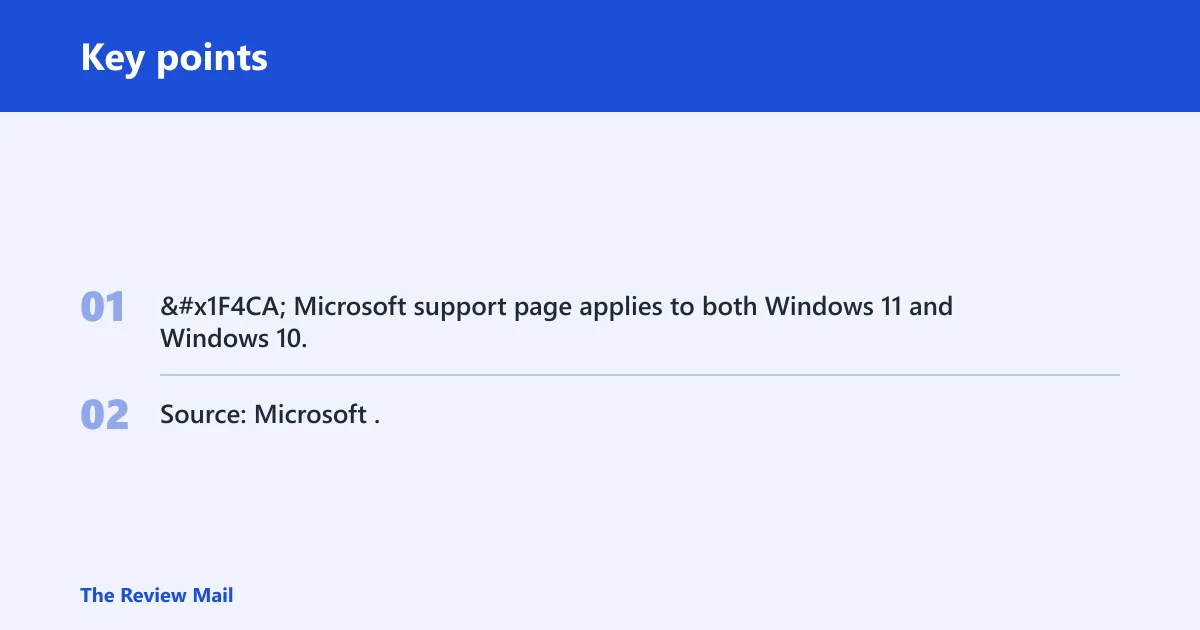
📊 Microsoft support page applies to both Windows 11 and Windows 10. Source: Microsoft.
How do you fix corrupted Windows 11 without losing data?
Back up important files first, then pick the least destructive fix that matches the symptom. If malware may be involved, run Windows Security before you trust any repair result. For many file-related problems, SFC is the first pass, and DISM comes next when the Windows image itself is damaged. Microsoft’s recovery guidance follows that least-destructive sequencing: repair files first, repair the image next, then use recovery/reset only if the smaller fixes fail. [Microsoft: SFC], [Microsoft: Reset/Recovery].
Use the smallest repair that fits the symptom
- Copy important documents, photos, and work files to another drive or cloud storage before any major repair.
- If you see suspicious file changes, unknown programs, or repeated pop-ups, run Windows Security first.
- Run SFC when the problem looks like missing or altered Windows files.
- Run DISM if SFC cannot fix everything or says corruption remains.
- Escalate only if the smaller repairs fail, starting with WinRE tools, then Reset this PC, then an in-place repair install.
SFC scans and repairs protected Windows system files. It is the first-line check for file corruption, but it cannot fix every case. DISM repairs the Windows image or component store, which is why the two are often paired when corruption keeps returning. Microsoft specifically documents SFC for protected system files and DISM for repairing the Windows image so SFC can use a healthy source to replace corrupted files. [Microsoft: SFC].
Suppose a PC starts showing repeated “file missing” errors after a failed update, but it still reaches the desktop. That is a strong case for SFC first, because the problem may be limited to protected files. If DISM later reports component store damage, SFC may need a second run after DISM finishes.
How do you fix corrupt Windows 11 system files?
Open an elevated Command Prompt or Windows Terminal, run SFC first, and use DISM if SFC cannot complete the repair or keeps finding problems. If DISM changes the Windows image, run SFC again afterward so it can recheck the repaired files. That order usually fixes the least amount first, and it matches Microsoft’s documented sequence for restoring protected files and the component store. [Microsoft: SFC], [Microsoft: DISM].
Run SFC, then DISM if needed
- Open Windows Terminal or Command Prompt as administrator.
- Run SFC to scan protected system files.
- If SFC reports it could not repair some files, run DISM against the Windows image.
- Run SFC again after DISM if the corruption message persists.
Exact syntax:
sfc /scannowDISM /Online /Cleanup-Image /RestoreHealthSafety notes: Close active work before you run these commands. SFC is usually safe to run on a working system; DISM may take longer and can pause or appear idle while it repairs the component store. If DISM cannot complete because the image source is unavailable, stop and verify the Windows installation media or repair source before retrying. If the machine is showing signs of malware, clean it first so you do not re-corrupt repaired files.
SFC is the better first move when the symptom is narrow and Windows still works. DISM belongs in the sequence when the component store is damaged, because SFC depends on that store to replace bad files. That is the difference between a file-level repair and an image-level repair.
Microsoft recommends Repair before Reset for supported desktop apps, and if Repair fails, Microsoft suggests Reset for the app. The same logic applies here: start with the repair path that preserves the most, then move down only if the first step fails. For OS corruption, Microsoft’s platform guidance similarly places file and image repair ahead of reset-based recovery. [Microsoft: Reset/Recovery].
What should I do if Windows 11 won’t boot because of corruption?
If Windows 11 will not boot, leave the desktop out of the process and use Windows Recovery Environment instead. WinRE hosts Startup Repair and other recovery options for systems that cannot load normally. That makes it the right place to start when the machine is stuck in a boot loop or fails before sign-in. Microsoft documents WinRE as the recovery environment for offline repair, including Startup Repair, when Windows will not start normally. [Microsoft: WinRE].
Work from WinRE, not the desktop
- Enter WinRE from the recovery path available on the device.
- Run Startup Repair first for boot problems and failed startup loops.
- If Startup Repair fails, try Safe Mode or other recovery options in WinRE.
- If the system drive is also suspect, run
CHKDSKfrom recovery or a bootable environment.
Exact recovery path: from Windows, go to Settings > System > Recovery > Advanced startup and select Restart now. If Windows will not start, use the device’s recovery trigger or installation media to enter WinRE. In WinRE, go to Troubleshoot > Advanced options > Startup Repair. [Microsoft: WinRE].
Safety notes: Startup Repair is designed to repair boot configuration and startup issues, not to fix every kind of file corruption. If the machine cannot boot because the storage device is failing, repeated automated repair attempts can waste time. Stop and check the drive first if you hear unusual clicking, see recurring disk errors, or CHKDSK reports repeated bad sectors.
Startup Repair is intended to help with boot problems and startup loops. It does not fix every form of corruption, but it is the least disruptive WinRE tool for a machine that never reaches the desktop.
A common first-timer mistake is to keep restarting a machine that stops at the spinning dots for 20 minutes. That can waste time and hide a storage problem. If the system drive is failing, repeated boot attempts do not fix the underlying issue.
When should you use CHKDSK or Reset this PC?
Use CHKDSK when corruption may involve file-system errors, bad sectors, or a damaged boot volume. Choose Reset this PC when built-in repairs fail and you need a deeper operating system refresh. Keep in mind that the keep-my-files option can still remove apps and settings, so it is not the same as preserving everything. Microsoft’s guidance places CHKDSK-style disk checks in the storage-fault category and Reset this PC in the broader recovery category when repair tools do not resolve the problem. [Microsoft: Reset/Recovery].
Choose CHKDSK for disk structure problems
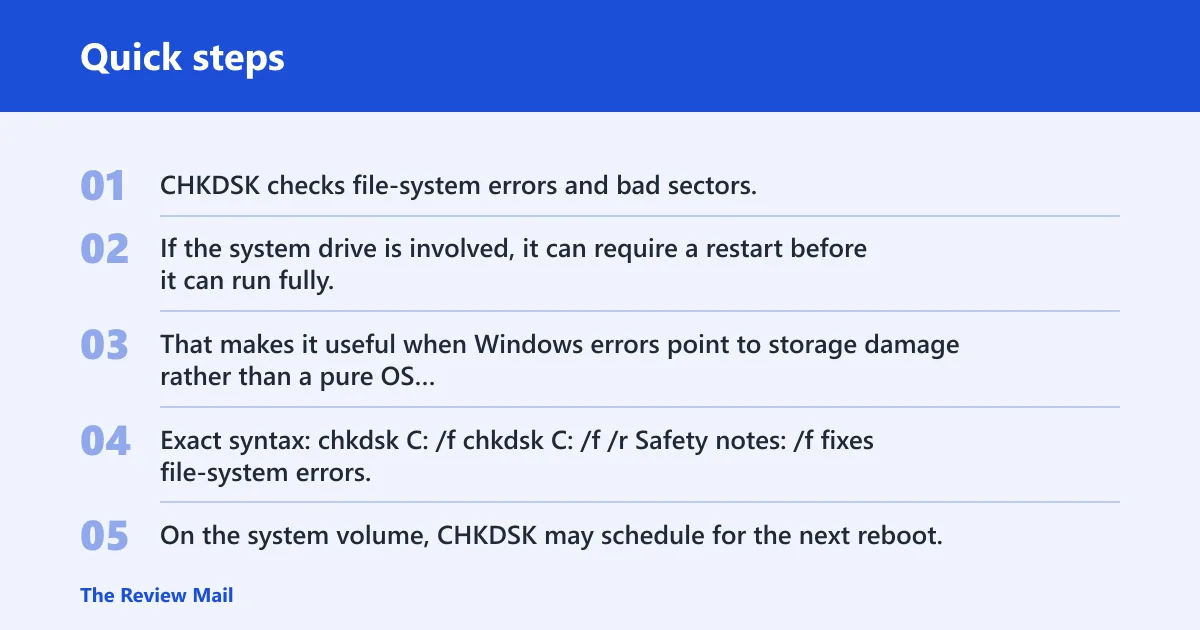
CHKDSK checks file-system errors and bad sectors. If the system drive is involved, it can require a restart before it can run fully. That makes it useful when Windows errors point to storage damage rather than a pure OS file problem.
Exact syntax:
chkdsk C: /fchkdsk C: /f /rSafety notes: /f fixes file-system errors; /r also scans for bad sectors and attempts recovery, which makes it slower and more stressful on a weak drive. On the system volume, CHKDSK may schedule for the next reboot. Stop and back up immediately if CHKDSK repeatedly reports new bad sectors, because that pattern points to possible disk failure rather than a Windows-only corruption problem.
EaseUS notes that built-in Windows tools like CHKDSK can repair USB corruption, and that corruption repair is often paired with data recovery. That is a useful reminder: if disk structure is damaged, repair and recovery should happen together instead of one after the other.
Use Reset this PC only after smaller repairs fail
Reset this PC is the recovery path to use after SFC, DISM, CHKDSK, and WinRE repairs have not solved the problem. A keep-your-files option may be available, but that does not mean the machine comes back unchanged. Apps and settings may still be removed.
Exact path: Settings > System > Recovery > Reset this PC, or from WinRE Troubleshoot > Reset this PC. Microsoft documents this as a recovery method when other repair options fail. [Microsoft: Reset this PC].
Safety notes: Back up first. Even with Keep my files, Windows can remove apps and reset settings. If malware is involved, scan before resetting so you do not preserve a compromised environment or reinstall from a dirty state.
Windows Security matters here too. Microsoft recommends it if malware or a suspicious app is involved. If a malicious process caused the damage, resetting before scanning can leave the real problem in place or make the repair result look clean when it is not.
When is an in-place repair install better?
An in-place repair install is better when the Windows installation itself is deeply damaged but the machine still reaches setup or can boot far enough to run the installer. It can preserve files and installed apps when the installation source matches Windows 11, which makes it a stronger option than reset for preserving the current setup. Microsoft positions this as repair over reinstall when the goal is to repair Windows while keeping apps, files, and settings where possible. [Microsoft: Repair install / in-place upgrade].
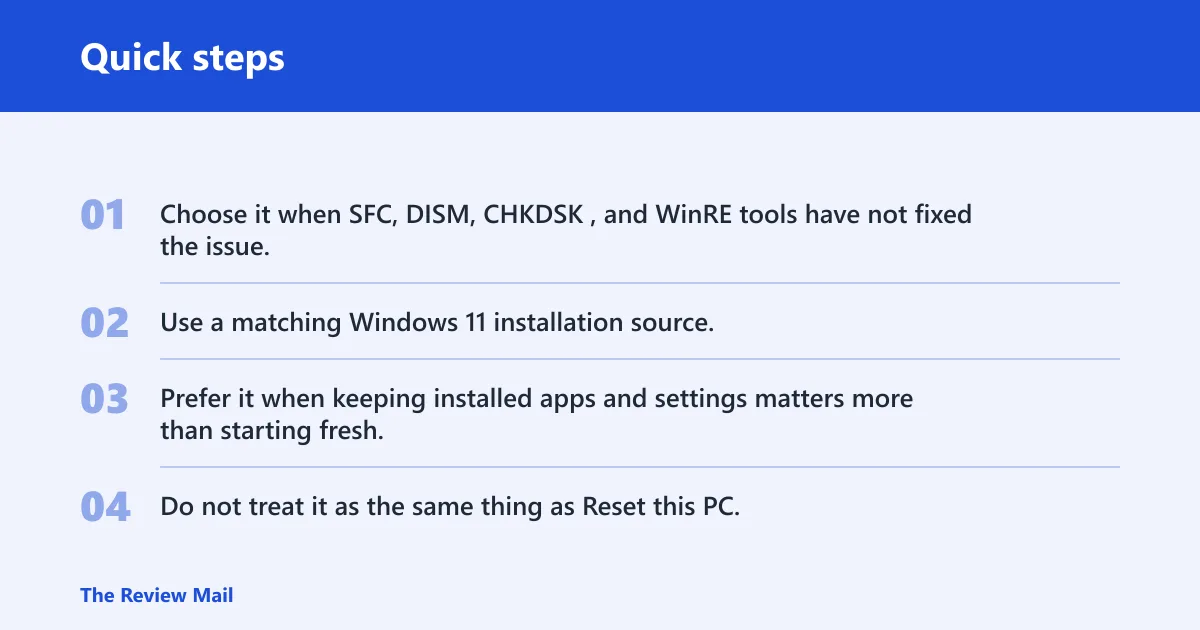
Use it when you want to preserve more
- Choose it when SFC, DISM,
CHKDSK, and WinRE tools have not fixed the issue. - Use a matching Windows 11 installation source.
- Prefer it when keeping installed apps and settings matters more than starting fresh.
- Do not treat it as the same thing as Reset this PC.
Exact repair-install approach: launch the Windows 11 Setup program from matching installation media or an ISO while Windows is running, then follow the on-screen prompts for the repair/upgrade path. Use the same language, edition, and architecture as the installed system. If the installer offers to keep personal files and apps, that is the in-place repair route; if it does not, stop and verify the media matches the installed edition.
Safety notes: This is not a backup substitute. Keep a separate copy of important files before you start, and do not use mismatched media if you need to preserve the current installation. If the system is unstable because of disk errors or malware, fix those first; otherwise, the repaired installation may fail again.
An in-place repair install is not a shortcut around backup. It is a different repair path with different preservation behavior. It is often the better choice when the OS is badly damaged but the app set and settings still matter.
Microsoft support materials apply to both Windows 11 and Windows 10, and Microsoft says Windows 10 support ended on October 14, 2025. If you are repairing an older machine and the problem pattern looks similar, the repair sequence is still the same, but the support context is different. (Microsoft Support)
Frequently asked questions
How do I fix a corrupted Windows 11 update?
Start with the Windows Update troubleshooter, since Microsoft says it can fix corrupt registry keys that control update data. If the update still fails, move to SFC and DISM, because the failure may involve system files or the Windows image rather than the update cache alone. If update rollback leaves startup damage, move into WinRE and run Startup Repair. [Microsoft: SFC], [Microsoft: WinRE].
How do I repair a corrupted Windows 11 profile?
Try signing in with another administrator account if one exists, then back up the affected files from the broken profile. If the profile itself is damaged, creating a new profile is often safer than forcing the old one to keep loading. System file repairs can help only if the profile damage is part of broader corruption. Profile corruption often overlaps with registry or user-state issues, so use the existing profile only after you confirm Windows files and storage are healthy. [Microsoft: Reset/Recovery].
Should I use SFC, DISM, CHKDSK, or Reset this PC first?
A common order is to use SFC first for protected system files, DISM when SFC cannot fully repair the Windows image, CHKDSK when file-system errors or bad sectors are suspected, and Reset this PC only after those options fail. That order reduces risk and helps you match the tool to the symptom instead of guessing. Microsoft’s guidance supports that least-destructive progression across file repair, image repair, startup recovery, and reset-based recovery. [Microsoft: SFC], [Microsoft: WinRE], [Microsoft: Reset/Recovery].